System
15.8 Media Manager Monitor
WHAT IS A MEDIA MANAGER MONITOR?
The MEDIA MANAGER MONITOR section monitors which MEDIA MANAGER SERVICES are running, what they are doing and how they can be managed.
MediaManagerMonitor.jpg
HOW TO ADD A NEW MMS?
To add a new MMS in the appropriate box, follow these steps:
- Click on the add button
- Select from the drop-down menu the workstation where MMS is running (in this menu, the system will only show the list of workstations where MMS is installed)
- Click on add
- Now, the newly added service will appear in the selected box
HOW TO REMOVE A SPECIFIC MMS?
To remove a specific MMS from its box, you must click on the correct X button; the button is used to remove the service display from the panel on Media Manager Monitor.
RemoveMediaManagerService.jpg
WHAT INFORMATION DO WE FIND IN EACH MMS BOX?
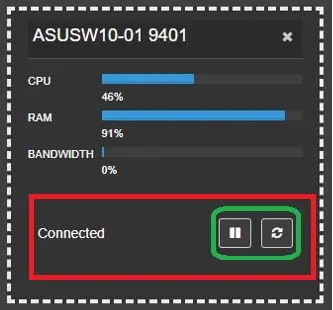
In each box relating to each MMS, we can find the following information:
- CPU: It displays the percentage of the system's central processing unit (CPU) used by the action.
- RAM: It displays the random-access memory (RAM) the current action utilises.
- Bandwidth: It shows the data transmitted via a network connection in measured time.
HOW TO PILOT EACH MMS?
The main commands that we can send from the WEB to a specific service are:
- "PAUSE" button -> pauses the service in the relatively selected workstation.
- "REFRESH" button -> is used to update the queue of jobs in progress in the window below
CommandsToSendToMediaManagerService.jpg
WHERE CAN WE MONITOR THE CURRENT ACTIONS?
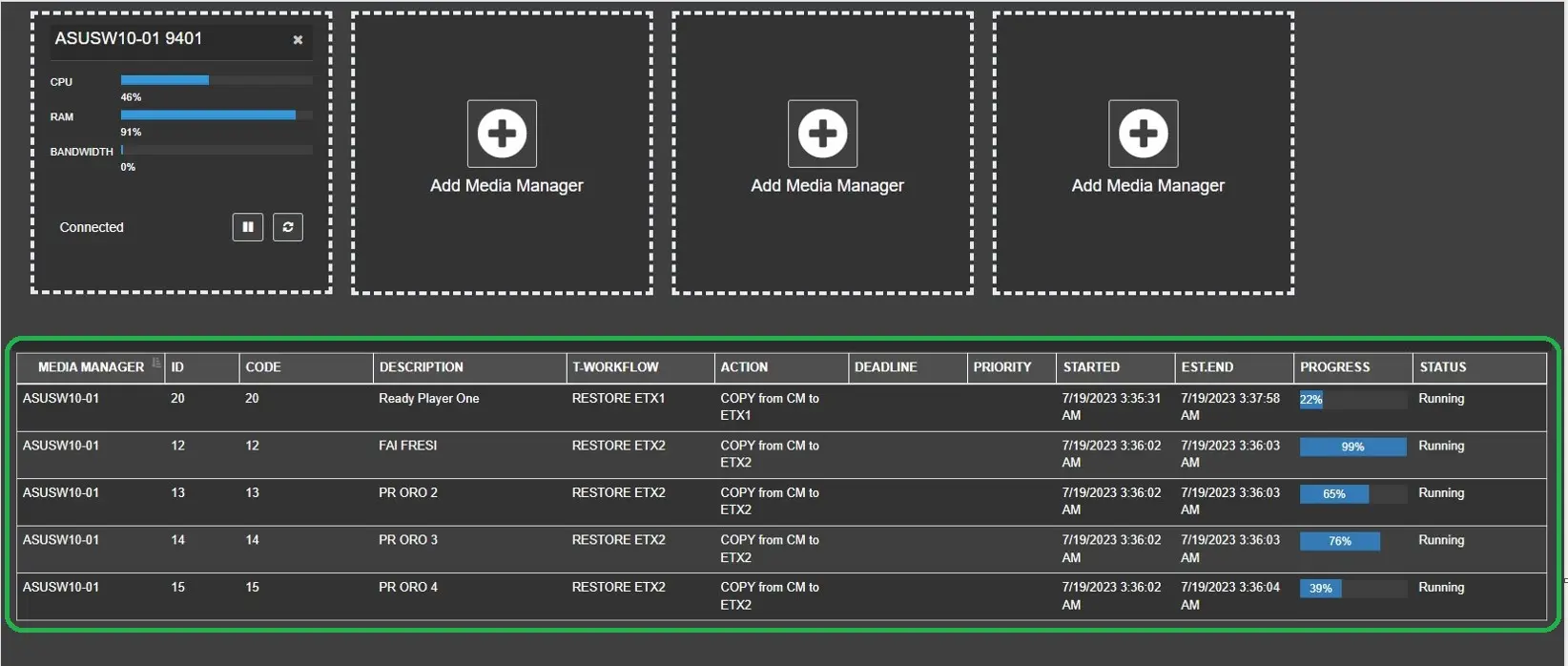
Once the MMS you want to monitor has been selected, Etere Web will show at the bottom centre all the actions that the related service is processing, and the following information will be shown in the appropriate columns:
- Media Manager: The name of the Media Manager server.
- ID: The job ID assigned to the action.
- Code: The asset code of the processing asset.
- Description: The description of the asset.
- T-workflow: The name of the T-workflow launched to execute the action.
- Action: The name of the action embedded in the workflow.
- Deadline: It displays the expiring date of the action, if any.
- Priority: It displays the job priority set on the action, if any.
- Started: The date and time when the process is started.
- Est.End: The estimated time to complete the selected action
- Progress: Shows the percentage of progress of the action.
- Status: The current status of the monitored process.
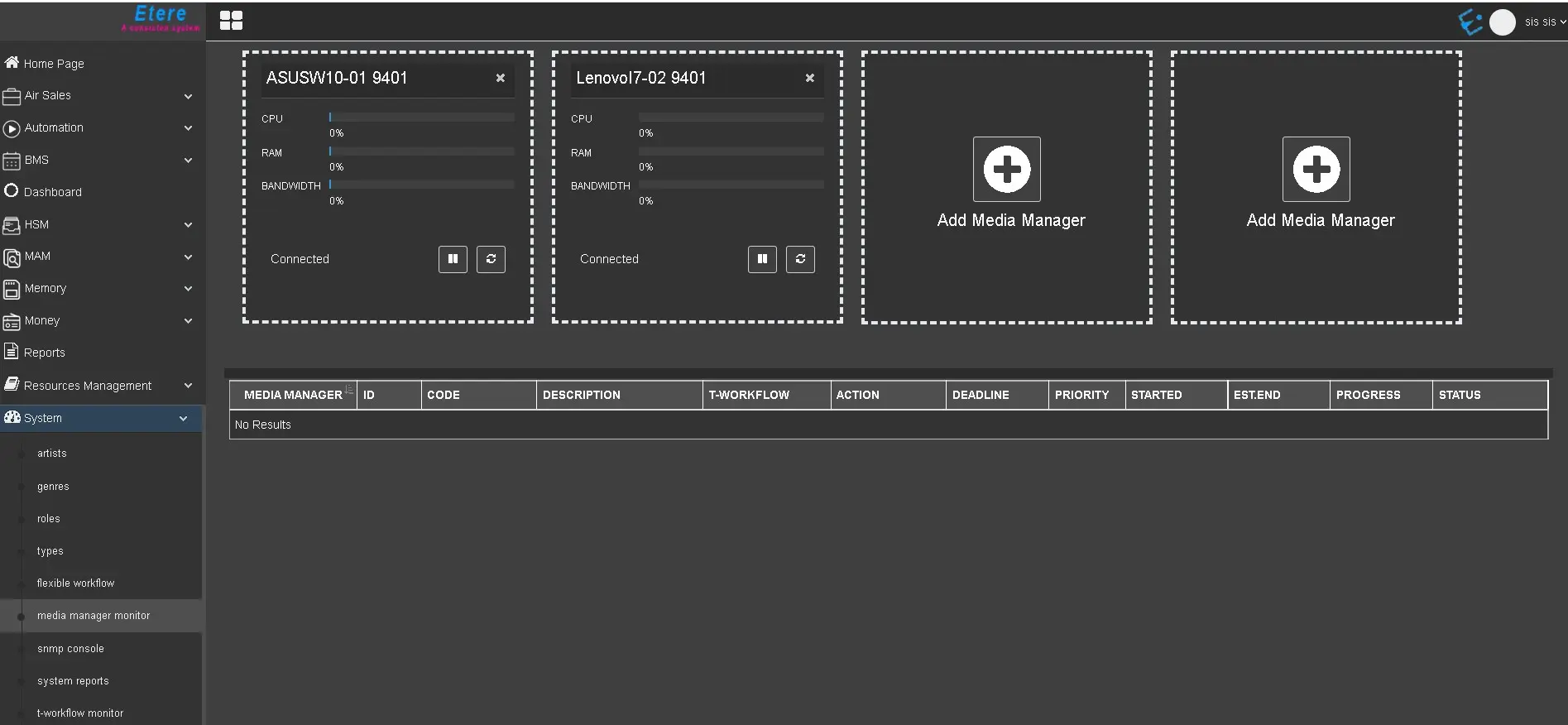 MediaManagerMonitor
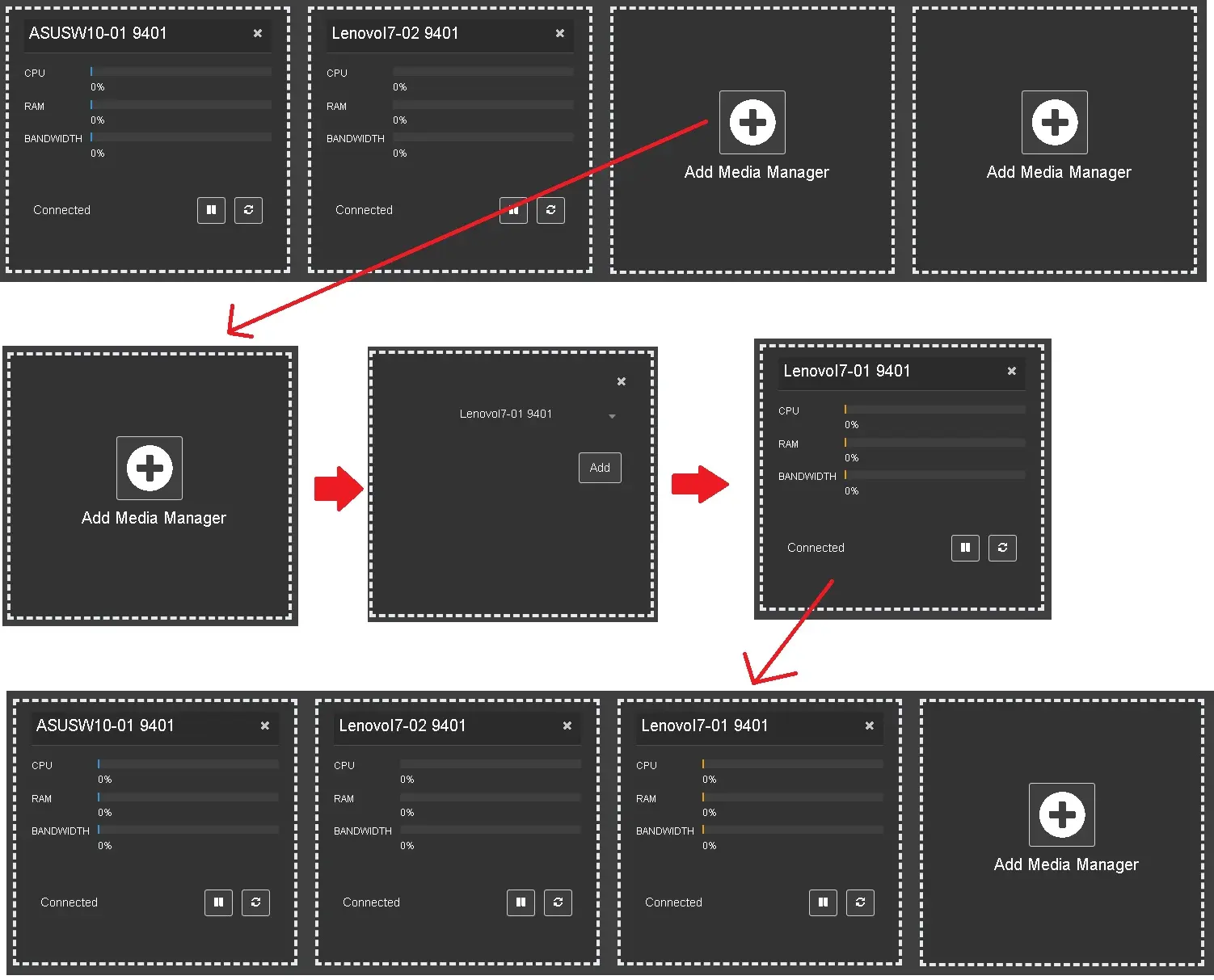 AddNewMediaManagerService
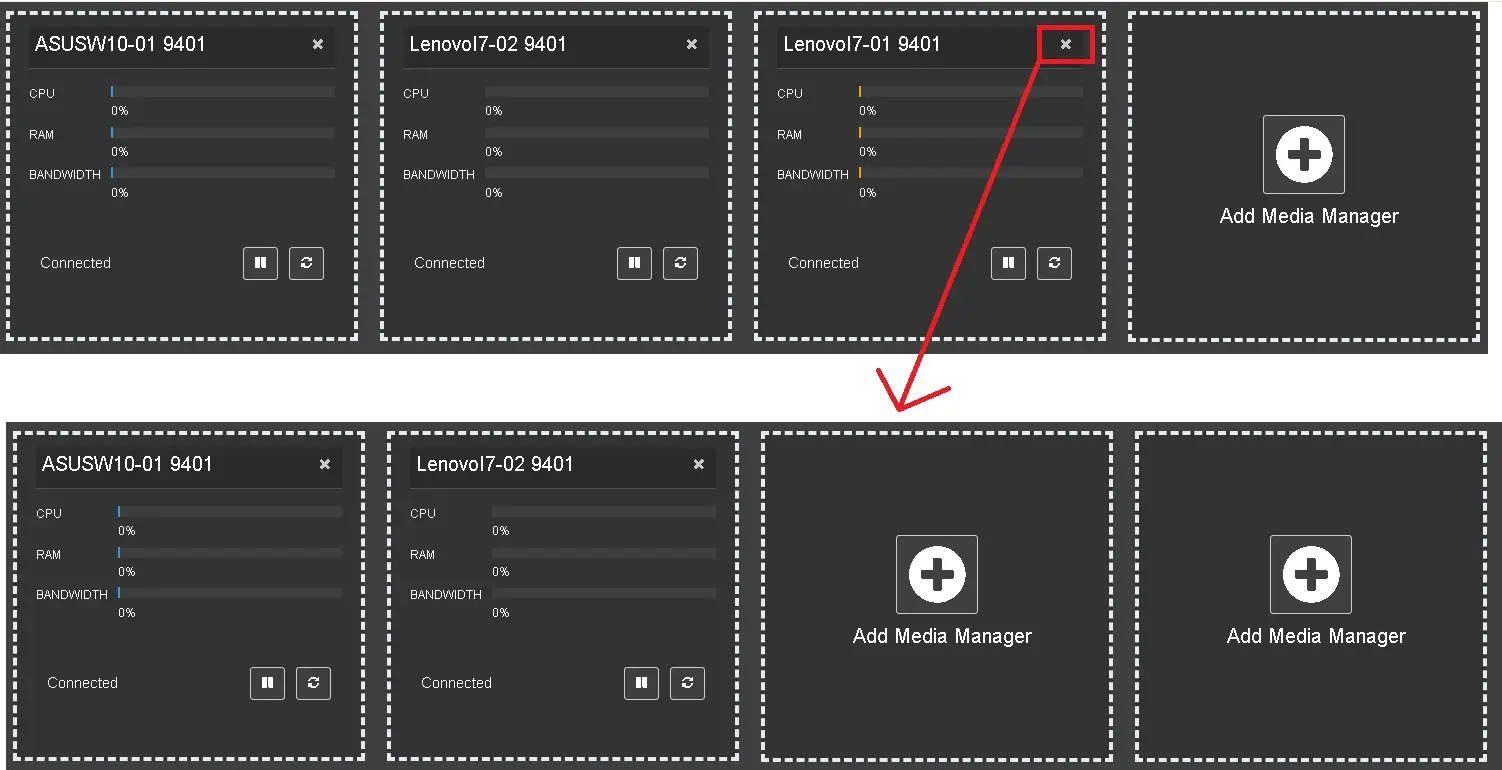 RemoveMediaManagerService
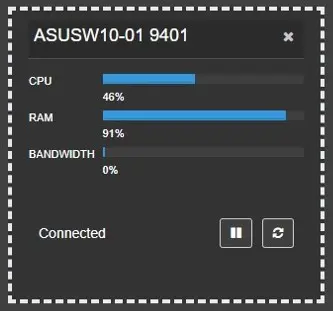 BoxMediaManagerService
 CommandsToSendToMediaManagerService
 InformationAboutMediaManagerService