73.4.2.2 Browsing Memory Files
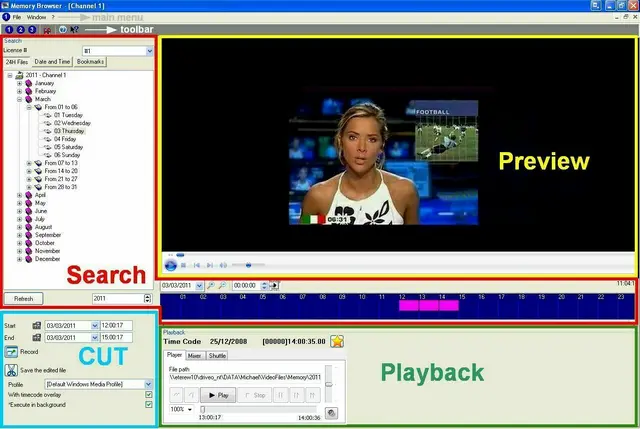
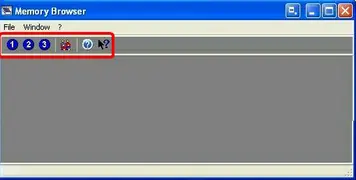
Once the station is selected, all the browsing functions are displayed in the left panel of the main window, these functions can be divided into 4 different groups:
Memory Browser 1
Search Area
Before starting the search, the station license must be selected to search all files that recorded using the station license. After selected the station license, the operator can search all files that have been recorded by Etere Memory using that license; these files can be filtered using the following tabs:
License # - First, if there are different emissions from the station, select the station license used to record the memory file.
Main / Backup - Specify the Main assets or Backup assets to be search, and it relative physical path to be searched, or select “Both” to search assets in both Main and Backup paths.
Codec - Search assets by it selected codec. If “Any/None” is selected, or there is file in the selected codec, the asset’s physical paths would be searched.
Encoder No. - If there are multiple encoders configured in the station, select the encoder that record the memory asset.
24Hs Files - Browse the entire archive of recorded files, sorted by recording date. Use the 'refresh' button to update the list with newly ingested files.
Date and time - Use the date and time function to search for files that recorded on specific data and time.
When searching for files to be exported using the “Export Files” function, the maximum date range allowed is limited to one year.
Bookmarks - You can search the recorded file using bookmarks. Bookmarks are comments added to the recorded files. The search results can be displayed in a list, with icon and thumbnails retrieved from Do.Ma database.
In the Search Area, when user select a date while searching for assets, the Memory Browser would populate the timeline of the selected date and starts searching for assets created by Memory in database (with asset type ”MEMO”), if the files are not found in database, the process search the assets in the recording paths. The search would also include corrupted assets count in database. If assets is flagged “Not OK to Broadcast” it would not be included in the search results.
From the search results, you can play a recorded file by double-click on the file and it would be loaded and play in the 'Preview' area. Alternatively, use the "timeline" tool that provides quick access to recorded files, this area displays the online memory files and archived memory files recorded within the selected date and time:
Play a recorded file
As shown in the image above, by right-click on certain time slot, it is possible to play (the recorded video will be loaded in the preview area) or restore (a red up arrow will indicate that the restore is in progress) the memory files.
When loading the recorded file, a process bar would appeared in the Preview window indicating the file loading in progress.
Process bar
During the file loading process, if another recording date is selected or the application is closed by user, the file loading process would be terminated.
When the video playback reached the end of the file, Memory Browser would start playing the next available recorded file present in the timeline.
NB: Memory files generated before Etere version 28.2 would had local time (date and time) indicated in filename (e.g. MEM001M-20180912-162159B.mp4), the date and time in filename has been changed to UTC time (e.g. MEM001M-20180912Z142159B.mp4) from Etere version 28.2 onwards, where the local time is hours ahead of UTC time depending on time zone. When preview Memory files, the Preview Browser would read both files (Local time and UTC time) and load the correct file for preview.
Select Main/Backup Path
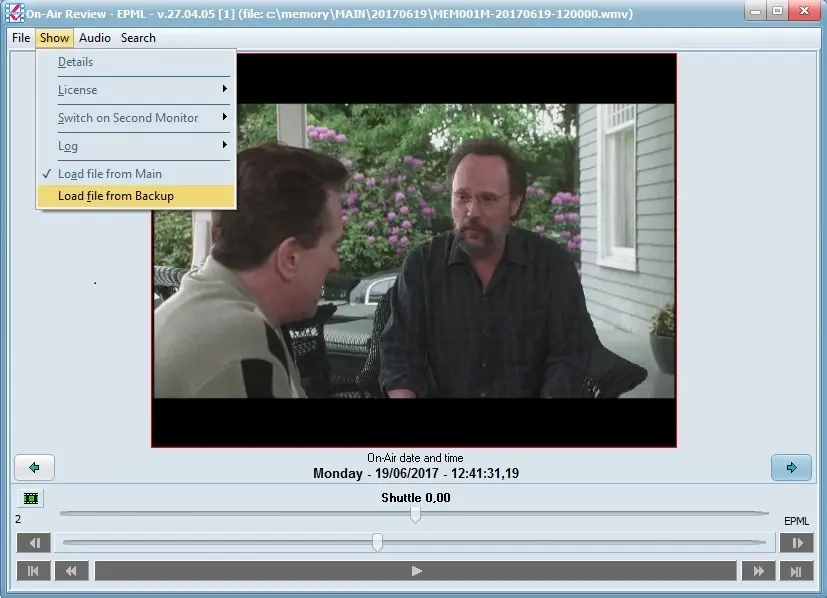
When browsing memory file, you can select to view the file from the main path or backup path by simply click on the "Show" toolbar function and select to “Load file from Main” or “Load file from Backup”.
Load file from Backup
Preview Area
The 'Preview' area shows the preview of selected video files. Additionally, by right-click on a loaded video preview, it is possible to access to the playback functions supported by the Microsoft Windows Media Player application, these functions include:
Play/Pause - Plays or pauses the video file.
Stop - Interrupt the video playback,
Play speed - Select if the video would be played with a normal speed (default), faster speed or a slower speed.
Volume - Adjust the playback volume.
Zoom - Set the video to be played at full-screen, 50%/100%/200% zoom ratio,
Property - View the duration, aspect ratio, audio codec, video codec, file path, etc.
Playback Area
Once a recorded file has been selected, under the 'Playback' area user can perform various media-related operations such as:
Timecode - Enable to view timecode related info of the current file (e.g. date, time, etc).
Bookmark - Use this option to bookmark the current frame of the file and insert a comment.
Player - Displays the path to the video file, and allows the most common playback functions such as play, pause, stop, forward, rewind, next frame, previous frame, volume, mute and others:
When browsing Memory files, Memory Browser would retrieved the files in Main and Backup paths to verify if the memory files were synchronized, by browsing the files at the same time.
Memory Browser 2
Memory Browser 3
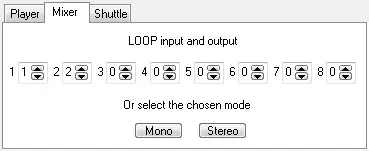
Mixer - Contains an audio mixer, useful if recordings with several audio channels, allowing to choose between mono and audio modes:
Mixer
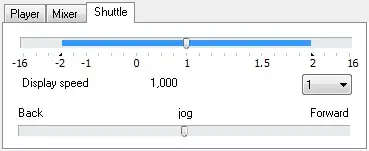
Shutter - Provides Jog & shuttle functions for playback of the current video file:
Shuttle
Cut Area
Position at the lower panel of the window, it allows to perform the following timecode-based operations on loaded video file:
Start date&time/End date&time - Specify the period for which memory files would be cut.
NB: Please note that in order to be exported, the selected period must be ENTIRELY covered by memory files, export would not allowed if there is empty space in the file.
Read the device SOM position - Retrieve the current video file 'SOM Timecode' and set it as either the start or the end of the video segment.
Record - View the selected video segment (from SOM to EOM) on a separated screen, including its timecode overlaid.
Save the edited file - Launches a (background) process to create a new video file containing the video segment delimited by the SOM and EOM set values. User is required to provide the directory to save the file. The deafult filename format proposed by Etere Memory Browser consists of:
MEMXYZN-YYYYMMDD-HHMMSSZ.wmv
where:
▪MEM: Indicates that the recording corresponds to a Memory file.
▪XYZ: Identification number of the station that the video file has been created (e.g. 001, 002, 003, etc).
▪N: License number used for the recording. It may be either a main license (M=1°, N=2°, O=3°, P=4°, etc) or a backup license (B=1°, C=2°, D=3°, E=4°, etc).
▪YYYYMMDD: The date (year, month, day) the video has been recorded (e.g.: 20100824).
▪HHMMSS: Recording time (hour, minute, second) the video has been recorded (e.g. 131300).
▪Z: It indicates that the recording time is expressed in UTC time.
On the Encoder Profile to be used, the following options are available:
New - Create a new encoding profile to be used for recording. You can refer to a list of profiles includes the default Windows Media profiles and the ones presented in the Windows Media Encoder folder (e.g. C:\Program Files\Windows Media Components\Encoder\Profiles\).
For information on how to create custom media encoder profiles, please refer to the Encoder Configuration chapter.
Edit - Select an encoder profile from the list of existing profiles and edit its properties, e.g. set the output file format. The available output profiles listed here is in line with the common profiles used by Etere Transcoder.
Save As - Modify an existing encoder profile and save as a new profile and assign a name to the profile.
Delete - Simply delete the selected encoding profile.
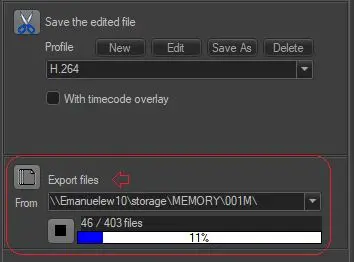
Once the process starts, a progress bar would be displayed in the bottom left panel, with a [Stop] button to abort the process if necessary.
When cutting Memory files, the files are determined in following sequence:
•Only suitable Memory assets are selected.
•Selected Assets must fulfill the entire time frame specified in the Start date/time and End date/time.
•If no Memory asset is available, assets in Memory folder in the workstation would be searched.
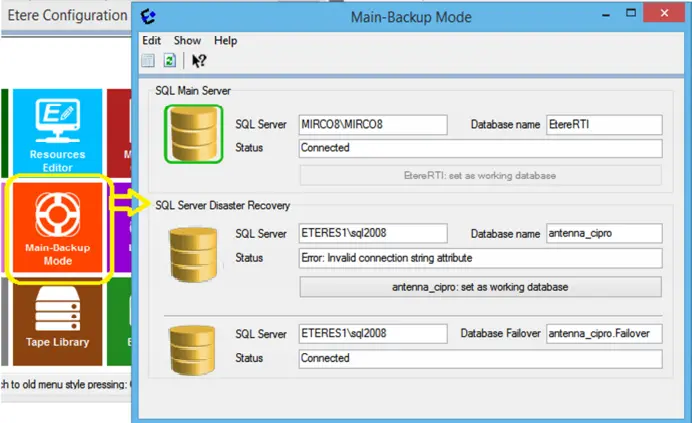
You can set the SOM and EOM, define the Main and Backup paths and save the video file into Main and Backup paths at the same time, as illustrated below.
Main and Backup
Export Files - The Export Files function enable you to export Memory files from specific date folders to a different drive (e.g. USB drive) based on the date range specified in the “Start date / time” and “End date / time” parameters, with the maximum interval of one year.
Export Files
The exported Memory files in date folders would be renamed to local date and time format (which is Windows time) for customer reference and enquiries purposes. Any duplicate file exported to the drive would have an “A” appended to the file name.
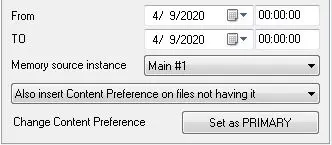
Change Content Preference - This section allows to change the Content Preference for further Memory instances, in addition to Main and Backup instances.
Change Content Preference
•From – To: Enter the specific date and time range where changes would take effect.
•Memory source instance: Select the source Memory instance to apply the change.
•Select one of the option to insert Content Preference:
Only update files already having the Content Preference
Also insert Content Preference on files not having it
•Change Content Preference: Execute the function to set the instance as Primary.
 Memory_Browser_2
 Export_Files
 Memory_Browser_1
 Main_and_Backup
 Process_bar
 Load_file_from_Backup
 Change_Content_Preference
 Mixer
Mixer
 Play_a_recorded_file
 Shuttle
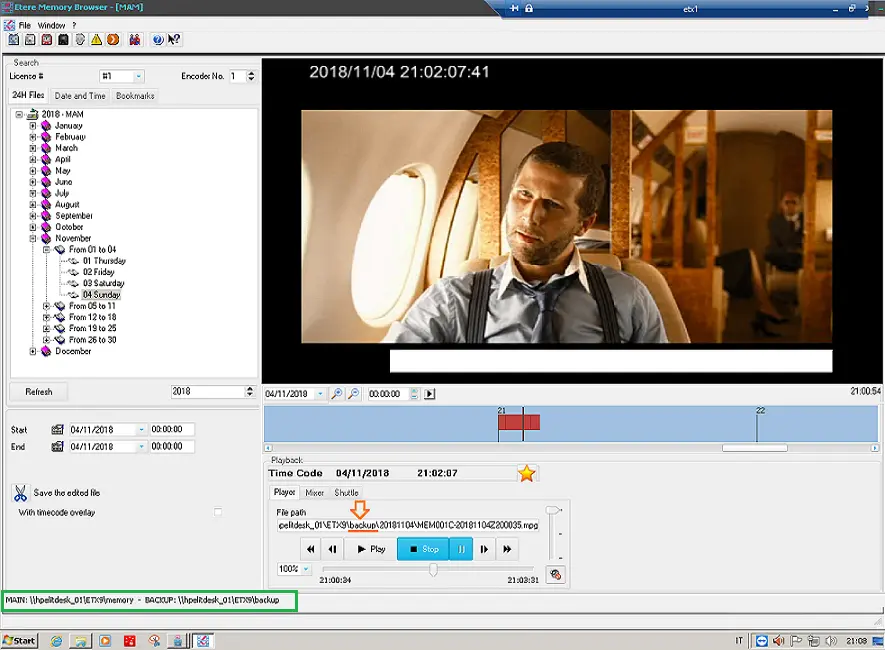 Memory_Browser_3