91.5.1 Etere Graphics Editor
This chapter preview the existing graphics assets in Graphics Editor. For creating and editing of new graphics asset you can refer to ETX-G Graphics Editor chapter in ETX-G manual.
Graphics sample # 1 - Animated Logo
Radio-live_playout_graphic_editor_1
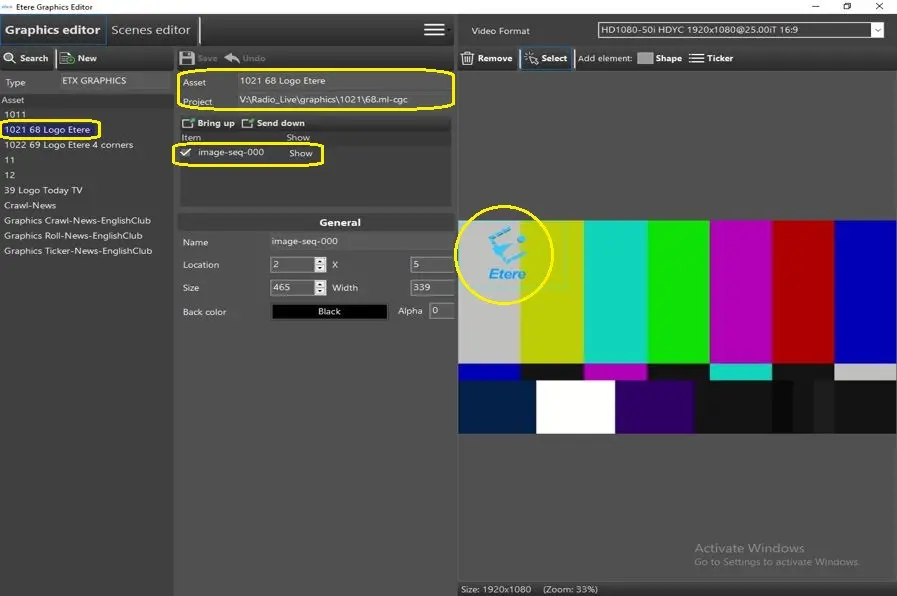
•Select the graphics asset from the Search panel for preview.
•The graphics asset name and source project file are indicated in the middle panel, as well as the general properties of the graphics asset.
•You can use option “Bring up” or “Send down” to position the graphics in the Preview window.
•The graphics is displayed in the right panel, where you can select an available video format to preview the graphics.
•In the General section, you can align the scene position by setting the X and Y axis using the Location parameters.
Graphics sample # 2 - Crawling Ticker
Radio-live_playout_graphic_editor_3
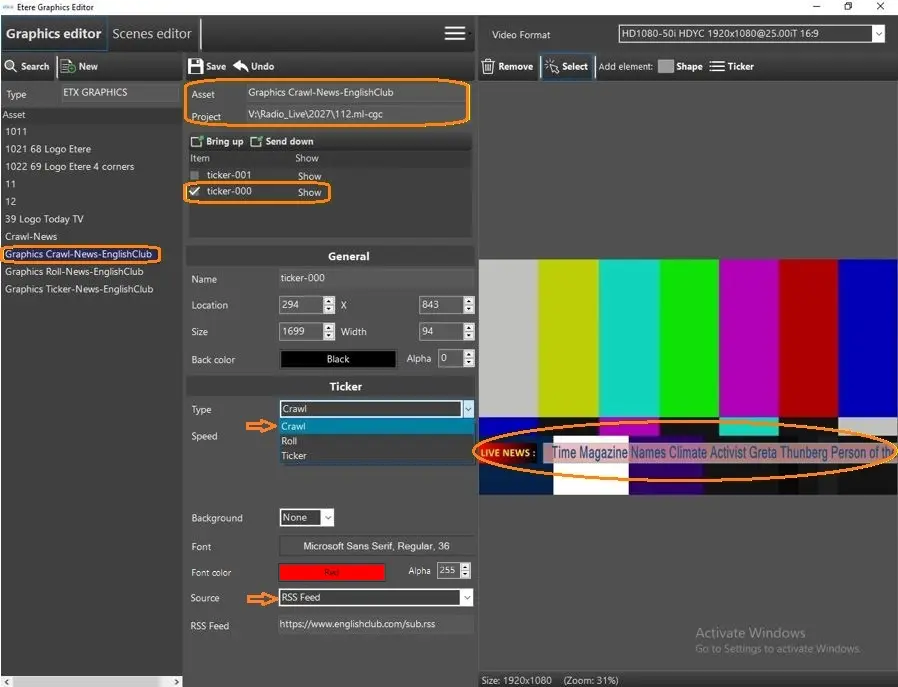
•Select the graphics asset from the Search panel for preview.
•The graphics asset name and source project file are indicated in the middle panel, as well as the general properties of the graphics asset.
•You can use option “Bring up” or “Send down” to position the graphics in the Preview window.
•In Ticker section, select “Crawl” to view the crawling ticker in graphics asset.
•Set the ticker text font and color with the Font and Font color parameters.
•In Source parameter, select “RSS Feed” as source format and indicate the RSS Feed's source Web site to deliver Web content that changes regularly.
•The updated graphics (crawling ticker) is displayed in the right panel, where you can select an available video format to preview the graphics
Graphics sample # 3 - Rolling Ticker
Radio-live_playout_graphic_editor_4
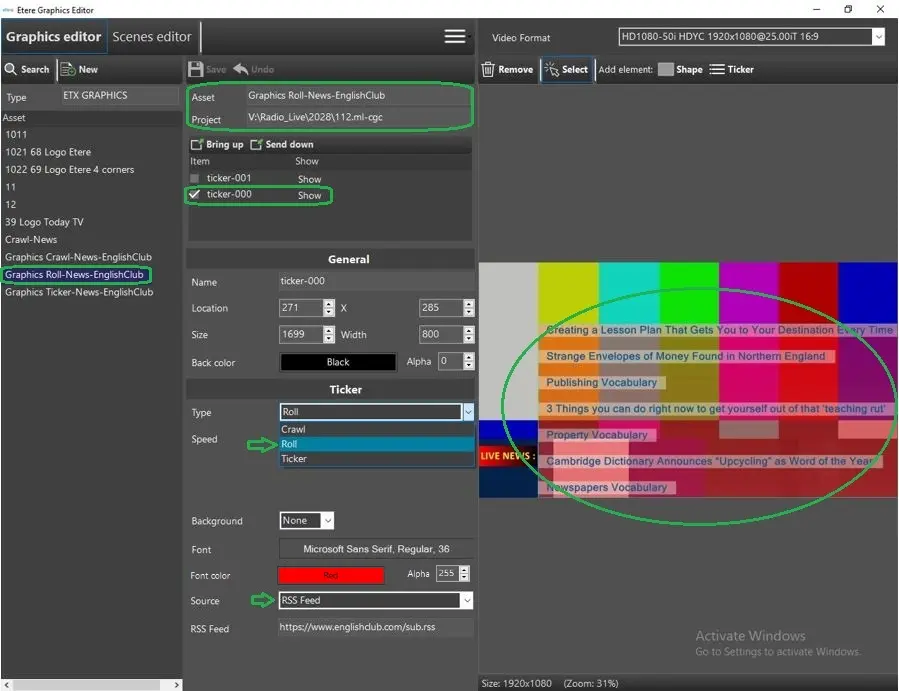
•Select the graphics asset from the Search panel for preview.
•The graphics asset name and source project file are indicated in the middle panel, as well as the general properties of the graphics asset.
•You can use option “Bring up” or “Send down” to position the graphics in the Preview window.
•In Ticker section, select “Roll” to view the rolling ticker in graphics asset.
•Set the rolling ticker text font and color with the Font and Font color parameters.
•In Source parameter, select “RSS Feed” as source format and indicate the RSS Feed's source Web site to deliver Web content that changes regularly.
•The updated graphics (rolling ticker) is displayed in the right panel, where you can select an available video format to preview the graphics
Graphics sample # 4 - Horizontal Ticker
Radio-live_playout_graphic_editor_5
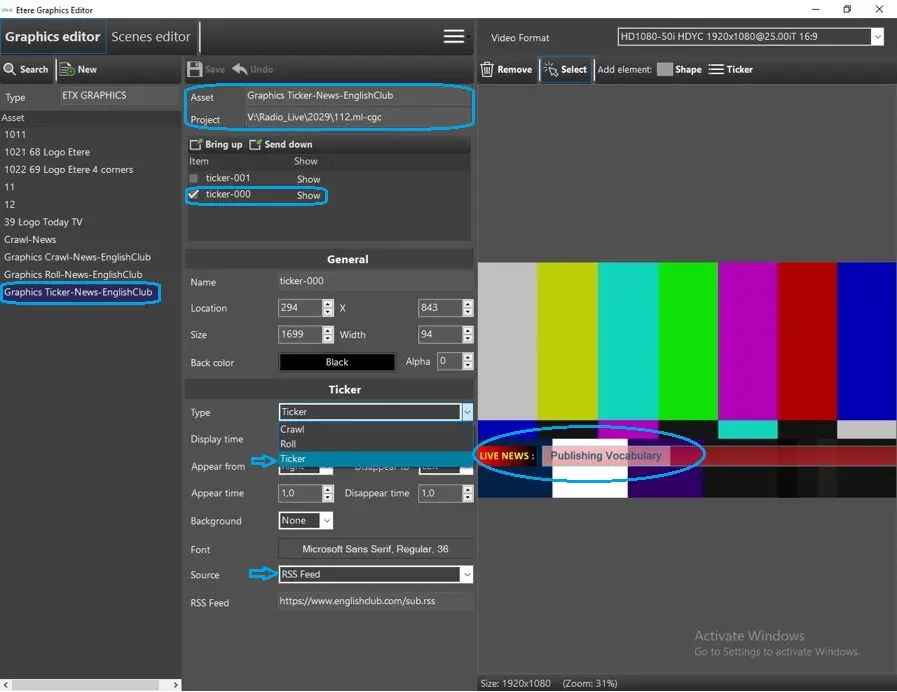
•Select the graphics asset from the Search panel for preview.
•The graphics asset name and source project file are indicated in the middle panel, as well as the general properties of the graphics asset.
•You can use option “Bring up” or “Send down” to position the graphics in the Preview window.
•In Ticker section, select “Ticker” to view the still ticker in graphics asset.
•In Source parameter, select “RSS Feed” as source format and indicate the RSS Feed's source Web site to deliver Web content that changes regularly.
•The updated graphics (horizontal ticker) is displayed in the right panel, where you can select an available video format to preview the graphics
For information about the ETX-G Current event and ETX-G Next event, refer to the chapter 66.8.0.0 Create ETX-G Current Event and Next Event Templates.
 Radio-live_playout_graphic_editor_4
 Radio-live_playout_graphic_editor_3
 Radio-live_playout_graphic_editor_1
 Radio-live_playout_graphic_editor_5