59.7 Resources Editor
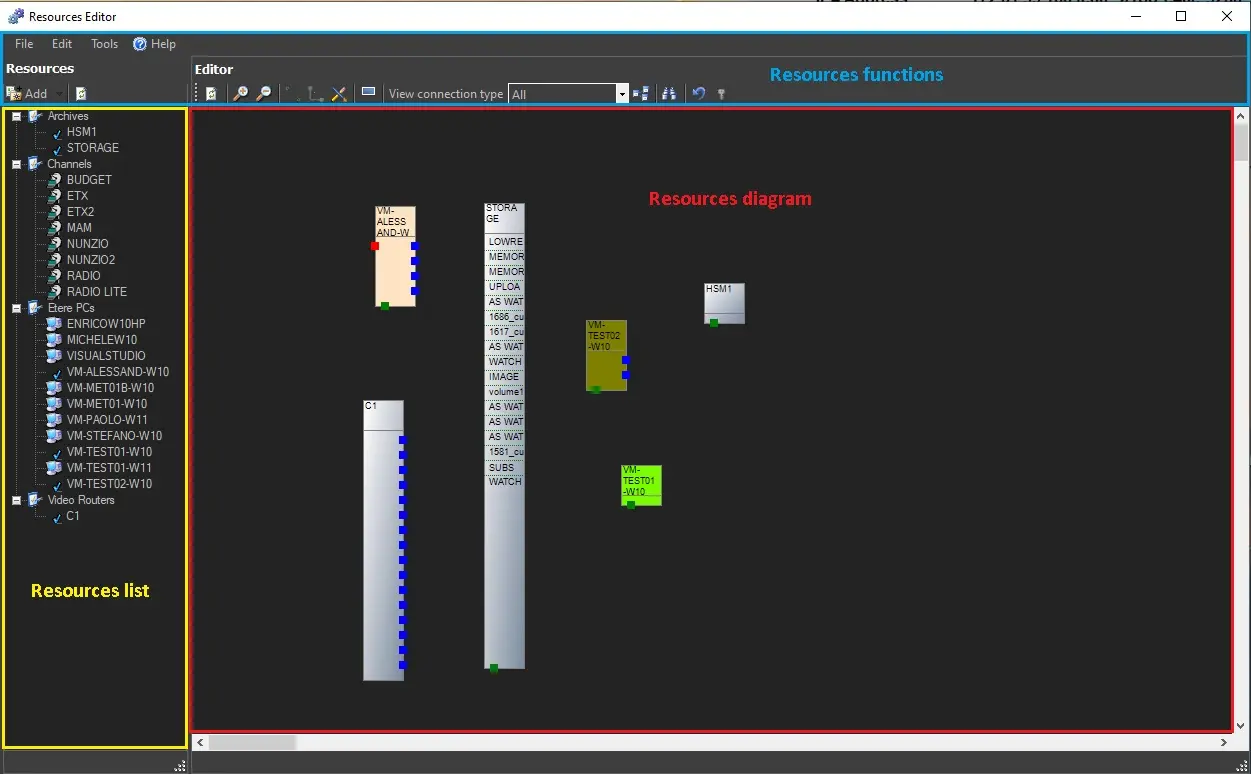
Opening the "Resources Editor" application, you are presented with a window mainly composed of the following parts:
Resources List - Located in the left panel of the window, this area displays all the resources inserted and configured in the resources map, allowing the user to insert or modify existing resources.
Resources Diagram - Positioned in the right panel of the window, this area shows the resource diagram, allowing design and editing through a simple drag & drop mechanism.
Resource functions - Placed in the top panel of the window, this area shows all the functions available for managing resources within the system.
resources_editor
NB: When the Resources Editor is opened for the first time, the only resources available are the Channels (i.e. stations) and Workstations (i.e. PCs).
NB: The file logging in Resource Editor is streamlined to speed up the process loading time; the log file would be reset if the recorded log data exceeds 2MB in file size.
Notes
- Resources Monitor requires Microsoft .Net Framework 3.5 or higher (and the latest service pack) to be locally installed.
- To install Etere released version 27.3 or higher, Microsoft .Net Framework 4.2 or higher is required.
- From Etere released version 28.1 onwards, Microsoft .Net Framework 4.5 is required.
Available Resource Licenses
When the Resource Editor module is launched, based on the resource licenses available in the workstation, a warning message will be prompted to alert the user if license codes exceed the expiry date or are unavailable in the workstation.
The popup message displays the resources that exceed the maximum license allowed or which value date is expired. You can click <OK> to view all codes and remove the obsolete ones from the workstation.
The information displayed includes:
• Name: The name of the resource code
• Group code: The name of the license where the resource is grouped
• Total License max: The maximum value available in the license for the resource class (e.g. video server, logo generator, etc.)
• Total license found: The number of devices configured in Etere installation.
You can select one or multiple codes from the display and click the "X" button to remove the selected codes from the workstation.
NB: You can compare the resource license list with the license codes retrieved from Configuration -> Help -> About-> Properties.
 resources_editor