84.2.6.4 Video Assist - Set the Main Server
Configure the resources
Besides of being defined in the Video Assist system, the MTX device to be used needs to be configured in the main Etere system, this for allowing video files related to scheduled events to be automatically transferred (via workflow) to the MTX device.
The configuration process is the same as described in the previous chapter for the Video Assist system; further information on how to install and configure MTX devices can be found in its dedicated chapter : Etere MTX.
Set the scheduling parameters
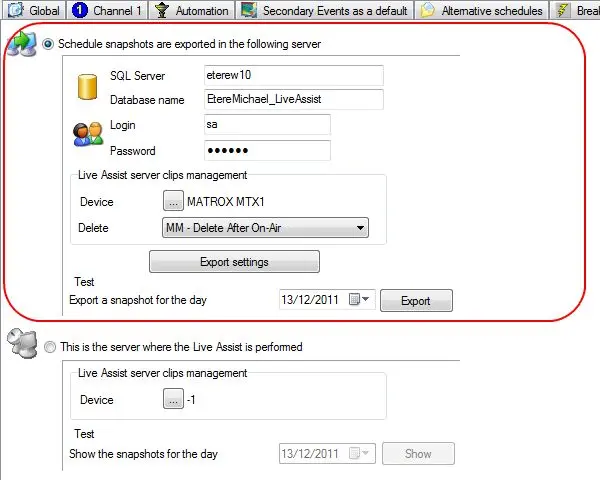
The next step consist on going to the Etere Configuration | Settings | Executive Editor | Schedule Parameters | Video Assist section, selecting the 'schedule snapshots are exported in the following server' option and compiling the following parameters:
5027_Schedule_snapshots
Database
•SQL Server: Enter the name of the server where the Video Assist database has been installed,
•Database Name: Indicate the exact name of the database placed inside the SQL Server specified above. In case the database is new (i.e.: recently created), it might be necessary to perform a system maintenance on it as explained in the previous chapter.
•Login and password: Indicate the credentials to be used for performing the login in the main database and the Video Assist database. Please note that, since data transactions are effected in both senses, credentials specified here must be valid for both databases.
Device
•Video Assist server clips management: Indicate the -Etere MTX- resource to be used by the Video Assist server for playout.
Please note that once selected, the resource must be configured under the "Etere Configuration > Settings EE > Schedule parameters > Automation" as follows:
5028_Automation
- In the "Restore clips scheduled in the playlist" parameter, set the workflow to be launched for transferring scheduled assets' files to the play out video servers (including the MTX device used by the Video Assist server).
- In the "Restore the clips also in the following devices" panel, select the MTX device used by the Video Assist server for the playout in order to indicate that scheduled asset's media must be restored in case they are not present in the selected devices (besides that in the main and clone devices).
Please notice that Etere Aligner must run in the main server in order to launch the restore workflow each time an asset scheduled in the main server is close to its broadcast time.
•Delete: Set the workflow to be launched on the main server for cleaning up video files from the Etere MTX device.
The deletion workflow is automatically launched by Etere F90's Video Assist Standard Export, when an asset is no longer scheduled on any video assist snapshot, and therefore no longer required on the MTX video server.
The deletion workflow must be based on an "Asset File Delete" action to allow the Etere Ingest's Operation by workflow module to physically delete the file.
NB: Please note that workflows used for restore and deletion must contain a "video assist" action placed after the restore/deletion action, this, for updating the asset's media on the Video Assist server.
Update
•Export Settings: This button will update -by copying- in the Video Assist database all the asset types and icons present in the main database.
Test
•Export: Use this button to test the configured Video Assist system by exporting a snapshot (i.e.: schedule and related events) of a certain day from the main database to the Video Assist database, a message will indicate either the success or failure of the test.
Etere database tables involved in this operation are TPal (programs schedule) and TSec (scheduled secondary events), events of the main TPal table are copied in the Video Assist TPal table specifying a schedule level that goes from 3000 to 3999.
NB: Please note that the proper export of broadcast schedules is in charge of the Etere F90 application, which must run on the main server and will periodically export the schedules from the Main server into the Video Assist server.
 5027_Schedule_snapshots
 5028_Automation