How to produce subtitles
72.7.2.12 How to create ".JSON" File
Follow the steps described below to create a ".JSON" file to be used for Google Speech Recognition:
- Access to Google page at "https://console.cloud.google.com/" and log in with a valid account.
- Next, create a Project to associate with the service account if no project is currently available. Click the "My Project" to display the existing projects in the account; you can click on the "New Project" to create a new project.
New_Project
Enter a Project name and click the <Create> button to confirm the creation of the new project.
creation_of_new_project
New Project was added to the list.
New_Project_added_to_the_list - Select " Dashboard " on "API and Services" and select "Dashboard" to view all available API Services.
Dashboard - In the Search text box, you can locate API services by entering "Cloud text-to-speech API".
Cloud_text-to-speech_API - When the API services are located, click on the "Enable API and Services" to enable "Cloud Text-to-Speech API". Ensure that the "Enable" button appears.
Enable_API_and_Services - The "API and Services" page indicates the API activation status in Overview. The "Disable API" at the top bar enables you to revert the activation status.
Disable_API - Next, you need to create a credential to access the enabled "Cloud Text-to-Speech API" services. From the credentials list, select “OAuth Client ID".
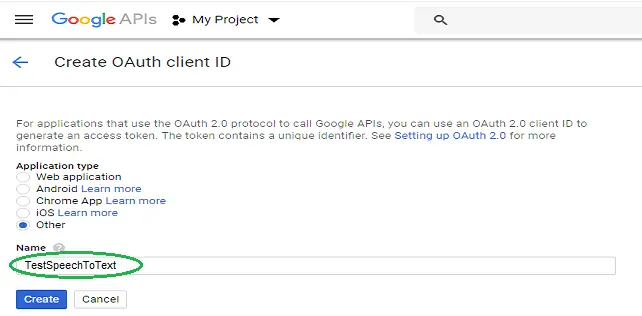
OAuth_Client_ID - In the dialogue, select application type "Other” and enter an application name to associate with the "Cloud Text-to-Speech API" services, e.g. "TestSpeechToText”. Click the <Create> button to confirm the action.
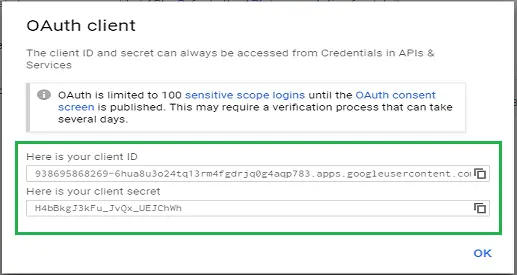
TestSpeechToText - A client ID and its random key are created for the new credential. Click <OK> to close the dialog.
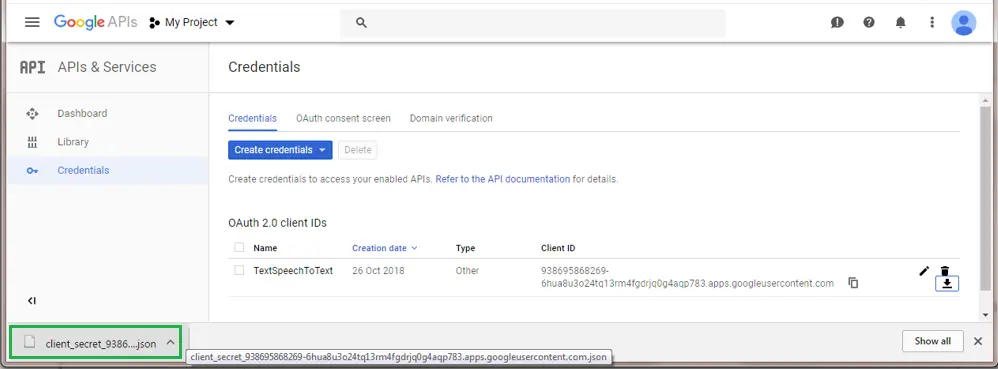
random_key - The newly created credential appeared. Now click on the "Download . JSON" icon to download the ".JSON" format file to the local workstation.
Download JSON - The name of the ".JSON" file appeared at the bottom of the page, indicating the file had been downloaded successfully.
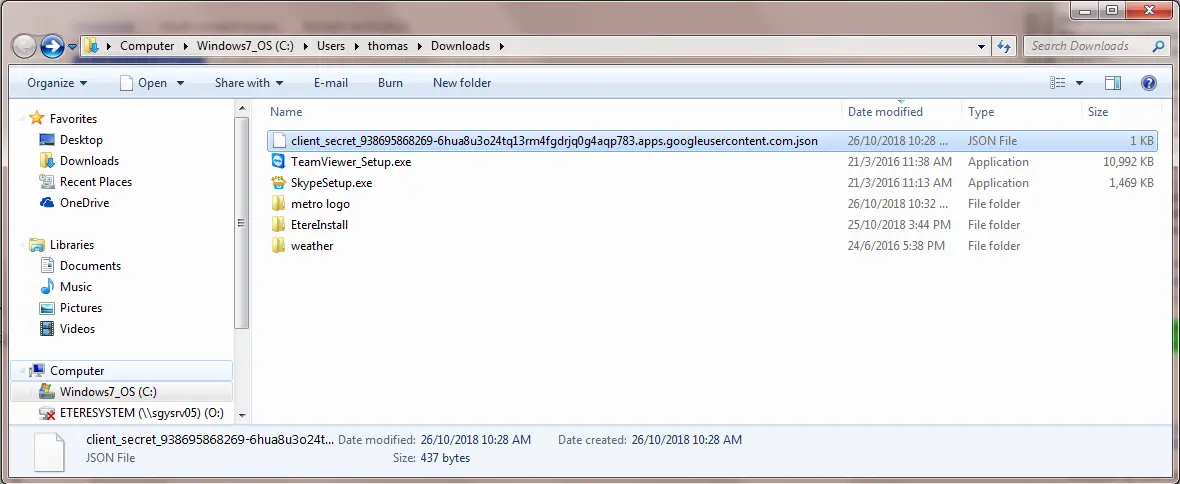
create_credentials - The ".JSON" format file is downloaded to the Downloads folder in the local workstation.
Downloads - With the ".JSON" file in hand, you can start using the Google Speech Recognition feature.
WARNING: The ".JSON" extension file must be placed in a shared folder. User access, the user must be granted “Write" permission to the shared folder to use the Google Speech Recognition feature.
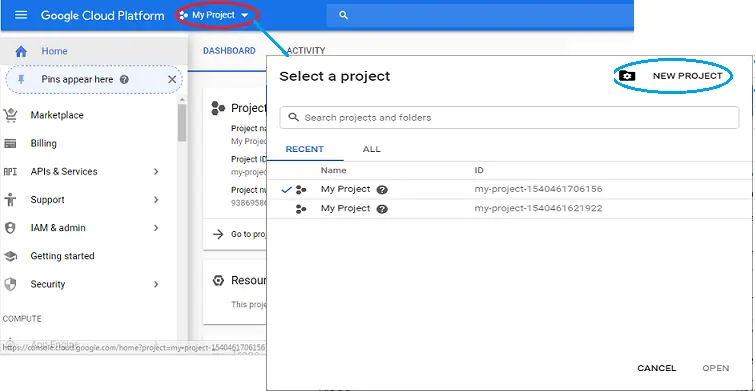 New_Project
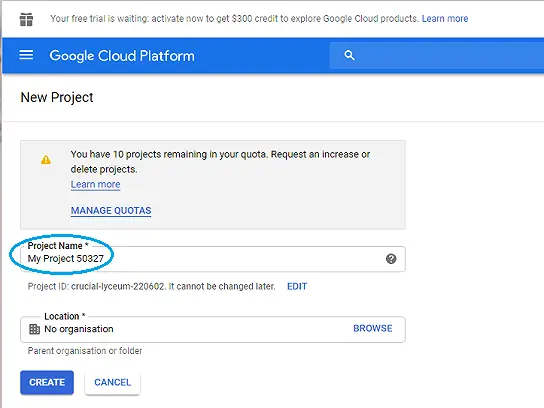 creation_of_new_project
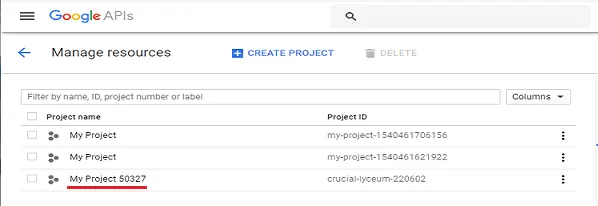 New_Project_added_to_the_list.
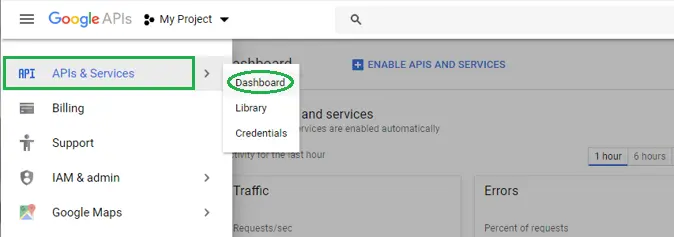 Dashboard
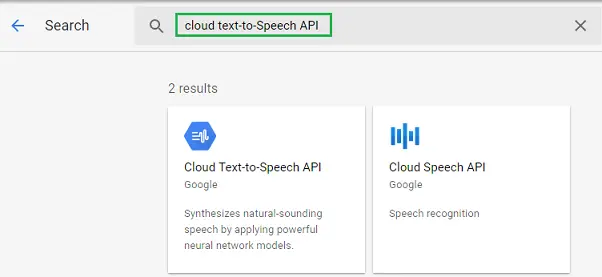 Cloud_text-to-speech_API
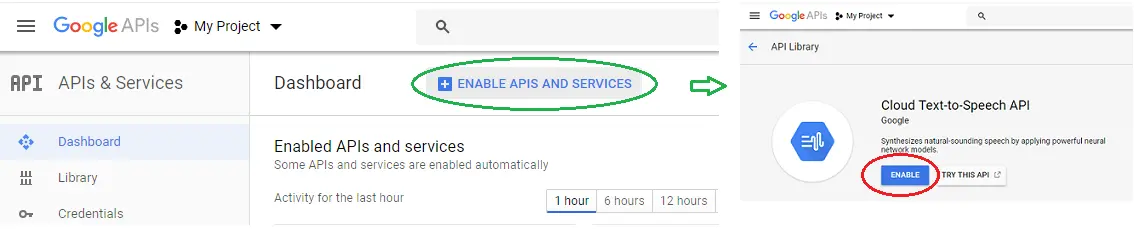 Enable_API_and_Services
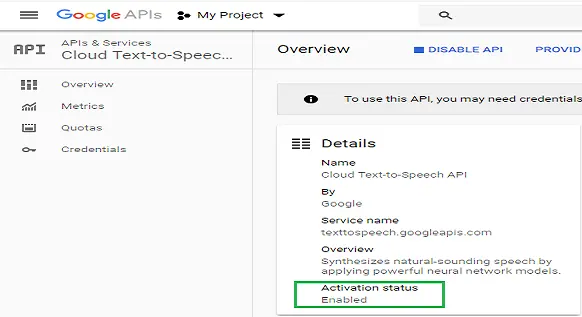 Disable_API
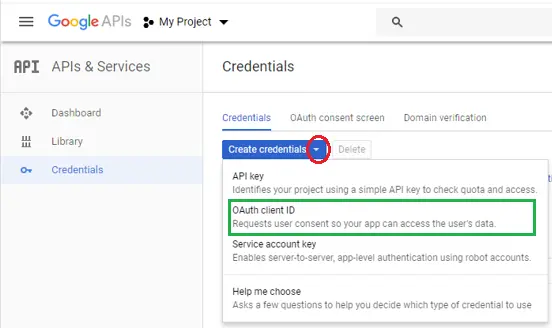 OAuth_Client_ID
 TestSpeechToText
 random_key
 create_credentials
 Downloads
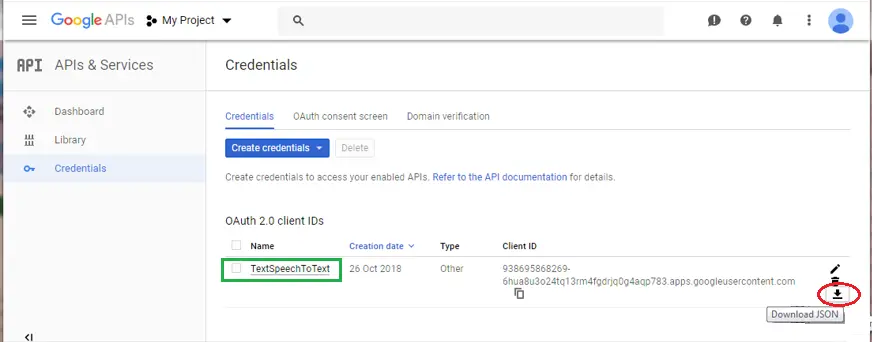 Download_JSON