208.3.3 Job Queue
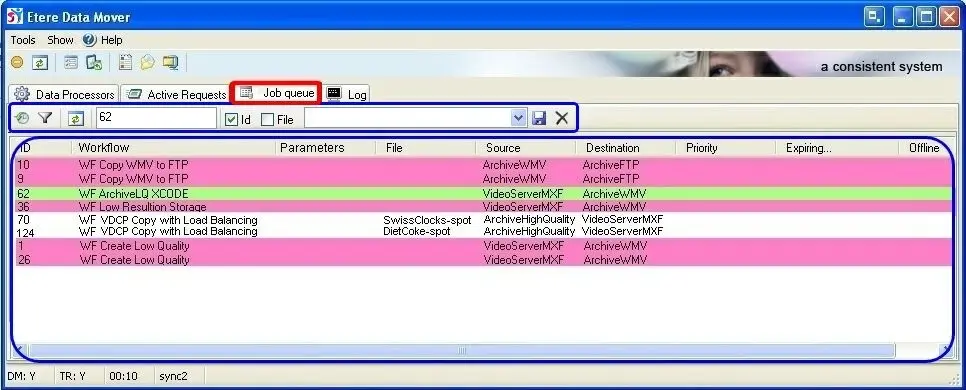
The Job Queue tab list all the file-transfer requests sent to Etere Data Mover.
Etere Data Mover
Please note that it is possible to sort the jobs present in the jobs list by using the "order by" function available in the filtering combo box, for example, sort jobs according to the execution order, insertion order, filename, etc.
Searching for jobs
Use the search text box to highlight the job(s) which ID contains the entered string. for instance, if the operator enter '62', all job(s) which contains string '62' on its ID would be highlighted.
•[Auto refresh]: If enabled, filters will be applied every x seconds (set in the job check interval).
•[ Filter panel]: This set of filters allows to perform an extended search across specific criteria including:
Filter panel
Source device/codec - Select the source device and/or codec to be filtered.
Destination device/codec - Select the destination device and/or codec to be filtered.
Workflow/action - Specify the exact T-workflow and/or action to be filtered.
Order by - Dictate how jobs would be sort in the list (i.e. by execution order, by insertion order, by asset ID, by filename, etc).
order_by
NB: The execution order is automatically calculated by Etere DataMover through a jobs distribution query.
Hide offline jobs - If enabled, offline jobs won't be displayed in the jobs list.
This Etere PC only - If enabled, only jobs processed by the current workstation would be filtered.
Include text filter too - If enabled, each time the refresh button is pressed or a filter is saved, the quick search would be included.
And/Or - Indicate if filters will be used either conjunctively (AND) or disjunctively (or).
•[Refresh]: Use this button to make filters active (not required in case the auto-refresh option is enabled)
•[ Quick search]: Use it to search while typing for the job corresponding to the given ID and/or File. In the bottom part of the window it display the matching jobs which are also highlighted in green within the jobs list.
•[ Saved filters]: The drop down list contained all the search filters previously saved by the user using the [Save] button, and can be removed using the [ Delete] button.
Moreover, in the bottom of the window it displayed a summary information related to the search results indicating the number of total jobs, running jobs, offline jobs and matching jobs (quick search results).
User Interface
The jobs (i.e. lines) displayed in this section includes the information of the T-workflow actions to which they are related, the information includes:
•ID: Code (asset id) of the processed asset.
•Workflow: Name of the T-workflow launched to execute the Data Mover action.
•Parameters: Details of T-workflow execution.
•File: The name of the file currently in process.
•Source & Destination: Devices implicated in the job.
•Priority: Show the priority (only if set manually) for the execution of the job.
Moreover, for easy understanding, they will be colored depending on their job state, the possible colours are:
• Blue : The action is assigned and currently running.
• Pink : No source file, the job has been launched for an asset but yet to be recorded.
• Orange : The T-workflow is offline.
• Yellow : The wrokflow is offline.
• Green : Search results, refers to the job currently highlighted.
• No colour : No action has been performed on this job.
Available operations
By right-click on listed jobs, it is possible to modify the T-workflow actions by using the following functions:
•Set priority: Set the priority on the process.
•Reset block assignment: Reset the execution of the current selected process.
•Block execution of this job: Stop the selected process.
•Remove this job and abort workflow: This option will remove the current selected job and reset the related T-workflow.
•View colours legend: Shows the legend colours of the listed jobs.
•Always show row color when selected: Enabled this option to show the job colour even if it is selected (normally a selected job is highlighted as gray).
•Update: Refresh the job queue. However jobs are automatically updated according to the interval configured in the settings section.
•Customize: Set the fields to be displayed as columns, a small window allow the user to insert/remove fields and set their width, the settings can be restore the original state by selecting the 'default settings' option.
•Default settings: Set the properties to its default values.
•Utilities: This option is useful if you want to export the process by copying the list contents in the clipboard.
NB: The above operations in Data Mover are sensitive and cannot be deactivated, in order to prevent unauthorized access and execution of sensitive functions by inappropriate users, Data Mover must be managed by user with Supervisor or Administrator rights.
 Filter_panel
 job_queue
 order_by