59.7.3 Resources functions
Once devices and connections have been configured and inserted into the Resources Diagram, various functions can be carried out from the toolbar menus:
FILE
• Reload Users List: Use it to refresh the User list (Channels) to update the changes.
• Reload ETERE PC List: This option refreshes the Workstation list when changes have been made.
• Export Schema to a bitmap file: It saves the current Resources Diagram in .bmp format image.
EDIT
• Find Resource: This function allows you to locate a resource by its name and view it in the Resource Diagram.
• Reset colours of all resources: The Reset function allows the operator to change the colour of all resources back to the originally assigned colour.
• Reset Zoom: Resets the zoomed view. To zoom in or out of the Resources Diagram, simply hold down Ctrl and use the mouse wheel.
TOOLS
• Manage connection: The "Manage connection" function allows you to manage inter-device connections. For more details, see the chapter Connections Handling.
• Find resources by following the path: Insert a partial path string of the meta devices to search for resources that match the specific path.
• Configure > Cloud-device: It allows one to view all available cloud devices in the system. By expanding the relevant cloud-device path, you can right-click on the path and select the "View associated file list" function to view each file present in the meta device with its relevant file count.
• Configure > Media folder: Allows users to see and transfer available media folders and define all their properties.
• Configure > Storage layout: It allows the creation and modification of predefined storage layouts based on specific XML constraints, for example:
'<files><file><name>%FILE_ID%</name></file></files>'.
• Configure > SNMP: This function sets the SNMP Console's parameters to access the SNMP database. More information can be found in the "SNMP Connection Parameters" chapter.
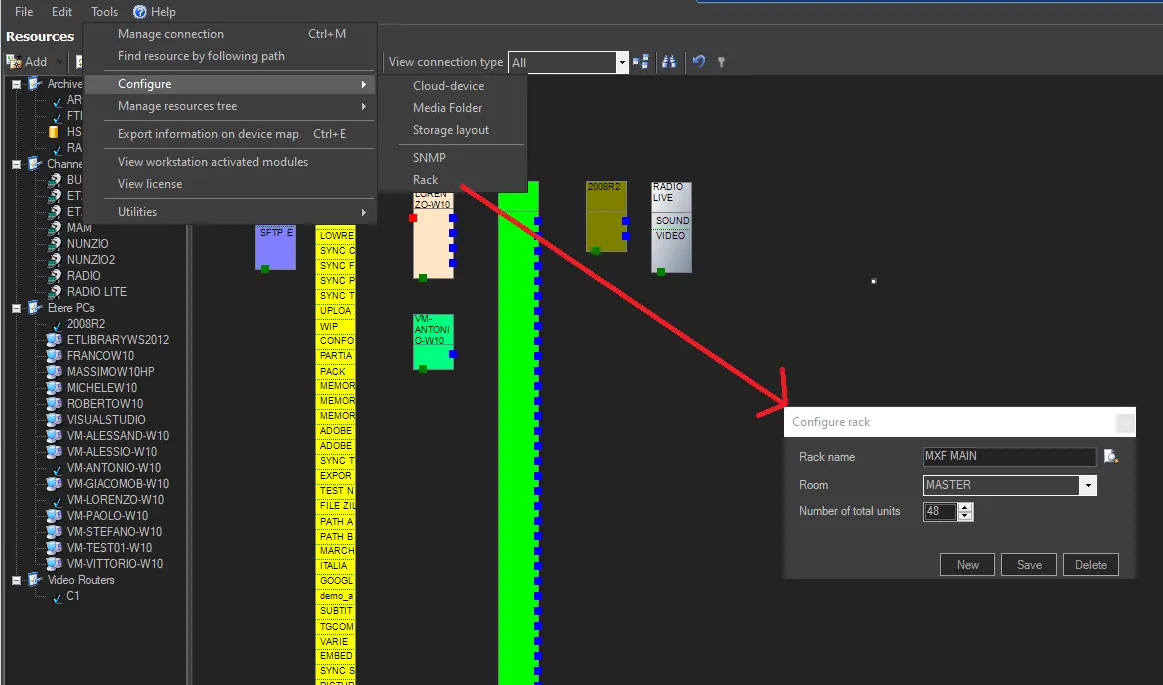
• Configure > Rack: This function allows configuring racks to define the devices' physical location. You can search for a rack (among all previously configured) by providing the following information:
Rack_configuration
• Rack name: View and modify the name of the rack.
• Room: Assign the room in which the rack is present.
• Number of total units: Enter the units held within the rack.
Once data have been compiled, press the [Save] button to apply all changes performed to the existing rack, or click "New" to create a new rack featuring all compiled data.
• Manage Resources Tree > Export: This function generates a .xml file containing the Resources Diagram to be used by external parties; for example, if the Resources Diagram is configured by one station, export the configuration to an XML file and use the XML to import the resource configuration to another station.
• Manage Resources Tree > Import: This function allows you to import a .xml file, previously exported, of the Resources Diagram,
• Manage Resources Tree > Remove unused connections: Remove all unused connections from the editing area.
• Manage Resources Tree > Unlock schema: Use it if another user has locked some devices and needs to be modified by the current user.
• Manage Resources Tree > Update device properties: Use this function to refresh the properties if the properties have been amended.
• Export Information on device map: This function generates a ".txt" file containing a list of all the devices in the Resources Diagram and their relative ID numbers. These are the key information for associating resources configured in the "previous" Etere Resources Editor (before version 19). For more information, see the chapter Aligning E18 Resources to E19 Editor.
• View workstation-activated modules: This function detects the logged-on Etere PC and displays the Etere modules started in the PC.
• View License: This function displays a list of Etere licenses available and their quantity. Only the resource codes (exclude Etere Modules) present in the license would be displayed.
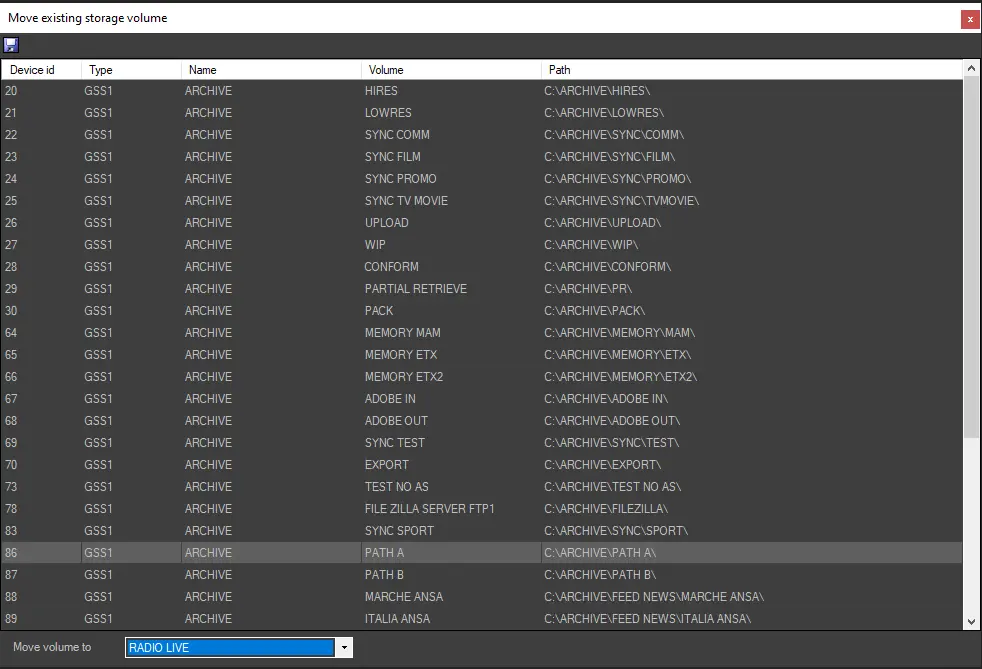
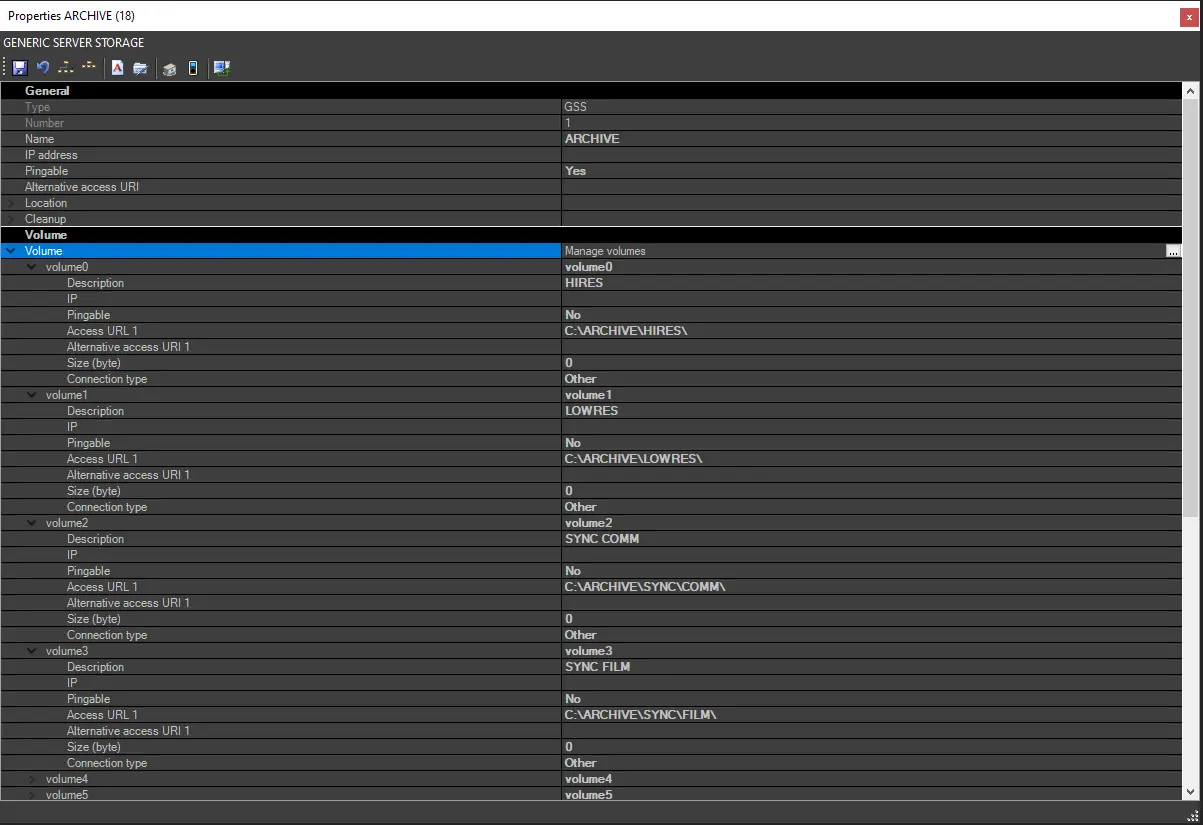
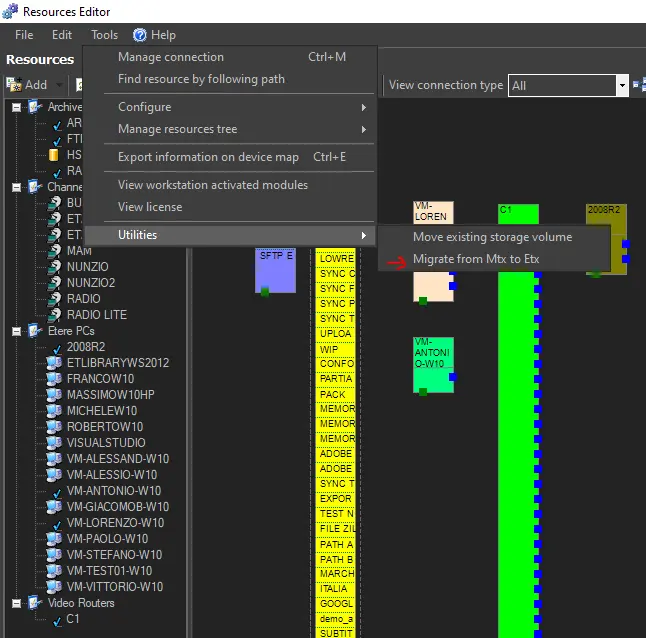
• Utilities > Move Existing Storage Volume: Move one or more paths connected to the GSS present from more devices to a new destination.
Utilities
Move_Existing_Storage_Volume
Move_Existing_Storage_Volume
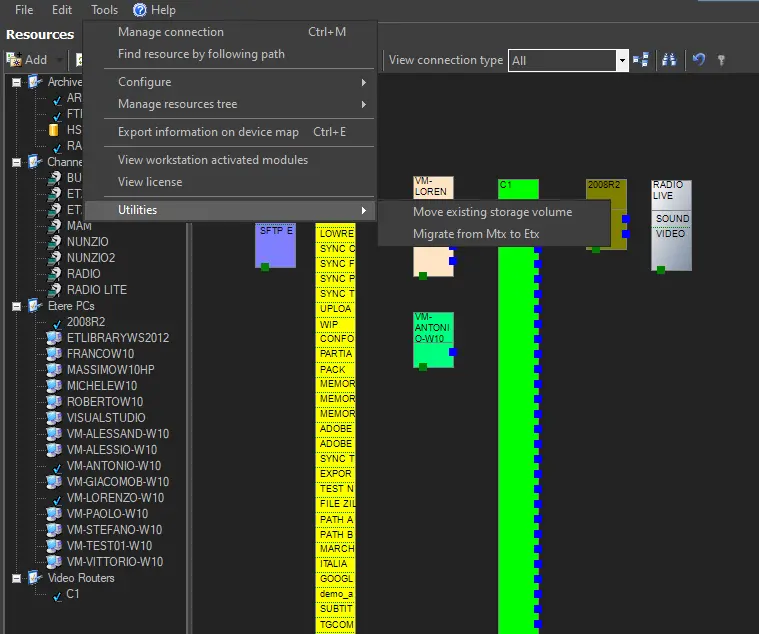
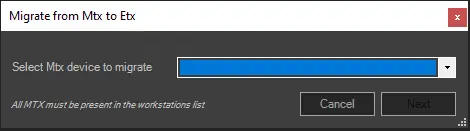
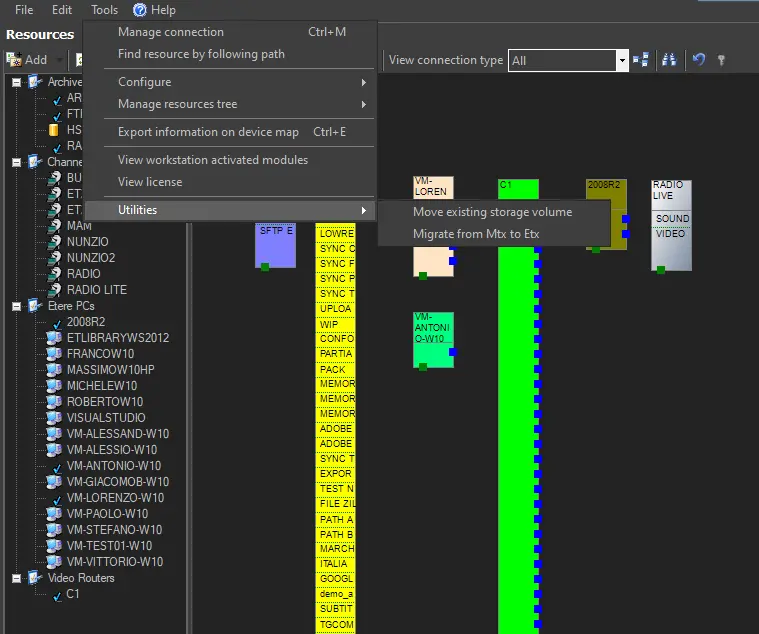
• Utilities > Migrate from MTX to ETX: If a PC is already configured as an MTX resource, you can migrate from an MTX resource to an ETX resource by selecting this option.
Migrate_from_MTX_to_ETX
Select the MTX resource from the list to view the volumes listed in the MTX resource to determine its content before proceeding to migrate to ETX.
migrate_to_ETX
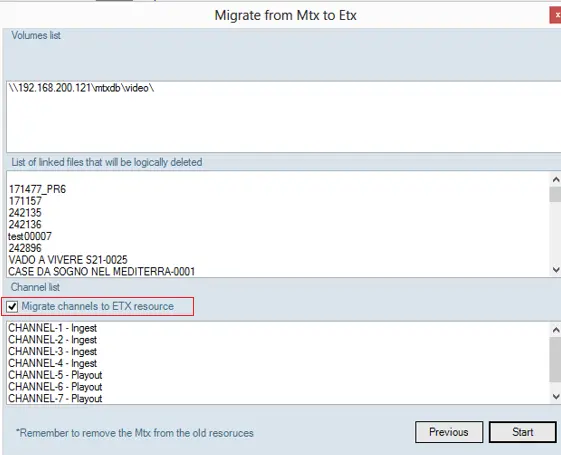
The volume list of the MTX resource is displayed.
MTX_resource
• It lists the source path of the MTX resource.
• It displays a list of linked files in MTX resource to be deleted after the migration.
• All channels listed in the MTX resource are also displayed.
• You must enable the "Migrate channels to ETX resource" option to automatically create the same channels in ETX resource after the migration.
Click the <Start> button to begin the migration. The migration tool would check for the available license in the workstation for ETX playout.
After the migration, in Resource Editor, a new ETX resource is created under the Resource tree. A warning message would be prompted to alert the user who performed the migration to carry out the following tasks:
• Check the created ETX resource and adjust the parameters
• Use ActiveSync to re-link the files to the new resource
Important: After a successful migration from MTX resource to ETX resource, the old MTX resource must be deleted from the Resource tree in Resource Editor.
Mitigate discrepancies in the Automation schedule after migration
After you have migrated from MTX to ETX resource, if you have experienced notable differences (though it is a false alarm) in the Automation schedule, the duration of the scheduled event is marked with a red "X" initially and dissolved when the schedule continues.
The discrepancies can be mitigated by executing MediaInfo with the "Read and merge ETX Fileinfo" option enabled to update the file asset duration.
NB: MTX and ETX can use the same resource and co-exist on the same server. ETX must be installed on Windows Server 2008 R2 or higher, while MTX runs on Windows Server 2008.
TOOLBAR
Editor
• Refresh: It simply reloads the current view.
• Zoom in/out: Use it to increase or decrease the current view.
• Create connection: Press this button to enable the "add connection" mode, which creates straight or angled connectors between two resources simply by selecting their connection points.
NB: Once the function is triggered, the "add connection" mode will remain active until it is pressed again (deactivate).
• Manage connection: The Manage Connection form opens in the editor's bottom part, allowing the operator to create a straight or angled connection between two resources on specific ports.
• Select only devices: This function allows the selected function to be performed for the selected devices in the Resources Diagram without the connections getting in the way. This is useful when there are many connections and devices close to each other in the Resources Diagram
• View connection type: You can select certain connection types from the list (Video, LAN, GPI, Other or Only with roles) to appear in the Resources Diagram. All other connections would be hidden in the Resources Diagram.
• View multiple device connections: This function displays the multiple device connections in the Resources Diagram. All other connections would be hidden.
• Find Resource: Use this function to locate a resource by its recourse name and view the resource in the Resource Diagram.
• Reset view: Resets the view. Hold down Ctrl and use the mouse wheel to ZOOM in or out of the Resources Diagram.
• Forced Resources Editor Unlock: At a time, only one user is allowed to edit the resources through the Resources Editor application. The second user would be prohibited from editing the Resources Diagram. This icon allows the second user to force the unlock of the Editor screen. However, by doing so, the first user is automatically blocked from editing, and in turn, this icon would be "active" on the first user's station.
CONTEXTUAL MENU
The following functions are available when you right-click on the device:
• Properties: Opens the properties form of the device and allows editing. For more information, see the Resources List,
• Resource colour: Allows you to amend the colour of the device image in the Resources Diagram.
NB: The device color for Video Servers is not editable.
• Duplicate: Creates a new resource having the same information as the selected one.
NB: This feature is not supported for MTX resources and Etere PCs and is not available for resources included in the diagram.
• Delete resource from the editor: Remove a device from the Resources Diagram (not the Resources List).
• View resource connection: this allows you to view ONLY the connections associated with the device in question, hiding all other connections on the Resources Diagram,
• Reset view: Resets the view. Hold down Ctrl and use the mouse wheel to ZOOM in or out of the Resources Diagram.
• Media Type Editor: This tool, active only for storage resources, allows the user to define the tuple (i.e. set of codecs) that a device can manage and play. For detailed information on how to use this tool, please refer to the Media Type Editor chapter.
 MTX_resource
 Rack_Configuration
 Migration_from_MTX_to_ETX
 Move_Existing_Storage_Volume
 Move_Existing_Storage_Volume.
 Utilities
 migrate_to_ETX
 Migration_from_MTX_to_ETX
 Editor