54.3.2.4 Copies
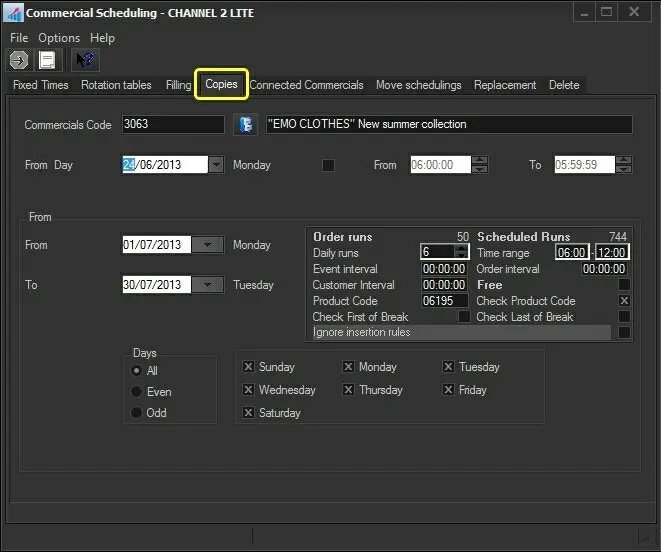
The Copies section allows you to copy a specific commercial asset scheduled on a certain date in a set period to another date. To start copying a commercial, search for the commercial using the [Commercial Code] button and then compile the following parameters:
Copies
Parameter - Commercial Code
Description: Search for the scheduled commercial asset to be copied.
Parameter - From day
Description: Select the day and, optionally, the exact time from which the scheduled commercial asset will be copied.
Parameter - From - to
Description: Insert the scheduling period; by default, you will see the start and end date of the order inserted in the order form of the commercial.
Parameter - Order parameters
Description: Retrieve the scheduling parameters from the commercial order related to the asset. It will be possible to modify these parameters to perform more customizable scheduling. Available parameters include the following:
The order runs - Number of performances expected for the event according to its order.
Scheduled runs - Actual performances of the event across all schedules.
Daily runs - Maximum event performances to be scheduled in a single day.
Time Range - Time interval in which event performances must be scheduled.
Event interval - Minimum gap between two runs of the same event.
Order interval - Minimum gap between two events of the same order.
Customer interval - Minimum gap between two events of the same customer.
Free - Indicate that the performances to be scheduled are free of charge and won't be invoiced.
Product code - Select the product code for the scheduled event.
Check product code - Avoid scheduling events with the same product category in the same time slot.
Check first of break - The event will be scheduled as the first in its time slot.
Check last of break - The event will be scheduled as the final event in its time slot.
Ignore insertion rules - If enabled, the scheduling process will ignore rules but log issues encountered in the scheduling report.
Parameter - Days
Description: Select the days for which the event to be scheduled is valid.
All - On every day of the week, in the period of the dates indicated.
Even - Only on even days (e.g. 2-4-6-8...30) in the chosen period, independently of the day of the week.
Odd - Only on odd days (e.g., 3-5-7-9...31) in the chosen period.
Specific days - Select the weekdays (e.g. Monday and Friday) on which you want the commercial asset to be scheduled.
Once all parameters have been correctly set, press the [RUN] button to copy.
NB: The operation can be repeated more than once; for example, if in the original schedule, times are added but not changed, it is possible to repeat the copy as the data already present will be replaced with new data.
 Copies