84.4.4.15 STANDARD > GENERIC >TXT
Export Scope
The TXT Export function allows you to export a schedule into a formatted text file (.txt), this text file will contain information fields laid out in a linear format each separated and identifiable by a consistent symbol, usually a semicolon (;). Inside each field is the basic schedule information such as date (position 1: 2002.07.03), start time (position 2: 06:03:48), duration (position 3: 00:04:54:00), code (position 4: C013287) and event description (position 5: OUTSIDE).
20020703;06:03:48;00:04:54:00;C013287;OUTSIDE
20020703;06:08:42;00:04:11:00;C020894;HELLA GOOD
20020703;06:12:53;00:03:31:00;C020731;WE ARE ALL MADE OF STARS
Export Parameters
In order to use this export function the following fields must be compiled:
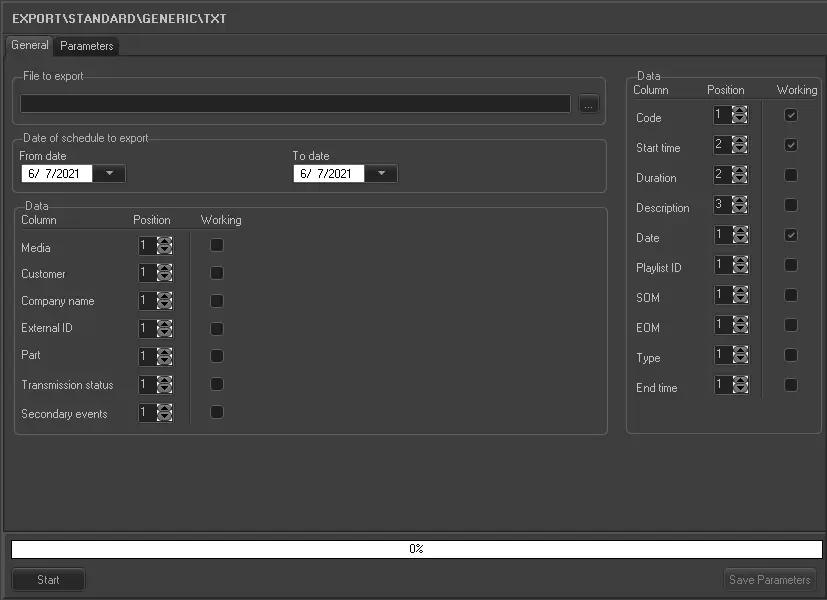
General tab
5076_Export_standard_generic_txt
•File to import: Select the file to be exported and its file path,
•Default date: If the date of the schedule is not present in the export file the date specified here will be used,
•Parameters archive: This hidden parameter can be enabled by pressing the CTRL key. In this field you can specify the name of the .ini file that contains all the export settings, to either load or export it,
•Alternative schedule: Indicate the scheduling level to be exported, that is, the real schedule or any of the 10 alternative ones,
•Data: Specify here the relative position of each information field in the file to be exported, as well as activating/deactivating its use (i.e.: working).
Some of this information is fundamentally important to scheduling and the file should not be imported if this information is missing. Where commercials have been grouped in clusters all commercials from the same cluster should all have the same scheduled start time in the import file however, this parameter can be changed. Where LIVE events are concerned, the scheduled start time must be set in the import file. Information regarding media support or type of event will be imported into the asset form.
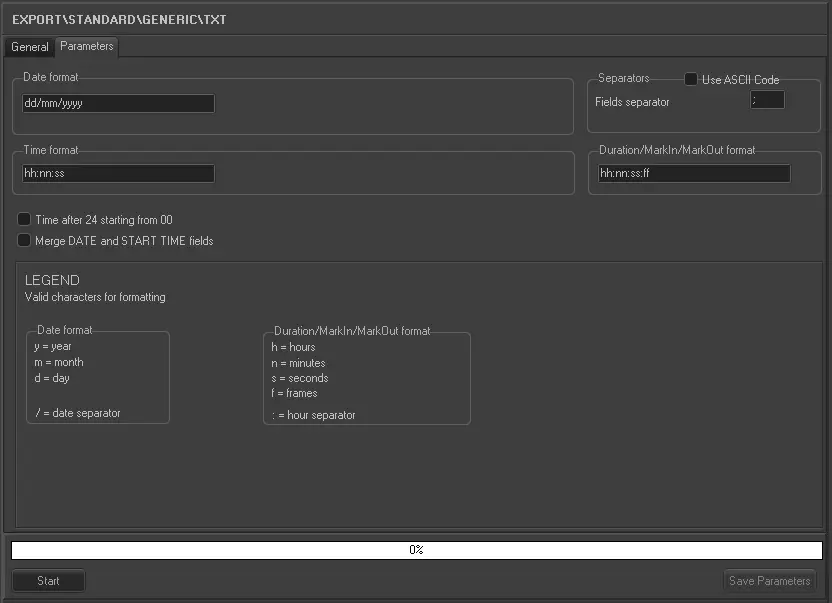
Parameters tab
5077_export_standard_generic
•Date format: Set the format on which dates will be exported (e.g.: dd/mm/yyyy),
•Time format: Set the format on which times will be exported (e.g.: hh:nn:ss),
•Duration, Mark in and Mark out formats: Set the format on which durations and marks in/out will be exported (e.g.: hh:nn:ss:ff),
•Separator: You can define the separator that is used in the .txt file, usually a semicolon (;) or the pipe (|) are used.
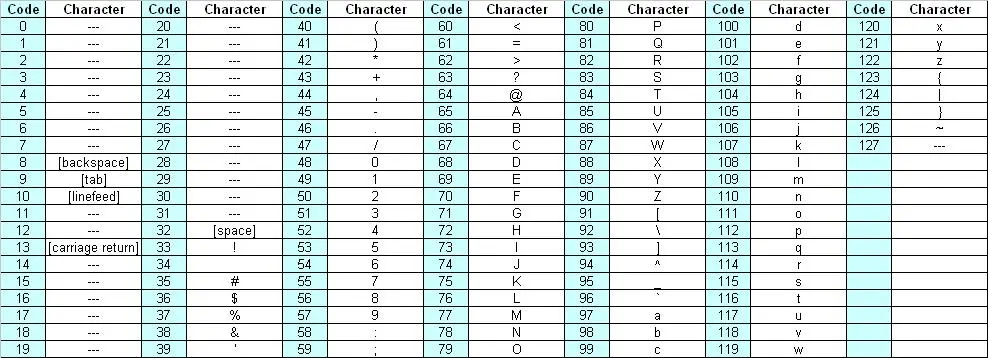
In some cases an ASCII character such as TAB can also be used. In this case you need to activate the function 'Use ASCII Code' and insert the appropriate code in the Fields Separator. Below is a table that outlines the various ASCII characters and their relevant codes:
5078_Separator
•Time after 24 starting from 00: Enable it to choose for all time after 24 to be shown starting from 0 for example 25:00:00:00 à 01:00:00:00.
•Merge DATE and START TIME fields: Enable this option to merge the date and start time field as one single field.
Launch the export
Once the export has been configured, it can be started just by pressing the <Export> button.
 5076_Export_standard_generic_txt
 5077_export_standard_generic
 5078_Separator