72.5.1 Searching for assets
The "Search" section is the first area shown to the operator, this section makes possible to search for the assets to be indexed through an easy-to-use and robust search engine. In order to start searching assets just follow the instructions below:
Advanced Search
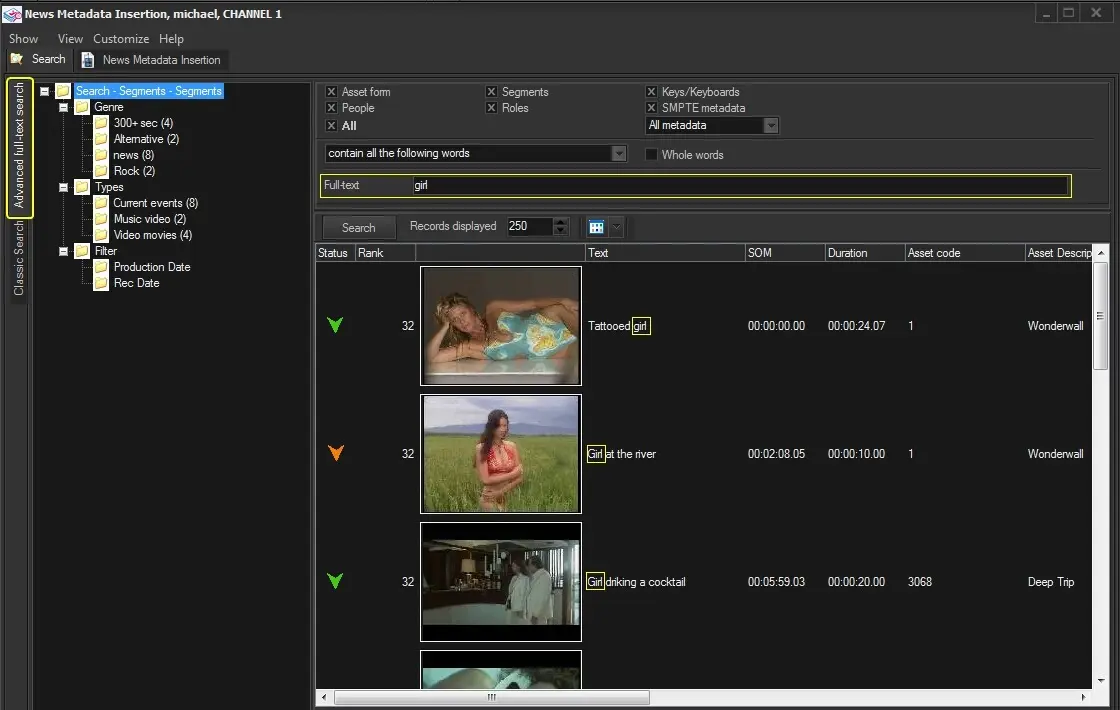
The "Advanced search" allows to search for specific asset segments matching a given string. In order to search for an asset, just set all the full-text fields on which search will be performed, enter the string to be searched and press the [Search] button:
Advanced search
Asset forms - Search across the asset's title (e.g. wonderwall, breaking news, alien).
metadata - Search across the asset's custom Flexi-metadata (e.g. loudness, status).
Segments - Search across the segment's descriptions, both, manually (e.g. girl, flower) and automatically inserted (e.g. freeze, fault, change).
People - Search across the asset's associated artists (e.g. Santana, Sting, Pink).
Roles - Search across the asset's associated artist roles (e.g. singer, director, guitarist, actor)
Keys/keyboards - Search across the keyboards (e.g. accidents, competitions) and Keys (e.g. airplane, train, car) assigned to the segment from the Etere MAM module.
All - Search across ALL the above mentioned fields (enabled by default).
NB: Please note that specific asset types (e.g. spots) are automatically filtered depending on whether the user has or not rights for these "objects".
Once retrieved, segments matching given filters will be retrieved (indicating their Text, SOM, EOM, Duration, Code, etc.). In order to start inserting metadata on a segment just double-click on it, its related EDL will be loaded in the Metadata Indexing area.
Note:
It's worth to mention that, as explained in the Quick Editing Integration chapter, making right-click on the results area will made available a set of functions for previewing, downloading and even dragging and dropping segments (e.g. into editing systems).
Classic search
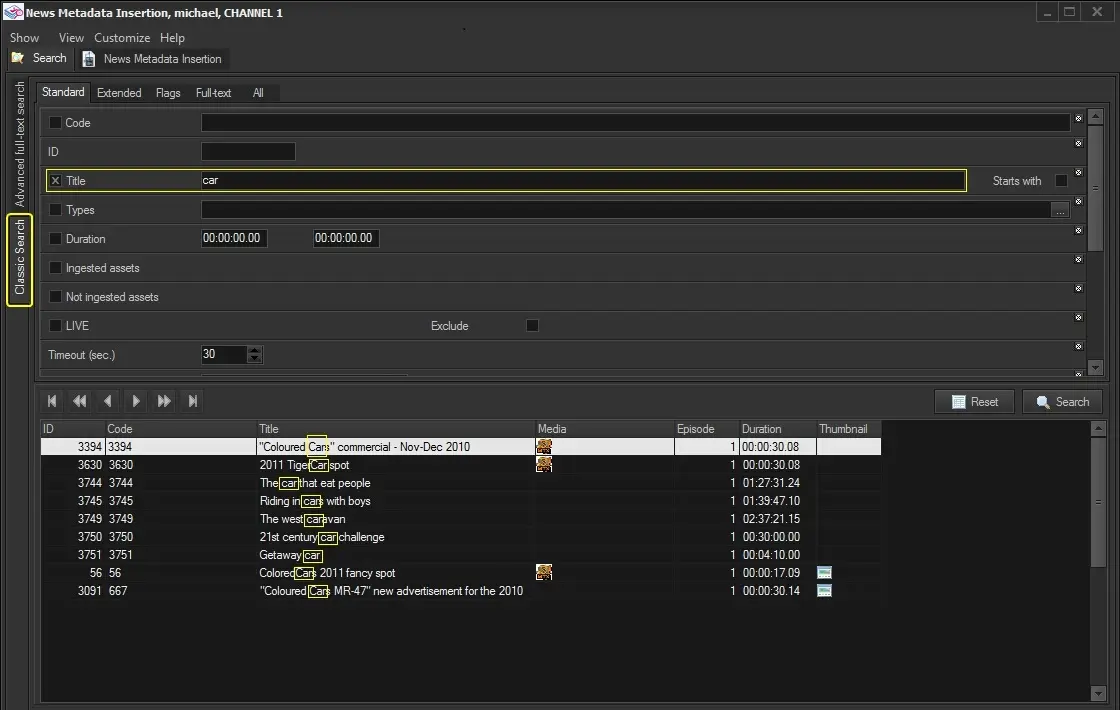
The "Classic search" permits to search for assets through the standard Etere search tab, a search form which provides a wide set of filters (see: Available search filters) for narrowing the search and thus perform a more precise retrieval of assets. In order to search for an asset, just set all the appropriate filters and press the [Search] button:
Classic search
Standard - Filters most commonly used across searches (e.g. code, ID, title, type, duration, etc).
Extended - Filters useful for narrowing the search to a specific criteria (e.g. artist, role, genre, location, etc).
Flags - Filters for a certain asset state (e.g. ok to broadcast, not expired, recorded, T-workflow status, etc).
Full-text - String searched on a full-text enabled database across all the selected fields (e.g. assets, segments).
All - All available filters will be listed in this tab.
NB: The filters arrangement in this table is the default one, it may change between installations since tabs are customizable.
Once retrieved, just make double-click on the asset and the EDL of the related asset form will be loaded in the New Metadata Insertion area, from which it will be possible to start managing its metadata.
Sort Flexi Metadata Assets
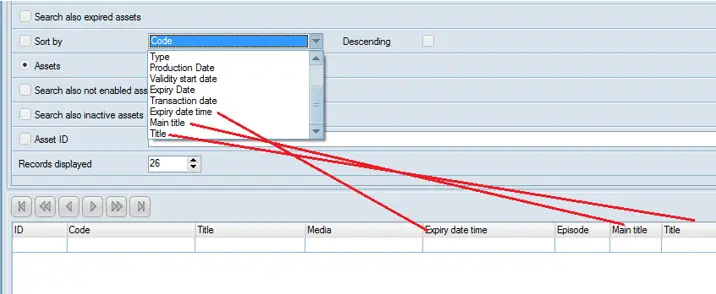
When using Assets as search filter in Search form, from the Search results grid you can sort the assets search by its flexi metadata to locate the assets, simply click on the asset column in the result grid to sort the selected flexi metadata.
Flexi Metadata
 Advanced_search
 Classic_search
 Flexi_Metadata