203.2.2 Schedule and Run Etere Backup automatically Using Windows Server 2008
If you are using Microsoft Windows Server 2008, the 'Scheduled Tasks' function allows you to perform scheduled database backups based on the configuration set on Etere Backup. To program a scheduled backup action, follow the procedure below:
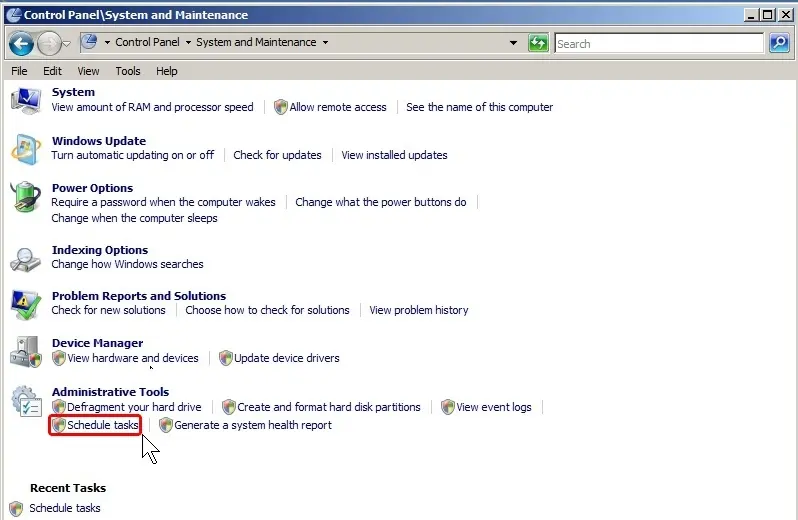
1.Open the Task Scheduler application through Start | Control Panel | System and Maintenance | Administrative Tools | Schedule Tasks:
Schedule_Tasks
2. Select "Create a basic task" and define a new action task, give the task a name and press Next,
3. Select the trigger conditions for the new task (e.g. daily, weekly, monthly, etc) and press Next,
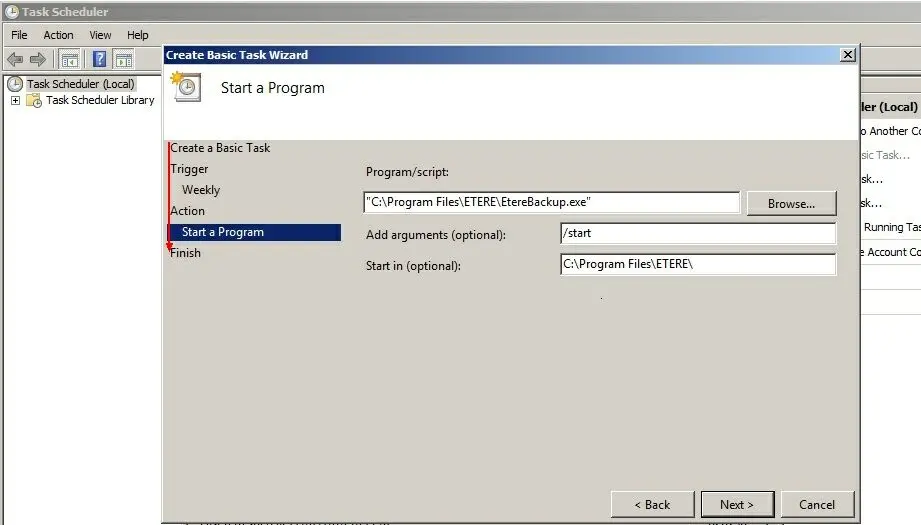
4. Select the 'Start a program' option, and select the Etere Backup application (e.g. 'C:\Program Files (X86)\ETERE\EtereBackup.exe'),
Start_a_program
(the program path must be enclosed within quotes)
5. Add the '/start' argument, set the 'start in' directory to Etere's installation path (e.g. 'C:\Program Files (X86)\ETERE\'), and click Next,
6. Verify all parameters and click Finish; at this point, Etere Backup is ready to start at the scheduled times.
 Schedule_Tasks
 Start_a_program