84.2.1.1 Schedule View
The Executive Editor window is composed mainly by the Schedule View, which is in essence a List of Scheduled Events that occupies the major part of the window. It is enhanced with a drop down feature so you can find easily perform manual amends during the scheduling process.
By default, the schedule of current calendar day (even if it is an empty schedule) would be opened.
4839_Executive_Editor
• Main menus bar: The EE Menus bring access to all features available in the Executive Editor, thus providing an easy-identification of well-organized scheduling features.
• Station bar: This bar indicates the currently active station (i.e. on which the operator is working) as well as the current schedule type/status:
Blue - The current playlist is the real schedule (i.e. main broadcast playlist).
Green - The current playlist is either Video Assist schedule (i.e. snapshots management) or the certifications schedule (i.e. changes verification).
Red - The real, certification, Video Assist or alternative schedule has pending changes and needs to be published and re-opened in order to display updated data. This publish function is also necessary despite that the "Auto-Publish" function is enabled.
Other colors - The current playlist is an alternative schedule (e.g. breaks previewing). In this case the bar will be colored according to the pre-configured color of the alternative schedule.
The date of the “Real Schedule” is reference to the “Long date” format in regional settings of the local station.
In Real Schedule, you can consistently press function keys “Ctrl + Z” to launch operation logs to view the operations performed on current workstation.
• Toolbar: The toolbar containing the most commonly used functions for the management of the schedule.
• Main / Clone bar: By double-click on the Automation Main or Automation Clone bar on local workstation, you can disable the publish feature from the Automation machine if the local workstation is tuned off. Publication remains enabled in other workstation. When the local workstation is turned on, you can double-click on the same Automation Main or Automation Clone bar to enable the publication feature.
• Show panel: The panel where some "show" tools (e.g. remote panel, Video Assist, ad insertion, vtr playback, etc) are displayed. When filtering assets, you can use filter “Exclude types” to separate assets with secondary events and assets without secondary events.
• Broadcast playlist: The schedule containing all the events currently scheduled in the selected day, detailing -across various columns- their various properties.
Making double-click on a certain event will open the property related to the column on which the click was performed (e.g. description), allowing the operator to edit it. Please see the chapter 84.2.3 Events Management for detailed information on how to manage events within the playlist.
• Secondary events: This displays all the secondary events currently scheduled for the selected event.
If you attempt to close Executive Editor when there are schedules yet to be published, or open another schedule date, the following warning message would be prompted to alert user and request for confirmation to execute the close command. This warning message would only be available in workstations with the “Playlists publication” rights enabled ("Allowed").
4842_Warning
Note: On the workstation where Executive Editor is installed, if there are two network cards installed, only one network card with single IP address should be activated at all time. Otherwise, scheduled events would not be updated in real-time.
Restart Application
Each Etere application allocates a maximum number (set at 3500) of handles counts for recording the details log data during operations. If the handles count exceeds the maximum count allocated, an application message “Restart application as soon as possible” would be prompted to alert user, as indicated below.
4844_Scheduling_error_restart_application
You must restart the application as soon as possible to reset the handles count for recording, else certain log data capturing the schedule operations would not be written to the log file or you could experience mulfunctionings.
Using "Test" license in Scheduling
If you are using a “Test” license for Scheduling, the maximum events allowed to be published is 100. If you attempt to publish events exceeding the limitations, a warning message would be prompted and the publish action would be denied.
4840_Test
Empty-spaces and overlaps between events
Empty spaces between events will be "filled" with a line that will indicate the duration of the empty space:
4843_Empty_spaces
Moreover, if there's a difference between two consecutive events or there's an overlap, an icon will indicate it under the "Time" column:
• The actual start time of the event is less than the expected (currently displayed) one.
• The actual start time of the event is greater than the expected (currently displayed) one.
In Schedule View, the overlapped events would be displayed in grey color as illustrated below:
4841_Schedule_View
• In the Yellow box on the left, it indicates that overlapping of scheduling time has occurred with the calculated overlapped time (“0000:01:15”) displayed below the actual scheduled time.
• The overlapped events are outlined in the Red box on the right, all the overlapped time are indicated in the round brackets “( )” for each event. For instance, row 1 indicates overlapping of 38 seconds, and the 38 seconds would be cut from the event duration of 42 minutes and 7 seconds.
These issues can be resolved by recalculating the scheduled times, see the chapter 84.2.3.2 Contextual On-Click Menu.
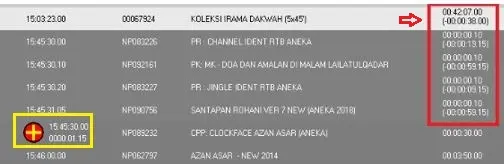 Schedule_View
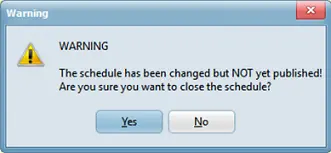 Warning
 Empty_spaces
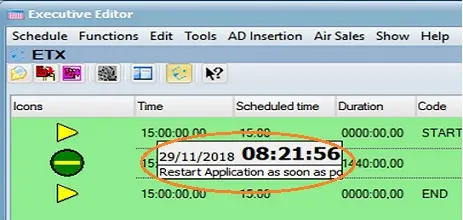 Scheduling_error_restart_application
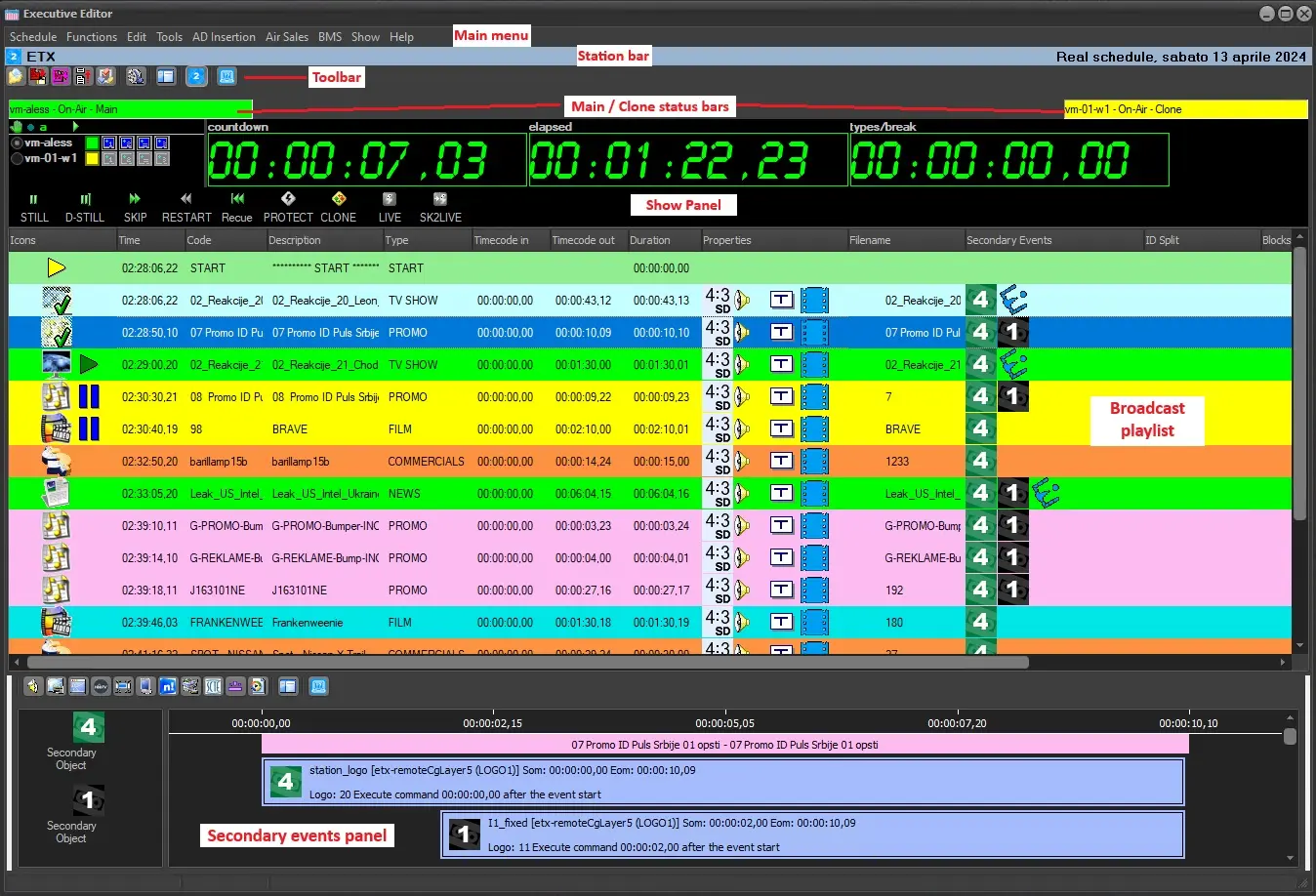 Executive_Editor
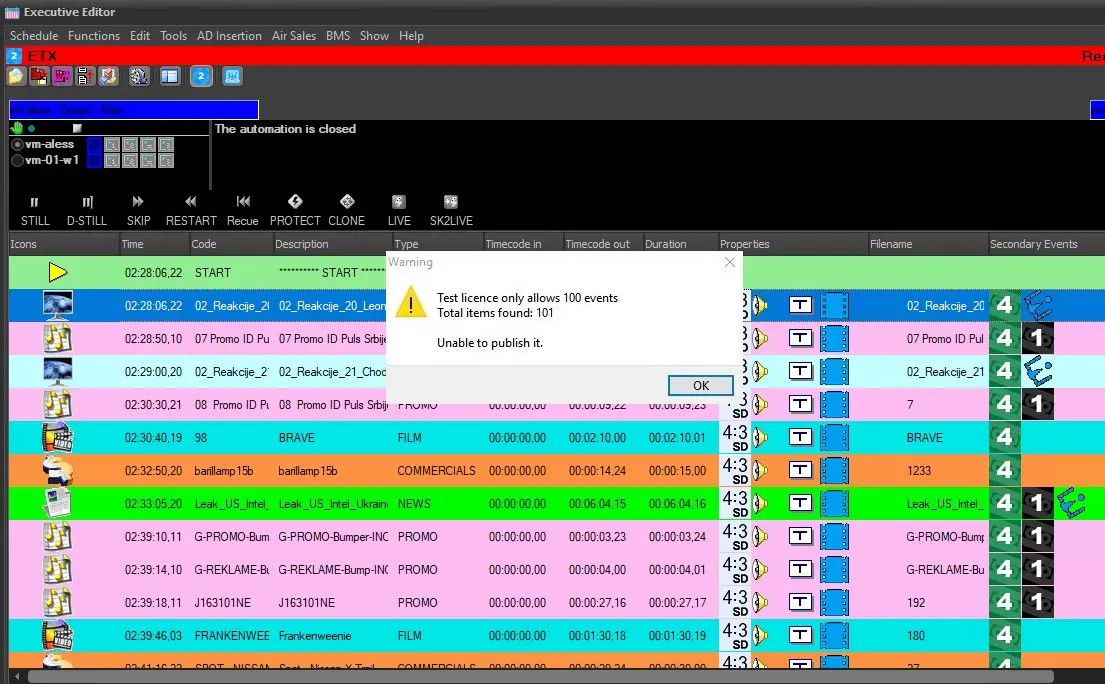 Test
Test