72.2.2.14 Annotations - Available EDL Operations
Each time the user makes right-click on a certain segment of the EDL, the following options are available to facilitate EDL management:
Add insertion keyframe (F2): Add insertion points that will be used in the schedule to split the event into several parts.
Add manual video fault (F3): Add a segment marked as "video fault" (i.e. a segment that should be removed since it must not be included in broadcast).
Add automatic black (CTRL+F3): Add a defective segment.
Add visible segment (F4): Add a visible segment (for detailed information on this kind of segments please refer to the EDL management section).
Add segment for editing (F7): Add a segment for editing (for detailed information on this kind of segments please refer to the EDL management section).
Import external segment: Combine segments from a different asset either substituting existing segments or adding segments; by doing this you can create a 'virtual asset' that represents the combined segments. Please refer to the next chapter, Creating Virtual Assets, for detailed information about how to handle virtual assets from the Asset Form.
Import segment to virtual asset: Create a new virtual asset or select an already existing one to insert the selected segment on its EDL.
Delete Segment (CTRL+DEL): Mark (with a strike through) a segment to be deleted from the EDL list once the asset form is saved.
NB: Please note that it's possible to delete multiple segments by selecting them (clicking on them) while pressing the CTRL key.
Delete: Delete from the EDL the following kind of segments:
Automatic blacks
This option will automatically search and delete all the 'automatic blacks' segments which are present in the EDL list.
Automatic video faults
This option will automatically search and delete all the 'automatic blacks' (inserted either during a content check or a cart ingest) segments which are present in the EDL list.
Restore: Remove the mark from the selected segments that are currently marked (with a strike-through) to be deleted.
Order (F5): Sort the EDL list based on the SOM of the segments present on it.
Clean (F6): Perform the deletion of both the segments marked to be deleted (those which appear as strike-through) and those marked as invalid (coloured with red).
Move: Use it to move up/down a segment of a virtual asset in order to edit its EDL.
Contiguous visible segments: Make all visible segments in the EDL to be contiguous, removing their offset and updating their SOM and EOM.
Convert to hypothetical (F7): A segment can be set as hypothetical if you don't want it to be active (it will not be taken into account) but you want to keep it on the EDL list. Hypothetical segments will appear coloured with red.
NB: In case no segment is selected, this function is applied to all segments.
Convert to real (F8): Convert ALL hypothetical segments (coloured with red) to real segments, that is, active segments.
NB: In case no segment is selected, this function is applied to all segments.
Change Automatic black to Manual video fault: Convert a garbage segment (automatically inserted during a content check) into a defective segment (manually inserted).
Show visible segments only (SHIFT+F9): Show all the "visible" segments (i.e. suitable for transmission) present in the EDL of the current asset.
Complete EDL view (F9): Open a window displaying all the segments as exploded in the schedule, so you can visualize the asset's segments that will be broadcasted (without defective segments, garbage segments, etc).
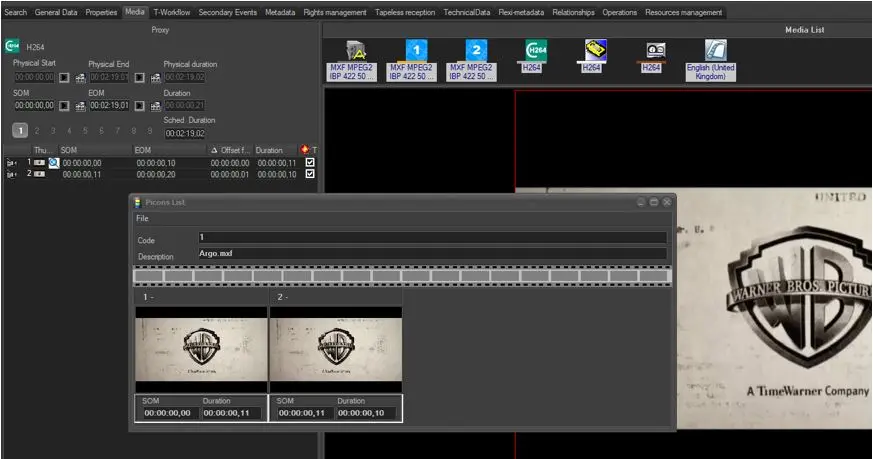
Show Picon List (F10): Shows the list of Picons (frame shots) of all EDL proxy segments:
Frame shots
Metadata (F11): Insert metadata (i.e.: Caption, Artist, Flexi-metadata, etc) relevant to the segment in question. This data is useful for indexing and is used in the Etere MAM.
Create new part (F12): Copies all data from the current asset into a new one which features the following marks:
Physical start - The same as the current asset
Physical end- The same as the current asset
SOM - SOM of the current asset (Shift + F3)
EOM - Physical End of the current asset (Shift + F5)
The code of the new asset will be: [Asset Code] - P[Part Number] (e.g. 1232 - P1).
NB: Please note that this function will be available only if the Physical End and the EOM of the asset are different AND if the current asset is not a Live.
Partial retrieve (CTRL+F4): Use this functions to retrieve one or more segments from the current asset:
Partial retrieve - Extract the selected segment into a new asset using the partial retrieve's default T-workflow.
Partial retrieve and launch... - Extract the selected segment into a new asset using the partial retrieve's default T-workflow, and launch a user-defined T-workflow for the new asset once the retrieval is completed.
Multi-segment - Extract a set of selected segments into new assets using the partial retrieve's default T-workflow.
Multi-segment and launch... - Extract a set of selected segments into new assets using the partial retrieve's default T-workflow, and launch a user-defined T-workflow for all new asset once retrievals are completed.
NB: Above functions are available only for segments not yet partially retrieved (i.e. not linked to assets).
Please note that all segments of an EDL can be directly and automatically conformed via T-workflow by following the instructions detailed in the .EDL conforming workflow chapter.
Note: the partial retrieve workflow won't be visible in usual T-Workflow section. To view partial retrieve workflow status, right click on the segment and click on T-Workflow info
T-Workflow_info
Etere conforming: This function allows to select segments for conforming. After selected the segments, you can enter the file output filename, select the format of output file using existing profile or create a new profile, and its file output location. The conforming would generate a XML file for transcoding.
Workflow info (CTRL+W): Display all T-workflows defined in the system to allow checking their status for the selected segment as well as launching them for the selected segment.
Print: This function allows previewing and printing the asset's current EDL or all its EDL. For detailed information on this feature please refer to the Cue sheet report.
NB: You can have Microsoft Reporting Services running in workstation in order to access Report Server Database for printing of Cue Sheet reports.
Linked asset: If the asset in question is a virtual asset (made up of external segments), this option will open the asset to which the segment is related.
Colors: Customize the various colors present in the EDL view. The following options are available:
• Change background color
• Change segment font color
• Change the font color of the scheduled segments
• Change invalid segment font color
• Change the color of the font of external segments
NB: To change the graphic background colour, you must use the “Graphic Background” function in “Show” menu from the Main menu bar.
NB: When user enter the EDL operations, the process would check the user access rights configured in the “Media Library” Functions type in Rights Management module. User must be granted appropriate rights to perform the EDL Operations. In addition, if editing of EDL material in video server is necessary for all Group users, the “Video Server Recording” rights must be set to “Allowed”.
Previewing segments
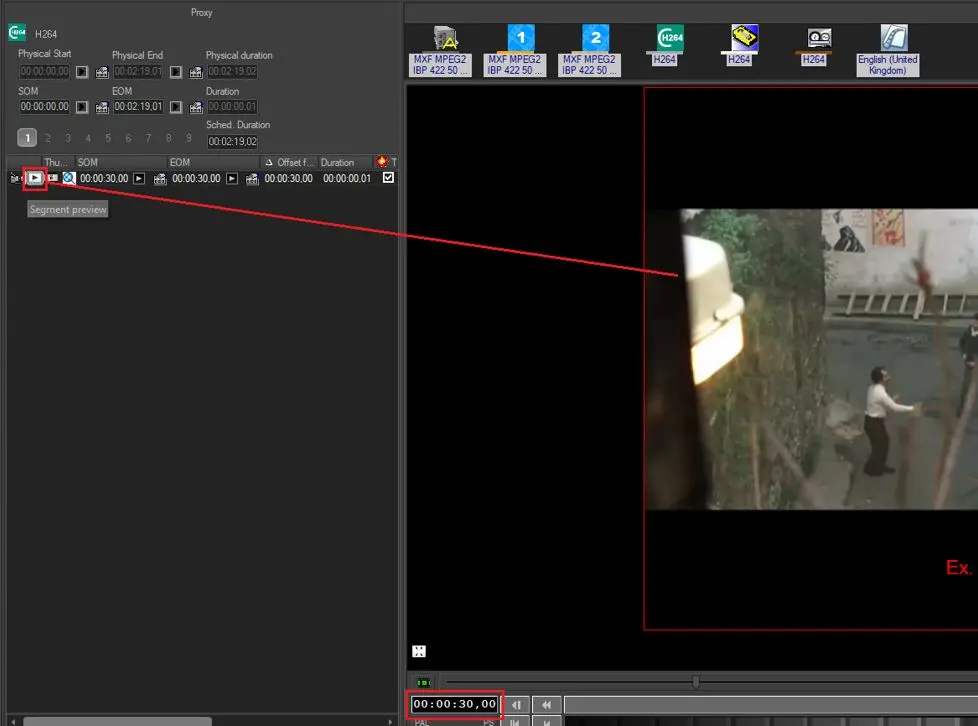
In order to preview only an EDL segment (any kind of segments excepting keyframe insertions) just click on either its SOM or EOM and the Preview Browser will automatically load the selected media segment:
EDL segment
NB: During preview, if the video input source is not specified (e.g. Video source parameter defined as “None”) the first available video resource would be used for preview.
 EDL_segment
 Frame_shots