58.3.13.2 How to Apply Hide Effects
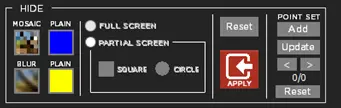
Launch the CensorMX application; the “Hide” effect menu is positioned at the bottom right corner of the user interface.
Censormx_hide_effects_new
Follow the sequence described below to apply the hide effect to the selected footage:
- Select one of the hide effects from the menu; the effect can be MOSAIC, BLUR, PLAIN (BLUE), or PLAIN (YELLOW).
- Next, select whether to apply the effect to FULL SCREEN or PARTIAL SCREEN.
- If FULL SCREEN is selected, go to step 7. (choosing MarkIn and MarkOut is not necessary)
- If PARTIAL SCREEN is selected, select a shape of SQUARE or CIRCLE to hide the screen.
- Select the “MarkIn” to mark the start point of the hide effect. If PARTIAL SCREEN is selected, select the area on the video to cover with the left mouse click.
- Select the “MarkOut” to mark the end point of the hide effect. If PARTIAL SCREEN is selected, select the area on the video to cover with the left mouse click.
- Click on the <HIDE> button to apply the hide effect.
- To cancel the hide effect settings applied, click the <Reset> button to revert all settings.
WARNING: With GPU (Graphics Processing Unit) in place, applying the blur effect area exceeding 250,000 pixels (500 x 500 pixels) is also possible.
Here are some examples for reference purposes to further illustrate the hide effects.
EXAMPLES
- Example 1: MOSAIC effect with Full Screen
- Select “MOSAIC” and “Full SCREEN” from the Hide menu.
- Set MarkIn and MarkOut on a video file.
- Click the <HIDE> button to take effect.
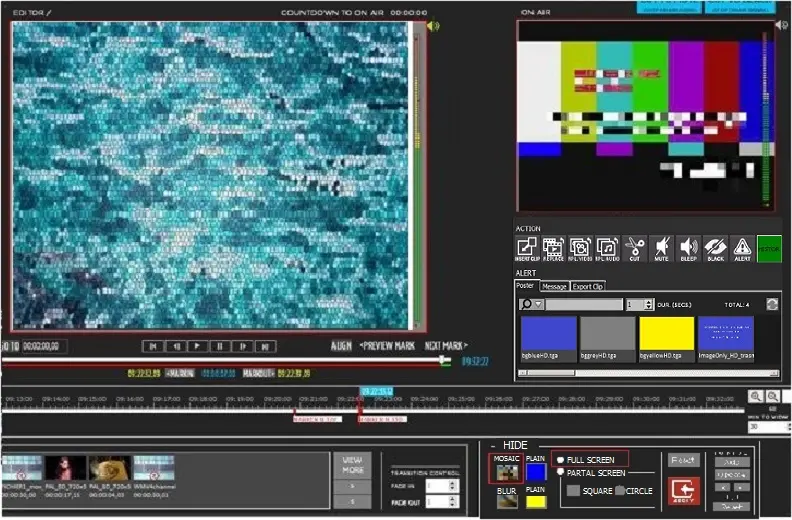
The Hide effect is displayed in the Editor Display screen on the left panel, and the true impact during on-air is displayed on the right panel.
Censormx_hide_effect_e.g_1_new
- Example 2: MOSAIC effect with PARTIAL SCREEN – SQUARE
- Select the MOSAIC effect, PARTIAL SCREEN, from the HIDE menu, and choose a shape from the SQUARE position.
- From the Editor Display screen, select “Markin” to mark the starting area with a left mouse click.
- From the Editor Display screen, select “MarkOut” to mark the ending area with a left mouse click.
- Click the <HIDE> button to take effect.
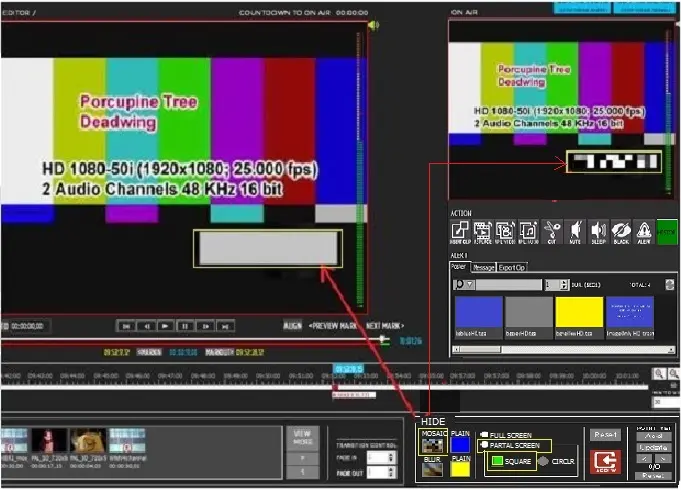
For illustration, in the screenshot below, the partial hide area is displayed in grey in the Editor Display screen on the left; the true effect is displayed on the right when it goes on-air.
Censormx_hide_effect_e.g_3_new
- Example 3: PLAIN BLUE effect, PARTIAL SCREEN – CIRCLE
- From the HIDE menu, select PLAIN (BLUE) effect, PARTIAL SCREEN, and choose a shape from the CIRCLE position.
- From the Editor Display screen, select “Markin” to mark the starting area with a left mouse click.
- From the Editor Display screen, select “MarkOut” to mark the ending area with a left mouse click.
- Click the <HIDE> button to take effect.
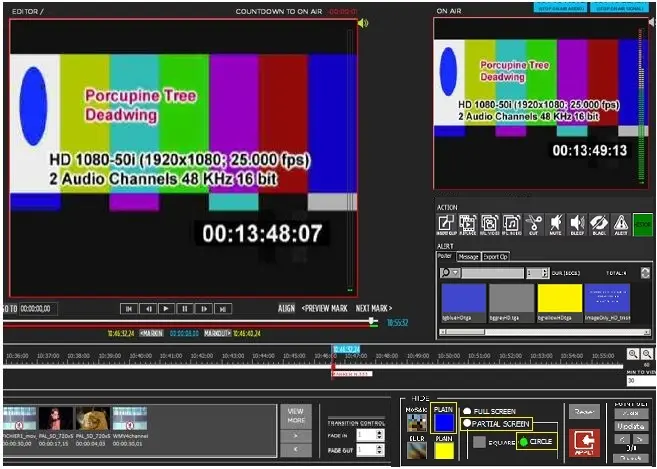
In the screenshot below, the hide effect is shown in the Editor Display on the left panel; the hide effect is displayed on-air in the right panel.
 Censormx_hide_effect_e.g_8_new
 Censormx_hide_effect_e.g_3_new
 Censormx_hide_effects_new
 Censormx_hide_effect_e.g_1_new