72.18.2.1 Installation
The installation of Adobe plugin is really easy and it's the same procedure as all the other Etere modules.
In the workstation where Adobe Premiere is installed, launch Etere Update module with an administrator account.
From Etere Update, select the feature plugin Adobe and launch the installation.
plugin_adobe_feature
The installer will take the file Adobeplugin.zip included in the Etere Installation package and will unzip it in C:\Program Files (x86)\Common Files\Adobe\CEP\extensions\Etere. If the path does not exist, Etere Update will create it.
Once done, edit manually the common.js file in C:\Program Files (x86)\Common Files\Adobe\CEP\extensions\Etere\js, setting these values:
var SERVICEDOMAIN = "http://adobe:82"; -------- Specify the etereweb service that will be used.
const EDITING_EDL = '__ED'; -------- Set here the type of the segments to be managed by Adobe.
const DEFAULT_TYPE = 'FILM'; -------- Set here the type of the assets which contain the segments to edit.
const PATH_TRANSLATE_FUNCTION = 'ADOBE'; // DAVINCI -------- Leave as it is to indicate you're using Adobe integration.
const ASSET_SMPTEMETADATA = '0F.FE.12.00.00.00.00.00'; -------- Set an additional metadata.
Now the Etere Panel is available in Adobe Premiere and can be enabled, if not visible, among its extensions.
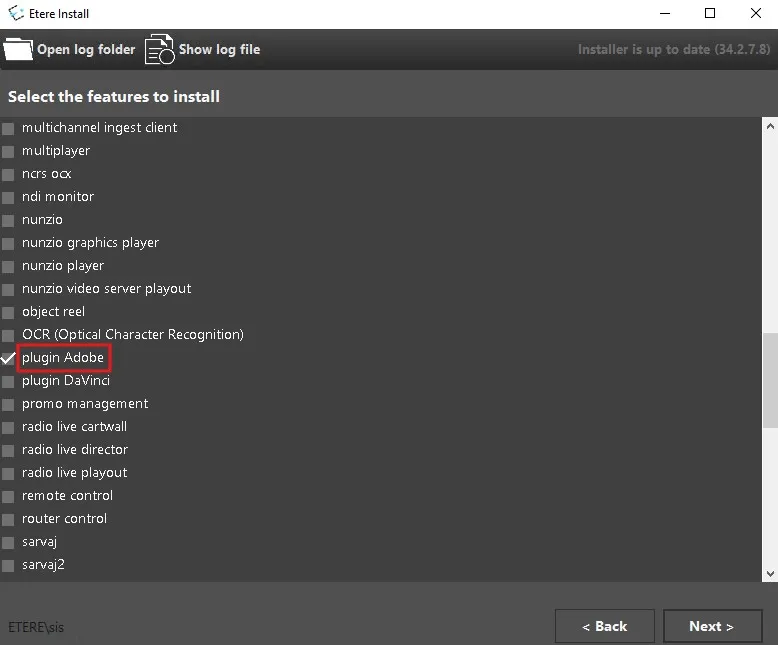 plugin_adobe_feature