70.3.3.7 Offline tapes
Before starting with the operations related to the management of offline tapes, the main difference between online and offline tapes will be explained below:
❑Online tapes: Data tapes used for archiving purposes which are currently present in a HSM location (e.g. a system tape library).
❑Offline tapes: Data tapes used for archiving purposes which are currently present in a non-HSM location (e.g. an external rack).
The current chapter illustrates how to perform the most common actions related to offline tapes, covered operations include:
•How to set a tape "offline"
•How to set a tape "online"
•How to assign an "offline" tape to a rack
How to set a tape "offline"
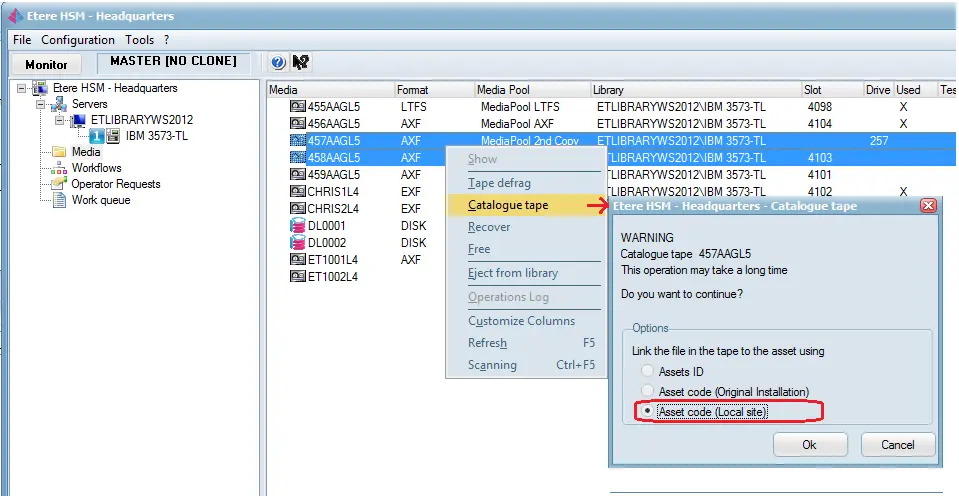
Tapes can be set offline (e.g. not present in the library) just by exporting/ejecting them from the library as explained in the Unloading Tapes chapter:
Etere HSM - Headquarters 1
Etere HSM - Headquarters 2
How to set a tape "online"
Each time an offline tape is requested (e.g. for restoring an asset), Etere HSM will perform one of the following actions depending on the used drive:
•Library: The Etere HSM Robotics server will automatically command the library to load the required cartridge.
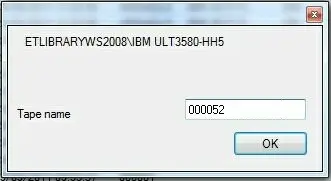
•Single-drive: The operator will be requested to manually insert the cartridge into the device and enter its related tape name (i.e. barcode) to allow the Data Pump to identify the tape:
Barcode
NB: Please note that in case the requested offline tape is stored in a non-HSM location (i.e. external rack), Etere HSM Headquarters will first request its import/injection into a system Tape Library.
How to assign an offline tape to a rack
In order to move one tape which is currently offline from the tape library to another rack just follow the next procedure:
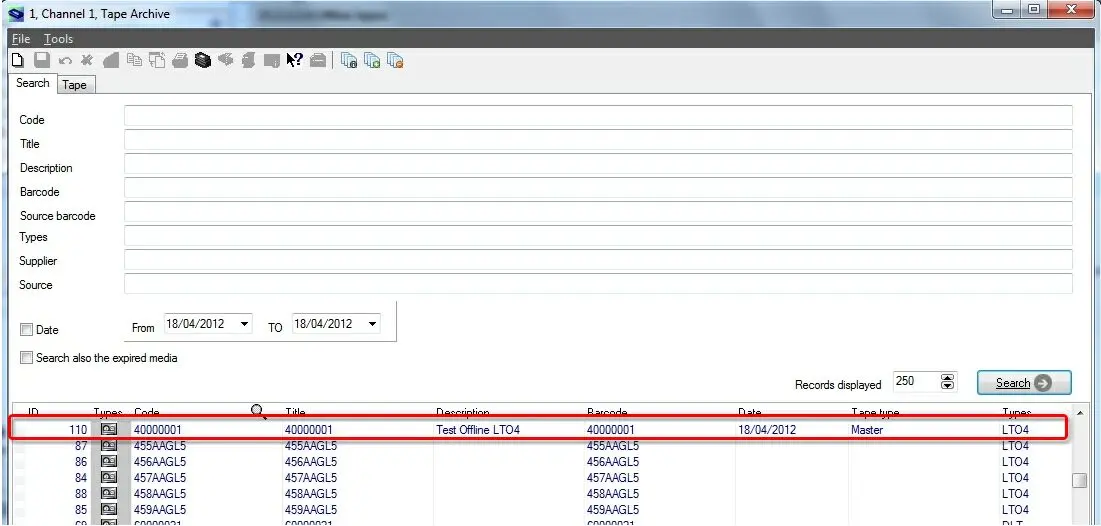
1.Launch the Tape Library module and search for the tape in question, then open it,
Tape Library 1
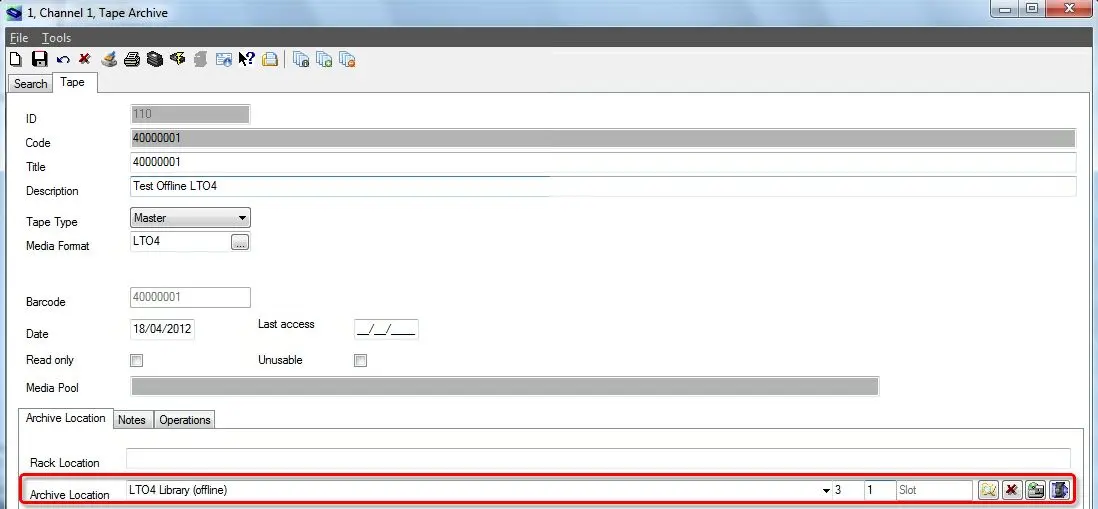
2.Set the non-HSM Rack on which the tape is currently stored by setting it under the "archive location" field:
Archive location
NB: Please note that in case the tape is online (i.e. not offline), the "archive location" field will be disabled and it won't be possible to modify it.
3.At this point just [save] all performed changes, the tape will be assigned to the new rack but it will remain "offline".
How to set a tape "Read-only"
In the event when a workflow action failed to save files into tape, you can bypass the problematic tape by setting the tape as “Read-only” to write on other tape and resume the workflow action.
There are two ways to set the tape as “Read-only”:
•Physically removing the level on the tape.
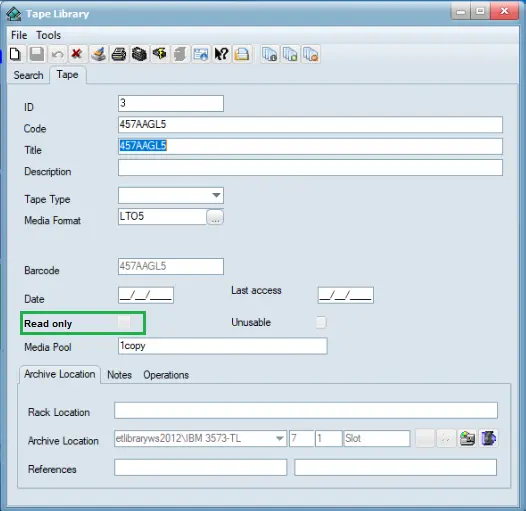
•Alternatively, you can access to “Configuration > Tape Library > Tape Information” section and set the data tape as “Read-only”.
Tape Library 2
Please note that the changes made to tape information would not take effect immediately if the tape has been assigned to a scheduled event.
 Barcode
 Tape_Library_1
 Etere_HSM_-_Headquarters_2
 Etere_HSM_-_Headquarters_1
 Tape_Library_2
 Archive_location