84.2.1.3 Event Icons
As explained in the previous chapter, within the Schedule View, events will be accompanied by icons to indicate the following information:
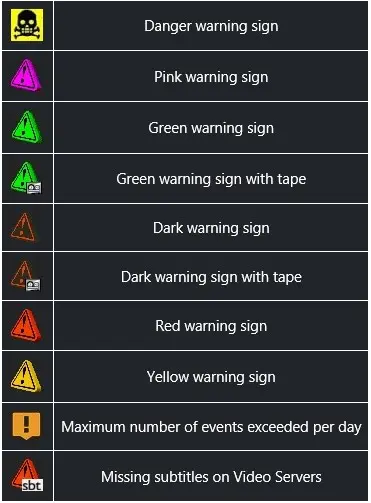
Warnings (icons related to specific checks enabled in the Tools > Warning messages menu)
warning_icons
Danger warning sign
Causes:
• The selected event has inverted segments, check segments order.
Pink warning sign
Causes:
• This space have been booked by Air Sales but no asset have been assigned yet.
• The selected event is a promo which have to be configured, go to the "Promo" property.
• The selected event is not an initial trailer. To set up it as indicated, go to the "Promo" property.
• The selected event is not an ending trailer. To set up it as indicated, go to the "Promo" property.
Green warning sign
Causes:
• The event has already been archived. The system will automatically transfer it to the video server.
Green warning sign with tape
Causes:
• The event indicated is archived on tape. The system will automatically transfer it to the video server.
Dark warning sign
Causes:
• The indicated event has expired.
• The event cannot be transmitted on the chosen channel.
• The selected event is not recorded.
• The selected event is not recorded on the main video server.
• Quality check has not been performed.
• The video file is not correctly recorded. Quality level of the video file is lower than 0.
• Not to be broadcasted, that is, the asset associated to the event is set as "not to broadcast".
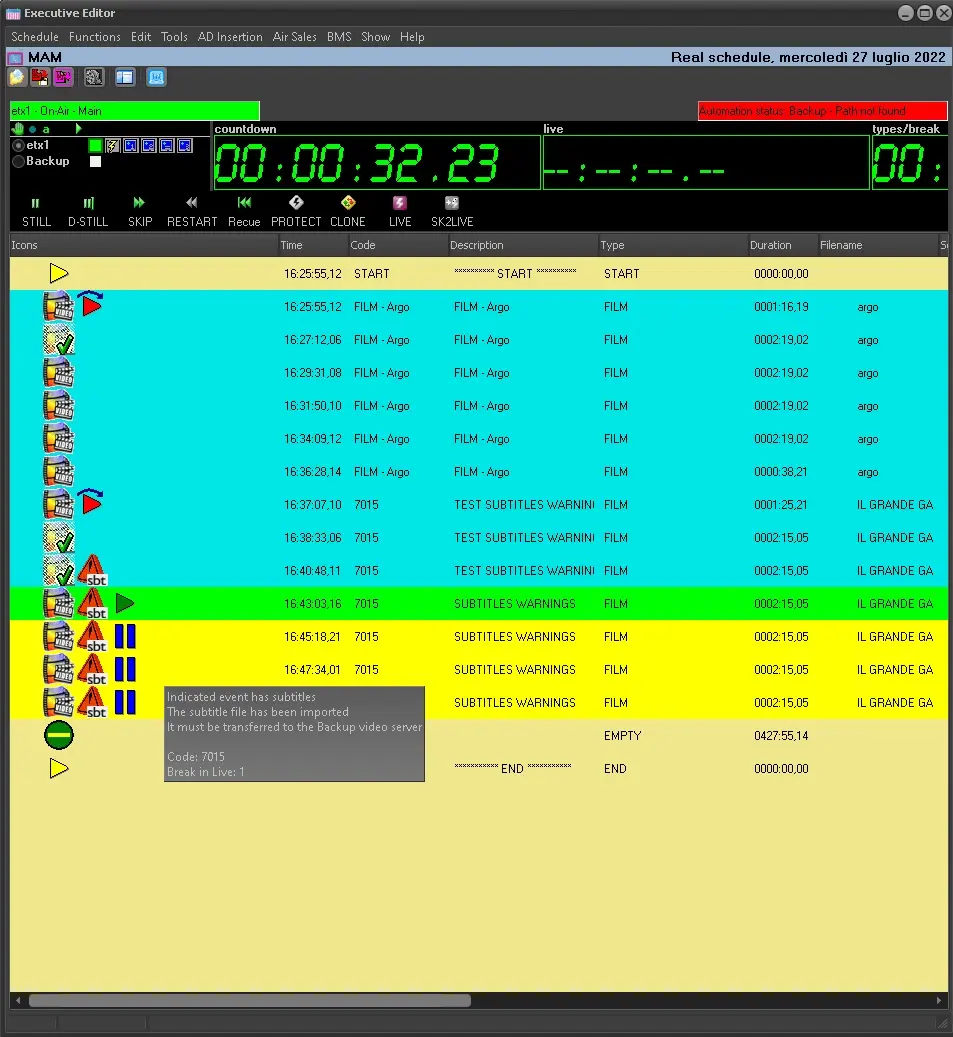
• Indicates the event has subtitles but the subtitles file still hasn't been imported
Dark warning sign with tape
Causes:
• The event is archived on tape. The tape is not present in the library. Impossible to transfer the video file in the video server.
Red warning sign
Causes for primary events:
• The event is recorded on the video server and it is necessary to 'Explode/All break points' for correct on air broadcasting.
• The event is recorded on the video server and it is necessary to 'Asset check' for correct on air broadcasting.
• The selected event is not recorded in the broadcast video server.
• The SOM/EOM checksum of the scheduled event differs from the one of the linked asset.
• The event is a Live event with no assigned input.
• This event belongs to an ad insertion cluster but it's not scheduled near to its original cluster. Set it up in the right position.
• Two consecutive clusters cannot be ad insertion. Insert an event to separate them or merge them into one cluster.
• Ad Insertion clusters does not have the same duration. Check all the clusters
• Cluster is empty or contains events from another Ad Insertion network.
Causes for secondary events:
• Some errors were found on secondary events: there cannot be secondary events with the same SOM
Yellow warning sign
Causes for primary events:
• The event contains video faults. It is advisable to explode the event.
• The event contains visible segments. It is advisable to explode the event.
• The event has subtitles but the subtitles file hasn't been imported.
• The event has been modified. Select the event and launch the 'Update duration' for correct on-air broadcasting.
• The event has been modified. It is necessary to 'Explode/All break points' for correct on-air broadcasting.
• The event has been modified. It is necessary to 'Asset check' for a correct on-air broadcasting.
• The event is not recorded on the main video server.
• The event is not recorded on the backup video server.
• The variable (loop) event's duration is less than: 00:01:00:00. It's recommended to increase this duration for a correct on.-air broadcasting.
• The event has an SOM inferior to the physical start of the video clip.
• The event has an EOM superior to the physical end of the video clip.
• The event is scheduled within a commercial segment, and it's not in the correct position. Please check event's priority within the segment.
• Unconfirmed event.
• Parental guidance conflict. Please note that in case a local and a main time is set for the system, the checking will be performed based on the local time.
• Incorrect duration, select the event and launch the "update duration" for a correct on-air broadcasting.
• The event doesn't have a CAD approval.
• The event is either in an "AN" commercial, position it at the top of the reference break, or in a "RN" commercial, position it at the end of the reference break.
• The duration set in the logo is not correct.
Causes for secondary events:
• The primary event ends before the duration set on the secondary event
• The secondary event is overlapping with another one of the same layer
Maximum number of events exceeded per day
Causes:
• The maximum number of events scheduled has exceeded the frequency set in Media Library.
Missing subtitles on Video Servers
Causes:
• Indicated event has subtitles, and the subtitle file has been imported but it must be transferred to the Main and Backup video servers
7826_subs_warnings_ee_found
Event status (icons related to some events statuses)
event_status_icons
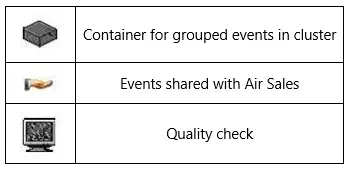
Container for grouped events in cluster
Causes:
• Indicates a container for events which have to be grouped in cluster. In general the events that are grouped in the cluster are commercial, and they are all events whose typology has the corresponding properties active.
Events shared with Air Sales
Causes:
• Indicates events programmed by Etere Air Sales. Rights can be set for types so that only Air Sales can modify related data of those events and Scheduling can only update their start time.
Note: This icon appears overlapped to the icon regarding the event type (e.g. spot).
Quality Check
Causes:
• Indicates if the event has been checked and if it results not suitable to be broadcasted.
Position (icons related to the position of an event within a cluster)
position_icons
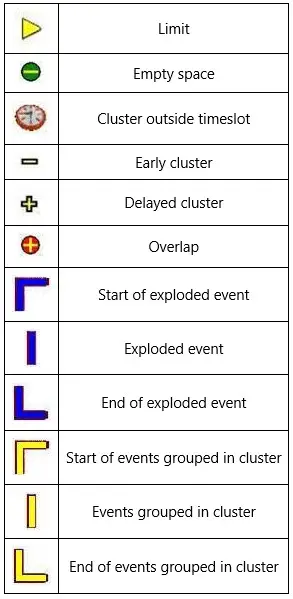
Limit
Causes:
• Set to point out start time and end time of the daily schedule. It defines the automation schedule working area.
Empty Space
Causes:
• Indicates an empty space (a time interval which doesn't contain a scheduled event) in the automation schedule. Other info about the empty space is its duration which allows the operator to choose which and how many events should be placed in it.
Cluster Outside Time Slot
Causes:
• Indicates a commercial cluster which, due to the changes in the schedule, is found in a different time slot to that of the original (this information is found in the scheduled time of the transmission).
Early Cluster
Causes:
• Indicates a cluster whose broadcasting time is more than 10mins early compared to its scheduled time.
Delayed Cluster
Causes:
• Indicates a cluster whose broadcasting time has been delayed by more than 10mins compared to its scheduled time.
Overlap
Causes:
• Indicates an overlap. Generally it arises in the presence of a fixed event, indicating the need to set the previous event as variable. After which, it is possible to make the variable event fill the space available using 'fill to next' (the event is shortened or lengthened as needed, in such a way as to allow the fixed event to go on-air at the scheduled time).
Start of exploded event
Causes:
• Indicates the first part of the exploded event (breaks pointed out).
Exploded event
Causes:
• Indicates the central part of the exploded event (breaks pointed out)
End of exploded event
Causes:
• Indicates the final part of the exploded event (breaks pointed out)
Start of events grouped in cluster
Causes:
• Indicates the first part of the grouped cluster.
Event grouped in cluster
Causes:
• Indicates the central part of the grouped cluster.
End of events grouped in cluster
Causes:
• Indicates the final part of the grouped cluster.
Scheduled event types (icons related to the event properties)
event_types_icons
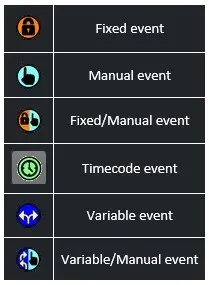
Fixed Event: Implies an event that is fixed to go on air at a scheduled time. The previous event must be set as Variable or Variable/Manual in order to set a fixed event.
Manual Event: Implies an event whose duration is manually decided by the operator. A Manual event ends and passes to the following event only when manually skipped by the user. This event is almost always associated to a Live event. If associated to a video file on a videoserver, when it ends, the automation commutes the master control on a default channel.
Fixed/Manual Event: This event has both Fixed and Manual properties. It starts at a scheduled time and it ends and passes to the following event only when manually skipped by the user.
Timecode: This type is usually set as default for all events. It is simply broadcasted at the scheduled time.
Variable Event: Implies an event whose duration is variable. This event goes before a Fixed event. To fill in all eventual gaps the event can be extended or shortened, by using Fill To Next. It can either be a simple Variable event or a Looped one.
Looped Event: A Variable event becomes looped in case the blank is filled before by a fixed event. The video file will be repeated until the fixed event starts at the scheduled time.
Variable/Manual Event: This event has both Variable and Manual properties. The video files are looped (repeated) until the operator skips to the following event.
Associated Secondary Events (icons related to the automation event its secondary events)
secondary_events_icons
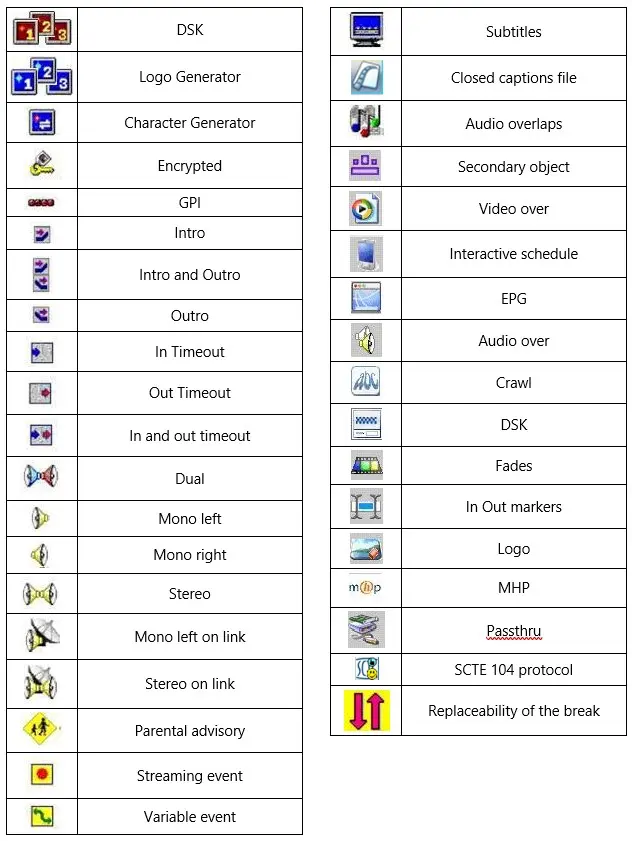
DSK: Dsk associated to the event.
Logo: Active logo associated to the event.
Character Generator: Message\CG command\crawl associated to the event.
Encrypted: Crypted flag of the scheduled event is active.
GPI: One or more GPI's associated to the event
Intro: Intro associated to a song.
Intro and outro: Intro and outro associated to a song.
Outro: Outro associated to a song.
In Timeout: This property is referred to Manual events. When the Manual event is on air and the input Timeout's value is zero, you can skip the event anytime (the Skip button is always enabled).
Out Timeout: This property is referred to Manual events. When the Manual event is on air and the output Timeout's value is zero, the Skip can only be manual (that is, the automation will not go to the following event until the operator carries out a skip).
In and Out Timeout: This event has both In Timeout and Out Timeout properties.
Dual: Dual Stereo audio associated to the event.
Mono Left: Mono audio associated to event's left channel.
Mono Right: Mono audio associated to event's right channel.
Stereo: Stereo audio associated to the event.
Mono left on link: Left channel audio mono on radio link associated to the event.
Stereo on link: Audio stereo on radio link associated to the event.
Parental advisory: Event with Parental advisory information.
Streaming event: Event On-air while being recorded.
Variable event: Event broadcasted for its entire duration without taking into consideration the mark in and mark out.
Dark Subtitles: Indicated event has subtitles but the subitles file still hasn't been imported.
Red Subtitles: Indicated Events has subtitles. The sutitle file has been imported. It must be transfered to the MAIN and BACKUP video server.
subs_warnings_ee_found
Closed captions file: There is at least one closed captions file linked to the asset.
Audio overlaps: An overlapped audio file associated to the event by the automation.
Secondary Object: A secondary event is associated to this event as a secondary event.
Video Over: A video over is associated to this event as a secondary event.
Interactive Schedule: Indicates that this is an interactive scheduled event.
EPG: TV Guide (EPG) associated to the event
Audio Over: Overlapped audio associated to the event.
Crawl: A crawl is associated to this event as a secondary event.
DSK: Indicates that a DSK is associated to this event as a secondary event to insert images over it.
Fades: A Fades is associated to this event as a secondary event.
In Out Markers: Indicates thatA In-Out marker is associated to this event as a secondary event.
Logo: A Logo is associated to this event as a secondary event.
MHP: A MHP application is associated to this event as a secondary event.
Passthru: This event is associated to send hexadecimal commands as a secondary event.
SCTE 104 protocol: It indicate the SCTE 104 protocol used for transmitting secondary event in STMan column.
Replaceability of the break: This icon indicate a substitutability of break is presence in the schedule. It is visible only when the break is "closed".
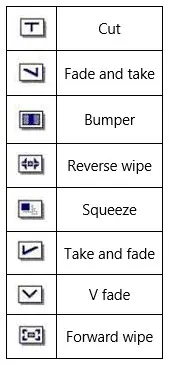
Transitions (icons related to event transitions)
transitions_icons
Cut: A cut that divides the current event from the following one.
Fade and Take: The event is faded out and the following one starts immediately.
Bumper: A black video file is added at the end of event. This can be associated only to a Timecode event.
Reverse Wipe: Implosion
Squeeze: Squeezed Event.
Take and Fade: Final cut and fade in
V Fade: Fade out and fade in without an overlap
Forward Wipe: Explosion
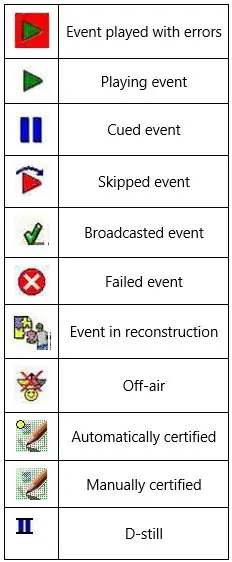
On-air status
onair_status_icons
Event played with errors: An error occurred while playing the current event. This could be due to various reasons but Automation continues to play the event.
Playing event: The event that is currently being played.
Cued event: An event which is pre-loaded on the associated device.
Skipped event: The event was skipped and the On-air passed directly to the following event. The operator has given the Skip command during the current event.
Broadcast event: The event has been correctly broadcasted.
Failed event: The event hasn't been transmitted or it has been interrupted.
Event in reconstruction: DataMover is copying the event from one video server to another to make it available for Automation.
Off-air:
• The event has been broadcasted off-air by the clone automation
• The event has been broadcasted off-air on a live emergency
• The event has been broadcasted off-air due to a GPI activation
Automatically certified: The transmission of the event has been automatically certified by Etere Aligner, due to the enabled status of the "update from the automation database" parameter.
Manually certified: The transmission of the event has been manually certified by an operator from Executive Editor, using the "update from the automation database" tool.
Once the event is manually certified, the event status would be changed to “Transmitted” and publication would start from next event after the manually certified event. To avoid this “Publish” error you can use the “Reset Transmitted Events” function to reset the event “Transmitted” status before publish the schedule.
D-Still: The event has been broadcasted with pause, that is, with a delayed still
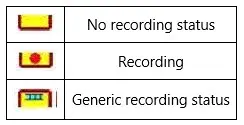
Ingest status
ingest_status_icons
No recording status: The recording status has not been communicated.
Recording: Currently recording the event.
Generic recording status: Already recorded event.
Note: Please note that in most cases, overlaying the mouse pointer on an icon will display a brief description.
Warning/Alarm Using Popup and Audio Once Media/Automation Server is Showing Error
If the system detects the media on playlist is showing error for on-air, the system will play the audio file (.wav) by windows media player to sound an alarm for operators.
Note: these audio files .wav are pre-recorded before corresponding alarm information of Etere system.
warning_messages
1) Alarm Audio File - Default values are assigned to all warnings.
2) Audio File Settings - Select a specific audio file for each warning. These settings are valid only for the current station.
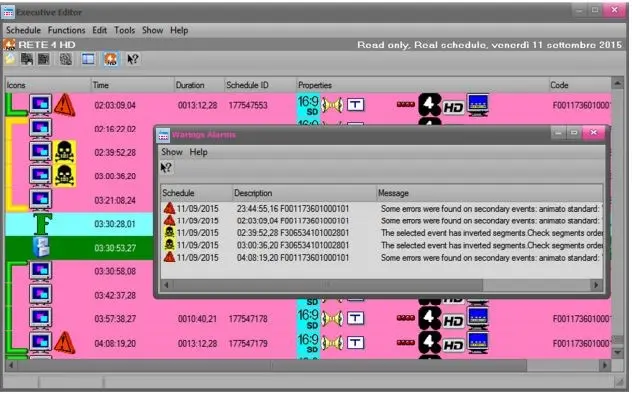
3) Active Audio Alarm Management - This setting is valid only for the current workstation. Default value is disabled. Every time a new warning is found, Executive Editor will display a Warning Alarms Forms and play all audio files associated with the warnings found.
4847_Warning_alarms
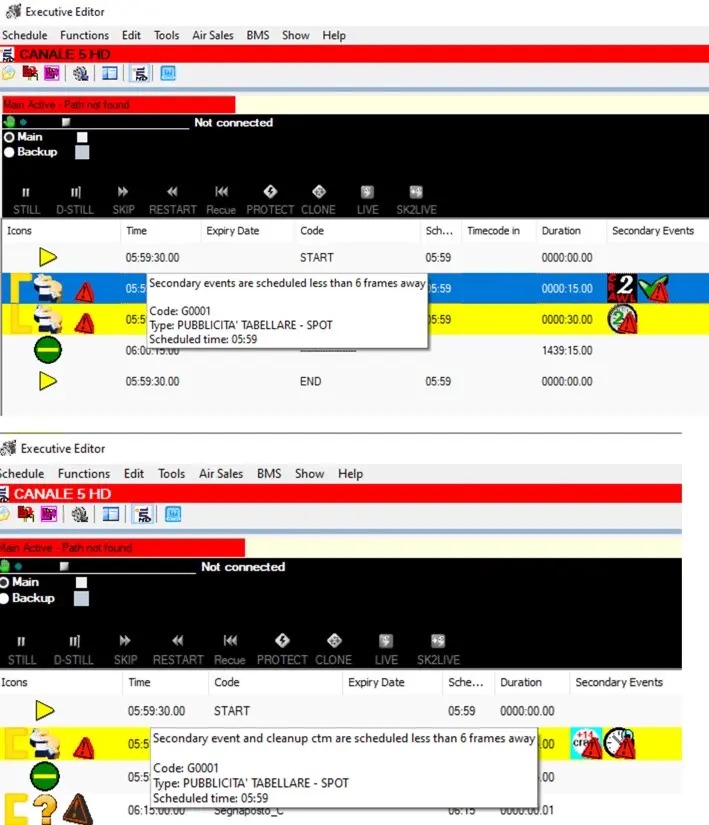
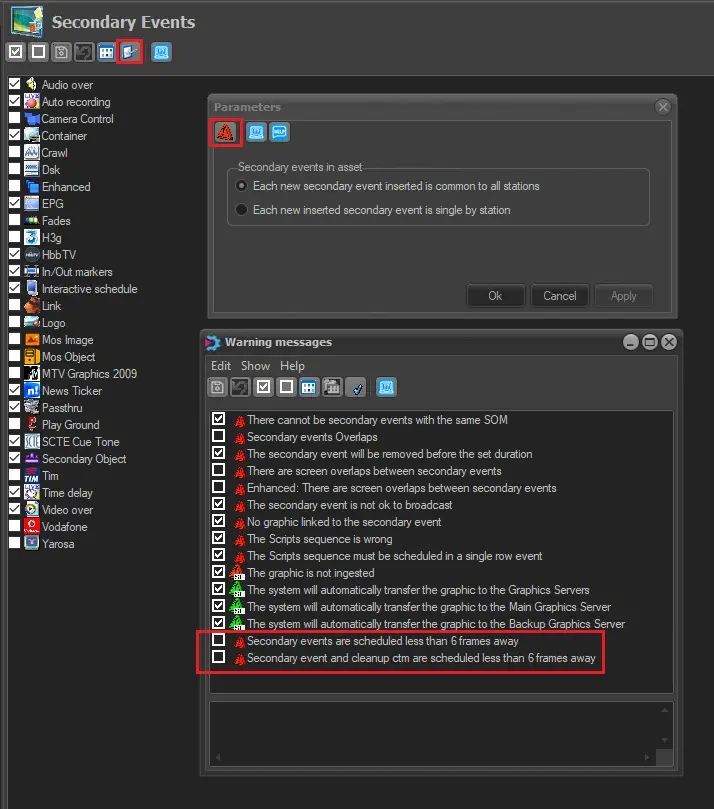
Note: New conflict checks have been added in EE. You need to enable the following warnings in Configuration\Secondary event section.
The warning “Secondary events are scheduled less than 6 frames away” is disabled by default.
The warning “Secondary event and cleanup ctm are scheduled less than 6 frames away” is disabled by default.
HowToEnableCheckDistanceOfCTM
System maintenance is required. After Etere Schedule has been restarted, you can see the warning in EE.
CheckDistanceOfCTMWarningEnabled.jpg
 Warning_alarms
 subs_warnings_ee_found
 CheckDistanceOfCTMWarningEnabled
 warning_icons
 event_status_icons
 position_icons
 event_types_icons
 secondary_events_icons
 transitions_icons
 onair_status_icons
 ingest_status_icons
 HowToEnableCheckDistanceOfCTM