Etere ETX-G Graphic Management
66.9 ETX-G Live Playout
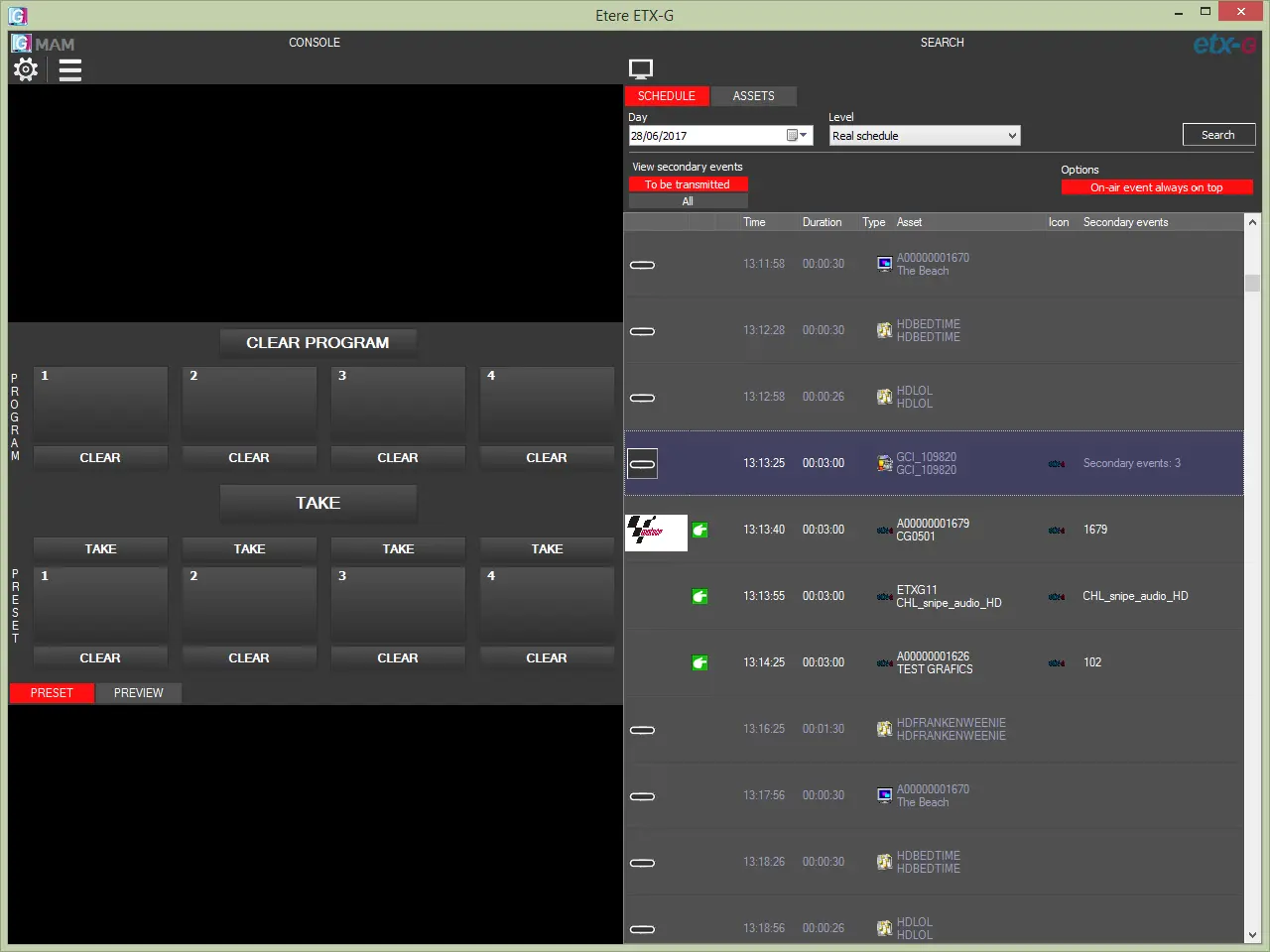
After launch ETX-G from the workstation, from the main console, you can search for the list of scheduled events for live playout or for assets associated with ETX-G.
Etx-g_search_console
- Schedule Tab
In the Schedule tab, the functions available in the main console include:- You can Search and load the daily scheduled and secondary events with related graphic assets.
- Day: Select a date from the calendar to search for the scheduled objects.
- Level: Select a schedule level / alternative schedule from the drop-down list.
- Using the “View Secondary Events” switch on the top right panel, you can display all secondary events or only secondary events that are yet to be transmitted.
- Using the [+] or [-] buttons on the leftmost column, you can choose to show (“+”) or hide (“-“) the specific secondary event.
- From the list of secondary events, you can drag the events that are scheduled for the current time (indicated by ETX-G_Search_Current_Icon icon) or events ready to be broadcast (indicated by ETX-G_Search_OK_Icon icon) into the <Preset> window and view the preset of the graphic. This feature is not valid for transmitted events (indicated by ETX-G_Search_Transmitted_Icon icon)
- While graphic is in <Preset>, you can switch the graphic from <Preset> to <Preview> by simply click on the <Preview> button.
- When a secondary event in <Preset> is <TAKE> into Program, the graphic would be cleared from the <Preset> layer and flagged as transmitted.
- If you click on the <TAKE> button again, no graphic will be presented as the graphic has already cleared (removed) from the <Preset>.
- You can click on the <Preview> ETX-G_Search_Preview_Icon button to preview all graphics of the selected asset.
- If the "On-air event always on top" option is activated, the current on-air event will be positioned at the top of the visible area.
- Assets Tab
Etx-g_live_console_asset
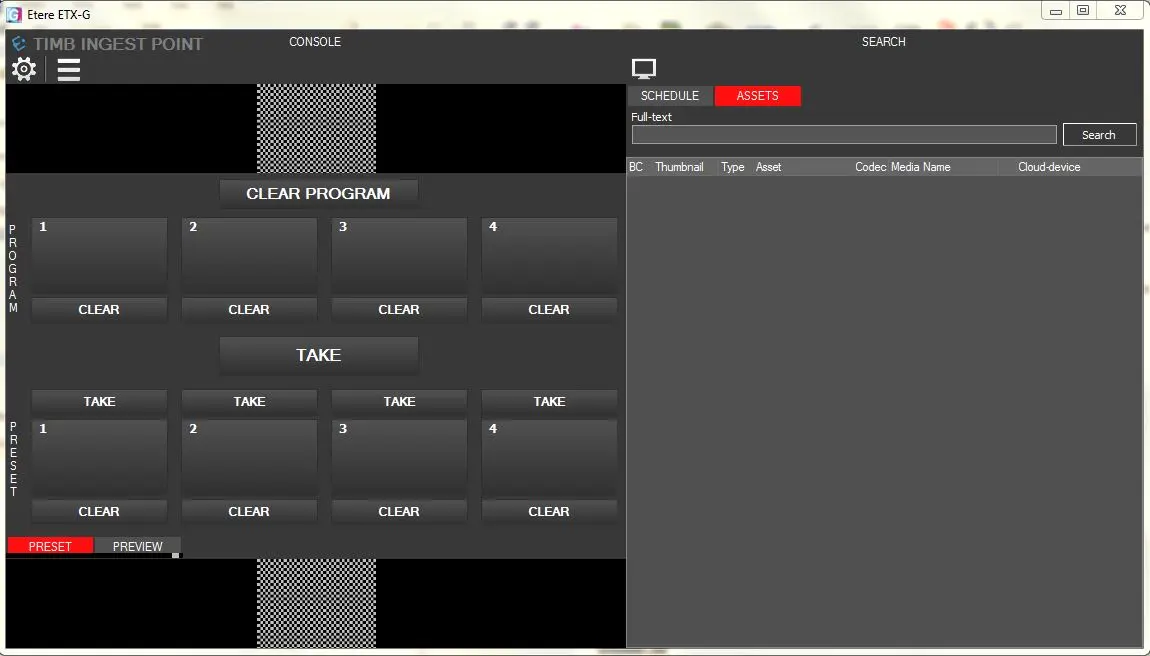
In the Assets tab, you can perform a full-text search to extract the graphics assets from the asset database. - ETX-G AsRun Log
When the "TAKE" command and "CLEAR PROGRAM" command are activated for a secondary event, an entry would be written in the ETX-G AsRun Log in the SQL database for tracking the results. The following information would also be recorded in the AsRun Log:- The Start Date and Start Time when the secondary event is transmitted.
- The execution status of the secondary event
- The event duration
- The offset time indicated in the event Refer to the Secondary Events report in the Automation Schedule for a preview of the report.
 Etx-g_search_console
 Etx-g_live_console_asset