9.4.4 Etere Scheduled Ingest
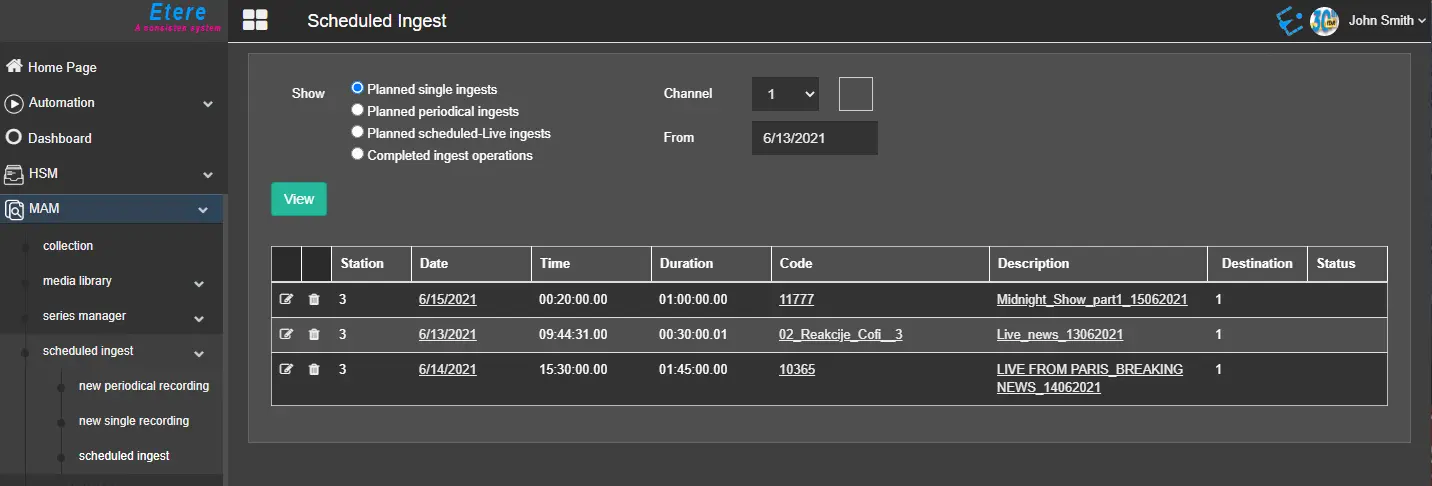
In this module, the user can glance at the various ingest operations by selecting one of the following options and clicking on the <View> button:
Scheduled_Ingest
SHOW
- Planned single ingests: Display individual ingest operations designed for a specific date and time from 1 of the ten channels (1 to 10) or all channels.
- Planned periodical ingests: Use this option to display ingest operations scheduled to be executed periodically and repeatedly within the scheduled window, e.g. ingest to start every Tuesday and Friday every week. Specify the planned ingests from 1 of the ten channels (1 to 10) or all channels.
- Planned scheduled-live ingests: Display the ingest operations scheduled for the "Live" event, e.g., a soccer match or concert, scheduled in 1 of the ten channels (1 to 10) or all channels.
- Completed ingest operations: This option extract the completed ingest operations scheduled in 1 of the ten channel (1 to 10) or all channels, regardless of the ingest types, e.g. single ingests, periodical ingests or live ingests.
CHANNEL
Select 1 of the ten channels from the list, or select "All" to include all channels.
FROM
From: In the "From" parameter, select a date from the calendar to extract planned single ingest starting from the indicated date;
Only applicable for "Planned single ingests" and "Completed ingest operations"; select a date from the calendar to extract scheduled single ingests operations starting from the date chosen.
When the <View> button is triggered, information extracted from the database includes:
DESCRIPTION:
- Station: The name of the station where ingest operation was performed;
- Date: The date scheduled for ingest operation;
- Time: The expected time for ingest on a specific date;
- Duration: The total time taken for the ingest operation;
- Code: It displays the code of the linked asset specified during the recording setup;
- Description: A brief description of the ingest operation;
- Destination: This column display the designated channel assigned to the ingest operations;
- Status: The current status of the ingest operation.
When the Scheduled Ingest is displayed, you can click on the Edit icon next to the ingest asset to launch the editing of the periodical recording setting when the scheduled ingest was set up. Click the Delete icon next to the ingest item to delete the scheduled ingest.
 Scheduled_Ingest