70.3.2.6 Work Queue
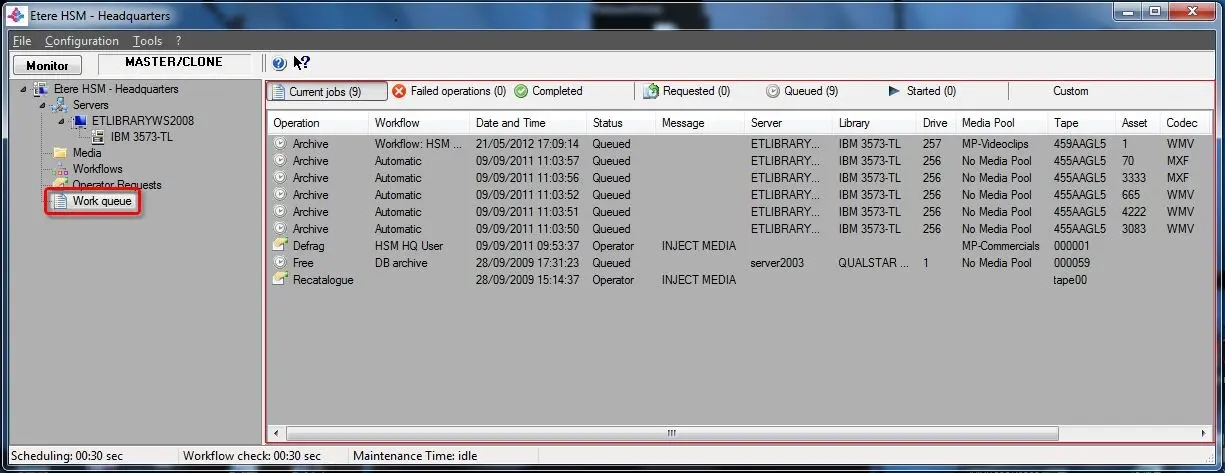
The Work Queue section allows viewing all the operations managed by Etere HSM including, for each operation, the following information (which can be added/removed from the list by making right-click on the columns header and selecting the "custom columns"):
Etere HSM - Headquarters
Operation - Job to which the line is related (e.g. archive, restore, defrag, free, recatalogue).
Workflow - The launcher of the operation, it can be "automatic", "via T-workflow", "operator", etc.
Date and time - The data and time at which the operation has been requested.
Status - The current status of the operation (e.g. queued, scheduled, operator, warning).
Message - The eventual messages for the operator (e.g. inject tape).
Server - The server which manages the operation performing.
Library - The tape library on which the archiving/restoring asset is present.
Drive * - The tape drive on which the archiving/restoring asset is present.
Media Pool - The media pool to which the tape containing the archiving/restoring asset is related.
Media - The media where the archiving/restoring assets are stored.
Asset - The asset for which the operation has been requested.
Codec - The codec with which the asset has been archived.
Metafile - The archiving/restoring file as managed within the Etere database.
File - The physical file to be archived/restored.
NB: The “Drive” assignment is managed by Headquarters application by assign job to a drive for best performance after analyzed the jobs previously assigned to the work queues. While the operation is in Queued status, you can use the “Change drive” function in Contextual Menu to reassign operation to another drive.
In this section, managed operations are grouped by their status across the following tabs:
Current jobs - All jobs not yet finished (i.e. requested, queued, started).
Failed jobs - All jobs which have not been performed due to an error or failed condition (see scheduling conditions).
Completed - All jobs which have been successfully finished.
Requested - All current jobs which are scheduled (e.g. require a tape to be injected by the operator).
Queued - All current jobs which are queued for being still performed.
Started - All current jobs which execution has been already started.
Custom - All jobs filtered according to a custom set of filters and conditions.
Moreover, in the bottom bar of this section, it will be possible to view the number of "requests to schedule", "queue operations" and "current operations".
NB: When LTO tape is manually loaded into library for operations, the tape would be displayed in Queued moed. You must perform a scanning (Ctrl + F5) of tape library to refresh the job status.
NB: When a "failed" operation is re-launched (according to the "Configuration > Options > Data pump > Attempts..." parameter), its operation status will automatically change into "warning".
Contextual operations
Making right-click on any of the operations listed on this section, the following functions will be displayed:
Delete - Cancels and removes the selected operations, it is suggested to use this function carefully.
Abort - Terminate the current selected operation even if it is started (e.g. in case it is hanged). Aborted operations are kept in the operations list.
Set priority - Set execution priority for the selected Archive or Restore operations. The available priority are Low, Medium, or High. You can also select “Customize” option to set the digitized priority (e.g. 1500) to the selected operation without taking into account the operation types.
This function is not allowed for aborted operations.
Change drive - This function enable you to reassign the select queued operation to another drive.
Select all (Ctrl + A) - Use this option to select all tasks in the work queue.
Inject into library - In case the operation message is "inject media", this function will allow to select and load the requested tape into the system.
Check drives scope - This function check the operation performed on drive.
Customize columns - Customize the way columns are displayed, you can insert more columns to work queue or reduce the columns. See the custom columns chapter for further info.
Refresh - Updates the current view of the work queue.
 hsm_work_queue