54.3.3.3 Replacement
The replacement function allows you to replace or rotate a commercial already inserted into the schedule with another, keeping the expected schedule times unaltered. To start replacing a commercial, search for the commercial using the [Commercial Code] button and then compile the following parameters:
Replacement
Parameter - Commercial Code
Description: Search for the commercial asset to be replaced.
Parameter - Replace with
Description: Search for the commercial asset(s) to replace the previous asset.
Use the [add] and [remove] buttons to select and deselect events and the [move up] and [move down] buttons to arrange them in the list.
Parameter - Rotation
Description: Indicate if the rotation method with which the asset will be replaced:
Days - Replacement assets will be inserted one per day on a rotation basis; they will be alternated daily, one per day. For instance:
Slot 1
Day 1: asset-A
Day 2: asset-B
Day 3: asset-C
Day 4: asset-A
Slot 2
Day 1: asset-A
Day 2: asset-B
Day 3: asset-C
Day 4: asset-A
Slot 3
Day 1: asset-A
Day 2: asset-B
Day 3: asset-C
Day 4: asset-A
Slot 4
Day 1: asset-A
Day 2: asset-B
Day 3: asset-C
Day 4: asset-A
Time - Replacement assets will be inserted one per time slot on a rotation basis; they will be alternated daily, one per time slot. For instance:
Slot 1
Day 1: asset-A
Day 2: asset-A
Day 3: asset-A
Day 4: asset-A
Slot 2
Day 1: asset-B
Day 2: asset-B
Day 3: asset-B
Day 4: asset-B
Slot 3
Day 1: asset-C
Day 2: asset-C
Day 3: asset-C
Day 4: asset-C
Slot 4
Day 1: asset-A
Day 2: asset-A
Day 3: asset-A
Day 4: asset-A
Parameter - Maintains priority of replaced asset
Description: If enabled, the new asset will keep the priority setting of the replaced asset.
If disabled, new assets will be inserted with their priority setting.
Parameter - From - to (dates)
Description: Insert the dates period in which the asset will be replaced. By default, the order's start & end dates will be proposed.
Parameter - From - to (times)
Description: Optionally, specify the period when the asset will be replaced. By default, the order's start & end times will be proposed.
Once all parameters have been set, press the [RUN] button to replace the scheduled commercial asset.
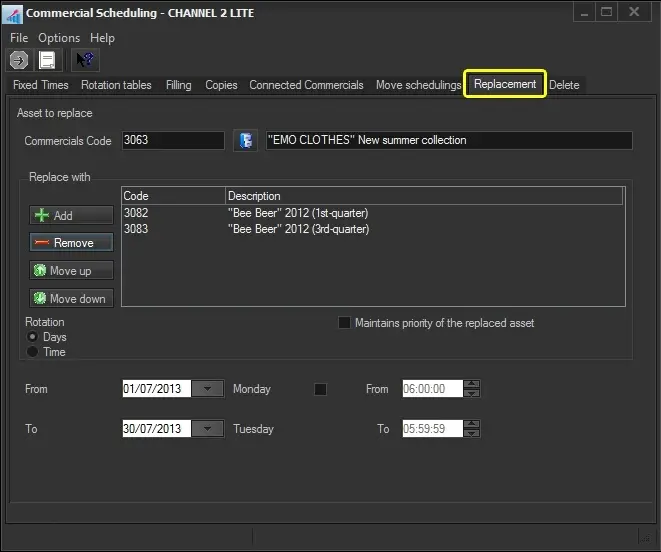 Replacement