56.2.1.8 Contextual Functions
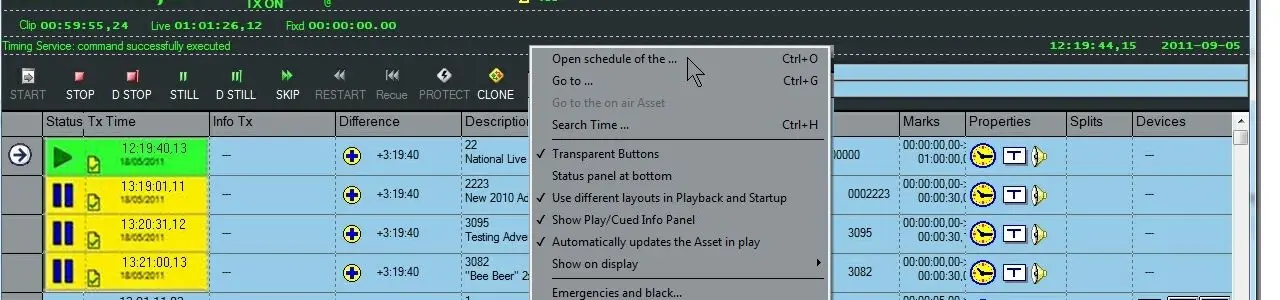
The On-Air module provides some contextual functions available by making right-clicking on a certain event of the list:
contextual__functions
The popup menu will provide access to some vital on-air functions classified into the following four categories:
Broadcast Schedule
•Open schedule of the...: It prompts the operator for the television day for which the broadcast playlist should be open.
•Go to …: Use it to open a dialogue window that will permit the operator to place the pointer at an exact position of the events grid.
•Go to the on-air asset: It positions the events grid pointer on the currently playing event.
•Search time: use it to place the events grid at a specific scheduled time.
Look and feel
•Transparent buttons: If enabled, all switches in the Status panel will be displayed with a transparent background, thus rendering the graphical interface a discussion of a unique colour.
•Status panel at the bottom: If enabled, the status panel will be displayed at the bottom instead of at the top (as default).
•Use different layouts in playback and startup: If enabled, the automation window will manage two different layouts, a standard layout (i.e. before the [play] button is pressed) and a playout layout (i.e. once the [play] button is pressed). These layouts will be automatically saved when the window is modified, and the [play button] is pressed.
•Show play/cued info panel: The Status panel is displayed if the option is activated.
•Automatically updates the asset in play: if activated, every time the video file changes, the events grid that displays the schedule is scrolled so that the running event is always at the top of the Events Grid.
•Show on display: Select one between the following two options regarding the main countdown displayed in the Playout data area:
- Countdown to asset's end (CTRL-M): it shows the countdown to the end of the currently playing event.
- Countdown to following live (CTRL-L): it shows the closest scheduled live event countdown.
NB: all colours are editable under the settings form available in the toolbar (once a colour is selected, it is immediately applied to the user interface).
Emergency controls
•Emergencies and black: it displays a dialogue window showing possible errors and problems in scheduling blacks and emergency video files.
•Load on a VTR: Associate and load the marks of the event to a certain VTR (via UDP protocol); it positions the VTR at the mark-in of the selected event.
•Wake: Use this function to activate either the 'Next VTR' (in case of using one) or 'All the VTR' available for the automation.
•Switch to the default channel: the router is switched on the default channel, set in the broadcasting settings.
•Preroll: Select and activate a preroll duration among the ones in "Automation > Settings > router/timing".
See also chapter: "Change the preroll on the fly".
Playback commands
Playback commands (e.g. start, stop, still, etc.) from the contextual menu are detailed in the Automation Commands chapter.
Special shortcuts
The [F5] key allows updating the events in the automation schedule and their time codes.
 contextual__functions