59.3.10.11 Creating T-Workflow
Thanks to the intuitive interface of the T-Workflow Designer, creating a custom T-workflow is easy. To start implementing a new T-workflow, follow the steps detailed below:
1. Choose the "new" option from the toolbar inside the Editor section and insert the relevant information concerning the new T-workflow:
Friendly name - Assign a brief and self-explicative name to the T-workflow.
Local name - If the friendly name is not in English, insert its English translation here to facilitate its recognition (e.g. by the Etere Support Service).
Description - Enter a descriptive text detailing the purpose of the T-workflow.
2. Once the T-workflow is created, START and END action blocks are automatically inserted. It's between these actions that action blocks must be added and linked through connectors to make up the final T-workflow sequence,
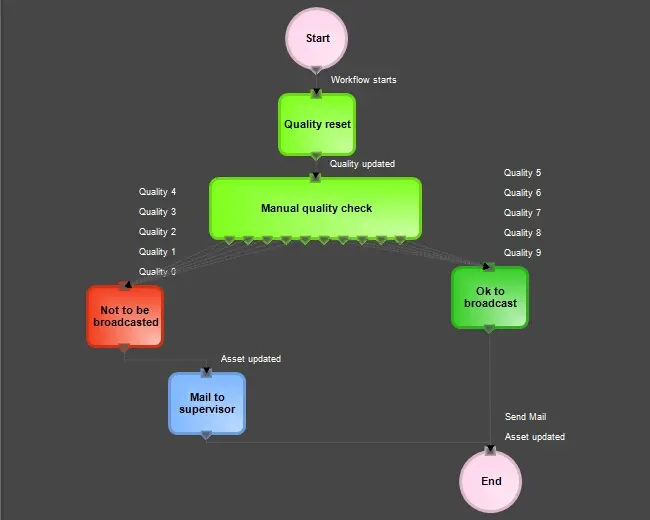
3. Drag and drop the T-workflow into all the action blocks required for operating necessary, for instance, setting the audio/video quality of an asset:
•Add a "Quality reset" action to set the audio/video quality of the asset to zero, then link it to the "Start" block,
•Add a "Manual quality check" to allow operators to set the quality of the "reset" asset. This block result will be a quality value between 1 and 9,
•Add an "OK to broadcast" block and link it to all the "good quality" outputs (greater than 5); it will allow the broadcasting of the asset.
•Add a "Not to be broadcasted" block and link it to all the "low quality" outputs (lower than 5); it will avoid broadcasting the asset.
•Add a "Mail to supervisor" block after the "not to be broadcasted" block to inform the supervisor about assets with a failed quality check.
•Now the T-workflow is ready for being attached to assets as explained in the How to assign a T-workflow chapter:
actions_blocks
4. If the T-workflow is connected to an output of a block to the End of action, you can use the Manage Connection function to create and test the connection automatically.
NB: Some further information on creating T-workflows can be found in the following Best Practices for Creating T-workflows chapter.
Duplicate a T-Workflow
To create a T-workflow based on an existing one, just select 'duplicate T-workflow' in the T-workflow editor; a form will prompt you to insert the Friendly name, Local name and Description, after which a new T-workflow identical to the previously selected will be created. During the copying of the T-workflow, a progress bar would be displayed to indicate the loading process, and a confirmation message would be prompt when the duplication is completed successfully.
Creating a T-workflow with similar parameters and a similar Friendly name or Local name but with a different file extension is possible.
Edit an Existing T-Workflow
To open an existing workflow to edit or view it, select the 'Open' button; all the available T-workflows will be shown in a list, allowing you to choose one. At this point, build the T-workflow as in the case above-mentioned (create a new T-workflow).
It is important to note that any change performed to a T-workflow is automatically saved, even if it is currently running. Be careful because inconsistent changes performed on now-executed T-workflows may make crash-running processes.
Run a T-workflow from a specific step (action) in bulk for several assets
To run a T-workflow from a particular step (action) in bulk for several assets, search "Restart T-workflow from action" under the asset search context menu.
 actions_blocks