84.4.5.14 STANDARD > GENERIC > XML ASSETS FULL FOR XSLT
Import Scope
The XML Asset Full for XSLT import allows to import files previously exported by the "XML Assets Full for XSLT" export function; that is, it's able to read .XML files containing information related to assets.
It's worth mentioning that before and after the import certain conditions are checked and some actions taken:
Prerequisites
It's worth mentioning that the import supports the following tables of the Etere database:
<Filmati> (main asset properties)Note: More information on XML Asset Full for XSLT can be found in chapters: "Etere tables & fields" and "Sample file" .
<FSerie> (seasons of multiple assets)
<Anagraf> (personal data)
<SmpteDictionary> (flexi-metadata structures)
<SmpteMetadata> (values of flexi-metadata)
<FEDLDescription> (EDLs)
<FInterruzioni> (marks of EDLs)
<Artisti> (artists)
<Generi> (genres)
<TipoGeneri> (types used to group genres)
All date fields must be provided in either "YYYY/MM/DD" or "YYYY/MM/DD hh:mm:ss" format.
If the “DateTime” SMPTE field is NULL value, the SMPTE data would be skipped during import.
NB: Upon import, 1 millisecond would be added to the asset time in “DateTime” SMPTE field to round up the asset accurate time.
No assets are deleted from the database during this import.
If the XML file contains multiple assets, only one asset would be imported for each import process.
Process
In order to be imported, files must be correctly formatted, that is, they must meet the following specifications:
✓ The file must have an .XML extension
✓ The file must contain a valid XML structure
✓ The first tag must be <AssetData>, and the <Asset> tag must exist on its inside.
✓ In case the "VideoStandard" is set, must be one recognized by Etere (e.g. PAL).
✓ The <Cod_Progra> tag (if present), must have a maximum length of 32 characters
✓ The <NewType> tag (if present), must exist in Etere as the creation of types is not supported.
✓ If there is discrepancy in the <NewType> tag between import file and Etere database, the asset would not be imported.
✓ If the <NewType> tag is not present, the unknown type (0000) will be assigned.
✓ Flexi-metadata (if present) must exist in Etere (specially the item) as the creation of new ones is not supported.
✓ When creating new asset code, it must adhere to Etere Specifications, else it would be deleted.
✓ If the assets contain EDLs, the EDLs would be deleted from asset and new EDLs would be created.
✓ If the <Genres> tag doesn't exist in Etere, it will be automatically created if it meets the following length specifications:
▪ Cod_Gen 4 chars maximum
▪ Descrizio 100 chars maximum
▪ Genre_Type_Description 40 chars maximum
In case the <Cod_Program> tag is either empty or missing, the asset code will be retrieved from one of the three flexi-metadata set in the import. If also flexi-metadata are unavailable, the asset code will be automatically generated following the system rules to create the new asset (only if the "create new assets..." parameter is enabled).
Data contained in the tag <MarkOut value="0">00:00:00.00</MarkOut> is converted and imported, frames are ignored.
The following tags are automatically ignored:
▪ Empty tags (e.g. <descrizio></descrizio>)
▪ Id tags (e.g. <id_filmati>, <id_metafile>, etc.)
▪ Comment tags (e.g. <!-- mandatory -->)
The <FLINKS> tag is used to manage the child assets and parent asset relationship during import. You can define many <FLINK> tags within the <FLINKS> with the following 3 mandatory tags:
✓ the <LINKCODE> tag, fixed value as “PE”.
✓ the <COD_PROGRA> tag is the program code to link to the asset code.
✓ the <PARENT_TYPE> tag define the asset type, its value must be “child” or “parent”.
During import, if any of the above tag is not defined or missing, the import of whole XML file would fail.
If management of child and parent assets relationship is not required, the <FLINKS> tag, or any <FLINKS> tag inside it, should be entirely removed from XML.
In case any transformation is enabled, imported data will be transformed according to the selected XSLT schema.
Depending on the global success, once imported, the file is renamed by appending one of the following extensions to its filename:
▪ Success: Etere.Asset.777_23678_20150219_145632.xml.old
▪ Error: Etere.Asset.777_23678_20150219_145632.xml.err
For some stations, in order to activate the assets after import you would need to use the attribute “stationsenabled” in the <AssetData> tag. For example:
<? Xml version="1.0" encoding="UTF-8" standalone="yes"?>NB: After import, the assets would be activated only in those stations highlighted in yellow.
<AssetData datetime="2018-10-03 09:38" lastrevision="28.02.40.00" description="Station=MAM User=1" videostandard="PAL" fps="25" stationsenabled="MAM,NUNZIO,MTX DELAY,NUNZIO2,">
<Asset>
<ID_FILMATI>2179</ID_FILMATI>
<COD_PROGRA>_FB0</COD_PROGRA>
If the import process is launched by ActiveSync or F90, assets with “movie_id” greater than 0 (zero) would not be imported.
Exported fields
Detailed information on the fields managed by the XML Asset Full for XSLT function can be found in the Etere tables and fields and Sample file chapters.
In order to use this option the following fields must be compiled:
Import standard generic xml assets full for xslt
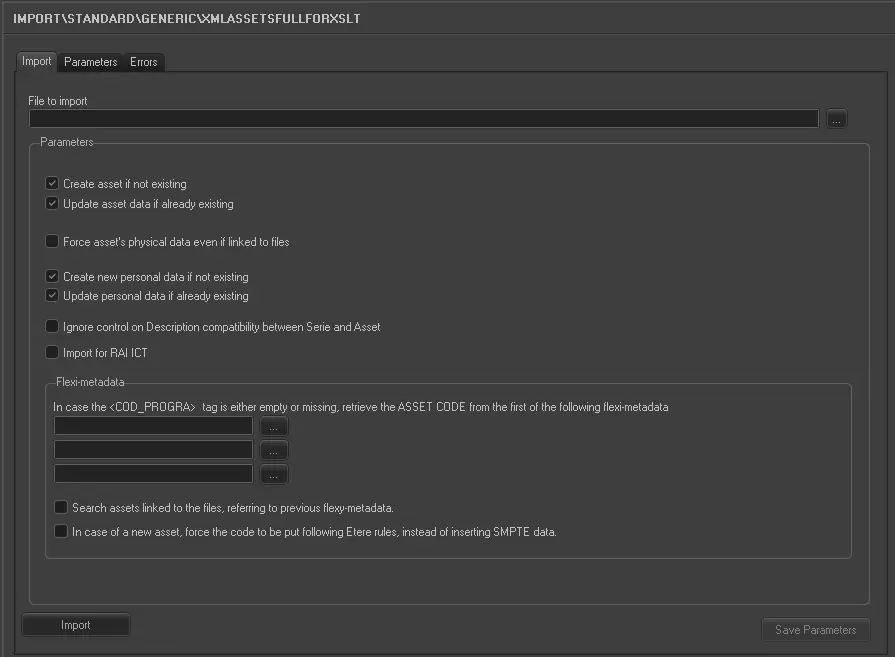
IMPORT TAB
File to import - Browse and select the file to be imported into the system.
NB: Please note that only files with XML extension are supported.
NB: When import XML-EDL linked asset, it does not import the segment in the asset.
Create asset if not existing - If enabled, non-existent assets (i.e. not yet in the database) will be inserted in the Media Library.
If disabled, non-existent assets will be ignored.
In the latter case it's suggested to enable the "update asset data..." parameter to only update existing assets.
Update asset data if already existing - If enabled, existing assets (i.e. already in the database) will be updated with imported information.
If disabled, existing assets will be ignored.
In the latter case it's suggested to enable the "create asset..." parameter to only create new assets.
Force asset's physical data even if linked to files - If enabled, the physical data (start and end timecodes) of existing assets will be updated even if said asset are already linked to a file.
If disabled, physical data of existing assets won't be modified.
Create new personal data if not existing - If enabled, non-existent personal data (i.e. not yet in the database) will be imported in the Personal Data db.
If disabled, non-existent personal data will be ignored.
Update personal data if already existing - If enabled, existing personal data (i.e. already in the database) will be updated with imported information.
If disabled, existing personal data will be ignored.
Ignore control on Description compatibility between Seasons and Asset - If this option is enabled, when the asset’s description of the imported seasons is different from the asset in database, the asset would be imported, but the asset’s description would not be updated to the description field (FSERIE.DESCRIZIO) in database table.
Import for RAI ICT - If enabled (for specific customer), the import would search the metafile ID to link the asset to metafile with the following conditions applied:
• The Metadevices in source and target database are matched.
• The Codec in source and target database are matched.
• The Metadevice contain single linked path to metafile.
• The path name structure must be Memory-compatible, and the last sub-path name is 8 numeric characters long, e.g. “20200327”, which is 27 March 2020.
• If destination path does not exist, a complete destination path would be created.
Create tapes if they do not exists - If enabled, non-existent tapes will be inserted in the database along with the related marks and linked to the asset. If disabled, non-existent tapes will be ignored.
In case <Cod_Progra> tag is either empty or missing, retrieve the ASSET CODE from the first of the following flexi-metadata - Select up to 3 flexi-metadata to be used as asset code if the <Cod_Progra> tag is either empty or missing.
The first metadata will be preferred when available, otherwise the second one or the third one will be used.
Search assets linked to the files, referring to previous flexy-metadata - If enabled, the import would make reference to previous flexy-metadata when searching assets to linked to the files.
In case of a new asset, force the code to be put following Etere rules, instead of inserting SMPTE data - When creating new assets during import, enable this option to assign the asset code based on Etere rules, instead of adhere to the rules of importing SMPTE data.
NB: In circumstances when asset code is not defined adhere to Etere specification, the creation of asset would be denied to prevent “orphan” assets in database.
Note: When importing SMPTE data, the following rules applied if there is data in the <ITEM> tags:
• If the data type is STRING and contains no value (blank), the data in existing asset is not updated, if asset does not exist in Etere, it is not created.
• If the data type is STRING and contains “##” value, the data in existing asset would be delete from Etere, if the data does not exist in Etere, it is not added.
• The STRING tag in XML file is case-sensitive, it is recommend to process file exported from Export Standard XML Assets Full for XSLT.
Import standard generic xml assets full for xslt 1
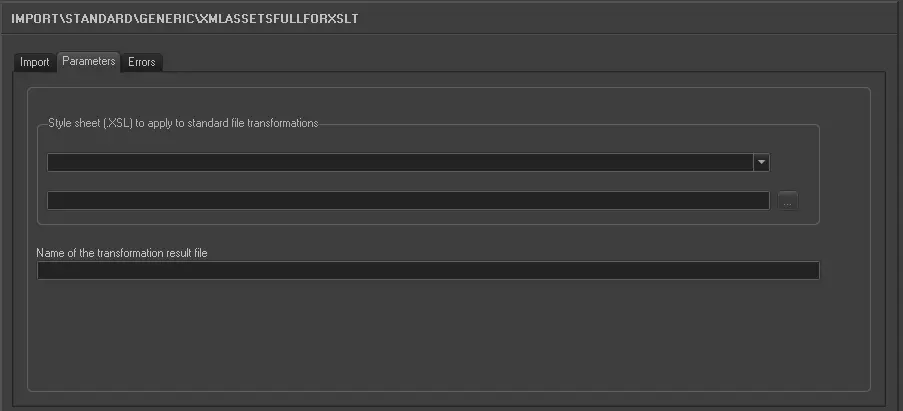
PARAMETERS TAB
Stylesheet (.XSL) to apply to standard file transformations - If specified, imported XML data will be converted from the standard format into a custom format, based on the given XSL style sheet (e.g. ET_XML_ASSETS_FULL_XSLT).
In case the <External> option is selected, it will be possible to freely browse and select any .XSL file.
Name of the transformation result file - Enter here the full path and name with which the transformed file will be fixedly saved.
If not specified, no transformation will be performed (i.e. only standard XML files will be created).
Launch the import
Once the import has been configured, it can be started just by pressing the <import> button, so many asset forms as xml files exists on the selected folder will be created.
NB: In case some problems are encountered during the import process, under the 'errors' tab it will be possible to consult them in order to override them.
Sample file to import
The format of the file to be imported is the same as the file exported by the "XML Assets Full for XSLT" function.
 5217_Import_standard_generic_xml_assets_full_for_xslt_1
 5216_Import_standard_generic_xml_assets_full_for_xslt