73.3.2 Encoder
The "Encoder" tab allow the user to set which is the input to set for the Memory selected and which is the Encoder option to setup.
Memory_EncoderTab
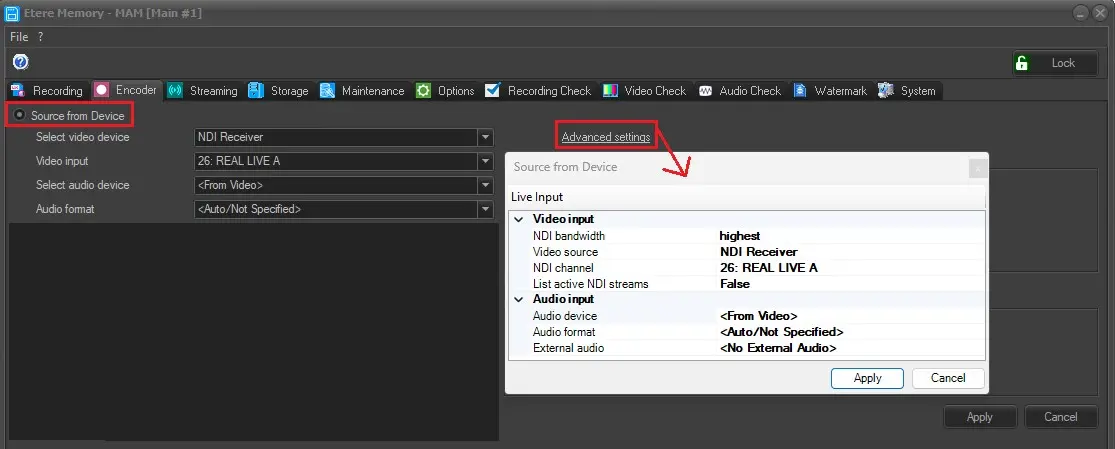
In the "Source from device" section you can select the input to use and you can do this by setting the following fields:
Select Video Device: select the input video device source and it is taken from SDI or NDI or WEB.
Video Input: select the Video line taking from the selected video device.
Select Audio Device: select the source of audio device. In this instance, select <From Video> if same device card contain both video and audio.
Audio Format: select the Audio format. Etere strongly suggests always use an audio sample rate of 48Khz when recording proxy video in order to improve the functioning of the Etere CMS loudness control (and thus permit the detection of abrupt loudness variations between assets).
At the top right you also have the "Advanced Settings" button where you can set advanced configurations for each selected input.
Memory_SourceFromDevice
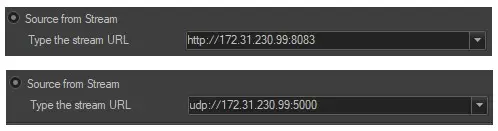
Memory can also take the input signal from a stream and to enable it simply enable the option and then add the correct string (UDP or HTTP) under the "Type the stream URL" field.
Memory_SourceFromStream
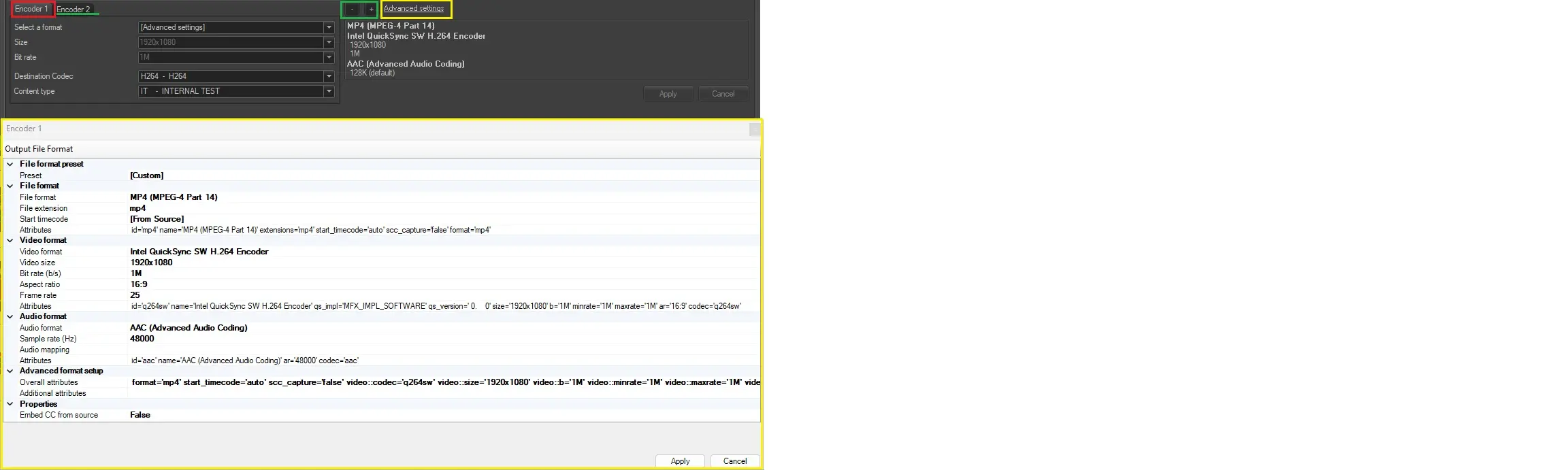
In the Encoder section it is possible to set one or more encoder profiles because Memory provides the possibility of recording files and creating them with multiple formats. By default only one profile is set but you can add other profiles by clicking on the "plus" button then you will see a tab at the bottom for each one created called ECONDER 1, ENCODER2,etc... You could remove a newly added profile by clicking on the "minus" button and confirming with the apply button.
Below is how to configure the Encoder 1 profile but you should keep in mind that the configuration is identical for all other profiles added.
Select a format - Supported formats are displayed in the drop-down list:
- MP4 H.264
- MPEG 2
- WMV
- CUSTOM You can also click the “Advanced settings” to display a list of output file formats supported by Etere. In the "Output file format" tab you need to enter value by value to get the correct one using the drop-down menu for each of them then click <Apply> to confirm your selection..
Memory_Encoders
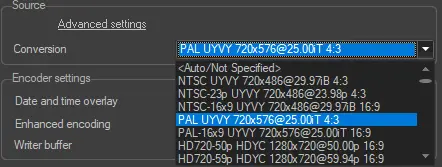
SOURCE section
Advanced settings: lists the source options avaiable to fetch for encoding
Conversion: select the conversion to be applied to the source
conversion
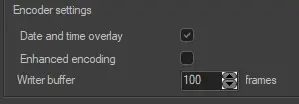
Encoder Settings section
Data and Time overlay: gives the possibility to enable or not the "data and time everlay"
Enhanced encoding: gives the possibility to enable or not the "enhanced encoding"
Writer Buffer: gives the possibility to set a buffer for the encoder. For default is set as 100 frames.
x264/x265 encoders are also available with Etere ETX X264 Encoder license
MemoryExtraEncoderSettings
Each Encoder profile can have its respective output format configurations. When there are multiple Encoder profiles in the output panel, one asset would contain files with similar time from all encoder profiles. The output files would be generated adhere to following naming conversion:
- Encoder 1: MEM001M-20180912-162159.mpg
- Encoder 2: MEM001M-20180912-162159B.mp4
- Encoder 3: MEM001M-20180912-162159C.wmv
Configuration Summary
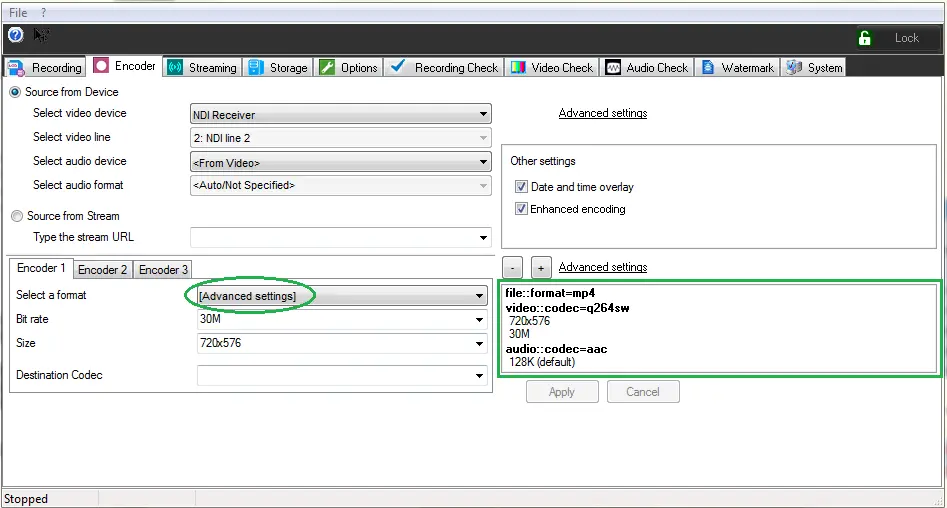
When configuring Encoder profile in Memory, the summary of the profile settings would be reflected in the right panel for respective Encoder profile after the settings were applied . If the “Advanced Settings” feature is used during the profile creation, the “[Advanced settings]” label is automatically selected in the <Select a format> parameter on the left panel to indicate the configuration process.
File 1
The Advanced Settings window present the overall attributes of the encoder configurations. To expedite the configuration process, you can manually copy the overall attributes from one encoder and applied to another encoder, and perform minor changes at target encoder.
NB: When the recording function is triggered, the device setup function in "Encoder" tab would be disabled to prevent interference to recording process.
Recording “Audio-only” File
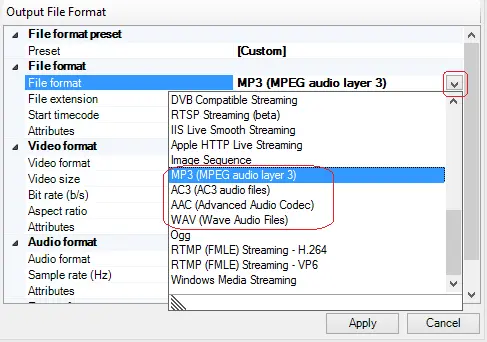
When configuring Encoder profile, you can configure to record “audio-only” file for the specific encoder. In the Encoder configuration click on Advanced Settings and select one of the audio-only file format as indicated in the below screenshot.
Output File Format
By select any of the “audio-only” file format, the video format setting would be ignored. After apply the selected file format, you can start recording file with audio-only.
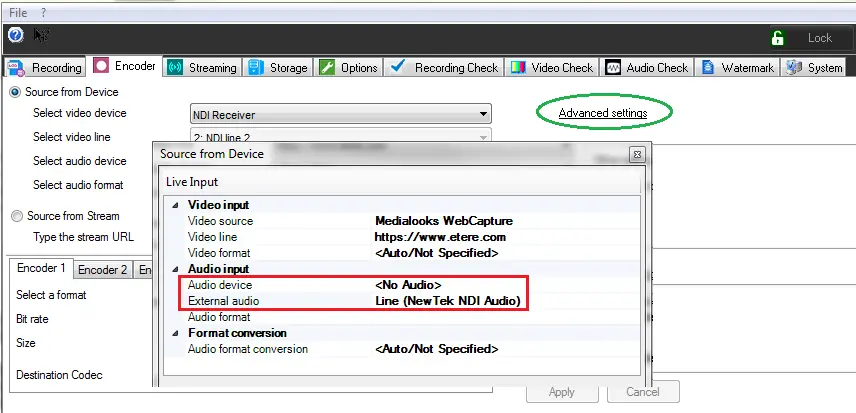
Alternatively, you can select any file format from the Advanced Settings and set the Audio Input as follow:
•Audio device = <No Audio>
•External audio = select the audio capture device
File 2
NB: In Audio Input parameter, if you select any “Audio Device” from the list, a warning message would be prompt to set preferable “External audio” over “Audio device”.
Using UTC Time in Filename
From Etere released version 28.2.7.17 onwards, if the asset forms are used to save recording to asset file (the "Save recording on Asset" option is enabled), the output asset files generated by Etere Memory would contains UTC Time in the filename, instead of the Local Time.
In the following example, output files in Local Time has been converted to UTC Time in filename format:
Filename in Local Time format: "MEMAAAB-YYYYMMDD-HHMMSSZZ.EXT"
•MEM001M-20180912-16215900.mpg (Local Time)
•MEM001M-20180912-16215900B.mp4 (Local Time)
•MEM001M-20180912-16215900C.wmv (Local Time)
UTC filename format: "MEMAAAB-YYYYMMDDZHHMMSSZZ.EXT",
•MEM001M-20180912Z14215900.mpg (UTC Time, with UTC + 2)
•MEM001M-20180912Z14215900B.mp4 (UTC Time, with UTC + 2)
•MEM001M-20180912Z14215900C.wmv (UTC Time, with UTC + 2)
where,
➢MEM = Fixed for Memory file
➢AAA = Station number, e.g. 001
➢B = This character can be M, N, O, P or Q if recording in Main Memory instances 1 to 5. For recording in Backup Memory, this character can be indicated as B, C, D, E of F for backup Memory instances 1 to 5.
➢YYYYMMDD = Recording date in year, month, date format.
➢Z = indicate the file name is in UTC time format.
➢HHMMSSZZ = Recording time in hours, minutes, seconds and hundredths of seconds format.
➢EXT = file extension.
The example above uses UTC Time in filename, replacing the hyphen (“-“) with a character “Z” to separate the date from time.
NB: If your Memory Browser version is 28.2.5.6 or higher, it is able to recognize Memory output filenames generated in UTC Time and Local Time.
 Memory_SourceFromDevice
 Memory_SourceFromStream
 Memory_Encorders
 File_1
 Output_File_Format
 File__2
 MemoryExtraEncoderSettings
 advanced_settings
 conversion