84.2.2.16 TOOLS menu
The Tools menu contains some tools that are helpful for a better and faster management of the schedule, these tools are described in details below:
Event duration calculation: By selecting a number of events, this tool calculates the total duration of the selected group of events.
Delete empty spaces: Removes any empty spaces in the schedule.
Multichannel Asset Change: Open the Multichannel Asset Change module that will permit the operator to schedule -on a rotating basis- a pool of assets through either, a set schedule space (for non-contractual events) or booked schedule space (for contractual events).
Trailer Management: Monitor and place the right trailers across the broadcast schedule. For further details see Trailer Management chapter.
Secondary Events Planning: Plan the appearance of secondary events across a schedule over a period of time. Please refer to the Secondary Events Planning for detailed information.
Manual Inserting: Quickly insert an asset into the schedule just by inserting its code (if the code is valid its data will be automatically loaded):
To insert the loaded asset just press 'F9', in case you want to create and insert a new asset press 'F2'.
Run Secondary Event Immediately: Open the Run Secondary Event Immediately tool, that allows sending a secondary event (e.g. logo, crawl, etc) on-air directly through Etere STMan.
Run "manual" secondary events: Open the Run manual secondary events tool, that allows sending on-air those secondary events for which a manual confirmation is required.
Secondary Event Replacement: By selecting this function, you can filter secondary events by date range or by time range between dates and replace the secondary events. Refer to Secondary Event Replacement chapter for more information.
Show Secondary Events Conflicts: This function allows better managing of secondary events by checking all scheduled secondary events and detect the conflicts between events. Refer to Show Secondary Events Conflicts chapter for more information.
Cartwall: This allows you to open the Cartwall section.
Apply the same scheduled time (Shift + Ctrl + S): By selecting multiple events in bulk and activate this function and set a scheduled time you can insert all selected events to be scheduled at the same time.
In the selected events, if separator is found at the top of the selected spot, it would trigger “Fill to next scheduled time” function and adjust the separator duration accordingly to the start time of next event.
You can also use shortcut keys “Shift + Ctrl + S” to execute the function.
Preview NDI: Select this feature to preview NDI input streaming. When the preview is activated the NDI stream configured settings are displayed at the bottom of the preview screen.
You can use the “EPMP” icon in the Preview window to modify the settings for NDI stream. The settings would be saved when you exist from Preview. The saved settings would be present when the “Preview NDI” is activated.
Live preview with Etere Player
In Live Preview, if you are using Etere Player and there is no configuration set for live input, the configuration settings would be launched automatically, with the following settings in place.
•Video source: NDI Receiver
•NDI bandwidth: Lowest
Insert event at specific time: This function enable you to insert a program at specific time in the schedule.
• Time: Indicate the specific time slot to insert the program.
• Asset: Click the browse button to locate the program for insertion.
Next, click the <Insert> button to confirm the insertion of program to schedule.
If the specific time slot has been scheduled for other event, the scheduled event would be exploded into two parts to accommodate the inserted program.
NB: This function is feasible for inserting events, for example, summoning the Islamic prayers recited by the muezzin at prescribed times of the day.
Swap the two selected rows: By selecting 2 events in the schedule, this command invert the event schedule by swapping the selected events.
Conforming of a portion of a playlist: By selecting 2 or more events in the schedule, this command will launch the default conforming workflow (if configured) on a new asset to create a single file from all the selected ones. See chapter 59.3.2.2 Conforming of a portion of the playlist for more information.
Find (Alt+F)/Find next (F3): Look for a certain text within the schedule, the selection line will be positioned over the event which contains this text. additionally, by pressing the F2 and F3 keys the search will jump to the previous and next event respectively matching with the search keyword:
Go to: Place the line selection on the event scheduled at the selected time.
Bookmarks: Using the options 'Set Bookmark' and 'Goto Bookmark' you can easily mark events that you want to keep on hand.
1. Just place the selection over the desired event,
2. Go to the Set Bookmarks option and choose among the 10 available slots the one you want to link to the event (or just use the key combination SHIFT+CTRL+ Number from 0 to 9 to assign it immediately).
3. After then, every time you want to highlight the related event just go to the 'Goto Bookmark' option and select the slot regarding the event (or press the key combination CTRL+ Number from 0 to 9 to highlight it immediately).
Search for Order number of clip: The clip’s number are displayed in the “Order Number” column in the Executive Editor interface view, the “Search for Order number of clip” function would prompt you to enter the desired clip number and immediately locate the clip. This function can also be activated using shortcut key “Alt + O”.
Alternatively, if the clip is displayed in the playlist, you can immediately locate the clip by enter the clip’s number on the keyboard, e.g. when “18” is entered on keyboard the pointer would move to the row that contains clip 18 in the playlist.
Customize columns: Modify the schedule view by adding columns (e.g. 'icon size', 'colour scheme', 'episode number', 'split id', 'difference' (between scheduled and real times), etc) and enabling grids on the schedule.
Warning messages: Shows a list of all the warning messages and their related descriptions, allowing users to enable or disable the message's icons to be displayed on the 'Event Icons' column in case they are found.
When positioning the cursor over the warning message column it display the detail description of the warning messages.
Moreover, you can prioritize the display of warning messages to suit your operational needs using the arrow-up and arrow-down icons in the Toolbar.
By positioning the warning messages at the top of the list, the warning messages are defined as high priority messages. On the other hand, warning messages positioned at the lower portion are classified as low priority.
To normalize the priority settings applied to warning messages, simply click the “Restore default values” icon to reverse the settings.
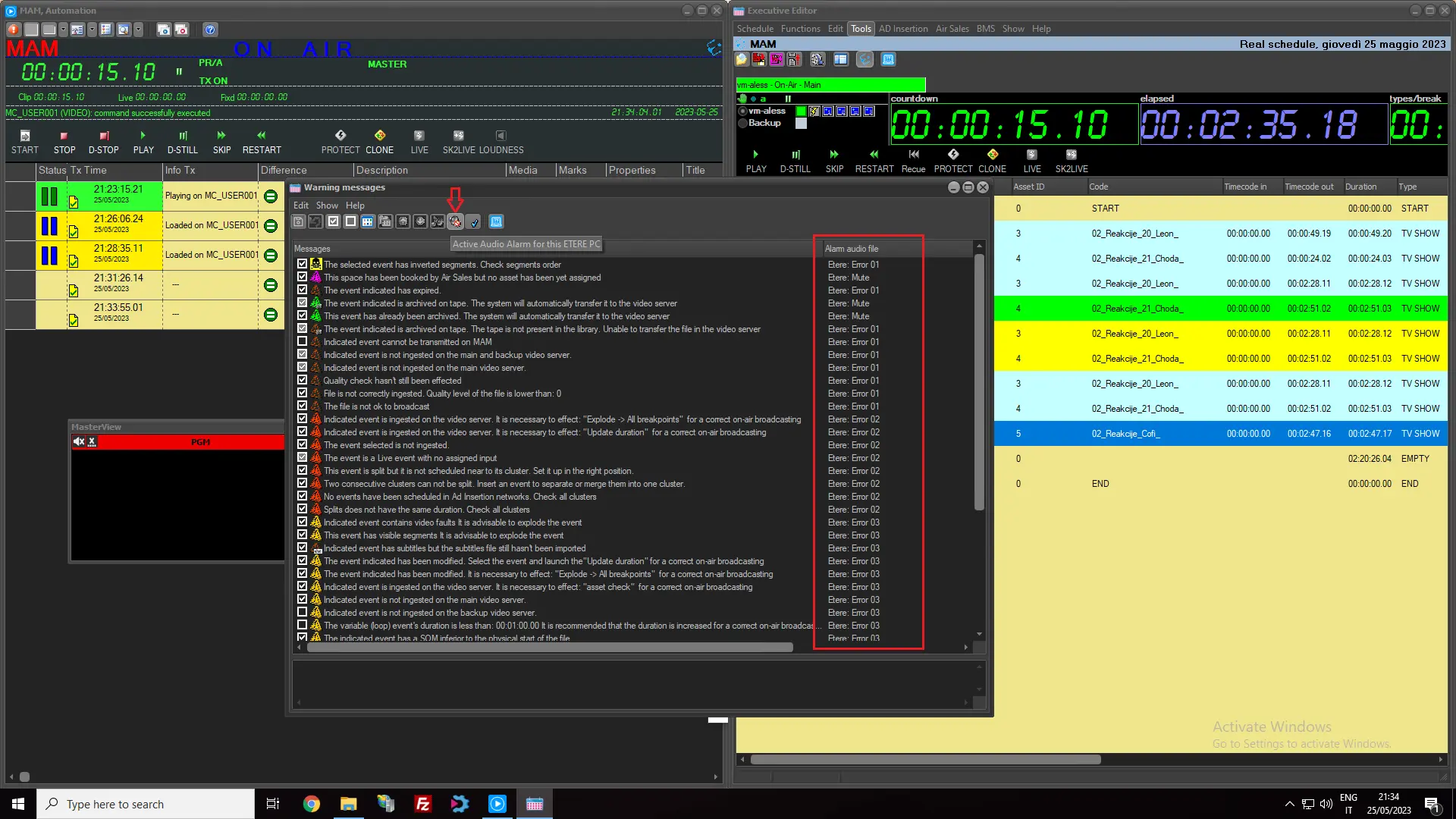
Executive editor allow to reproduce alarms when a warning appears in the schedule.
This functionality need to be activated and it will be only for the current ETERE PC. To activate it, click the button Activate audio alarm for this ETERE PC on the toolbar (or select the option with the same name in Edit menu) and restart Etere Scheduling.
activate_alarms
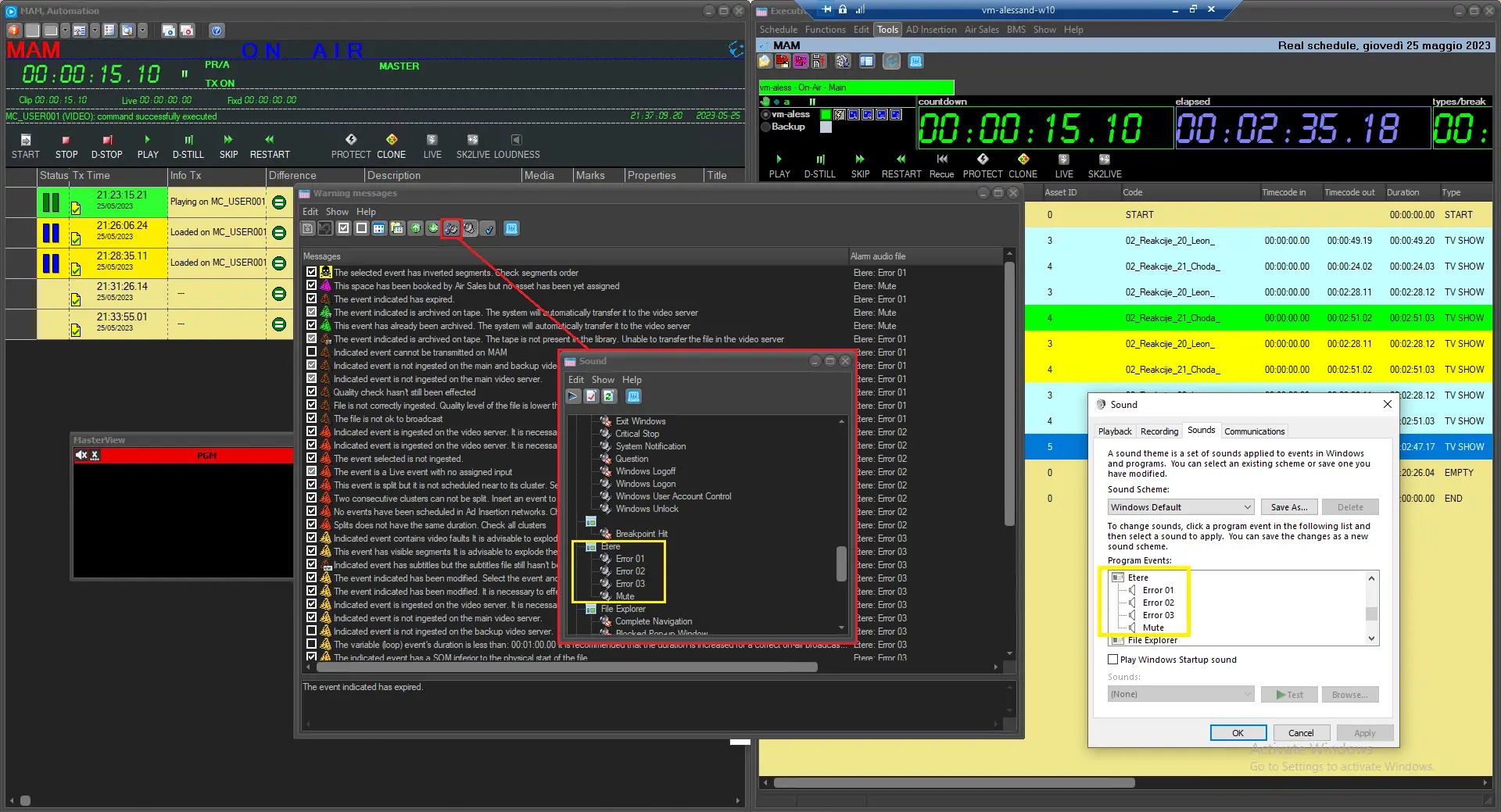
Once done, it will be possible to choose the audio files to associate to the warnings, with the button Alarm audio file (or the option with the same name in Edit menu).
sounds
As shown in the image above, etere installs in windows 4 audio files that can be used for this purpose, otherwise users can select any other file installed in windows.
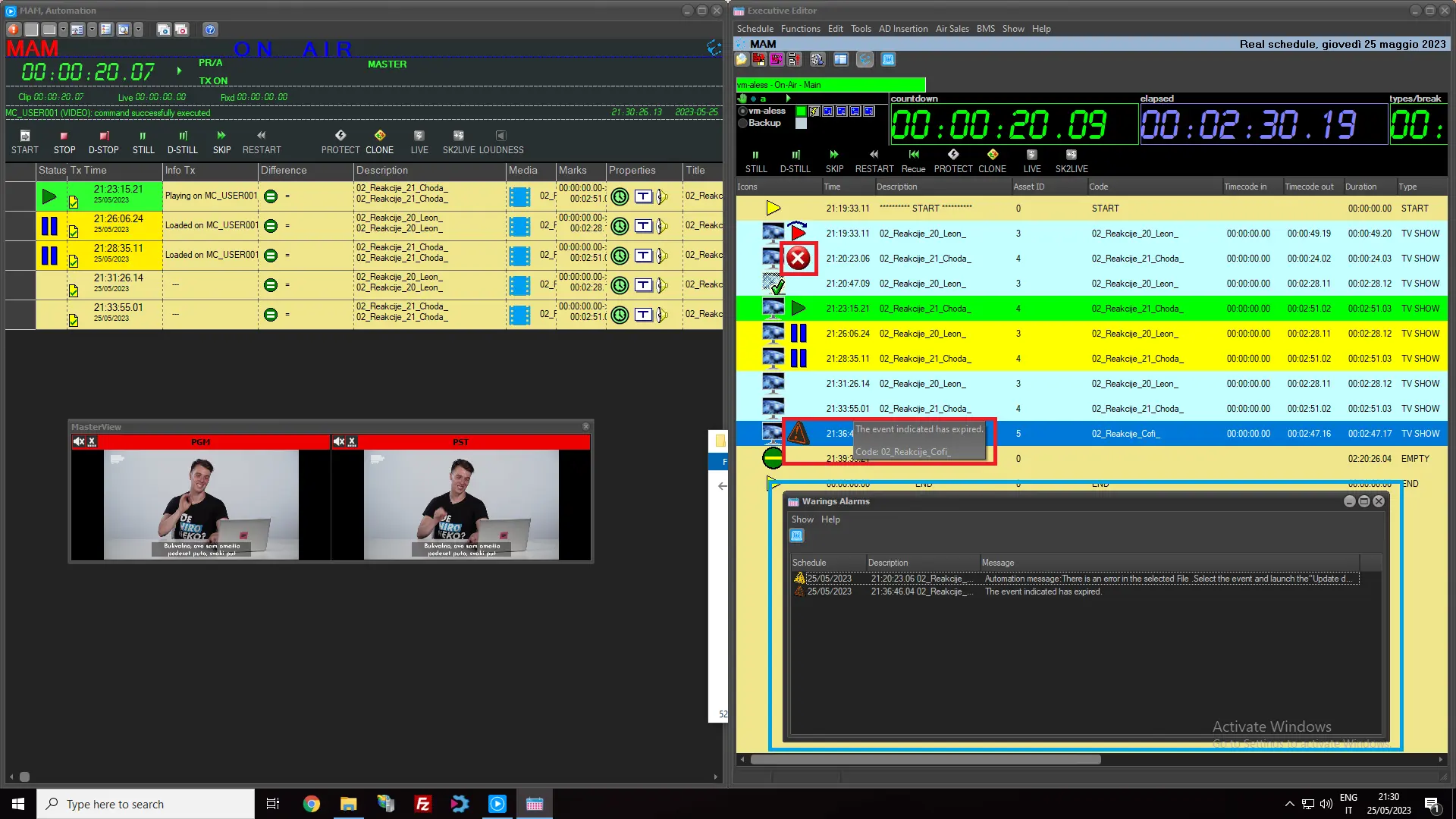
When a warning appears in an event, EE will reproduce the sound associated and will display a list of the warning messages with the related event details.
alarms_list
NB: You must be granted with “Executive Editor\Warning messages” access rights in order to modify the warning message settings.
View warning: Select this function to view all the warning messages and its details information. By selecting any event in the Warning Message column you can view the warning messages pertaining to the event. You can also select a range of events and view all the warning messages in single display. In the display you can use the Print function to print the warning messages for distributions.
Properties overlaid: Set here the information that will be displayed each time mouse pointer is hovered over an event. This overlaid information will be displayed together to any possible event warning.
Import the automation schedule: This tool cleanup the current open schedule and import on it all events present in the automation schedule, this, by searching into the automation publish directory for a tpal[mmdd].dbf file matching the current open date, and in case no match is found, it will also search for archived playlists (tpal[mmdd].tra) for a file matching the current open date (changing the .tra extension to .dbf).
From Etere released version 29.1 onwards, when importing playlists from Executive Editor in Main database to DR database, the asset ID would be resync to DR database, using the “F6” function key to update the asset duration and secondary events is not required.
NB: Please note that this function is not supported by the 'Multi Channel Mode', therefore, changes performed in the schedule by this function won't be replicated across other multichannel schedules.
Update from the automation database: Updates the programming playlist (e.g. actual transmission time of transmitted events) by reading the automation playlist (). This operation must be performed periodically or, at least, before generating the Events Log Report.
NB: Events updated by this function will be marked in the Executive Editor as manually certified.
Reset transmitted events: After executing this utility on transmitted events, the events will appear as not being transmitted. This feature is useful when the operator needs to fix a duration discrepancy on a transmitted schedule, as transmitted events are not editable. After the operator has made the changes, the events can be set back to transmitted status by using the function 'Manual check of the transmitted event' 'Check manually the selected events'.
Operations Log (Ctrl + Z): This function enable you to view the operation logs for operations performed on the workstation. This function is available if the schedule date and operations date are intact. For instance, you must select date schedule “23 May 2019” in order to view operations log for operations performed on “23/05/2019”.
The following procedures must be in place to ensure the availability of Operations Log in workstation:
1.Increase the maximum number of handles count from 3500 to 5000 to manage the details log data for capturing operations performed on workstation.
2.If error message “Etere Scheduling: Restart Application as soon as possible" prompted on workstation, you must restart Scheduling module sooner in workstation, else the Operations Log would not be created.
Undo performed operations (Shift + Ctrl + Z): Allows the operator to undo the last performed operations. Detailed information can be found in the Log chapter.
 activate_alarms
 sounds
 alarms_list