56.2.1.9 Using the On-Air Automation
By default, the 'automatic automation start' is disabled (Parameters > Automatic Start), so it's necessary to start Etere Automation manually; these are the operations tasks to activate the playout:
1. LOAD resources and access the On-Air
During startup, you can monitor the initialisations of the devices through the pop up video. After this, select the "On Air" button, then the On Air Window will open. During this process the Automation will check the devices and try to reset any device that would not reply properly to the Automation initialisation request. If an ETX resource runs during the Automation startup, the ETX resource will be disconnected, and a new connection will be established.
NB: During Automation startup, if Automation failed to load system resources from the SQL database due to previous improper shutdown during the Operating System load time, the last saved resource configuration would be activated to complete the startup. This feature is available from Etere released version 29.2 onwards.
2. CHOOSE the schedule's day
Once the On Air window is opened, it shows the published schedule of the day. In case you need to play another day's program, it's possible to open another plan using the button "Open the schedule of…" on the top bar.
3. SELECT the playout start event
The Next step is to find the event you want to start the playout from. Right-click on the schedule grid, and select "Search time". From the pop-up window search the hour you want to play. The grid will show you the scheduling portion for that specific hour. Select the event you wish to play from all the listed events and mark it with one mouse click. The selected event has been marked with a "red pencil" icon.
NB: In the Main and Clone Automation, when Media Library failed to read the clip marks due to media corruption, invalid clips, invalid file formats, or unreachable path, Automation would remain functional and mark the clips as "non-existent" clip.
4. START the playout
The automation playout can be easily started by following the steps detailed below:
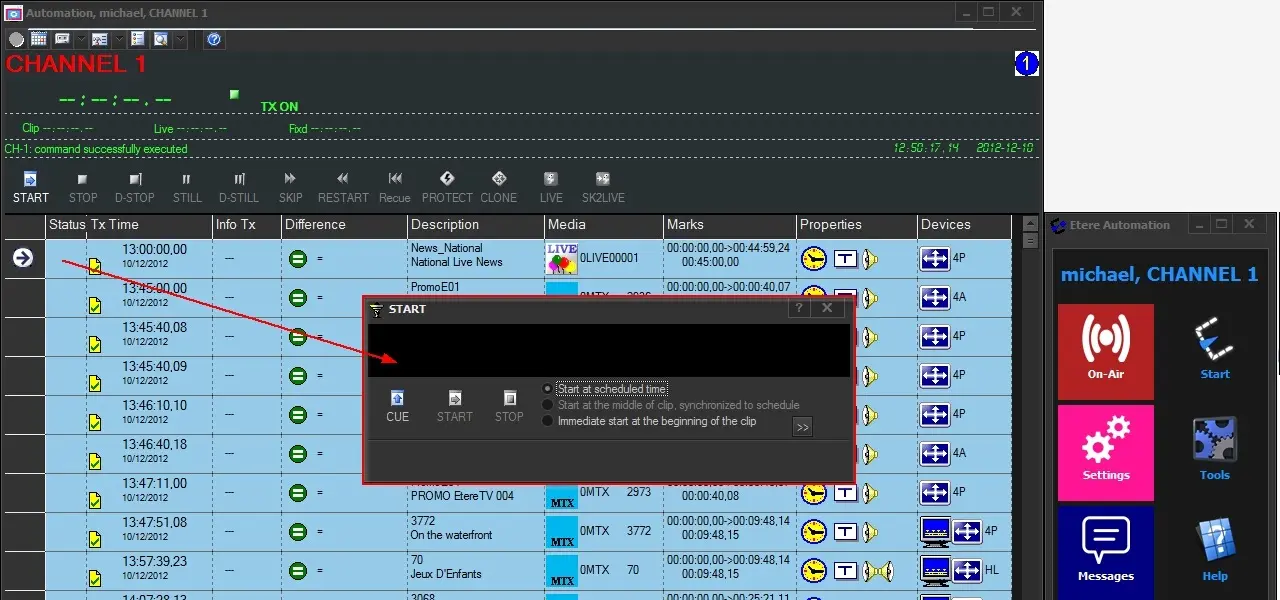
4.1 The event has been marked, and the [START] button has been pressed:
START_the_playout
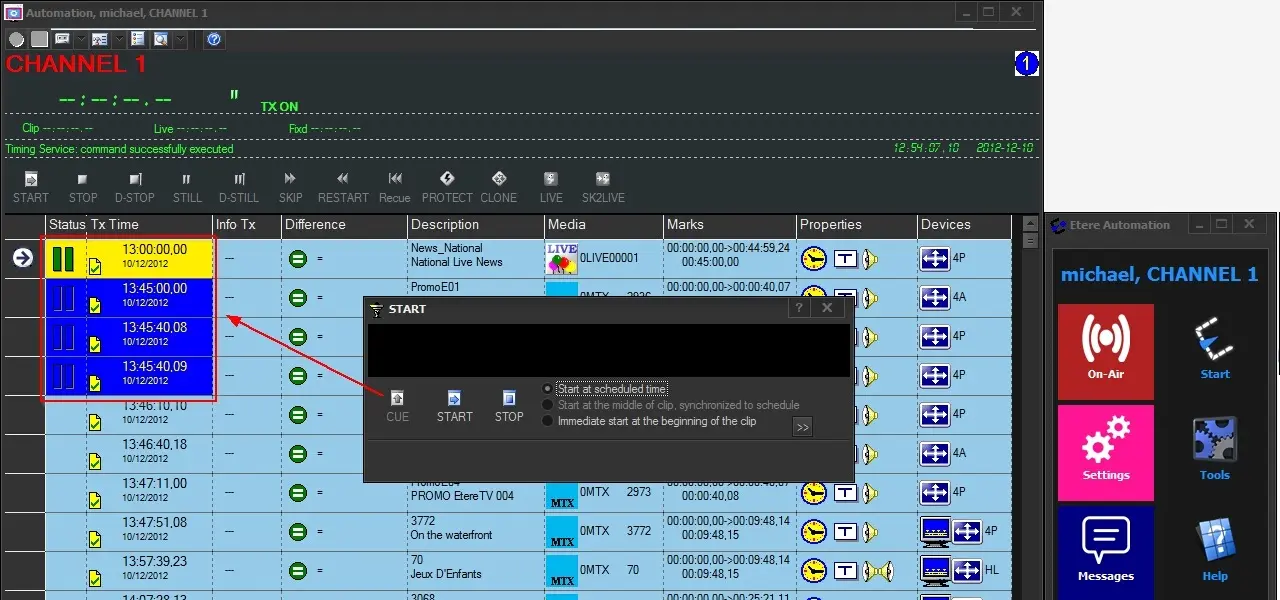
4.2 The clip has been cued, and the operator can decide the playout time by selecting one of the following options:
•Start at the scheduled time: The automation will wait for the scheduled time to start the playout.
(*) This option is active only if the clip has a scheduled time greater than the current time.
•Start at the middle of the clip (synchronised to the schedule): The automation will start the playout of the clip changing its mark-in and duration accordingly to the broadcast schedule, thus keeping the automation synchronised.
(*) This option is active in case the clip has a TX Time (i.e. scheduled on-air) greater than the current time and its Scheduled End Time (TX Time + Duration) has yet to be reached.
•Start immediately at the beginning of the clip: The automation will start the playout as soon as the [Start] button is pressed.
(*) This option is always active.
Start_immediately_at_the_beginning_of_the_clip
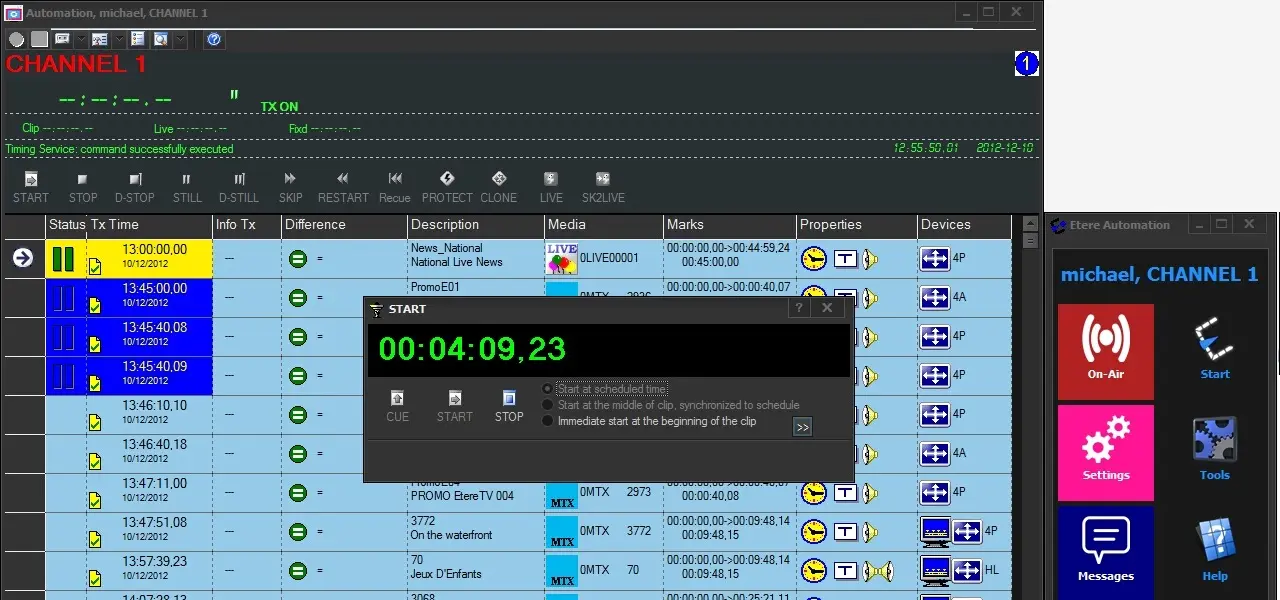
4.3 Once the clip is set to start, for example, at the scheduled time, the countdown will begin until that scheduled time arrives (in case it's too early to play it). The event will remain cued (however possible to start playing the clip immediately). If there is a Pause command pending at the end of the clip, the clip (and counter) will not begin immediately after the end of the clip.
Onair_CUE_START_STOP
5. Once the automation has been correctly started
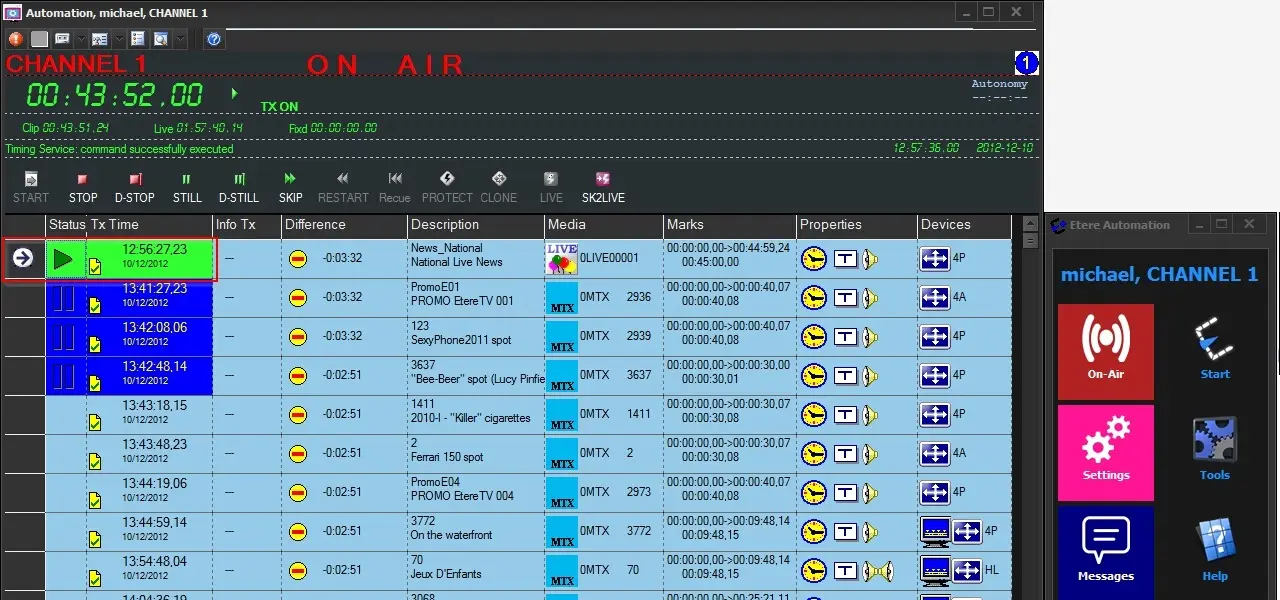
Once the automation starts playing the clip, note that the top bar is changed to red and shows the "ON AIR" message; the event in play status is shown in green with a green triangle ("Play"), and at the bottom centre of the display it shows the time out for the clip change.
Once_the_automation_has_been_correctly_started
As explained in the User Interface chapter, the main On-Air window above will allow the operator to monitor and interact with the scheduled playout easily.
6. Automation Read From ETX Resources
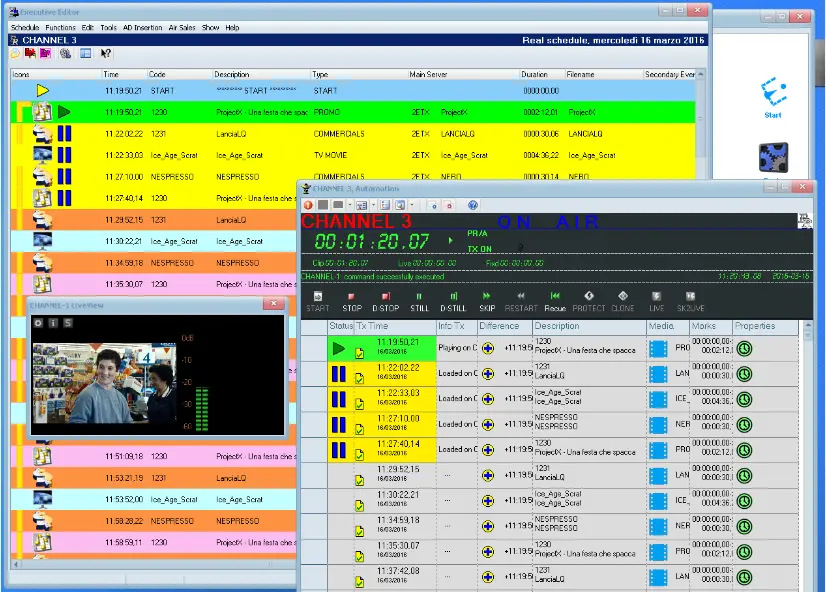
The automation T-workflow has been enhanced to cater for ETX resources added to the list. From the display below, the <Main Server> column indicates that the current clip in play and clips in cued were started from the ETX resources.
Automation_Read_From_ETX_Resources
In Automation Control with ETX, the local ETX resource connected to the station is always used. Still, searching for a clip in another ETX resource other than the one connected to the station is possible, provided the path to the clip is reachable.
Note: It is impossible to select a clip on ETX without having an ETX resource chosen; it would stop at 50 clips due to driver settings.
NB: When previewing an automation clip in the Master Control panel, the preview is performed with DirectX 9 even though DirectX 11 is defined in Windows Registry.
NB: The driver would monitor the event schedules; in any circumstances, if a clip is restarting from the beginning of its duration, it would be detected within 500 milliseconds (0.5 seconds) and trigger an error message in Automation to alert the user.
7. Modify Audio Settings
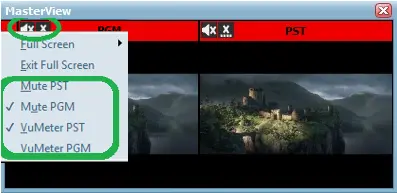
During the preview, as shown on the display below, you can display and modify the audio settings by right-clicking on the preview and selecting one of the options:
•View the overlay of the VU Meter
•Disable audio and VU Meter for PST and PGM
•Enable audio and VU Meter for PST and PGM
•The enhanced settings allows you to listen to up to 2 audio simultaneously.
automation_preview_audio_settings
8. BACKUP Automation startup
If backup automation exists, the previous start procedures must be done only to start the Main Automation; the Backup Automation only needs to be open. It will begin playing should the Main Automation fail. Backup Automation would kick in if it also considers the main PC reboot or shutdown or a fault to the main network interfaces as a Main fault
9. CLONE Automation startup
Suppose a clone automation exists after the Automation Master has started, as explained before for the Clone Automation. In that case, the operator must create the Automation module and the On Air window. At this point, the Automation will automatically set itself in Clone status (during the initialisation, the automation checks if its twin Automation is running, and in this case, starts as a Clone). Thus it will cue on the event following the current event on air on the master, and the Clone Automation will begin playing, synchronised with the master, at the video file change. Operators must NOT manually interfere with the event; the Clone Automation has to start playing and aligning by itself.
Misalignment between Main and Clone
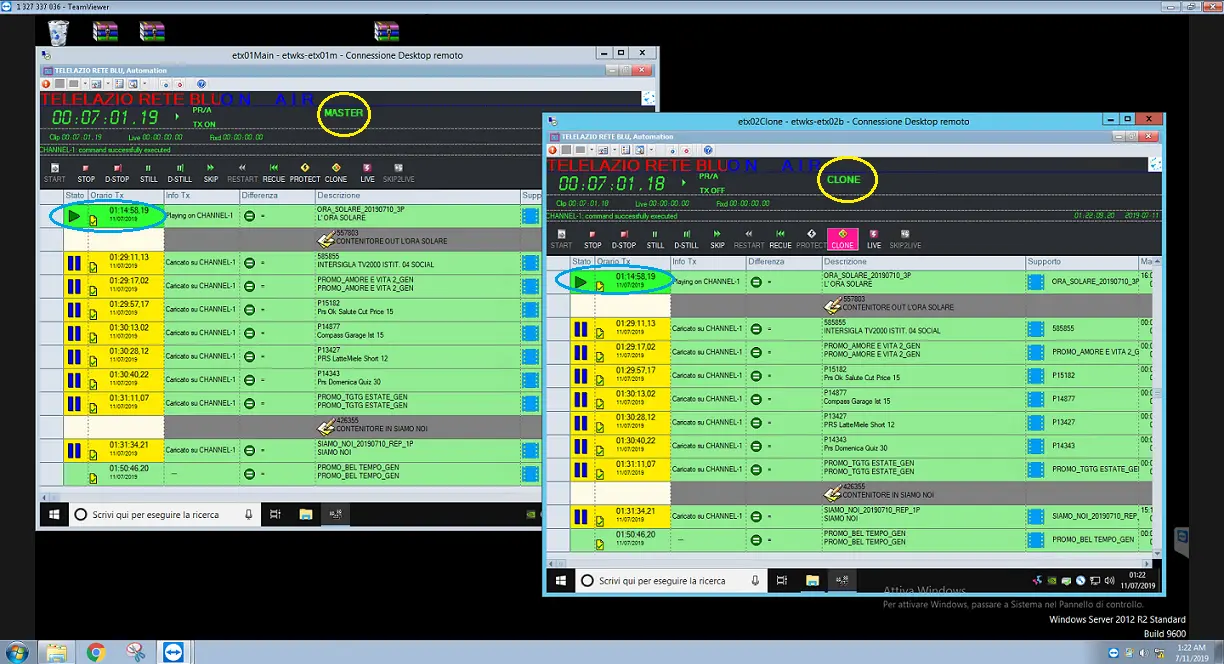
In the Main / Clone Automation implementation, the Automation program closely monitors the alignment between the Main and Clone. When both Automation is synchronised, the status would be displayed at both Automation GUI, indicating there is a “0” (zero) frame (shown as blank) lost between servers, as indicated below.
Misalignment_between_Main_and_Clone
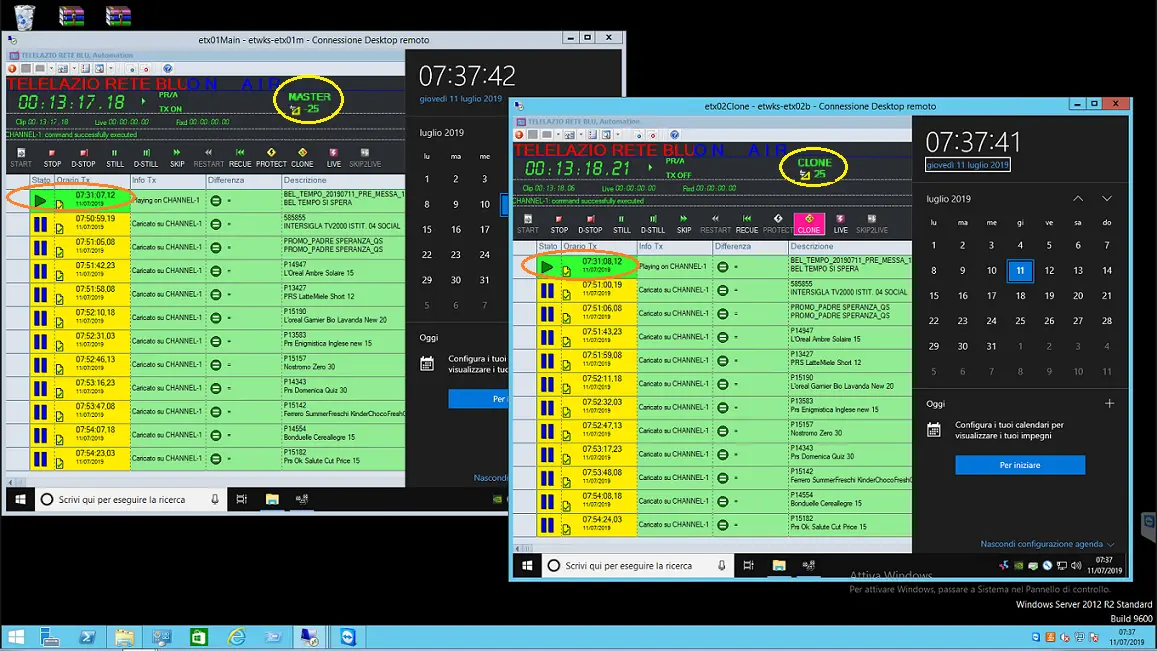
When Main and Clone Automation are misaligned (more than ten frames different), e.g. Clone Automation is more than ten frames ahead of Main Automation, the number of frames misaligned between both servers would be indicated in the GUI.
main_clone
When misalignment occurred, you would need to analyse the Automation log in both servers to determine the root cause.
NB: To ensure smooth functioning of Automation, you may want to turn off the Windows automatic updates on the local computer; this can be done by entering the command “gpedit.msc” at the command prompt to launch Local Group Policy Editor and access to “Computer Configuration > Administrative templates > Windows Components > Windows Update” and set the policy “Configure Automatic Updates” as “Not configured”. The Windows Updates can be installed manually when Automation is not in use.
 START_the_playout
 Start_immediately_at_the_beginning_of_the_clip
 Onair_CUE_START_STOP
 Once_the_automation_has_been_correctly_started
 Automation_Read_From_ETX_Resources
 automation_preview_audio_settings
 Misalignment_between_Main_and_Clone
 main_clone