59.5.1.1 Generating Reports
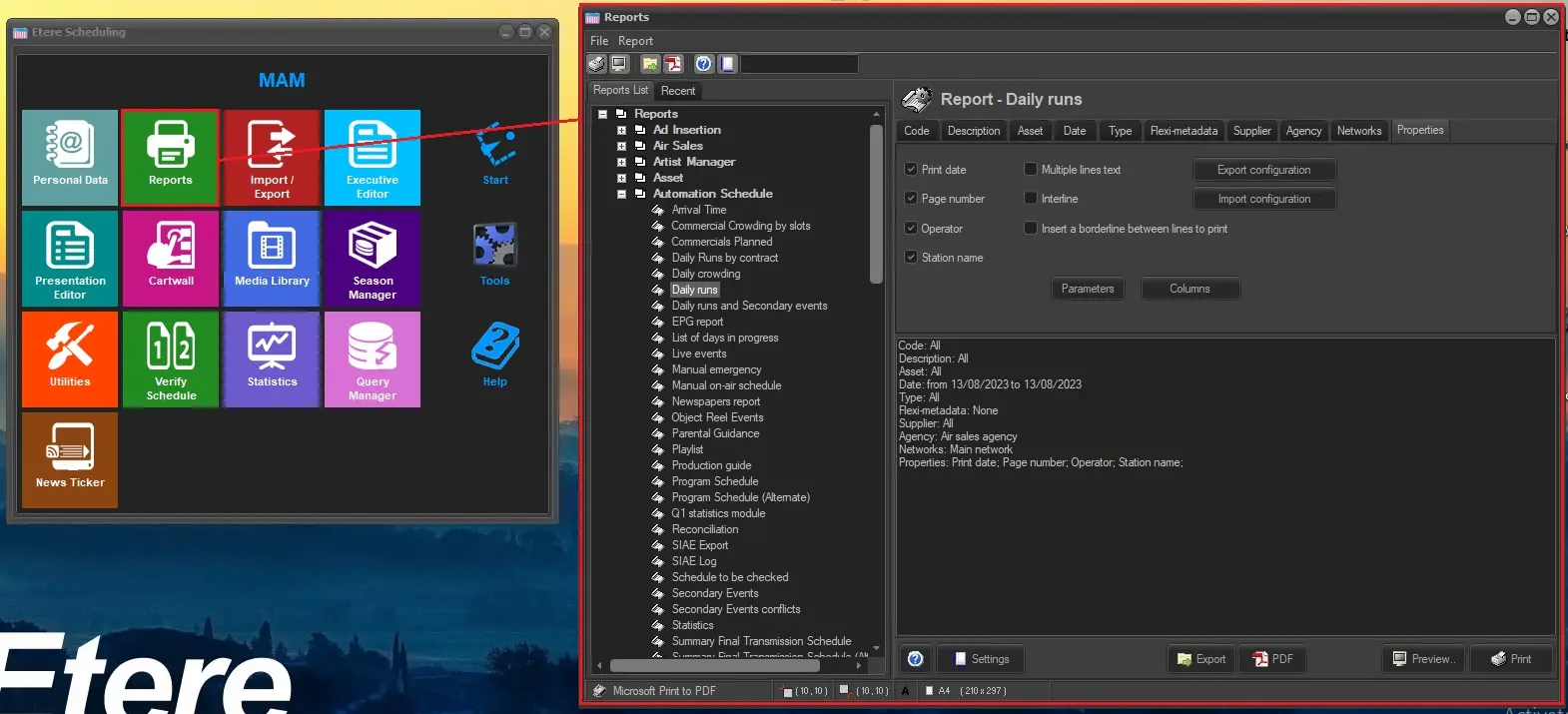
Etere's Reporting Service allows reports to be generated from the various Etere modules. For example, Reports can be accessed from the Etere Scheduling module's Main Menu:
generating_reports
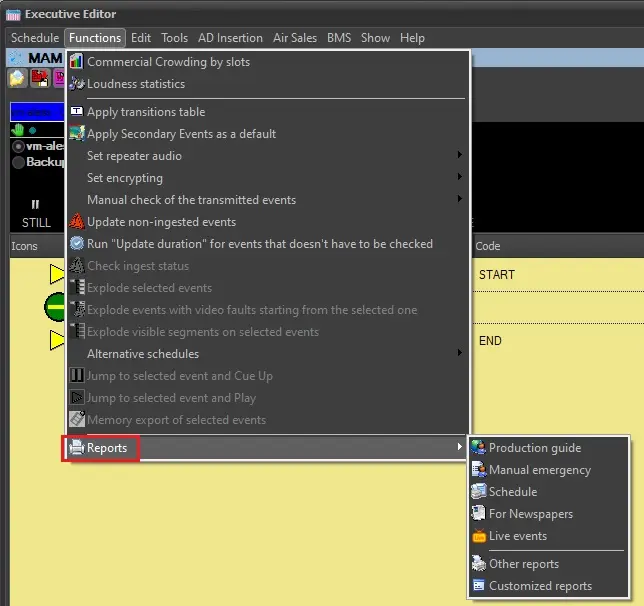
and some of them can be directly generated from the Executive Editor module through the Functions menu > Reports:
EE_reports
Generation from the Reports module
In case reports are generated from the Etere modules' main menu, through the Reports module, users have to insert some information so that Etere can query the database correctly and retrieve the desired data.
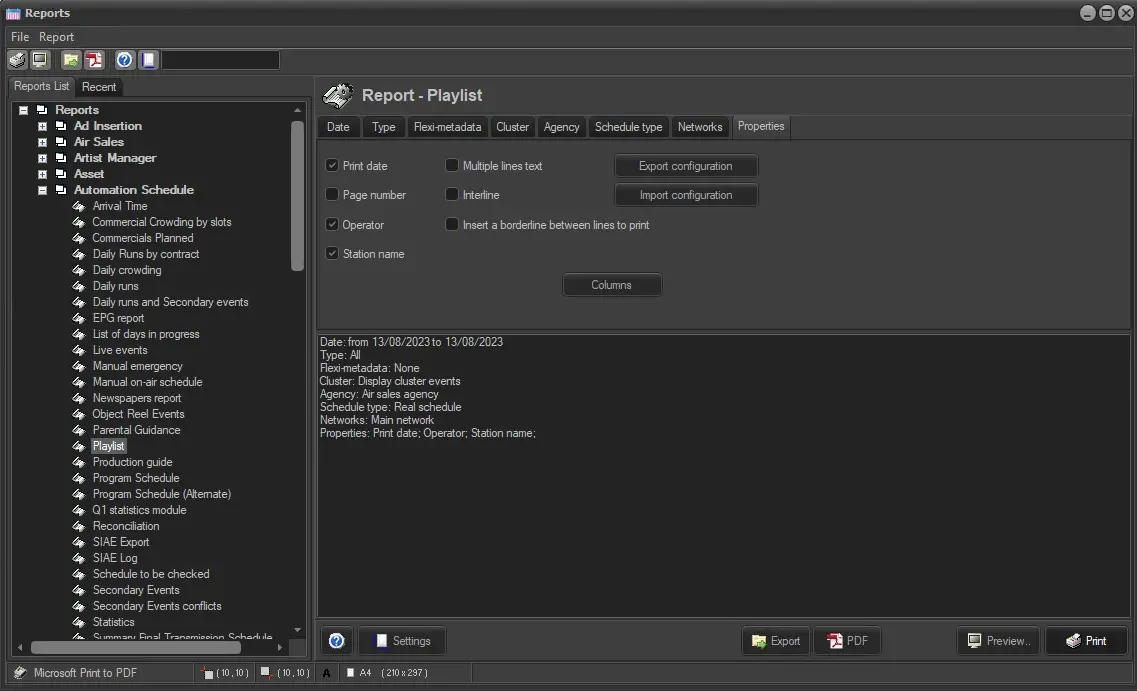
For example, in the screenshot below, the report Playlist requires the user to set some filters such as schedule date, type, schedule type (real, alternative), etc.
The user can, however, choose to leave some of them as default, including all the results.
This report also allows you to set the columns to display; refer to the specific report chapter in this guide for more information.
The middle panel displays the filter and options configured.
generation_from_reports_module
Once filters and parameters have been set, the buttons at the bottom of the window allow you to perform different operations:
Settings: Set the page layout for the print on paper (paper size, orientation, margins).
Export: It is possible to export the report in CSV or XML format and set the path where the file will be saved. According to the selected format, the user must set some parameters to define how the data will be written into the exported file.
- List separator (CSV): The character that will separate the data in a column from the next one. By default, the semicolumn is used ( ; ).
- Text qualifier (CSV): The character that will be used to define the content of a text field. By default, the inverted commas are used (" ").
- Export also field names (CSV): Choose if the name of the fields have to be exported as column titles or not.
- Root node name (XML): Indicate how the root node of the XML will be named. Default: "root"
- Row node name (XML): Indicate the tag's name containing each row's exported fields. Default: "row%0:d"
Moreover, the retrieved fields will be shown at the bottom of the window using the Visualize the data to export button.
PDF: Allows the report to be saved as a PDF file.
Preview: Generates a preview of the report, providing the following functionalities:
Preview
Zoom - Adjust the zoom of the preview window at predefined levels (zoom to fit, zoom to width, 100% size) or at a specific percentage (from 50% to 200%).
Page navigation controls - Open the first or last page of a report, scroll through a report page by page, and open a specific page in a report. To view a particular page, type the page number and press ENTER.
Search for text - Search for content in the report by typing a word or phrase you want to find (the maximum value length is 256 characters). The search is not case-sensitive and starts at the page or section that is currently selected. Only visible content is included in a search operation. To search for subsequent occurrences of the same value, click Next.
Copy page to clipboard - Allow copy of the current page in the clipboard. This is useful if the data needs to be pasted into a different document.
Printer setup - Allows users to choose the printer and set some print properties such as paper size, page orientation, print range, and number of copies.
Print - Launches the printable report.
Load report - Allow to load a different QuickReport file (*.QRP).
Save Report - Saves the report as a file in different formats (PDF, QRP, XLS, HTML, TXT, CSV, etc.).
Print: Opens the printer setup window, allowing you to choose the printer and set some of the printer properties. Once the OK button is clicked, the print starts.
Direct generation
Using this method, it's possible to preview and print the report directly by launching a function inside the module in use without setting any parameter. Since the report's default properties will be used, it's generally not possible to print a custom, wide range of data or customize the document's appearance.
The report preview window that would be opened is described above, with the same functionalities.
 generating_reports
 EE_reports
 generation_from_reports_module
 preview