59.3.10.10 Importing/Exporting T-Workflows
Etere allows sharing T-workflow structures between different systems to enable users to save time on their design by quickly recreating into their local system (e.g. S1) a T-workflow designed on a different one (e.g. S2).
To use a T-workflow designed on another system, it's enough to follow the procedure below:
System 1
1. Access to "Etere Configuration > Configuration Editor > T-Workflow > Designer", click the "Open" icon and select an available T-workflow to be shared and open the T-workflow.
2. click the "Export workflow" button from the opened T-workflow to create an. XML file containing the workflow structure data of the selected T-workflow.
Export_workflow
Next, select a destination folder to store the exported. XML file.
destination_folder_to_store_the_exported_.XML_file
3. The structure of the exported T-workflow will be automatically stored in the given XML file
System 2
4. At the designated system, access to "Etere Configuration > Configuration Editor > T-Workflow > Designer."
5. Click on the "Import workflow" icon to launch the import process, browse and select the. XML file (in stop # 3) containing the previously exported T-workflow.
Import_workflow
The system will prompt the user to enter a name into the workflow; if no name is given, a default name will be assigned to the workflow (i.e. Imported [date] [time] [original name]).
6. The data structure of the imported T-workflow will be recreated in the current system, and a completion message will be prompted.
Import
The imported T-workflow will be available under the "Import" category:
7. All action blocks in the imported T-workflow are placeholders (i.e. inoperative blocks) that can be manually replaced after the import using the "Replace action" indicated in the screenshot below.
Replace
Note: For information on replacing actions, refer to chapter "Replacing actions".
 4900_Export_workflow
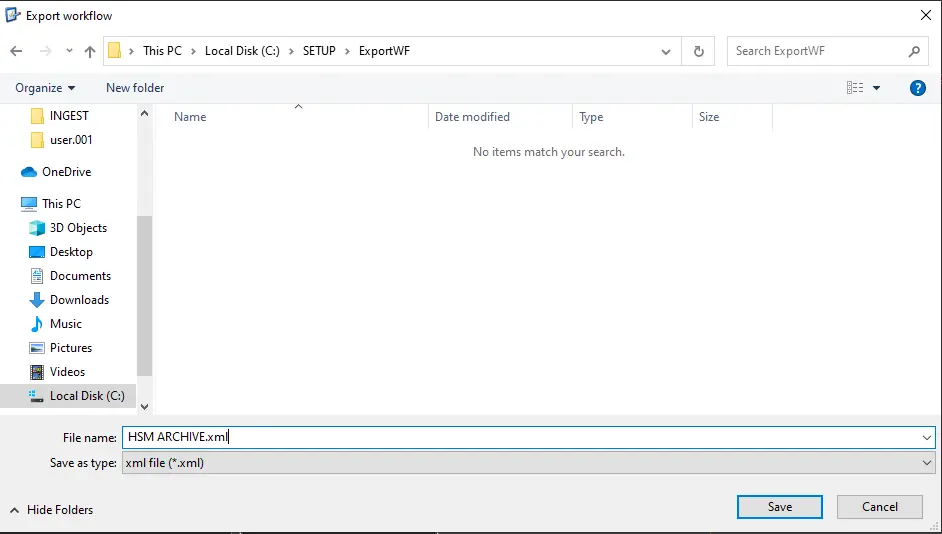 4899_Destination_folder_to_store_the_exported_XML_file
 4902_Import_workflow
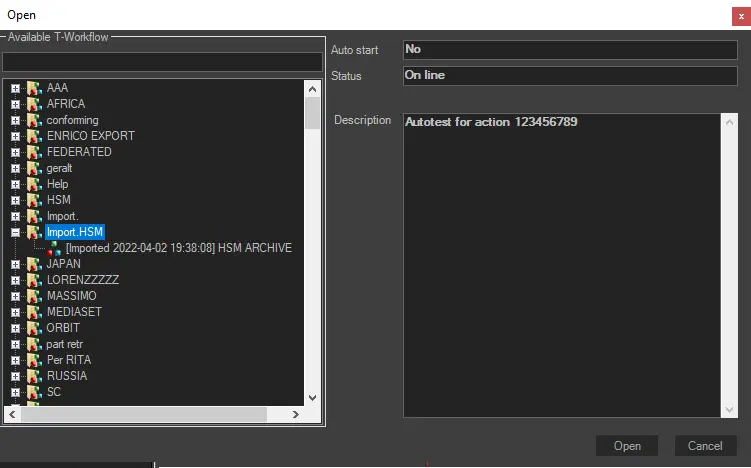 4903_Import
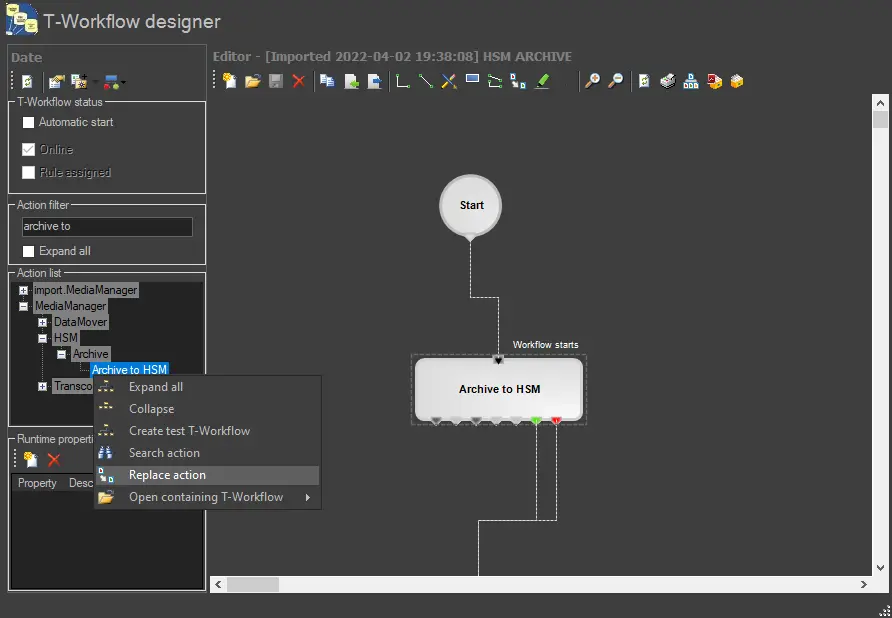 4901_Replace