61.1 Integrated Do.Ma.
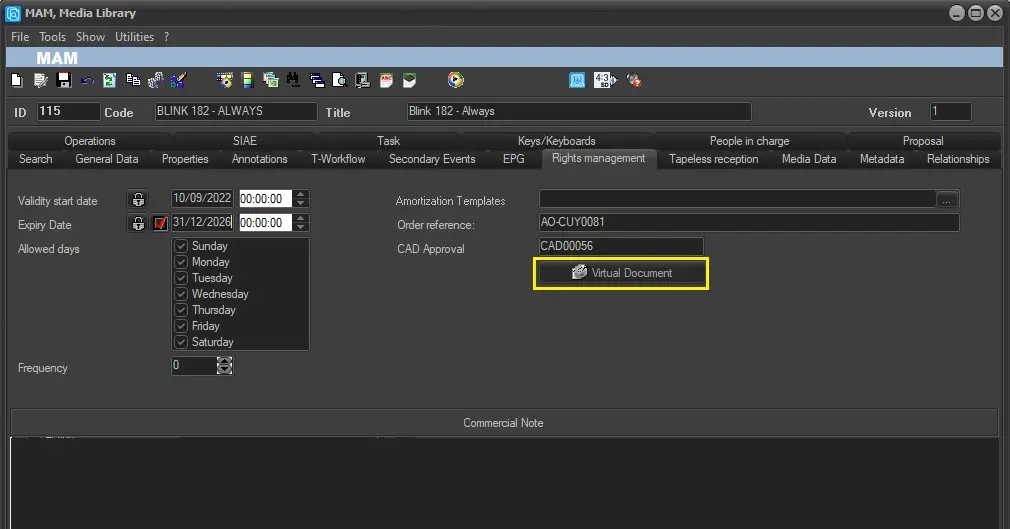
The integrated version of Etere Do.Ma. is available in various Etere modules and sub-modules (e.g. Media Library, Sales, Personal Data, Season Manager, etc.) presented as a [Document management] button.
Virtual Document 1
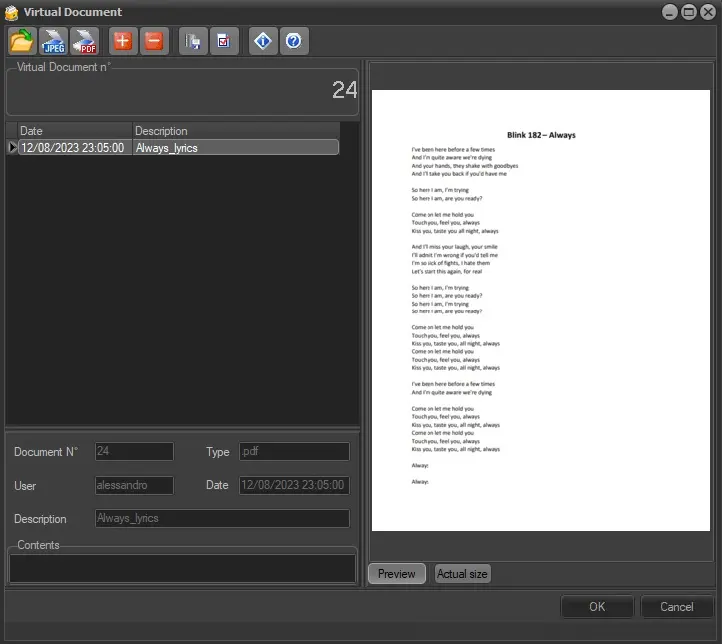
The Do.Ma. form will display a list containing all files associated with the asset. The following functions are available:
Virtual Document 2
Toolbar functions
Open a new image from the file: Once the file is selected from Windows Explorer, open the Document Insertion window to associate new documents (not present in the SQL database) with the virtual document. See the Document Insertion chapter for more information.
document_insertion
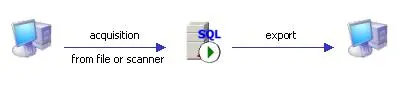
Acquire new document from scanner: Etere Do.Ma. It also allows acquiring a JPEG image or a PDF document from a scanner, if properly configured and available in Windows.
NB: This function is also present in the form described in the Document Insertion chapter.
Link a document available in the database to the virtual document: If you have already inserted a virtual document (e.g. from the Standalone Do.Ma.), you can reference another virtual document further. Select the document from the list stored in the SQL database.
Standalone Do. Ma
NB: The interface for linking existing documents is the same as the Standalone Do.Ma.
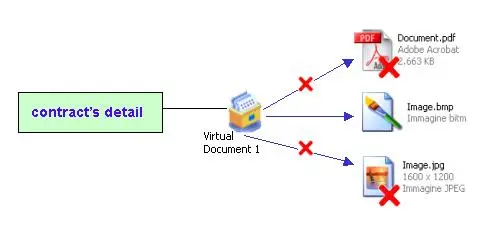
Unlink the document from the virtual document: The documents associated with the virtual document can be disassociated. Only the link between the document and the virtual document is removed; the document remains intact in the SQL database.
Save the document as a file - When you have acquired a digital document, it is possible to export it to a file in its original format. For example, if you have acquired a JPG file, it would be exported as a JPG. The document is extrapolated from the central database and saved in the PC's folder.
Acquire digital document
Statistics - Shows information on document storage, including the minimum size and maximum size of files stored in the Doma database and the total size of stored files in the database.
Besides the basic functions previously described, some functions are provided to better manage digital documents. They are:
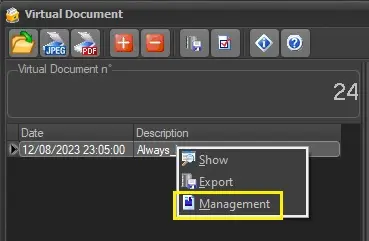
Contextual menu operations
Show: Click on a virtual document to view its related file properties and preview it (e.g. pdf, png, jpg, etc) or select this option to open it with the Windows default app for the selected file extension.
Export: Save the selected virtual document as a file (same function as Save the document as a file described above).
Management: Right-click on a virtual document and select this option to view the name, export the file or manage other properties.
Management
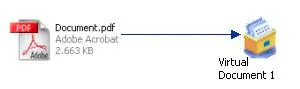
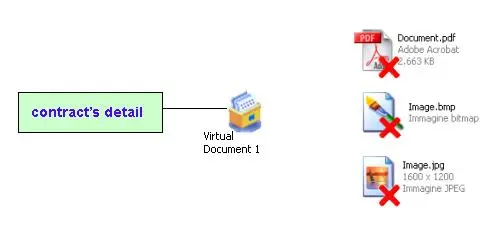
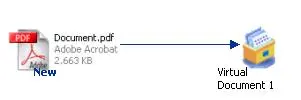
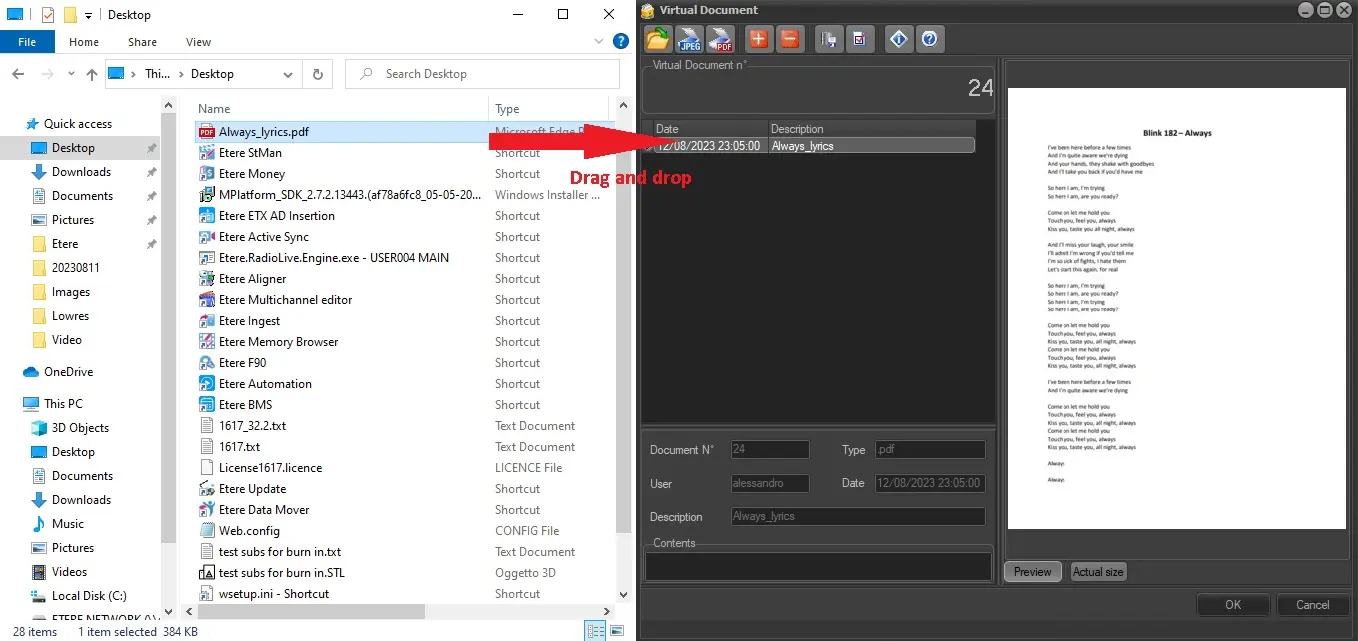
As mentioned, the integrated Do.Ma. is available in Etere Air Sales, Media Library, Personal Data and other Etere modules. After activating the “Virtual Document” function, the simplest and easiest way to insert a document is to drag and drop the document directly from Windows Explorer into the Virtual Document panel, as illustrated below.
Virtual Document 3
This way, the Document Insertion form won't be opened, and the file will be directly added and displayed in the main list.
Note: If only one document is in the list, its properties will be automatically displayed.
Note: To delete documents, users must have administrator rights.
 Virtual_Document_1
 Acquire_digital_document
 Management
 contract's_detall_1
 Standalone_Do.Ma.
 Virtual_Document_2
 contract's_detall_2
 Document_Insertion_
 Virtual_Document_3