72.6.3.1 Functions Toolbar
In the Conforming Playlist area, the user will found a toolbar containing all the possible functions related to the management of the playlist:
Toolbar
STANDARD FUNCTIONS
New - Opens the extended asset creation form that will permit the operator to quickly define the asset form that will hold the story to be conformed.
NB: The asset type (e.g. news) set for the last created asset form will be proposed by default.
Open - Launches the Media Library module for allowing the operator to search for the asset related to the story to be produced. Please note that it will be possible to select assets either already containing a story (linked to an etl file) or empty (i.e. without any linked media).
Once the asset is selected (making double-click on it), all the video and audio sequences present in the asset's linked story will be loaded in the Conforming Playlist.
Save - Saves the current story (as an .ETL file) into the asset form including eventually present subtitles.
NB: In case the asset is read-only, this button won't be available but only the "save as" button.
Save as - Saves the current story into a new asset form selected through the extended asset creation form.
NB: The asset type (e.g. news) set for the last created asset form will be proposed by default.
Undo - Takes back the last performed actions (i.e. segment inserted, volume changed, etc).
Asset - Opens in the Media Library the asset holding the story, thus allowing to consult all its most relevant data (e.g. T-workflows, media, etc).
Virtual asset - If disabled, the story will be considered "physical", that is, the story playlist will be stored in a XML file from where it will be read and conformed.
If enabled, the asset form used for holding the story will be set as a "virtual asset", that is, as a holder of all the media references related to the story segments. The story playlist will be stored in the asset default EDL (e.g. #1).
In case of using this option, the [conforming] function will be disabled as the story's media will be virtually managed.
The last status of the "virtual asset" button will be remembered by the application, so it will be automatically enabled/disabled for future story creations (being however possible to change it).
NB: Please note that the "virtual" management of stories is available only for assets segments and not for manually-added segments.
EDITING FUNCTIONS
Play - Put the entire Video/Audio sequence of segments in playback, this, in the Preview Form.
Zoom In/Out - The magnifying glasses allows you to enlarge the scale of the timeline (and the thumbnails present in it).
Delete segment - Removes the current selected video/audio segment from the story.
Cut at top - Removes from the selected segment the portion of video between the current timeline position to the segment end.
Cut at bottom - Removes from the selected segment the portion of video between the segment start to the current timeline position.
DELIVERY FUNCTIONS
Export EDL - Export the Story into a XML file (e.g. [story-name].xml), the exported XML file will be able to be imported by EDIUS editing systems.
When the XML file is saved, a default T-workflow “After exporting XML in News Story Creator” would be launch automatically to export asset to database. Refer to Default T-Workflow for details.
NB: In case at least one of the files is unavailable, a warning message will be displayed and the "restore workflow" will be launched to make files available. Use the [Restore] button to consult the restoring status.
Conforming - When transcoding files with audio over, this function can be used to insert mixer for audio over in transcoding for Etere story creator. During transcoding, the bar would appeared in green till transcoding is completed.
Conforming video - This option performs the conforming of the playlist, that is, creates a final video file containing all segments included in the playlist by using a T-workflow specified in the Parameters section.
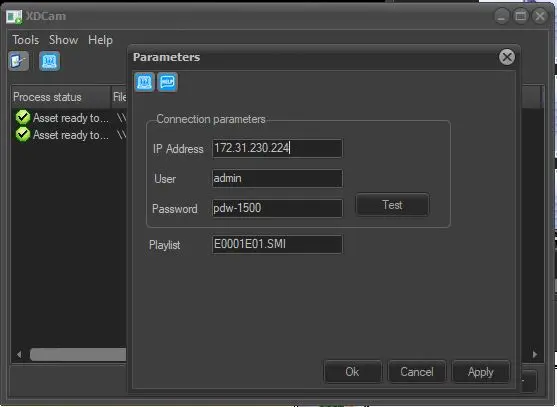
Send to XDCAM - Transfer the current playlist directly to XDCAM. Before exporting the playlist towards the XDCAM, you need to configure the connection parameters using the appropriate Parameters function:
XDCAM
Restore - Send a request to Etere Data Mover to restore the files required for the conforming. The restore T-workflow is the one set in the Parameters section, as well as the file formats to be restored .
Once opened, the interface indicates that assets with a green checkup are available and ready to be used, whilst assets with a blue pause need to be restored.
NB: Restore T-workflows are launched against the assets to which inserted segments belongs to.
MAIN SETTINGS
Parameters - Allows to set the technical parameters (i.e. workflows, paths, xml, etc) necessary for conforming video files.
Audio Recorder - Opens the Audio Recorder in the bottom left hand part of the window. See the Editing Audio Segments chapter for information on how to use this tool.
NB: Further information regarding how to create either Restore or Conforming workflows, please refer to the proper Etere Configuration chapter, more specifically, to the Content Management Server section.
 Toolbar
 XDCAM
XDCAM