17.3.2 Rules
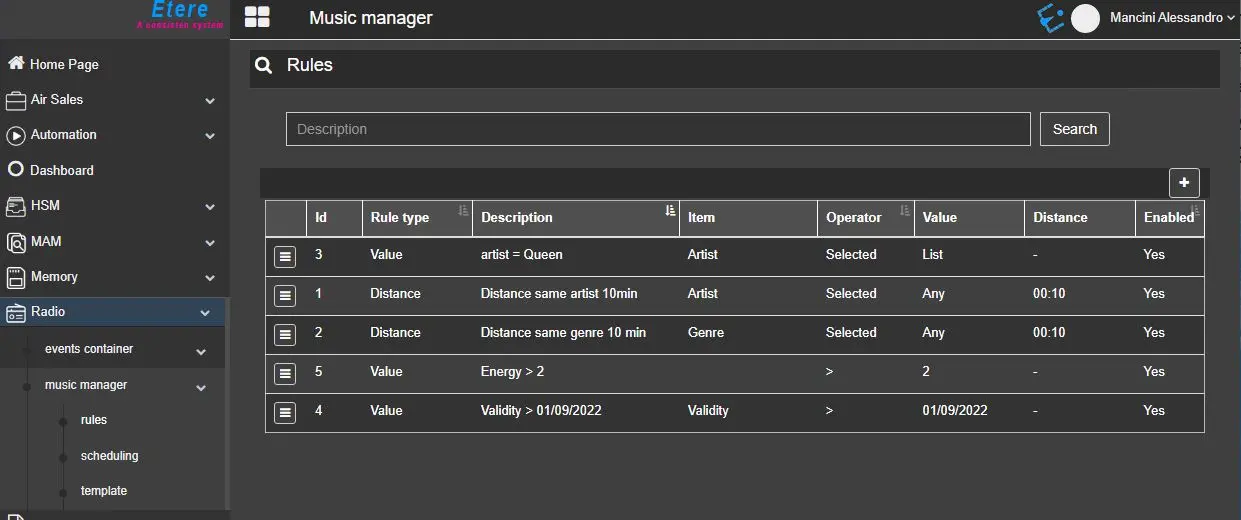
In this section it's possible to define the rules to be used in automatic scheduling.
Rules can be based on the time distance between assets or based on a specific value and they can also be disabled in case the scheduling process don't have to consider them.
rules
How to create new rules
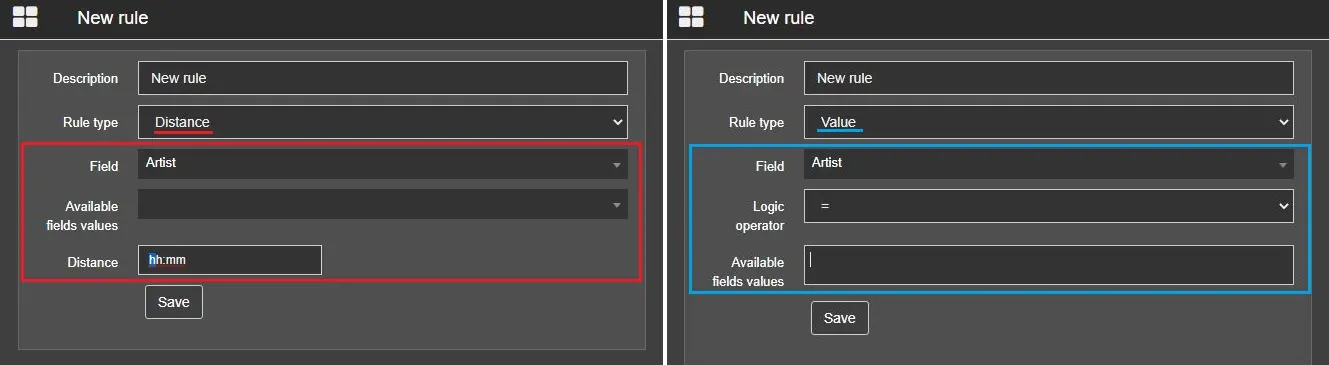
To add a new rule, click on the [+] button right below the search bar. The following page will be displayed and, according to the rule type, the fields below will change:
new_rule
Time distance-based rules
This kind of rule checks how much time passes between one scheduled asset that has a field set with a specific value and the next one with the same field set in the same way.
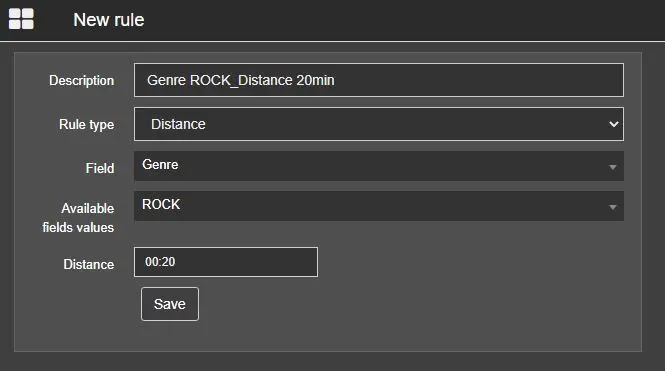
For example a rule set in this way:
example_rule_1
means that, in the same segment, must pass at least 20 minutes between an asset with Genre=ROCK and another one.
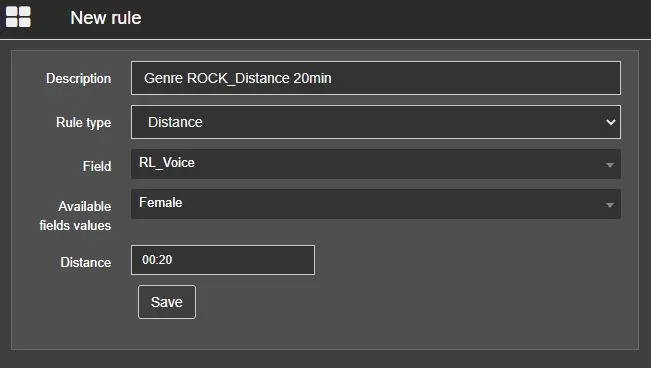
It's also possible to check the value of the flexi-metadata configured earlier, following the same principle:
example_rule_2
In this case, at least 20 minutes must pass between an asset with RL_Voice=Female and the next one.
Note: some of the metadata need to be populated in the assets, otherwise no result will be displayed in the list "Available fields values"
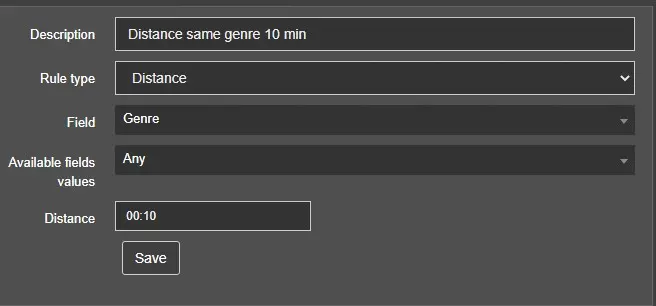
It's not mandatory to specify a value in "Available fields value" list. In the example below, the value "Any" has been selected in the list, meaning that, in the same segment, at least 10 minutes must pass between 2 assets with the same genre (whatever it is):
example_any
Value-based rules
With this rule applied to a template, it's possible to schedule in a segment only assets for which the rule is TRUE.
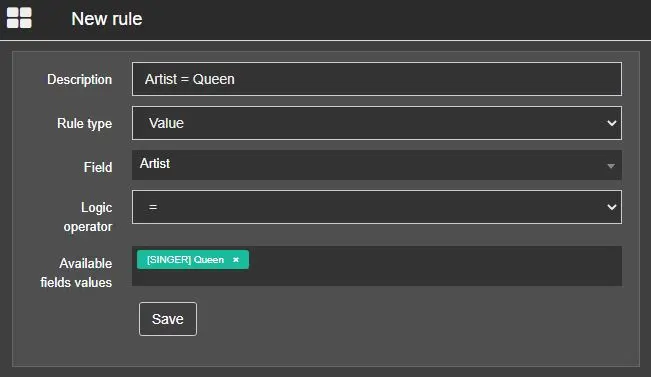
For example, this rule shown below allows to schedule only assets featuring the Queen in the field Artist:
example_rule_3
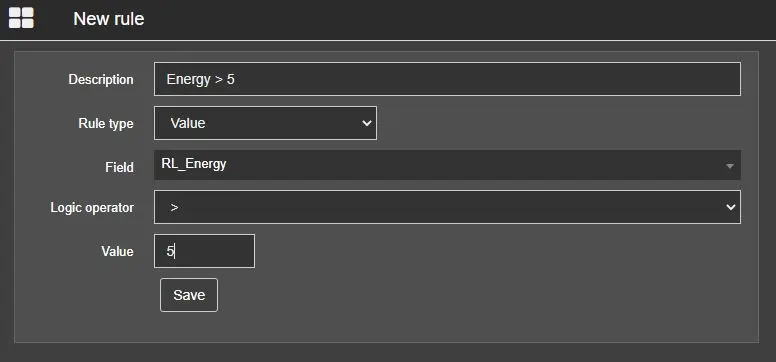
This one, allows to schedule only assets with the metadata RL_Energy filled with a value greater than 5:
example_rule_4
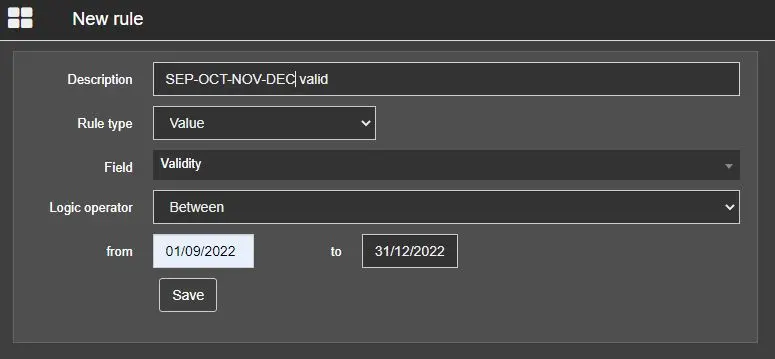
At last, this other example rule allows to schedule assets which validity date falls between those two:
example_rule_5
Actions
In the Actions menu, the following operations are available:
Edit - Opens a new browser tab and allow to modify the selected rule.
Remove - Deletes the selected rule.
Enable\Disable - If the rule is disabled, it won't be considered in the scheduling process. In this case, the status of the rule will change to "No" in the Enabled column of the table and the "Enable" option will become clickable.
Duplicate - Creates another rule with the same settings. To recognize the new rule, an asterisk (*) is added to description.
 rules
rules
 new_rule
 example_rule_3
 example_rule_1
 example_rule_4
 example_rule_2
 example_rule_5
 example_any