72.2.1.4 Extended Asset Creation
This extended form for assets creation appears each time the [New Asset Form] button is pressed. This form allows to create an asset detailing not only its essential information but also some extra-information used to, for example, its tapeless reception:
Create Project
Parameter - Type
Description: This field specifies the category to which the asset belongs to (e.g.: spot, news, season, etc).
NB: Please note that it will be automatically proposed the type (e.g. news) set for the last created asset form.
Parameter - Code
Description: It's the identification code of the asset, it's automatically generated (as set under Etere Configuration > Settings > Basic > Media Library > Codes), being however possible to alter it.
In case a code already exists within the system, a message (i.e. "operation failed: asset code already exists) will warn the operator about the issue
NB: You can assign up to maximum of 32 characters for asset code.
Parameter - Source asset
Description: In case the selected asset type counts with one or more asset templates (set under Etere Configuration > Settings > Types Editor > Types > Media Library section), here will be possible to select the one to be applied to the asset,
Parameter - Title
Description: Brief description of the asset to be created,
Parameter - Duration
Description: The expected duration of the asset,
Parameter - Validity and Expiry dates
Description: If applicable, it is possible to specify a start and end dates for the validity of the asset,
Parameter - CL
Description: Indicate the parental-guidance classification to be assigned to the asset,
Parameter - CAD approval
Description: In case the asset counts with a CAD approval code, indicate it here,
Parameter - Tapeless
Description: Detail the person-in-charge of the asset and the supplier who will deliver the digital media via Tapeless Reception before a certain scheduled arrival.
In the Person-in-charge field, instead of enter the customer name in the box you can search for customer code by input customer’s key words (min. 2 characters) in the combo box and select customer code matched the key words from the drop-down list.
Parameter - Notes
Description: Some additional information that the operator considers necessary to be pointed out.
NB: An ID number will be automatically assigned, it is a sequence number identifying the order of creation.
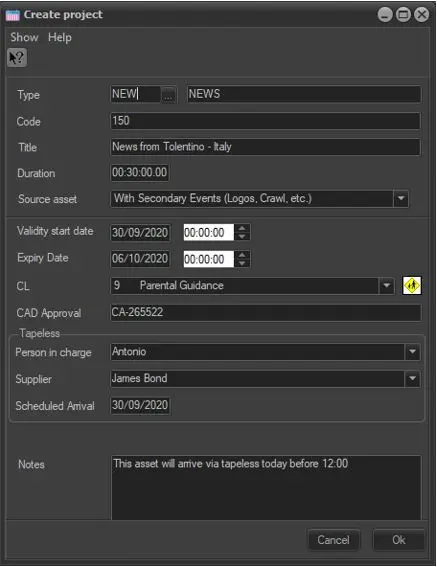 Create_Project