59.4.20.5 Carbon Coder Flexy Converter
What is a "Flexy Converter" action?
The "Flexy Converter" action is a powerful way to use your Carbon projects in Etere by automatically setting specific project attributes with Etere data (tables fields, Flexi-metadata, metafiles, subtitles, etc.).
The tight integration between Etere and Rhozet Carbon Coder makes it possible to adapt your T-workflows to use your existing Carbon projects automatically and transparently. The Flexy Converter is a very useful tool that allows, for example, the use of a video file stored in Etere to generate a new video file composed of different audio tracks and subtitles.
Limitations
▪The Flexy Converter doesn't support "cut" operations of video files (e.g. removing segments based on EDL)
▪The Flexy Converter doesn't support dynamically modifying the project structure nor using Etere database fields
How to configure a "Flexy Converter" action?
To create actions to be used through the Flexy Converter, it is required to set the following parameters under the carbon task builder area:
Carbon Project
Carbon project - Select the Flexy Converter project to be used by default in the Flexy Converter when executing this action.
Press the button to open the Carbon Project Editor and create new projects or modify existing ones.
Output
Output filename
The output filename (name + extension) allows defining which transcoded file(s) should be linked to an asset in the database, this depends on whether this parameter is set or not:
not set (i.e. empty) - Etere will search in the destination path for all files whose name starts with the metafile name (i.e. metafile*.*), linking all found files to the asset in the database.
For instance, if the metafile name is md795, it will be linked to the asset all files matching this name: md795.wmv, md795_1.wmv, md795_2.wmv, md795.mov, md795.avi, etc.
NB: Leaving this parameter empty may cause unwanted files to be linked to the asset, especially on systems where metafiles have short names.
Set (e.g. %6:s.mov) - Etere will search in the destination path for a file named exactly as the output filename (e.g. md795.wmv); if said file exists, it will be linked to the asset in the database. Otherwise, no file will be linked to the asset, and an error message will be returned in the T-workflow log.
For instance, if the metafile name is md795 and the output filename is md795.wmv, it will be linked to the asset only the file named md795.wmv (if exists).
Setting this parameter is useful when transcoding "multiple modules" (i.e. all files of an asset stored in a certain location); it will allow linking only the right transcoded file to the asset. Moreover, if transcoded files have the same extension, use the %6:s variable (in the metafile name, destination name and output filename) to support storing them all in the same location with unique names.
NB: In case of using an output filename, it must be set the same as the metafile name (Basic > Destination metafile); otherwise, transcoded files won't be matched, and no file will be linked.
NB: Output filenames can be defined using the DataMover's support Runtime variables (e.g. %6:s.mxf).
Output path - Specify here the directory where to put the output file. Press the ConfEd_XCode_Metadata01 button to select a directory related to an Etere metadevice (e.g. Archive HiRes).
NB: Output paths can be defined using the DataMover's support Runtime variables (e.g. %5:s\xcoded\).
Other Settings
Path to Carbon command-line tool (rzcp.exe) - Indicate the location (path only) of the Carbon executable, for example, the default Rhozet's installation directory (i.e. c:\program files\rhozet\carbon coder\).
Command line options - Optionally, specify the command-line options (e.g., queuewait) to be included in the execution of the rzcp tool.
Please refer to the "Rhozet command-line options" section for detailed information on available options.
Job output path - Specify the folder within which there will be created rhozet xml command files (e.g. 2571.xml, 2571.sbt.xml) used by the destination (i.e. Rhozet Transcoder) to process the transcoding action.
NB: By default, the path used is the windows user's local app data folder (i.e. %LocalAppData%\Temp\Etere\).
Generate custom name - Use it to generate a custom name for the physical file based on free text and database references (e.g. Flexi-metadata). The custom name cannot be written here directly, but it requires using the following buttons:
Open the editor to define a custom name. Use the [Insert Flexi-metadata] button or the "INS" key to insert available Flexi-metadata fields (i.e. configured in the media library); being also possible to combine it with strings optionally. The name preview will be displayed at the bottom; it will be automatically updated as inserted data.
Use the key to create the custom name specified in the Basic Settings > Destination metafile > Use rule parameter.
NB: This name will be available for being used through the %7:s runtime variable, e.g. in the "Output > Filename" parameter.
Once compiled, click the [SAVE] button to store the Flexy Converter action in the database and make it available as an action block to be included within T-workflows.
How to use it
Actions based on the Flexy Converter process type can be included -through the T-Workflow Editor- in any transcoding T-workflow:
Once the T-workflow is created, it will be ready to be used as specified in the Flexy Converter chapter.
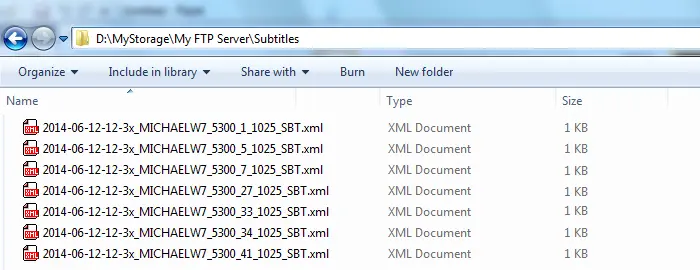 Flexy_Converter
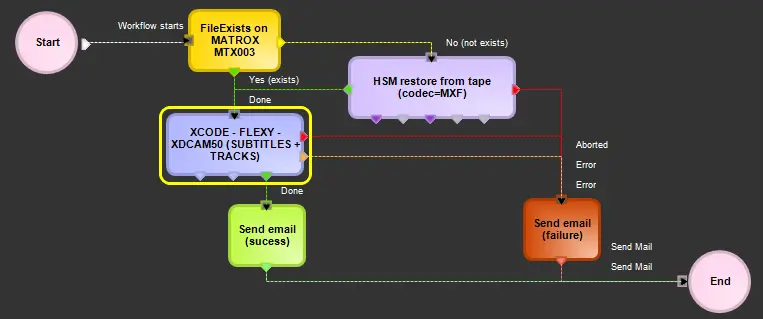 transcoding_T-workflow