72.2.2.34 Annotations - Etere Player
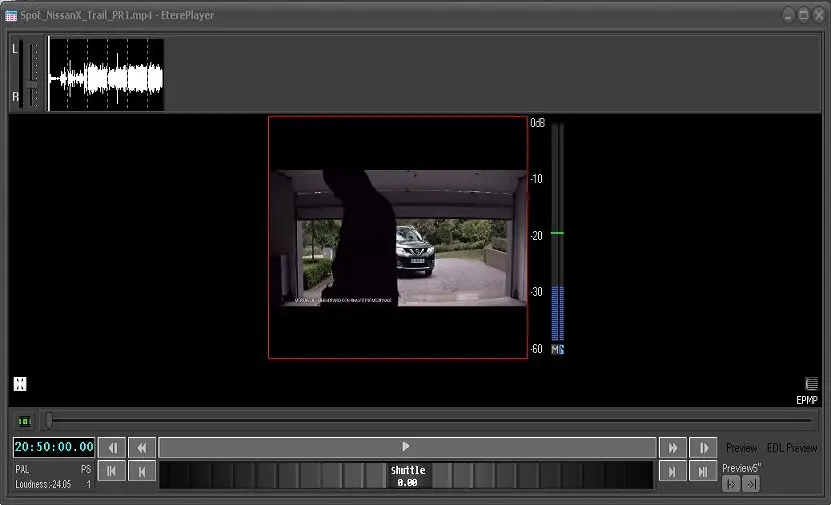
Etere Player is a tool specifically designed to satisfy all current and forthcoming browsing challenges faced in broadcast, production and content distribution; it's a modern and functional media player that offers all key features required for a smooth and professional browsing experience:
Etere Player
✓ Bullet-proof decoding of HiRes & LoRes
✓ Frame-accurate jog & shuttle
✓ Multi-language closed captions
✓ Multi-language audio tracks
✓ Embedded tracks and external audio files
✓ Built-in audio level (RMS)
✓ On-screen data (timecode, properties, etc)
✓ Extensive encoding information display
✓ Multi-standard timecode (PAL, NTSC, HD50p, etc)
✓ Native support for most common formats
✓ Improved support for MXF and LXF
✓ Contour Shuttle devices support
✓ Full resolution preview on external monitors
NB: During the Etere Player initialization, if the render is in used the preview would be disabled.
When previewing asset with 2 metafiles with different physical start time (SOM) linked to asset, the start time of the asset repository would be used if it matched the timecode with the metafile repository. If the start time is mismatch, a second timecode counter would display the actual timecode of the metafile during preview.
If the media file contains multiple audio tracks, e.g. 8 audio tracks, all audio tracks would be displayed in the VMeter, where you can enable / disable any audio track(s).
If the audio device cannot be detected in preview station, an error message would be popup below the video.
If an audio file is loaded into Preview, the Preview would present a black screen with text message “Audio File".
NB: From Etere version 30.3 you can load the asset for preview without forcing the aspect ratio conversion of the asset. The preview would apply the last saved aspect ratio when the asset is loaded for preview. If the asset contain audio file, the last saved audio wave form would be displayed.
At the bottom-right corner, you can test the media file preview (2 consecutive files) with the Preview 5” function:
• Preview first 5” from MarkIn: Preview the first 5 seconds of the first media file from the first MarkIn.
• Preview last 5” to MarkOut: Preview the last 5 seconds of the second media file to the MarkOut.
NB: Please note that the media file for preview must be “.mpg” or “.mp4” file, and the codec must be LOWRES.
If NDI is present on workstation, the NDI configuration form would be automatically launched when you start the NDI preview for the first time from the workstation for proper configuration of NDI channel. If the NDI configuration form did not start automatically, you can click on the “EPMP” icon at the bottom right corner of the Preview window to launch the NDI configuration form. See chapters:
Playback Controls
Contextual functions
NB: When preview with Etere Player, a validity check on the “Devices\Archives” section in Rights Management would be performed. If the access rights is not granted to the metadevice, the preview would be denied with error message “You do not have rights to view this video” displayed on preview window.
Supported formats
Based on a universal DirectShow filter, Etere Player ensures playback support for all major industry standard containers and A/V compression formats, for both HiRes and LoRes:
❑ Container formats: MOV, MP4, MPEG-PS/TS, ASF, WMV, MXF, LXF, GXF, etc.
❑ Video codecs: H.264, AVC-Intra, MPEG-2&4, DNxHD, ProRes 422, etc.
❑ Audio codecs: PCM, AAC, MP2, MP3, WMA, FLAC, etc.
❑ File Sequence: The codec is represent of a sequence of image files, such as DPX (Digital Picture Exchange) files. Prior to preview, codec with content type “Image Sequence” must be defined in Configuration > Settings > Devices Settings > Codecs settings.
When previewing file sequence codec, Etere Player access the URL path where the playlist is located, with wildcard (e.g. \11826_*.dpx) to indicate a sequence of image files, including audio files.
Note: During Preview, if there is audio in the media file the loudness level (measured in “dB”) would be displayed vertically on the right of the preview window, you can adjust the loudness leave by moving the green bar.
Supported Commands
A list of commands / function keys supported by Etere Player are described below:
// F2 or (Ctrl + Alt + F2) = GO M.I.
// F3 or (Ctrl + Alt + F3) = STEP-1
// F4 or (Ctrl + Alt + F4) = STEP+1
// F5 or (Ctrl + Alt + F5) = GOTO M.O.
// F6 or (Ctrl + Alt + F6) = REWIND
// F7 or (Ctrl + Alt + F7) = PLAY
// F8 or (Ctrl + Alt + F8) = PAUSE
// F9 or (Ctrl + Alt + F9) = PLAY/PAUSE
// F10 or (Ctrl + Alt + F10) = FF
// F11 or (Ctrl + Alt + F11) = JOG-1
// F12 or (Ctrl + Alt + F12) = JOG+1
In addition, if the Shuttle Pro Contour is inactive, the following function keys are available if focus on the video track bar:
• Shift + > = Move forward 5 frames
• Ctrl + > = Move forward 10 frames
• Shift + < = Move backward 5 frames
• Ctrl + < = Move backward 10 frames
• Home key = Move to SOM
• End key = Move to EOM
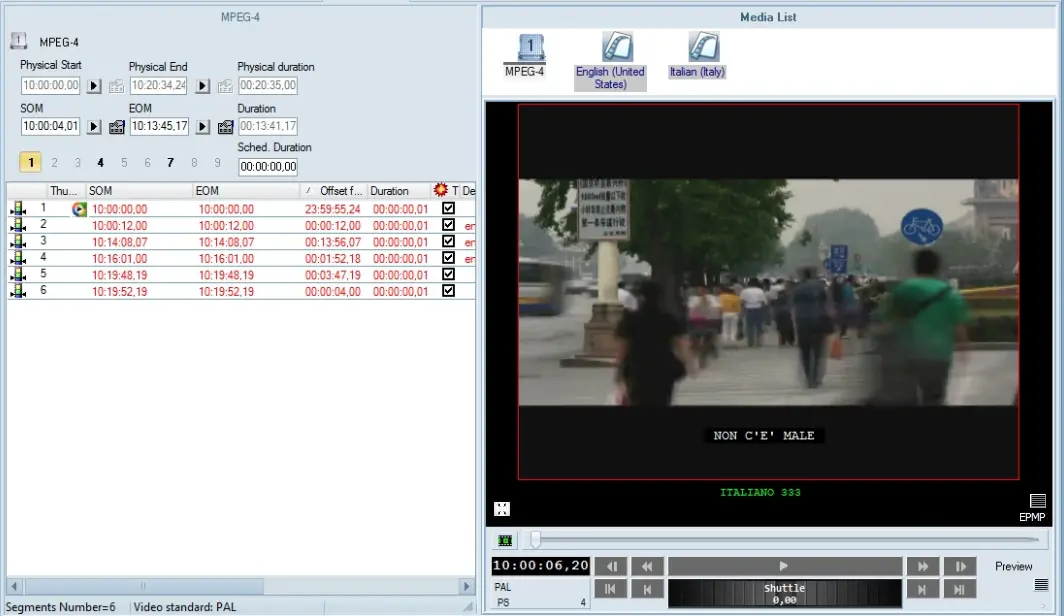
Subtitle for Secondary Language
The subtitles of the second language are displayed with color and fixed font size. The feature is only available
Subtitle for Secondary Language
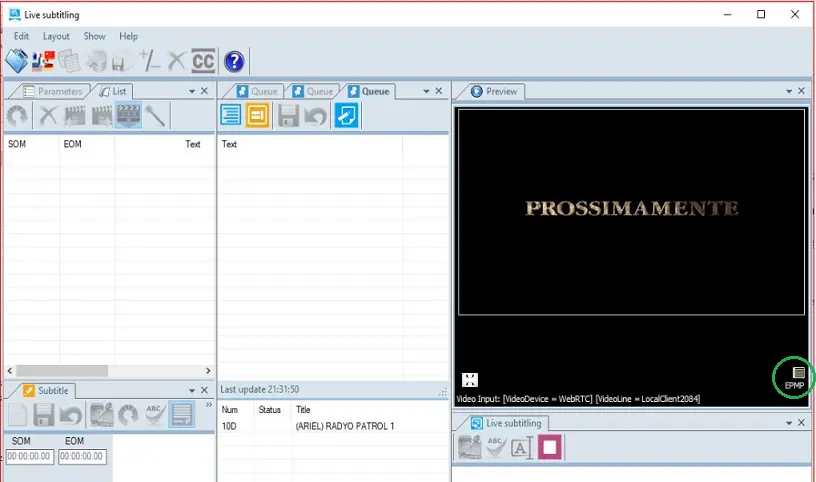
Using Etere Player in Live Subtitling
If you are using Etere Player for Preview in Live Subtitling, whether you are preview from video clip or Live input, the buttons to configure the preview window and Etere player media player (EPMP) configuration are available in the same Preview window.
Moreover, you can click the full-screen icon to preview the video file in full-screen mode.
Etere Player in Live Subtitling
When using Etere Player to search and preview subtitles embedded in assets, only metadevices that defined in “Cloud-devices for Web Users” that user has granted access rights would be searched and displayed. The metadevices in the list are applicable to all Etere modules, including EtereWeb.
NB: When using Etere Player for Live Subtitling preview, if input configuration is set (e.g. SDI) it would be used, else NDI input (default input) would be presence.
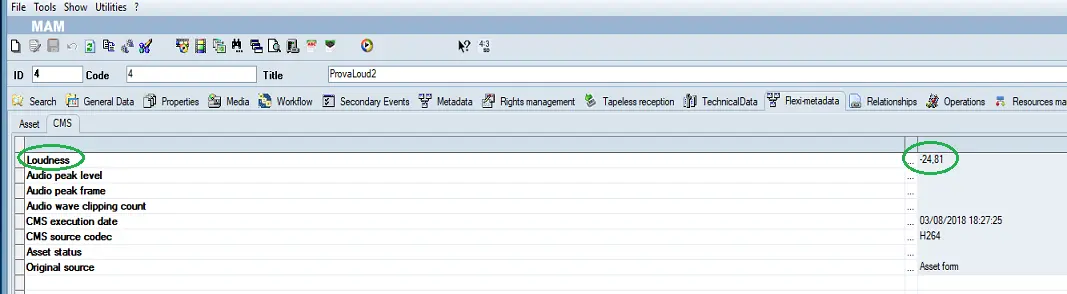
View Asset Loudness Level in Preview
In Media Library, if the asset’s loudness level had been calculated for specific metadata, it would indicate the loudness level in asset’s “Flexi-metadata” tab.
Loudness
When asset is been preview in Etere Player, the loudness level would be displayed in the Preview form as indicated below.
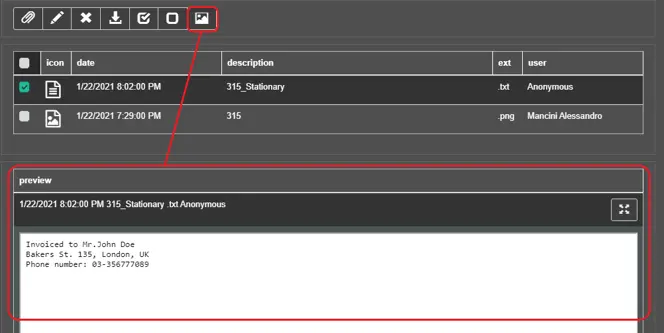
Preview
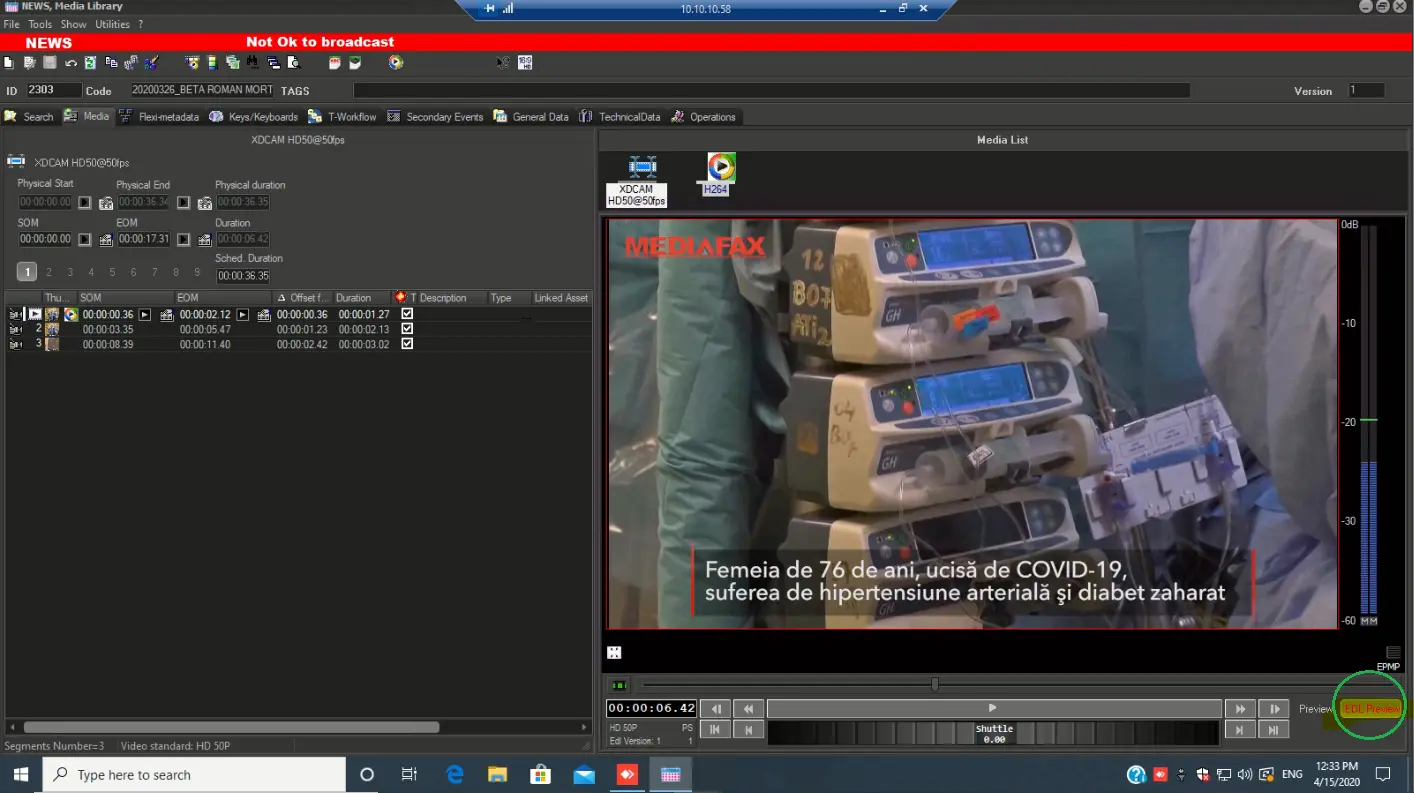
Preview Visible Asset
When previewing asset with multiple segments, you can use the <EDL Preview> button to load only visible segments to the preview window.
EDL Preview
For example, when preview asset with 2 segments:
• 1st segment with SOM1 to EOM1
• 2nd segment with SOM2 to EOM2
By using the <EDL Preview> button, the preview would start from SOM1 and end with EOM2 without intermittent interval.
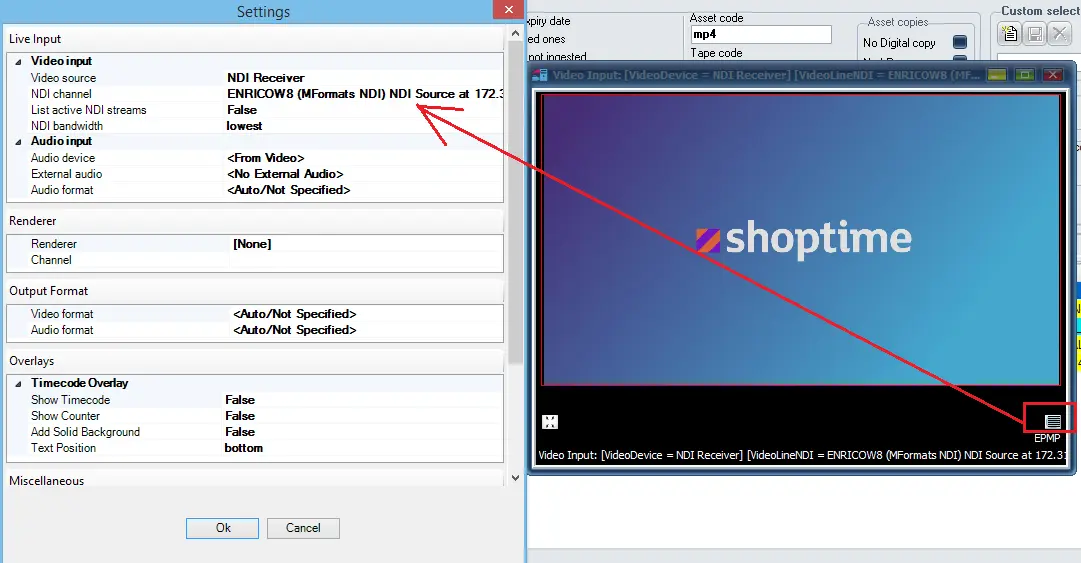
NDI Preset Channel
If you had configured an EtereIP router, you can configure and launch an NDI stream output channel from Etere Preview form, as indicated below.
EtereIP router
Notes
▪ In case the size of the preview window is changed, the video stream will be automatically enlarged/reduced to fit the new playback area.
▪ The Etere Player can be used in a PC with dual monitor to easily perform a full resolution video quality preview. See chapter Contextual functions.
▪ When using Etere Player in EtereWeb, user must be granted with “EtereWeb\Play” access rights in order to perform a proxy preview or full preview of the video file, else an error message would be prompted and preview function would be denied.
 Subtitle_for_Secondary_Language
 Loudness
 EtereIP_router
 EDL_Preview
 Etere_Player_in_Live_Subtitling
 Preview
 Etere_Player