84.4.5.31 STANDARD > PLAYBOX ASRUN CSV
Import Scope
The import PLAYBOX ASRUN CSV import an AsRun log file containing one day schedule.
Before import, the following verifications would be performed:
•File name must contain a valid date.
•First line in the file must have a value ‘#LOGHEADER’.
•There are Tab character between lines.
•The date in the file matched the date in the file name.
•The reconcile key is point to the correct schedule and user, else the import would fail.
•If asset does not have reconcile key, it looks for asset that linked to the video file. Else, a new asset would be created.
During import, the following process take space:
•The file name format must be “yyyy_mm_dd_xxxx.log” where the date in the file name determine the schedule date to be import. (e.g. 2017_06_29_AsRun.log)
•Event with scheduled time after midnight (e.g. “00:00:45:00” into next day) would be imported into current date schedule.
•The first 3 lines of the file contains the file header.
•Blank lines are not processed.
•File records to be import includes date, time, event type, file name, title, duration, actual played time, reconcile key, AirBox instance frame rate, etc.
•The "Title" field of the Playbox would be imported into "Code" field in Etere database. The Title field must be a univocal instruction and must not exceed 32 characters.
•In the AsRun log, it contains the segment transmitted duration rather than the SOM and EOM. The actual SOM and EOM of the segment are imported based on the “External ID” field. (e.g. '07_20181210_00464910_SR318293097_ # 01')
•Only visible segments in Media Library would be imported.
Import Parameter
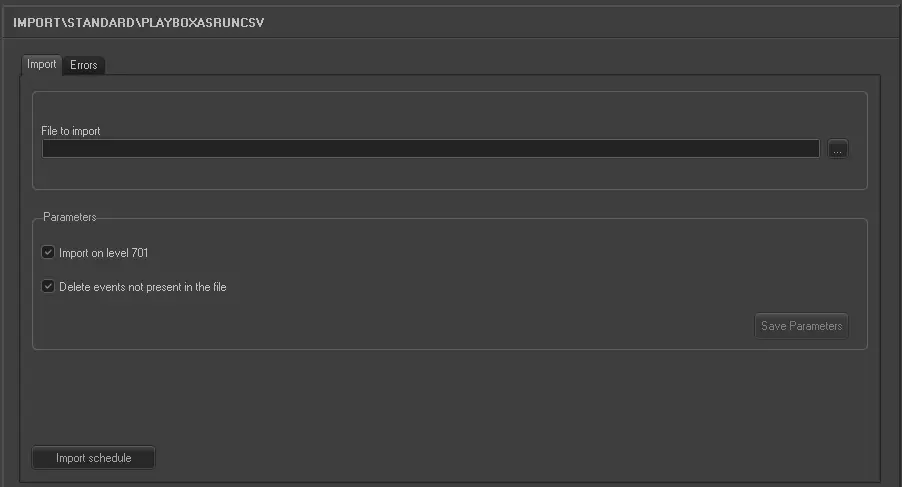
Import_standard_playbox_asrun_csv
File to import: Specify the path to locate the AsRun log file. The file name format is “yyyy_mm_dd_xxxx.log” (e.g. 2017_06_29_AsRun.log). You can use the browse button to search for the file in network.
Import on level 701: If enabled, the data would be imported directly into level 701, avoiding the manual confirmation process.
Delete events not present in the file: Allows you to delete all events scheduled on the imported day but not present in the imported file.
Launch the Import
Once the AsRun log file has been locate, click the <Import Schedule> button to start the import process.
 5241_Import_standard_playbox_asrun_csv