65.3.3.1 How to Use Encoder H265 in Etere Ecosystem
Etere does support the following H.265 HW encoders:
NVIDIA NVEnc H.265 (HEVC) Encoder
Intel QuickSync HEVC Encoder
AMD AMF H.265 (HEVC) Encoder
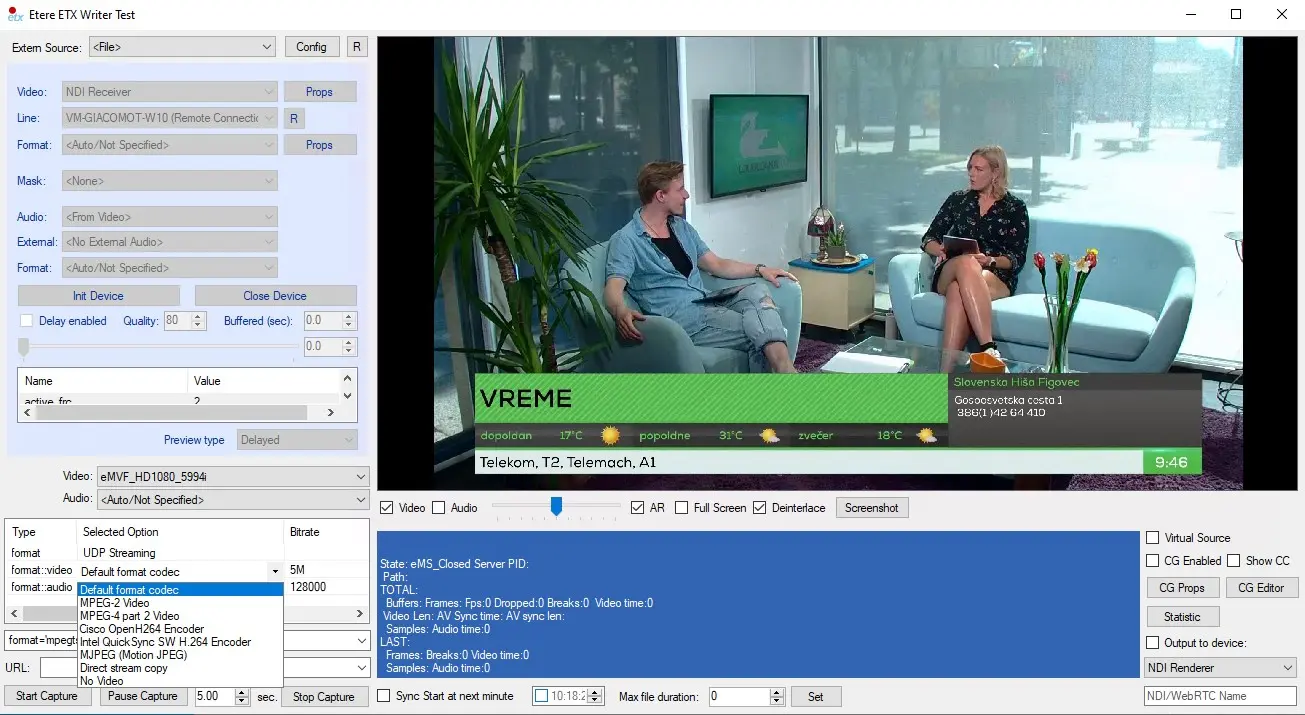
Please note that to use them, the related hardware must be installed on the given workstation/server.
So basically, a GPU/CPU which supports the following encoders must be installed on the system so the H.265 encoder would be visible in the encoders list in Etere:
(NVIDIA NVEnc, Intel QuickSync HW, AMD AMF)
Otherwise, it would not be shown in the Etere Encoders List Configuration
no_h265_encoder
Once we have the required hardware, we can use it within the Etere Ecosystem.
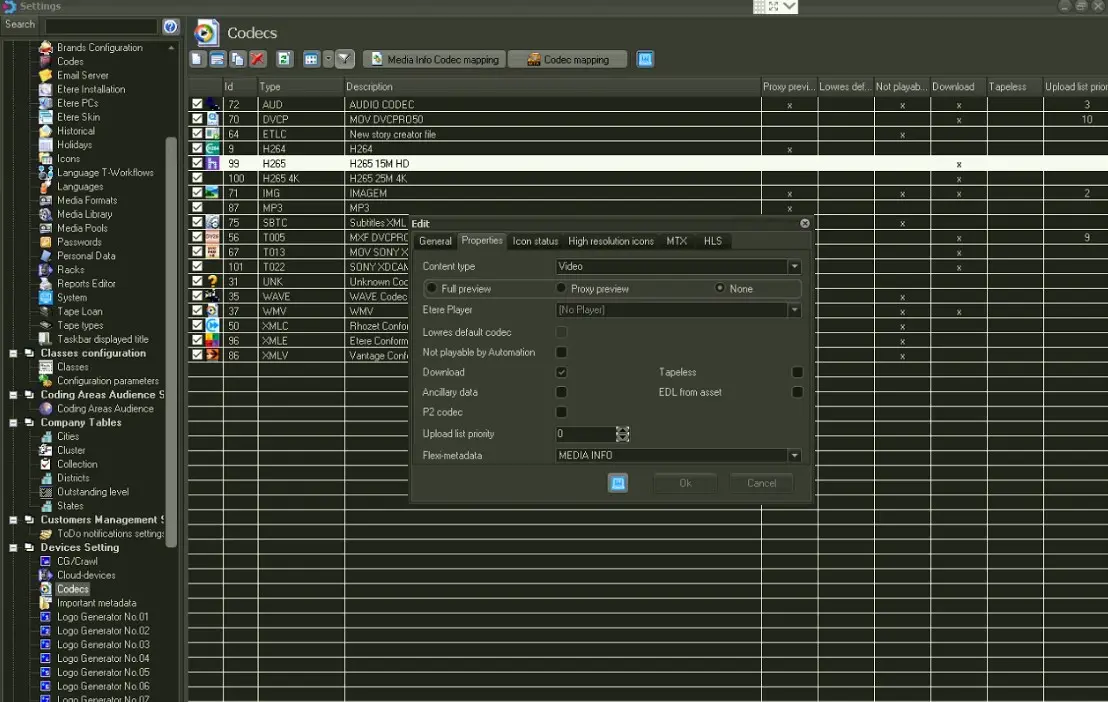
First thing first, we need to create a brand new Codec in:
Etere Configuration > Settings > Codecs
and provide the given settings.
H265_codec_proprierties
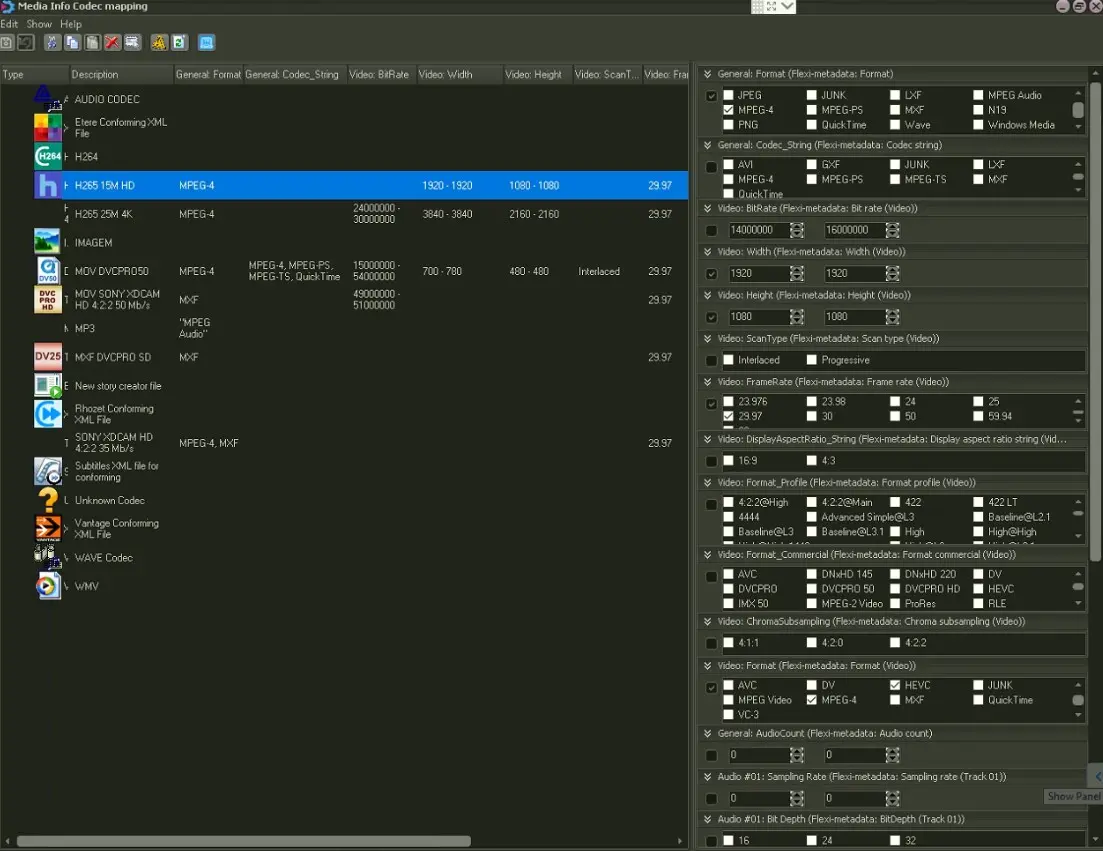
Right after, we need to map the MediaInfo for the given codec and set all the required parameters.
H265_mediainfo_codec_mapping
Once the codec is configured, we can use the H.265 (HEVC) Encoder in the Etere Ecosystem.
H.265 (HEVC) ON ETERE INGEST
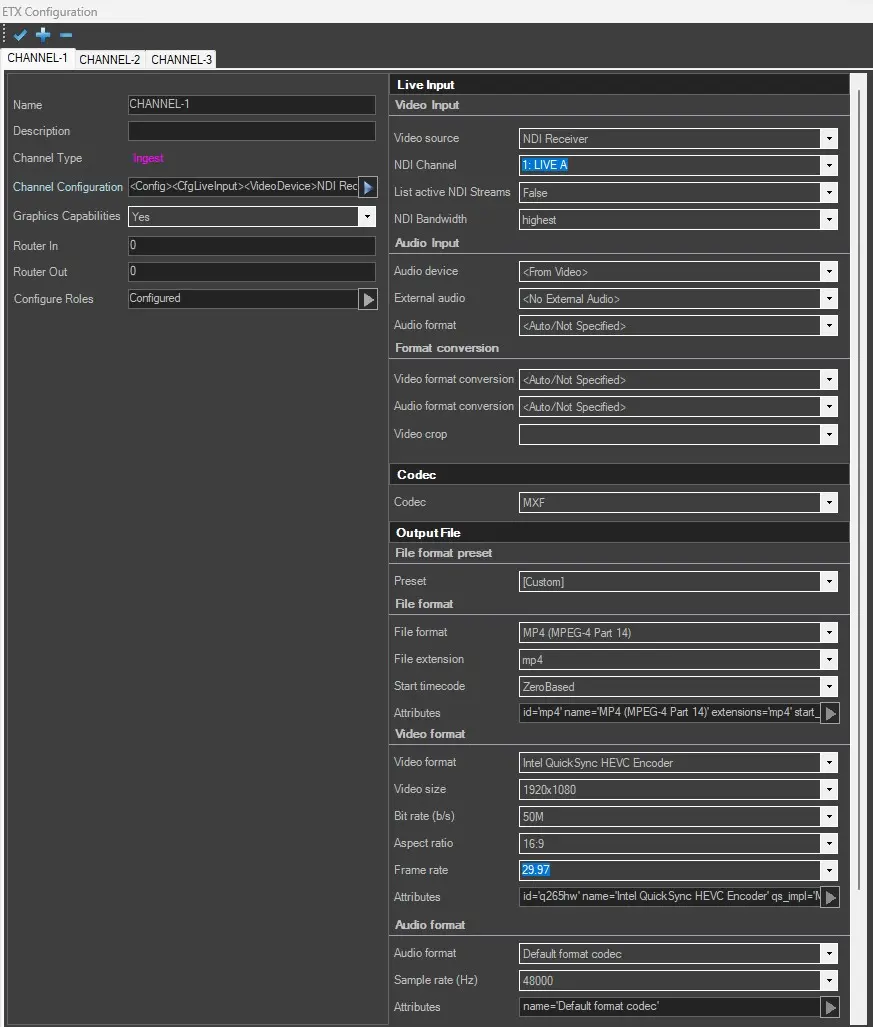
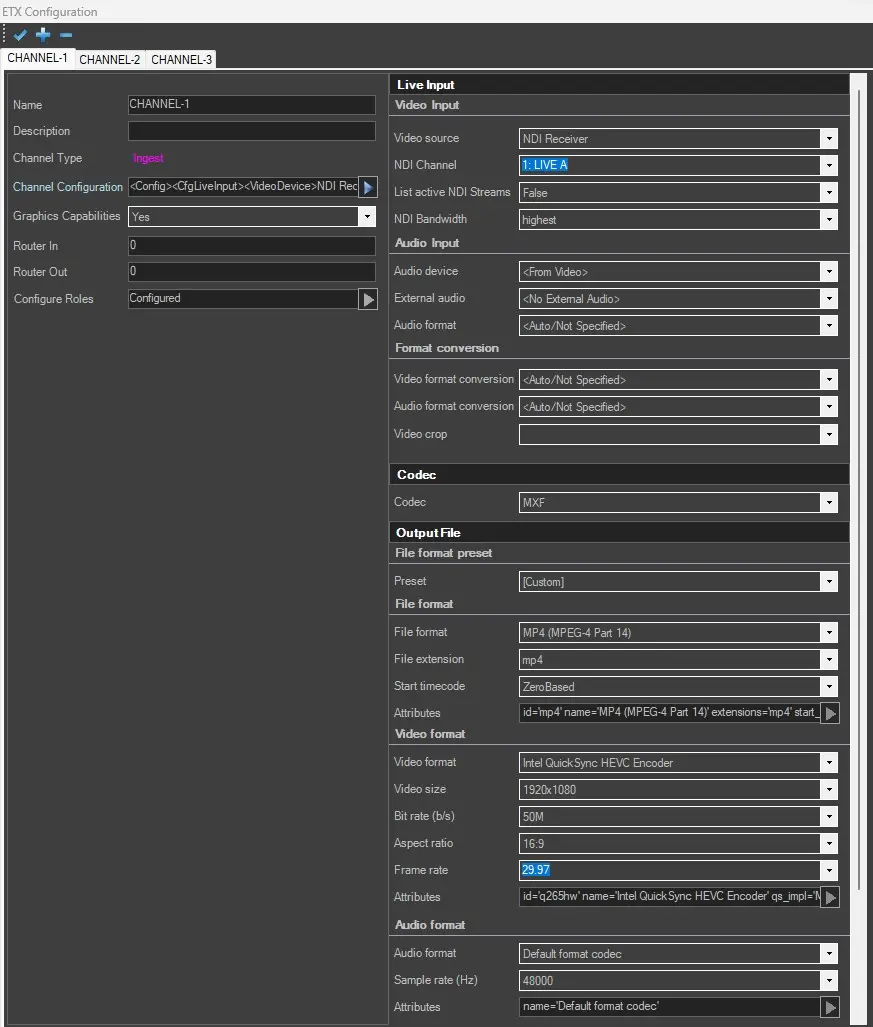
We can use the H265 Encoder in the Etere Ingest Module to produce materials accordingly.
To start using the N265 Encoder in Etere Ingest, we need first to configure the ingest channels in the:
Etere Configuration > Resources Editor
Select the Etere PC on which Etere Ingest runs and start configuring it accordingly.
h265_ingest_channel_output_stream
H.265 (HEVC) ON ETERE TRANSCODER
By relying on the Etere Transcoder, it is possible to produce H265 materials from any video format.
To start using the H265 Encoder in Etere Transcoder, we need to:
ETERE DATA MOVER CLASSIC
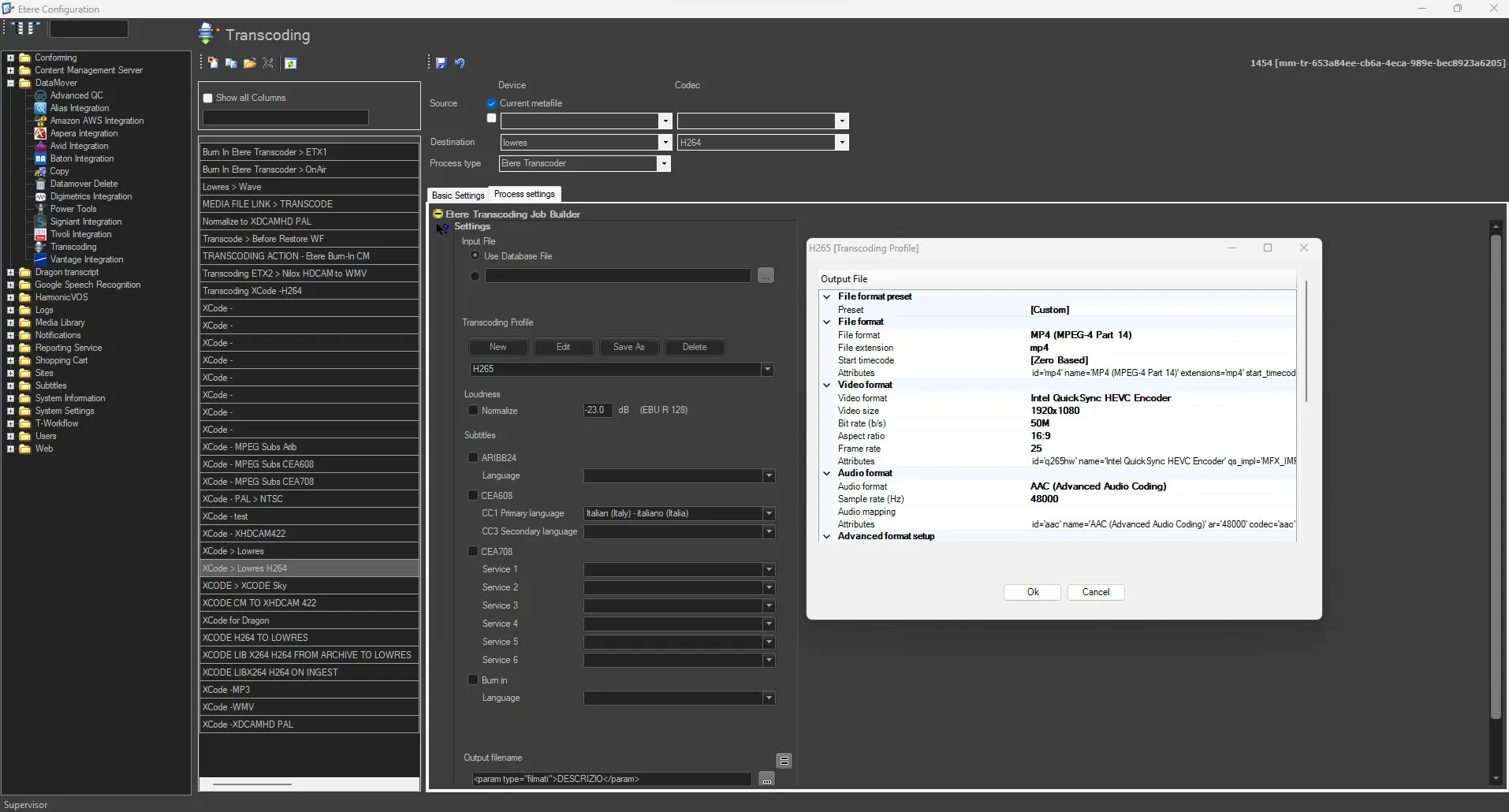
1. create the given Transcoding profile in:
Etere Configuration > Configuration Editor> Data Mover > Transcoding
2. edit any existing Transcoding action or create a brand new one;
3. in the Process Settings, under the Transcoding Profile Section, create a brand new Transcoding Profile or edit an existing one;
4. select MP4 (MPEG-4 Part 14) in the File Format Section;
5. then, in the Video Format Section, select the HEVC Encoder based on the hardware present on the given server/workstation;
6. fill in all the required parameters, press the OK button and save the configuration.
H265_etere_transcoder
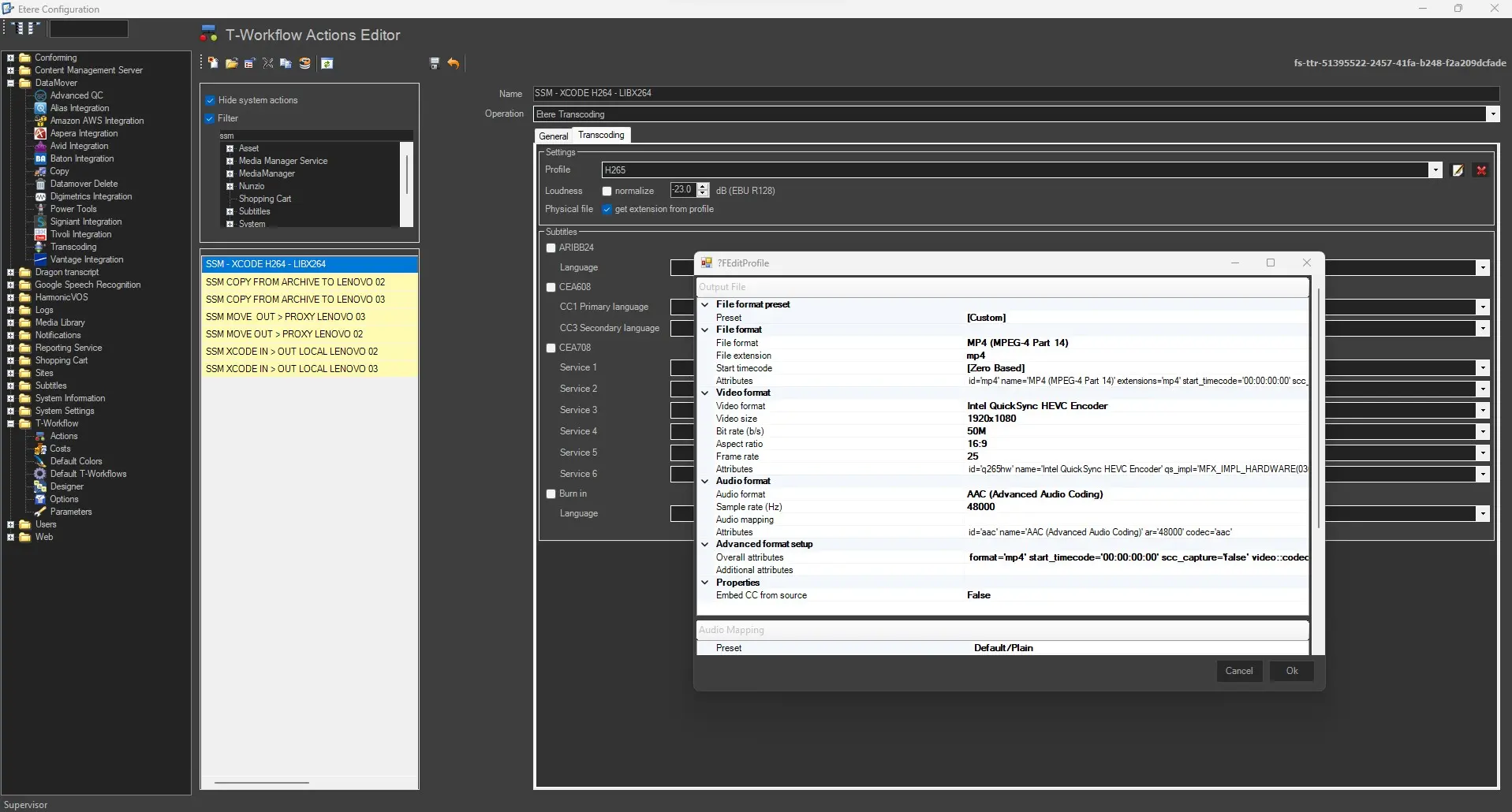
ETERE DATA MOVER SERVICE
1. Create the given Transcoding profile in:
Etere Configuration > Configuration Editor > T-Workflow > Actions
2. Select the existing Transcoding action or create a brand new one as follows:
. on Etere Configuration > Configuration Editor > T-Workflow > Actions
Press the Add New Action Button
add_new_action
fulfil all the required parameters;
Then move on to the Transcoding TAB and start creating a brand new Transcoding Profile or start editing an existing one;
3. Select the HEVC Encoder under the Video Setting section based on the hardware installed on the server/workstation;
4. Press the OK button and save the configuration to fulfil all the required parameters.
mms_xcode_profile
H.265 (HEVC) ON ETERE AUTOMATION
We can also rely on HEVC Encoders in Etere Automation when we talk about Streaming.
In Etere Automation, is it possible to set an output stream that runs in parallel with Automation's primary output signal?
Here, we can set the given stream as HEVC to improve stream quality and reliability.
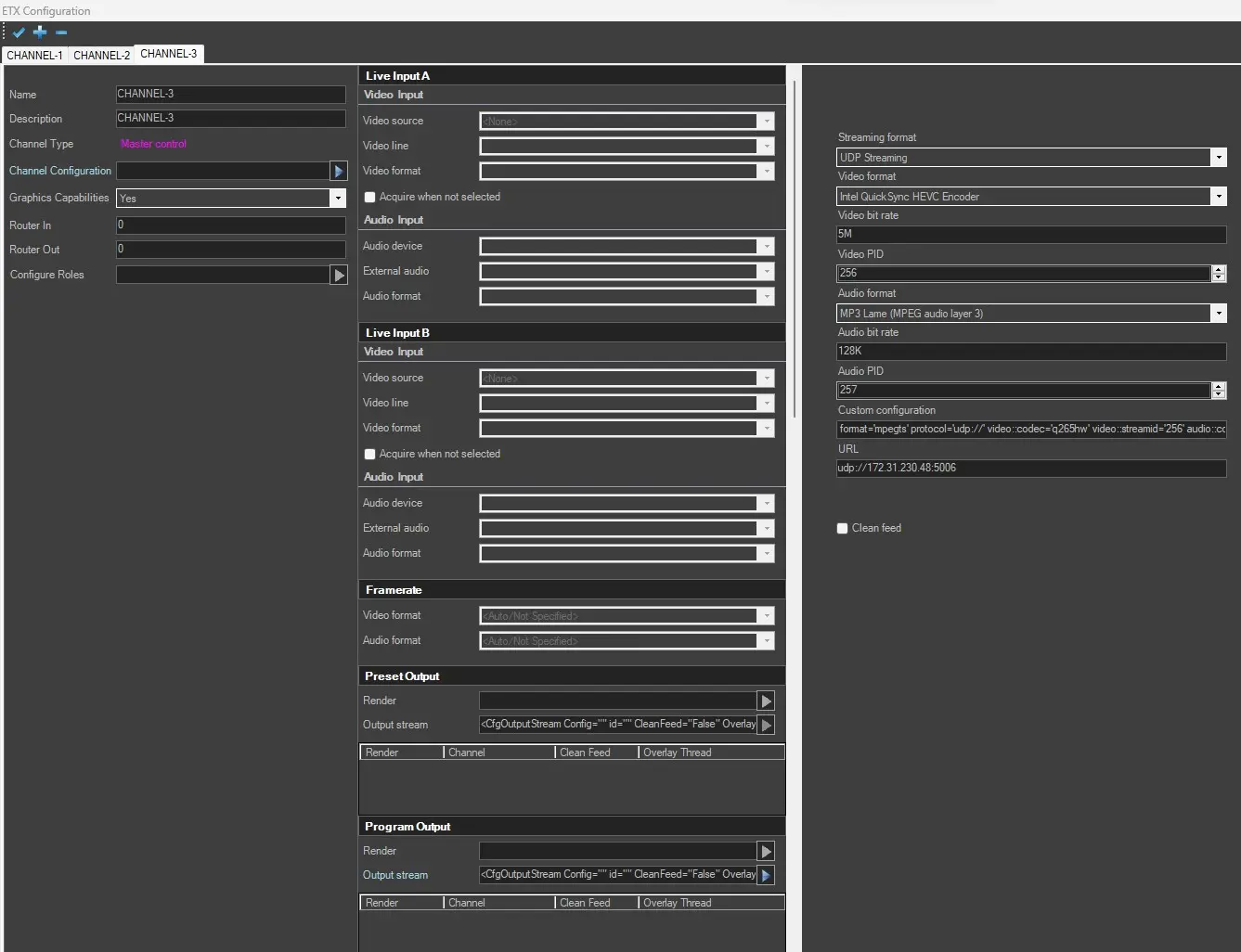
To start using HEVC Encoders as Automation Stream Video Format, we need to edit the ETX channel configuration.
1. Go to Etere Configuration > Resources Editor;
2. Double Click on the ETX object from the Resources Stage and press Channel > Manage;
ETX MASTER CONTROL STREAM CONFIGURATION
3. In the Program Output Section, select Output Stream;
4. From here, we can start assigning all the required parameters to have a HEVC Output Stream up and working, depending on the Streaming Format and the given Video Format.
etx_stream_hevc
ETX PLAYOUT STREAM CONFIGURATION
3a. In the Output Section, select Output Stream;
4a. From here, we can start assigning all the required parameters to have a HEVC Output Stream up and working, depending on the Streaming Format and the given Video Format.
etx_playout_stream_hevc
5. Save the configuration, exit from Resource Editor and restart Etere Automation to let the given modifications be applied.
 no_h265_encoder
 H265_etere_transcoder
 h265_etx_channel_output_stream
 h265_codec_proprierties
 h265_mediainfo_codec_mapping
 h265_ingest_channel_output_stream
 h265_ingest_channel_output_stream
 mms_xcode_profile
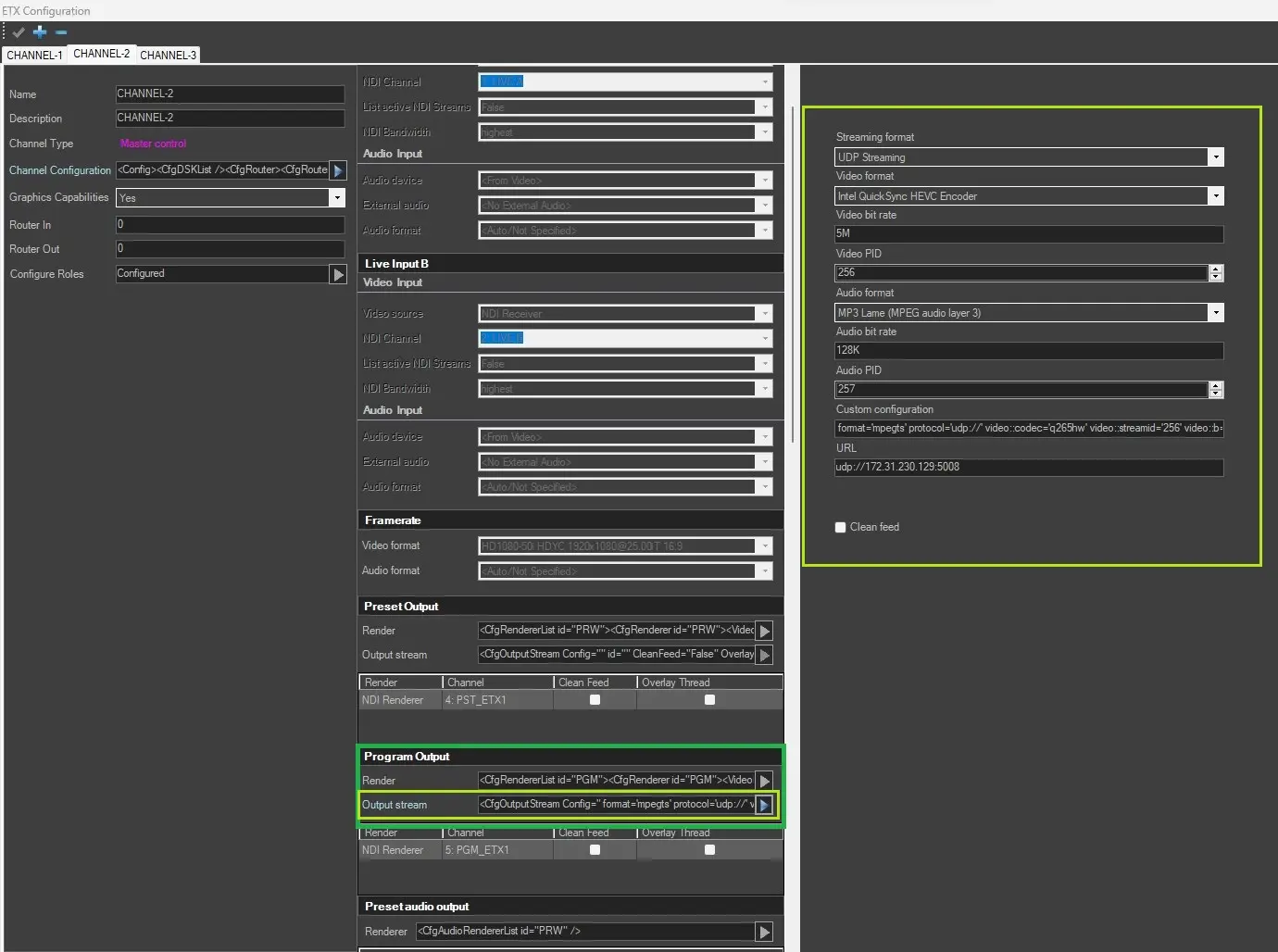 etx_stream_hevc
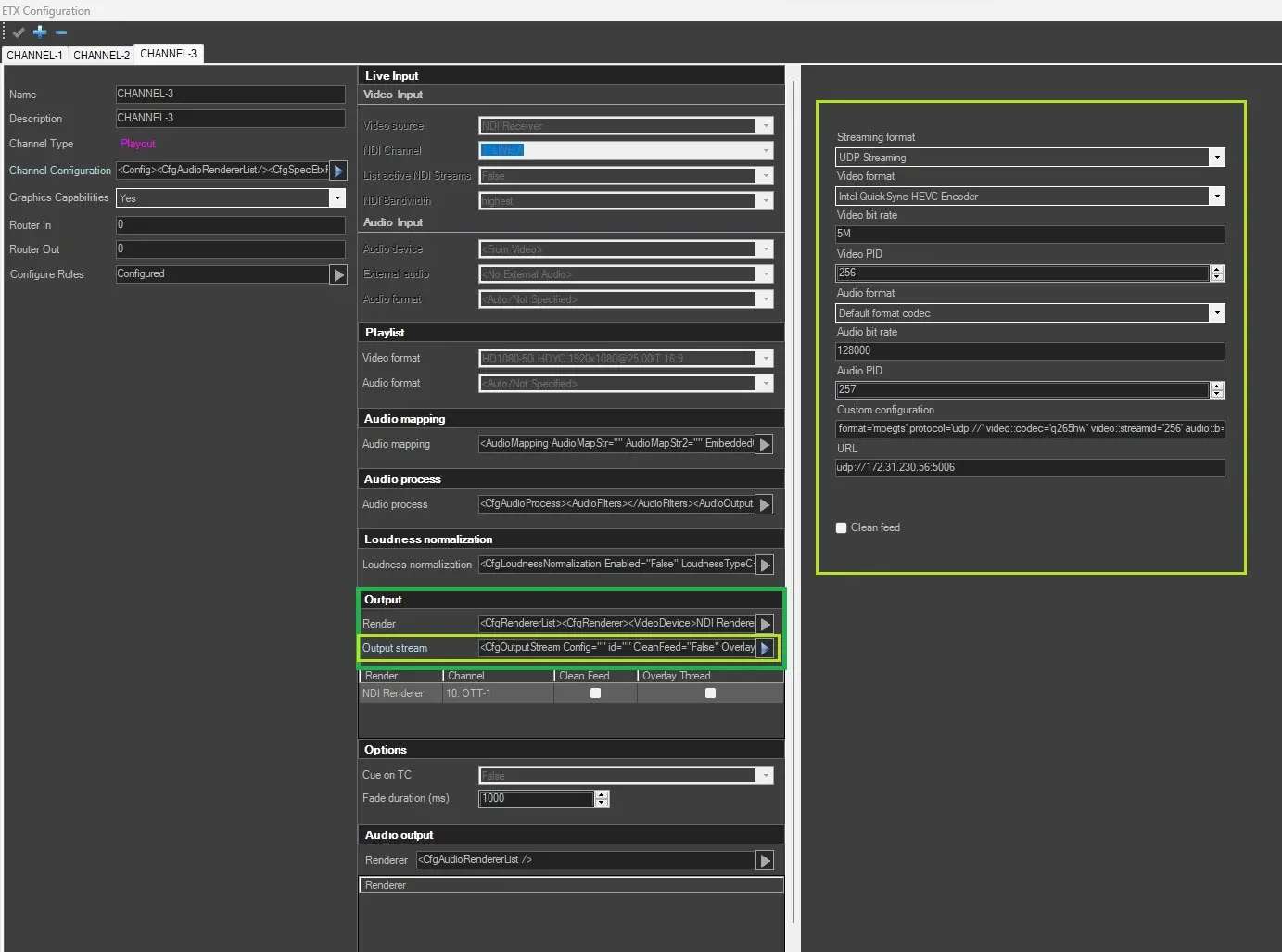 etx_playout_stream_hevc