59.6.2.2 Oracle DIVArchive Installation
Oracle DIVArchive Cluster Manager uses Oracle Fail Safe, an application that enables configuring and managing the Oracle database and 3rd party applications for high availability on Windows clusters. This document contains installation of DIVArchive Cluster Manager (Release 7.2 or later) and Oracle Fail Safe (Release 4.1 or later).
An external disk hosts the Oracle data file and backups. The disk serves the nodes through a Serial Attached SCSI (SAS) connection. Two Windows 2012 R2 Standard nodes connect to the disk and host Oracle Fail Safe and DIVArchive software.
Software Requirements
•Windows 2008 R2 SP1, Enterprise Edition 64-bit server, or
•Windows 2012 R2 Standard.
•Microsoft .NET 3.5 SP1 (for Fail Safe)
•DIVArchive database installation package.
•Oracle Fail Safe 4.1 Installation package.
•Shared disk array drivers and management software.
•Updated Microsoft patches.
Network Requirements
•Do not specify a default gateway or DNS servers
•On the DNS Settings tab, deselect the check box for the “Register this connection's address in the DNS” option.
•On the WINS Settings tab, deselect the check box for the “Enable LMHosts Lookup” option.
•On the WINS Settings tab, select the check box for the “Disable NetBIOS over TCP/IP” option.
•The 2 server node must be members of a Windows domain.
•If NIC Teaming is used, it must be configured before create the cluster.
Install DIVArchive Prerequisites (on 2 Cluster Node Servers)
1. Login to first node as Admin account user (DIVAClusterAdmin).
2. Open the User Account Control Settings from the Windows Control Panel.
3. Set the notifications to “Never notify”. This will reduce the amount of administrator approval request messages during installation.
4. Copy the installer from DVD to "C:\Temp\Prerequisites_x.x.x" where x.x.x is the release number.
5. Open a Windows command prompt as an administrator and change the directory to the directory specified in step 4.
6. Enter command “StartSetup.bat”, enter user ID and password when prompted to start installation.
7. When installation completed for first node, repeat the step for installation of 2nd node server.
Install Oracle Database (on 2 Cluster Node Servers)
1. Login to first node server as Admin account user (DIVAClusterAdmin).
2. Open a Windows command prompt as an administrator.
3. Mount the Oracle ISO file on server.
4. Enter command “InstallEngine.cmd” to install the Oracle binary files in "C:\app folder".
5. Repeat the step for 2nd node server.
•On first node server (active node)
1. At command prompt, enter command “InstallDatabase-huge”
2. Navigate to "C:\app\oracle\product\11.2.0\dbhome_1\NETWORK\ADMIN\" and edit the listener ".ora" file.
3. Replace HOST with the Oracle Cluster Group IP address. This IP address is required during Oracle Fail Safe installation. In our examples 172.20.128.130 (DIVA-CL_ORC) are used.
•On 2nd node server (standby node)
1. Copy the "C:\app\oracle\product\11.2.0\dbhome_1\database\initLIB5.ora" file from Node 1 to Node 2.
2. Navigate to "C:\app\oracle\product\11.2.0\dbhome_1\NETWORK\ADMIN\" and edit the listener ".ora" file.
3. Replace HOST with the Oracle Cluster Group IP address. This IP address is required during Oracle Fail Safe installation. In our examples 172.20.128.130 (DIVA-CL_ORC) are used.
4. Open Computer Properties windows.
5. Select “Advanced system settings” and select “Advanced” tab.
6. Select “Environment Variables” and click New for System Variable area.
7. Repeat steps 4 through 7 (inclusive) to set each of the following environment variables:
DIVA_ORACLE_HOME
C:\app\oracle\product\11.2.0\dbhome_1
ORACLE _BASE
C:\app\oracle
PATH
%SystemRoot%\system32;%SystemRoot%;%SystemRoot%\System32\Wbem;%SYSTEMRO
OT%\System32\WindowsPowerShell\v1.0\;C:\app\oracle\product\11.2.0\clien
t32\bin;C:\app\oracle\product\11.2.0\dbhome_1\bin;C:\Oracle\Ofs41_
1\FailSafe\Server
•On both node servers
1. Open Computer Properties windows.
2. Select “Advanced system settings” and select “Advanced” tab.
3. Select “Environment Variables” and click New for System Variable area.
4. On the New System Variable dialog box, enter ORACLE_SID in the Variable name field, and LIB5 (must be all uppercase) in the Variable value field.
•On 2nd node server
1. Open Computer Properties windows.
2. Select “Advanced system settings” and select “Advanced” tab.
3. Select “Environment Variables” and click New for System Variable area.
4. On the New System Variable dialog box, enter ORACLE_BASE in the Variable name field, and "C:\app\oracle" in the Variable value field.
5. Repeat steps 3.
6. On the New System Variable dialog box, enter "DIVA_ORACLE_HOME" in the Variable name field.
7. On the New System Variable dialog box, enter "C:\app\oracle\product\11.2.0\dbhome_1" in the Variable value field.
8. Repeat step 3.
9. On the New System Variable dialog box, enter PATH in the Variable name field, and in the Variable value field enter the same path you entered for Node 1 (they must match).
Install DIVArchive (on 2 cluster node servers)
1. Login to first node server as Admin account user (DIVAClusterAdmin).
2. Start the DIVArchive installation program.
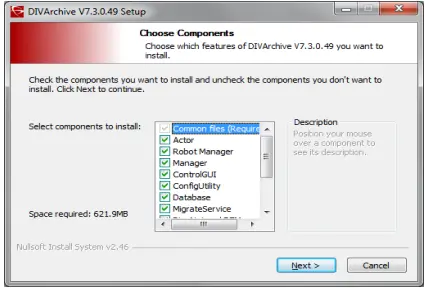
3. When the “Choose Components” dialog box displayed, ensure that all components are selected.
Oracle_Divarchive_Choose_Components
4. Click <Next> and select the default installation location (C:\DIVA)
5. Click <Install> to start installation.
6. When installation completed, click <Close> to exit installation program.
7. Repeat the steps to install DIVAchive on 2nd node server.
(Refer to Oracle DIVArchive Installation and Configuration Guide and the Oracle DIVArchive Operations Guide for more detail information and guideline.)
Install Oracle Fail Safe (on 2 cluster node servers)
1. Login to first node server as Admin account user (DIVAClusterAdmin).
2. Grant full access to Oracle Cluster object “DIVA-CL-MSCS”.
3. Extract Oracle Fail Safe 4.1.0 installation package to a temporary folder.
4. Execute “temp_folder\install\setup.exe” to start installation.
5. Click <Next> and select “Typical” installation.
6. Click <Next> and select the default location to store the program files.
7. Enter the domain’s user ID and password (twice) when prompted.
8. Click <Next> and verify all information are correctly provided.
9. Click <Install> to start installation.
10. When installation completed, click <Exit> to close the installation program.
11. Repeat the same step to install Oracle Fail Safe to 2nd node server.
Verify the Oracle Fail Safe installation
1. Login to node server as Admin account user (DIVAClusterAdmin).
2. Launch the Fail Safe Manager.
3. Connect to the new cluster using the cluster alias (DIVA-CL-MSCS) by select the alias in the navigation tree on the left panel, select Connect from the Action menu on the right panel. It would auto-connect to the cluster.
4. Next, click “Validate” from the Action menu on the right panel to start validation.
 Oracle_Divarchive_Choose_Components