72.2.2.67 Media Data
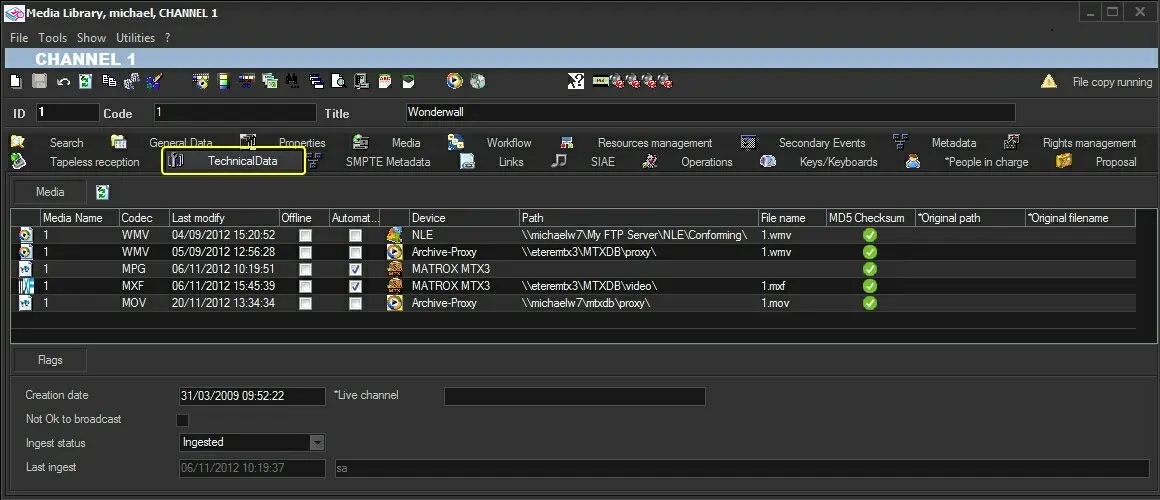
The Technical Data section allows to view and edit all technical data of the media files associated to the asset in question, the main window is illustrated in the picture below:
Technical Data
Media name: Name of the metafile
Codec: Codec of the metafile
Last Modify: Displays the date on which the last change to a certain media data has been performed.
Offline: Specifies the eventual unavailability of the file due, for example, to the fact that its containing metadevice has been set offline from the Resource Editor.
Device: The metadevice on which the file is stored.
Path: The detailed path on the metadevice where the physical file is located.
Filename: It's the name with which the media file is stored in the related device. Please note that filenames have a length restriction (i.e. 20 characters in case Etere Automation is installed, and 32 characters without Etere installed, with the maximum of 250 characters).
NB: Etere strongly suggest to always check recorded assets using Etere Ingest.
MD5 Checksum: If the file has a MD5 file hash¹ an icon will be displayed, otherwise, no icon will be shown. ¹ : The MD5 file hash is generated via T-workflow using a MD5 checksum action.
Original relative path: The sub-directory in which the file was originally stored before being copied into its current position.
Original filename: The name with which the file was originally stored before being copied into its current position.
Metafiles
➢ A metafile is an abstraction of a media file physically stored in a certain device with a certain codec and filename
➢ Metafiles are uniquely identified according to the combination of their "device", "codec" and "media name"
➢ One metafile can be related to multiple media files stored in the same device with the same codec but with a different filename
➢ In case of deleting a media file, its related metafile will be a deleted along with all other related media files
Flags
In the bottom section the following flags can be set:
Creation date: It simple indicates the date and time at which the asset has been created.
Not OK to broadcast: Enable it if the asset in question is not allowed to be broadcast,
You are not allowed to modify the “Not Ok to broadcast” flag, the modification must be carry out using the Edit function.
For application measurements, you can prevent users from selecting an asset marked as “Not ok to broadcast” by adhere to following practices:
• During asset search, exclude (disable the option) asset marked as “Not ok to broadcast” to be filtered.
• In Schedule Parameters > Global settings, the “Events which are “not ok to broadcast” must not go on-air” option must be enabled.
• In Executive Editor, take note of the event icon and warning message for event marked as “Not ok to broadcast”.
Ingest status: Select the status of the recording:
Not ingested - The asset has still not been ingested.
Currently ingesting - The asset is being currently ingested.
Currently ingesting in streaming - The asset is being currently ingested in streaming, that is, from a source put in 'play'. See the streaming event type.
Ingested - The asset has been correctly ingested. An asset can be in "ingested" status in these cases:
• Upon successful import from Media Library.
• Multiple import from Media Library.
• Media file linked in Media Library.
The asset’s ingest status can be summarized as:
• Linked from ActiveSync > Ingested
• Import from Media Library > Ingested
• Multi-import from Media Library > Ingested (which would create a new asset for each imported file)
• Uploaded from Web > not ingested
• Linked from Media Library > not ingested
Last ingest: It displayed the date and time when the last ingest was performed.
Live channel: In case the asset form is related to a live event, this flag indicates the router channel from which the video signal will be received.
Further information on live events can be found in the Live Assets chapter.
Note
Due to the sensitive nature of the information managed in this section, editing capabilities are allowed only to users with "system admin" rights. Please note that in case the asset is set to read-only, no user will be allowed to edit the asset's technical data neither other data (e.g. general, properties, media, etc).
 Technical_Data