18.4.1 Ingest
The classic Etere Ingest module can be installed and configured as a Software as a Service.
By relying on this setup, it's possible to perform a Client - Server configuration, which means that we can run the Ingest Service where the SDI cards are actually installed (Server) and recall them from any given Etere workstation in the network (Client). Of course we may need to perform a correct configuration first.
INSTALLATION AND LICENSE ASSIGNMENT
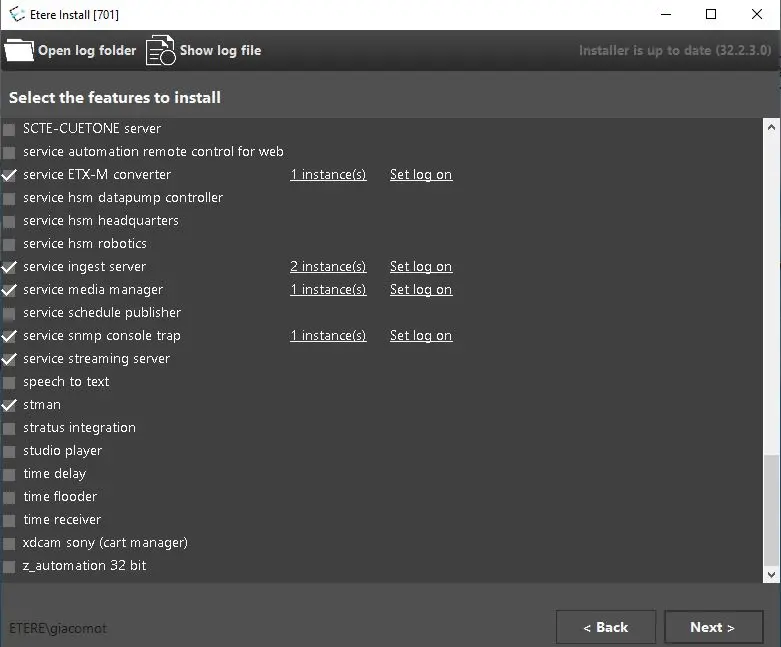
In order to use Etere Ingest as a Service we need to install the feature called Service Ingest Server, which allows us to start the Service first installation. We can rely on the standard Etere Update module in order to do so.
ingest_service_install
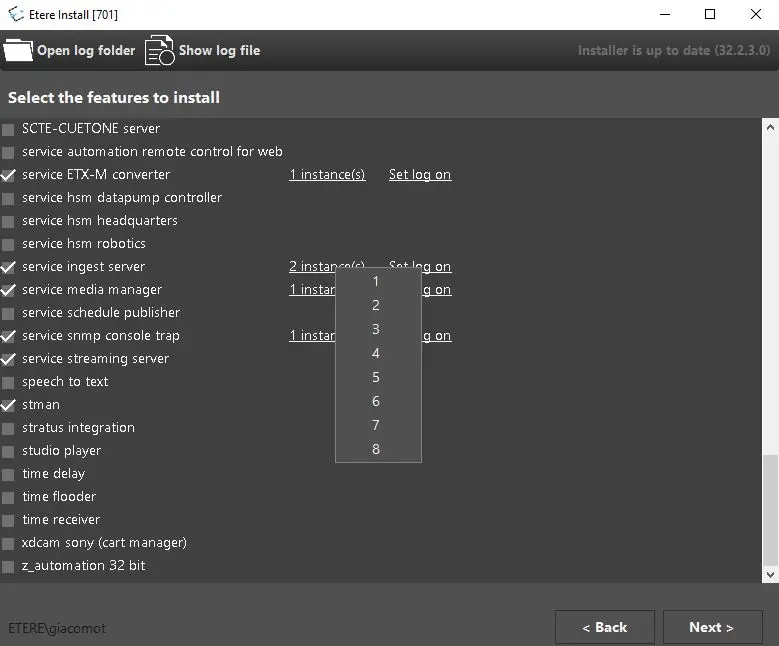
ingest_service_install_set_instances
The installation is pretty straightforward as any other Etere Module, however in this particular case we need to set additional dedicated parameters such as:
1. The number of instances (channels) we want to use. The max number of allowed instances per resource is 8.
2. The log-on account we want to use in order to start interacting with the Etere Ingest Services (Windows Service) we are going to create.
Note: To use the Ingest Service you need the licence EA1378 and it must be one to one -> 1 service = 1 license.
Each license must be inserted inside the resource properties: Configuration > ResourceEditor > Workstation > Properties > Licence.
For example if you want to use 4 services in the workstation ETERE-INGEST001 you must write four times the indicated licence separated by a comma -> EA1378,EA1378,EA1378,EA1378
Once the above parameters have been set, we can start the given installation just by pressing the Next button.
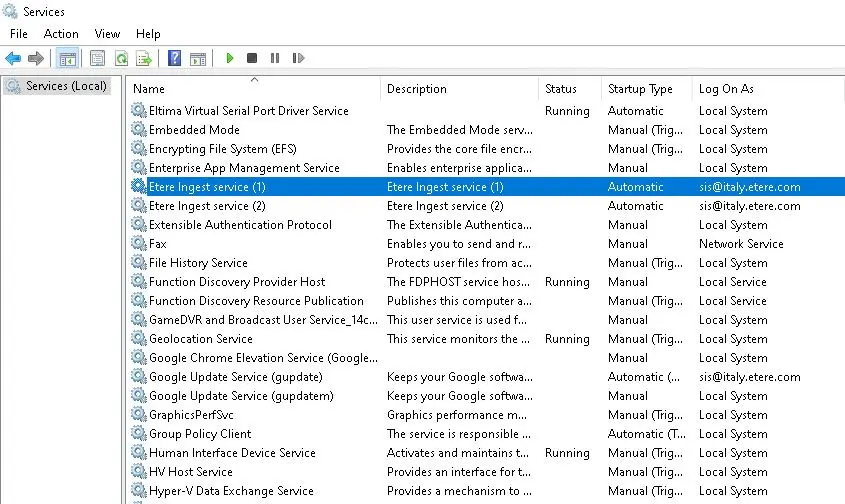
Once the installation is done, the system will create new Windows Services called "Etere Ingest Service (x)", where 'x' represents the identification number of the service, depending on how many instances we have chosen during the installation procedure.
The installed services, will be started by Etere Update automatically.
ingest_service_win_services
CONFIGURATION
Next, we are going to see how to properly configure the services we just installed.
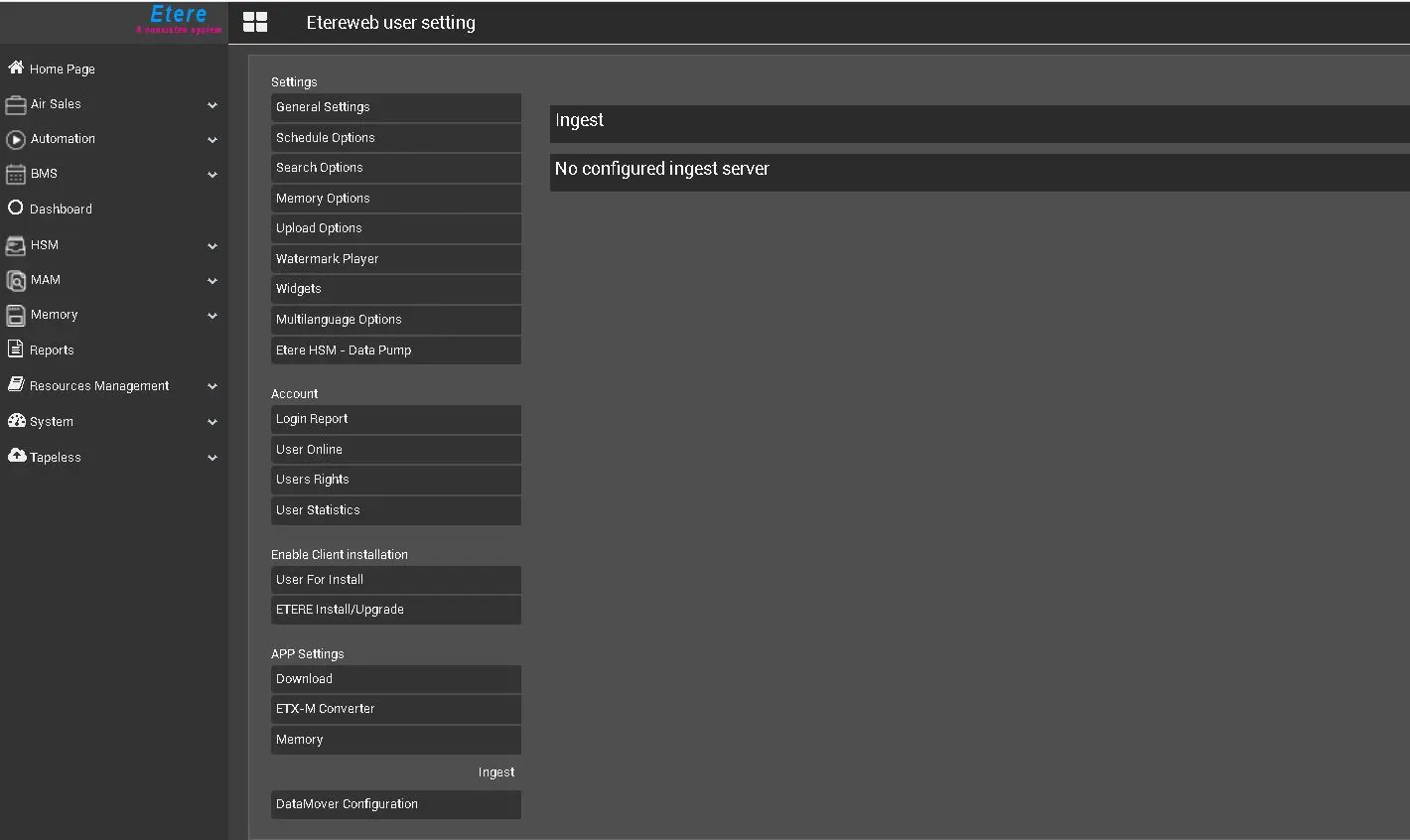
Along with the creation of the services, Etere Update will also place as many xml files as the number of services installed inside C:\Program Files (x86)\Etere. Each of these XMLs will contain the service configuration, which, unlike the classic Ingest module, must be done from the Etereweb Interface.
ingest_no_configred_service
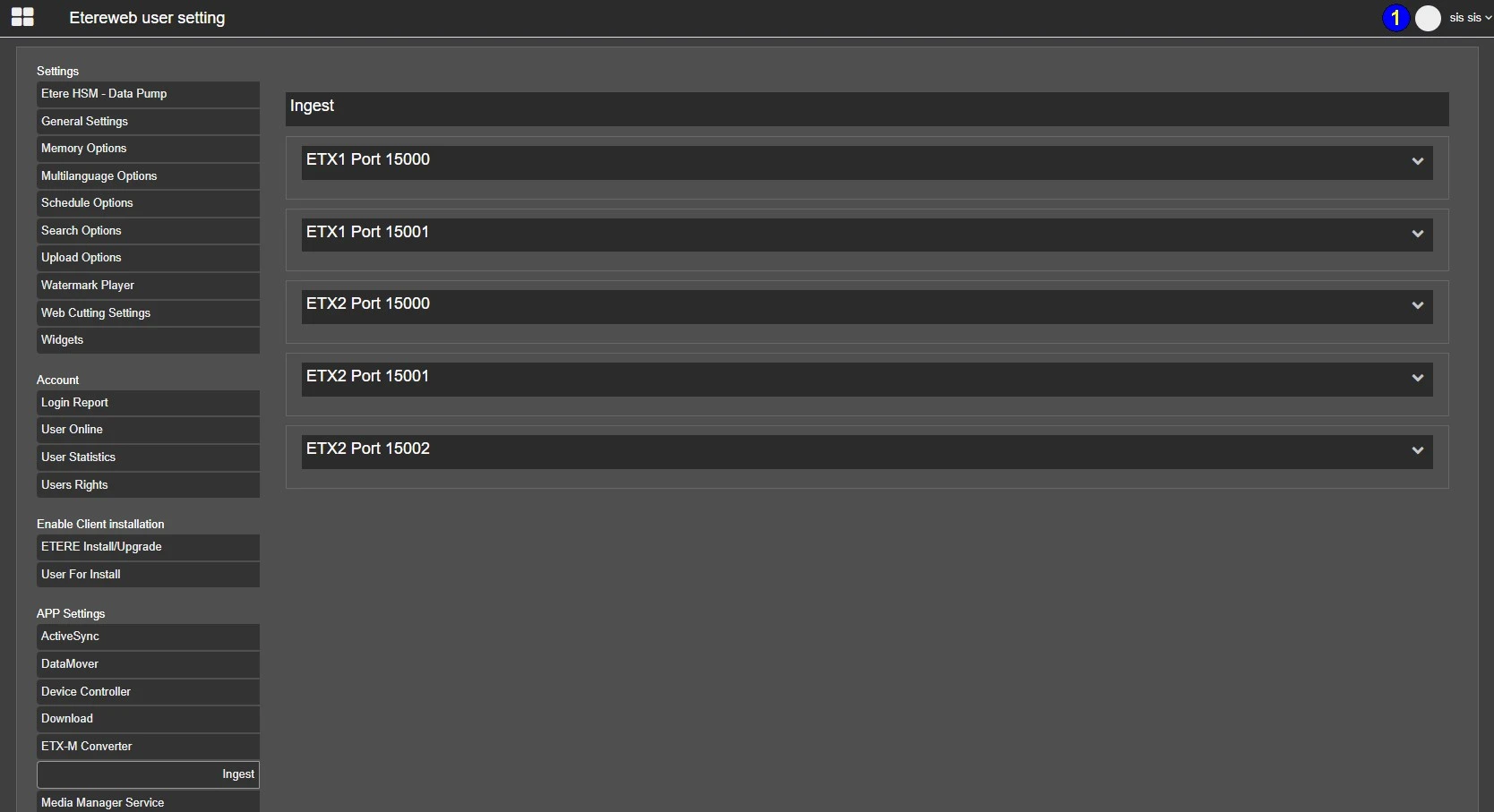
Once logged in successfully to Etereweb, with a user allowed to modify the services configuration, we can go in:
User > User Preferences > App Settings > Ingest
to start the configuration.
Depending on how many instances/channels we have configured during the installation process, we will have their representation in the Ingest Service landing page as the following images show:
ingest_service_nodes
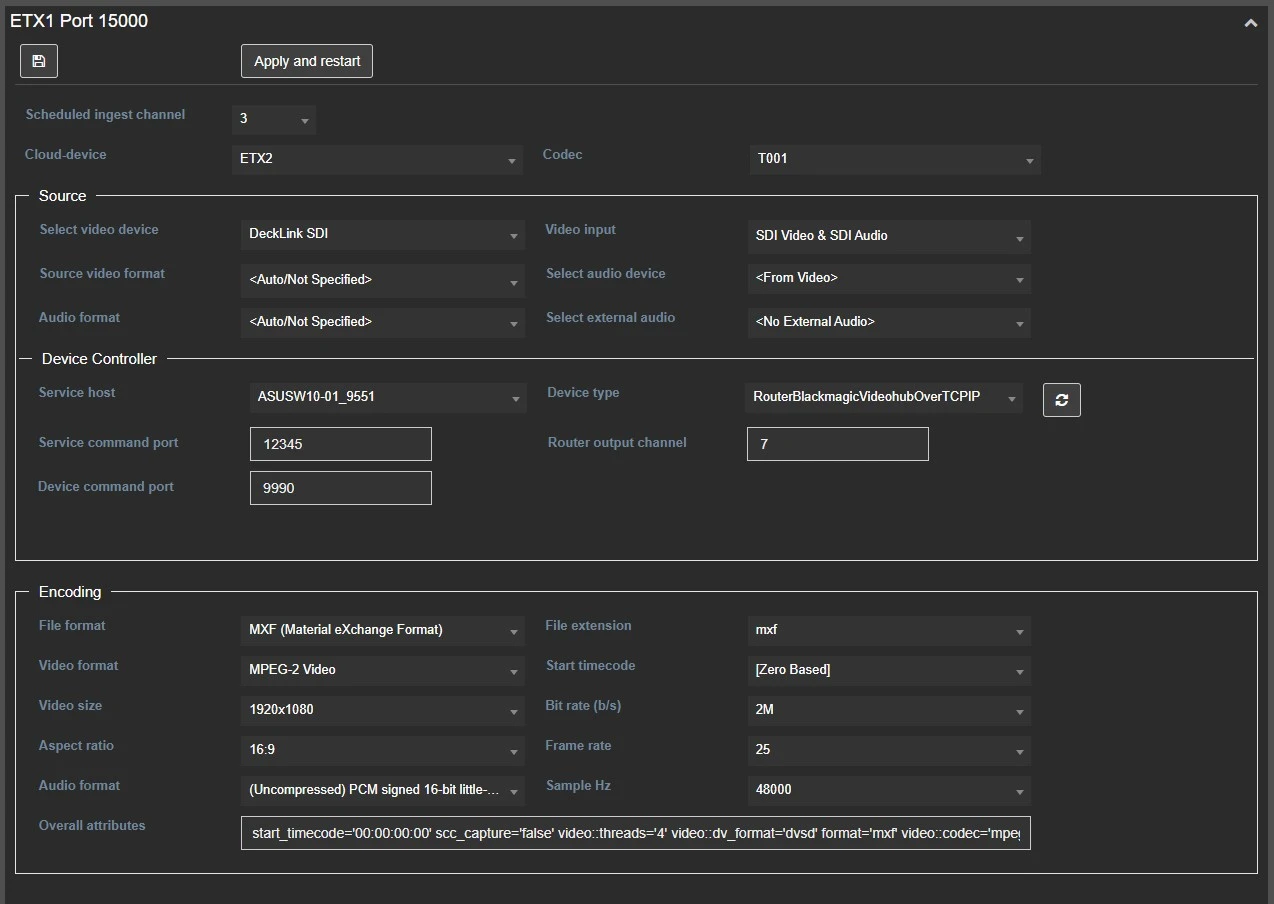
From here, we can open the node related to the server where the service we want to configure runs and start setting the parameters described below, which are divided in different sections.
ingest_service_params
It's worth mentioning that each service communicates with an ingest channel on the client workstation, through a unique port, which is displayed beside the server's name, to identify which service is the configuration related to:
Port 15000: ingest service (1) - ingest channel 1
Port 15001: ingest service (2) - ingest channel 2
Port 15002: ingest service (3) - ingest channel 3
Port 15003: ingest service (4) - ingest channel 4
Port 15004: ingest service (5) - ingest channel 5
Port 15005: ingest service (6) - ingest channel 6
Port 15006: ingest service (7) - ingest channel 7
Port 15007: ingest service (8) - ingest channel 8
Right below the server's name and port, the following buttons are available:
Save: Save the values set here into the Etere database, allowing to retrieve them when the page is reloaded.
Apply and Restart: Save the configuration into the Etere database, apply the configuration to the XML file and eventually restart the related Service.
Note: The XMLs of the services should be ALWAYS modified through the related web interface, in order to avoid issues.
Note: It's advisable to set the service's recovery properties to the following values, in order to avoid issues when restarting the service using Apply and restart button:
• First-Second-Subsequent failures -> Restart the service
• Reset fail count after -> 0 days
• Restart service after -> 0 minutes
SCHEDULED INGEST AND ETERE DATA
• Scheduled ingest channel: Since an ingest service can be used for both Etere Multichannel Ingest and Etere Scheduled Ingest (however both modules can't record at the same time), here can be defined the ID of the channel the service should manage.
• Cloud-device: Select the device where the recorded files will be stored.
• Codec: Select which codec the ingested metafiles should have.
SOURCE
• Select video device: Set the video device used to get the source signal.
• Video input: Select the input channel. These values change according to the video device selected.
• Source video format: Specify the video format of the input signal, set <Auto/Not Specified> if you don't need to specify it, or set <None> if the signal has no video.
• Select audio device: If available, select the device to receive the audio, otherwise set <From Video> if no audio device is available or <None> if the signal has no audio.
• Audio format: Specify the audio format of the input signal, set <Auto/Not Specified> if you don't need to specify it, or set <None> if the signal has no audio.
• Select external audio: Specify if Ingest service should take the audio feed from an external source.
DEVICE CONTROLLER
• Service host: Set the IP address of the server where Etere Device Controller Service runs.
• Service command port: Set the port to be used by Ingest service and Device controller service to communicate.
• Device command port: Set the port to be used by Device controller service to communicate with the device.
• Device type: Choose which device, among the ones supported, the service has to control.
• Router output channel: Select the router output channel, connected to the ingest service input channel, where the switch has to be performed to.
ENCODING
• File format and extension: Select the file format and the extension for the recorded file. The selectable extensions can change according to the file format selected.
• Video format: Choose the resulting video format for the recorded file.
• Start timecode: Choose if the file recorded should start from 00:00:00.00 (Zero based) or from the timecode taken from the source signal at the moment when the rec starts (From source).
• Video size: Select the image resolution.
• Bitrate (b\s): Select the encoding bitrate.
• Aspect ratio: Choose what should be the aspect ratio of the image in the resulting file: 16:9 or 4:3.
• Frame rate: Select which frame rate should be used to encode the file.
• Audio format: Select a format for the audio of the recorded file. The selectable audio formats can change according to the file format selected.
• Sample Hz: Choose a sampling frequency: 44.1KHz or 48KHz
• Overall attributes: Here is displayed a summary of all the values set in the parameters explained above.
Once the configuration is done, click on [Apply and restart] button.
The values set in the parameters will be written in the related xml file in the server's etere installation path and the service will be restarted to let it take the configuration into account.
The configured XMLs have to be then copied in the same path of all the client workstations, where Etere Multichannel Ingest or Etere Scheduled Ingest Broker will run.
Please refer to the chapter 77.2.0.0 Client Server Setup for information about Etere Multichannel Ingest. Refer to chapter 71.4.7.0 Scheduled Ingest Service Broker UI for information about Etere Scheduled Ingest Broker.
 ingest_service_install
 ingest_service_install_set_instances
 ingest_service_win_services
 ingest_no_configred_service
 ingest_service_nodes
 ingest_service_params