208.2.1.1 Options
To access the "Data Mover" configuration, click "Tools" on the menu bar and select "Options" to open the "Configuration" dialog box.
Set up scheduling
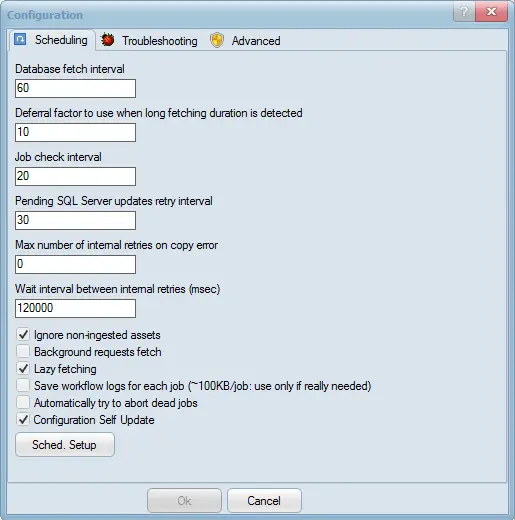
Datamover_configuration_scheduling
Planning
"Database Fetch Interval" - Sets the rate, in seconds, at which the database is fetched. (default = 60)
Job Scan Interval - Sets the rate, in seconds, at which jobs are scanned. (default = 20)
SQLServer - Specify the rate, in seconds, at which SQL Server updates are pending. (default = 30)
Maximum Internal Copy Failure Attempts - Specify the number of internal attempts Data Mover can make to complete the requested action. The possible values are:
0 - only one retry - no retry (default)
1 - one attempt plus one retry
2 - one attempt plus two attempts
...
Note that the internal retries set here are multiplied by the T-workflow retries added by the "Retry" workflow actions. For example, if it is set to "2" and the T-workflow has a "3
times" retry action, the requested action will be repeated 9 times ([2 + 1] * 3).
To measure performance, do not use this auto-redo setting in the DataMove action, instead set it to "0" (no redo) and include the redo setting in the appropriate workflow action for the required environment package.
Note: Please note that the copy channel remains blocked during all attempts.
Internal Repeat Interval (ms) - Sets the interval (in milliseconds) between repetitions of 2 intervals. (default = 120,000)
Ignore uningested assets - If enabled, jobs requested for uningested assets (i.e. no recorded media) will not run.
Note: In the event that are intended to be managed with either memory reduction, content review or concerted action, these parameters MUST be disabled in order to handle new
unregistered assets.
Background fetch request - This option requests a list of jobs through the thread to run as a background process to improve system performance.
Lazy selection - if activated, allows you to check the list of tasks every certain seconds (set to
the interval for checking tasks).
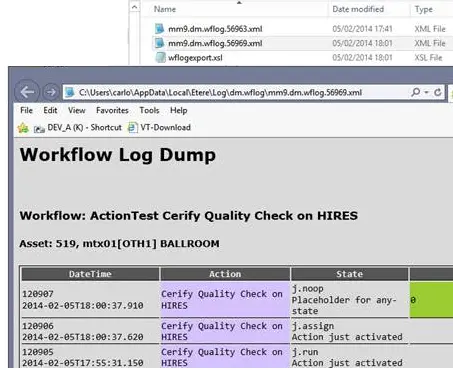
Save workflow logs for each job. If this setting is disabled (default), log files will be created only for jobs and stored in the "% LocalAppData %\Etere\Log\dm.job\" directory.
If you enable this setting, an additional log file will be created for each job (containing all associated T-workflow lines) and stored in the "% LocalAppData %\Etere\Log\dm.wflog\" directory.
Workflow_Log_Dump
Note: Enable this option only when necessary, it creates multiple log files (~ 100 KB per job) and can fill disk storage. As a preventive measure, it is proposed to set the "Save copies
of logs for subsequent days" parameter to a shorter period. (e.g. 7 days)
Schedule Setup - Activate and configure performance-based job scheduling, and run jobs based on specific performance-related criteria. The following options are available:
Enable performance-based scheduling
Mark this option to activate the performance-based scheduling function, which will be executed according to the parameters set below.
If enabled, the main window will display a dashboard that displays real-time information about the most important server components, such as CPU, RAM, and others:
Dm_configuration_settings_options_01
Maximum number of transcode jobs to run per queue check
Set the maximum number of transcode jobs to run each time a "queue check" is performed.
Maximum allowable CPU usage
Set the maximum CPU usage allowed by the server to run new jobs.
Maximum number of parallel jobs
Optionally, you can specify the maximum number of jobs that Data Mover can run simultaneously.
Note that this feature is useful for preventing server overload by avoiding jobs (such as transcoding) when the concurrency limit or CPU utilization is reached.
Note: This feature is enabled by default, so all tasks are performed according to the settings in this section.
Automatically attempt to abort completed jobs - If enabled, Data Move activities (such as Signiant activities) associated with an aborted/reset T workflow will be automatically aborted.
NB: Data movement automatically checks for dead workplaces at a frequency of 1 minute (that is, every minute).
Self Configuration
Update - If this option is enabled, the Data Mover block on the current station will be interrupted (if an error message pops up) if the Data Mover block configuration has been changed on other stations. Disabling this option prevents the Data Mover from being interrupted at the current station.
Troubleshooting Configuration Issues
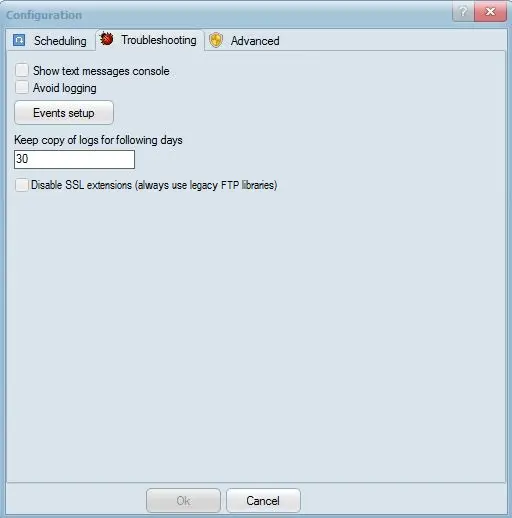
Troubleshooting
Show text message console - allows you to add a fourth tab to the application to list all operations performed in Etere Data Transfer.
Avoid logging - If enabled, the entire logging operation will fail.
Configure Events - Configure events (i.e. errors, transfers, applications) to either log or avoid logging (depending on the "avoid logging" setting).
Keep log copies for subsequent days - Set the maximum log retention time (default = 30) on the
system.
Disable SSL extensions (always use legacy FTP libraries) - In Data Mover actions, this allows you to use SSL (Secure Socket Layer) encryption for Multistep Copy, Rename File, and Delete File actions. To troubleshoot, use this option to disable SSL encryption in the Data Mover action and return to the legacy file transfer method to investigate the process. You can click on a
specific task and check this option to disable the SSL extension, the "SSL on" indicator would disappear from the bottom of the Data Mover display.
Advanced
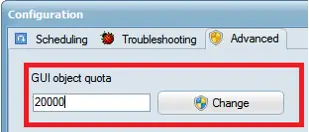
On the Advanced tab, you can change the threshold for the GUI objects that will be used in the Data Mover action.
Datamover_configuration_advanced
The default Windows threshold is 10000, the maximum object quota can be set (in the registry) - 65535, it is relatively good to set the object quota at 20,000. Setting the value higher than the
recommended value may affect system performance.
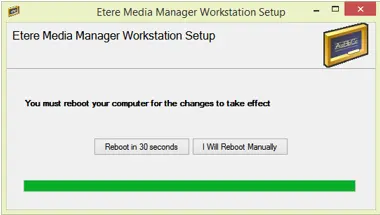
Click < Edit > to confirm the change order. The workstation must be restarted to make changes.
Datamover_confirmation_advanced
 Datamover_confirmation_advanced
 Datamover_configuration_advanced
 Workflow_Log_Dump
 Datamover_option_troubleshooting
 Dm_configuration_settings_options_01
 Datamover_configuration_scheduling