60.3.2 Using Disaster Recovery
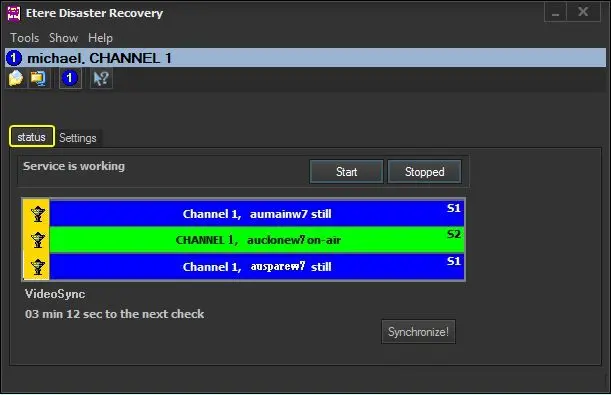
Once the Settings tab are correctly compiled, you can execute Etere Disaster Recovery by clicking on the [Start] button under the Status tab, as shown in following display:
Etere Disaster Recovery
Under the Status tab, it monitor the synchronization between the 'On-Air Automation' and the 'Disaster Recovery Automation', with the names and status displayed:
Connection - The automation module is not connected to the network.
Still - The automation module is connected to the network but it is not running.
On-Air - The automation module is connected to the network and is currently running.
Error - The automation module is connected to the network but it is stopped due to error during its execution.
Synchronization
The synchronization of automation's schedule process copy the TPALxxyy.dbf file stored in the 'On-Air' automation PC to the 'Disaster Recovery' automation PC, enable the transmission to continue from the point of the failure occurred.
An automatic synchronization will be carried out every five minutes, Etere Disaster Recovery will control 'On-Air' schedule modifications and align contents of both schedules; however, this synchronization can be forced (anticipated) by pressing the [Synchronize!] button.
NB: When synchronizing playlists from Main Automation to Backup Automation at Disaster Recovery (DR) site, the “Skip” commands would also be propagated to ensure that both schedules are in-sync.
Remote Control
Click on the [ Remote Panel] button to enable to view both automation counters (Source and Destination), and remotely control both automations:
Remote Panel
The application can be stopped at any time by pressing the Stop key.
 Etere_Disaster_Recovery
 remote_control