9.5.1 Create New Ticket
This chapter describes creating a request ticket and includes all processes required to complete the operation.
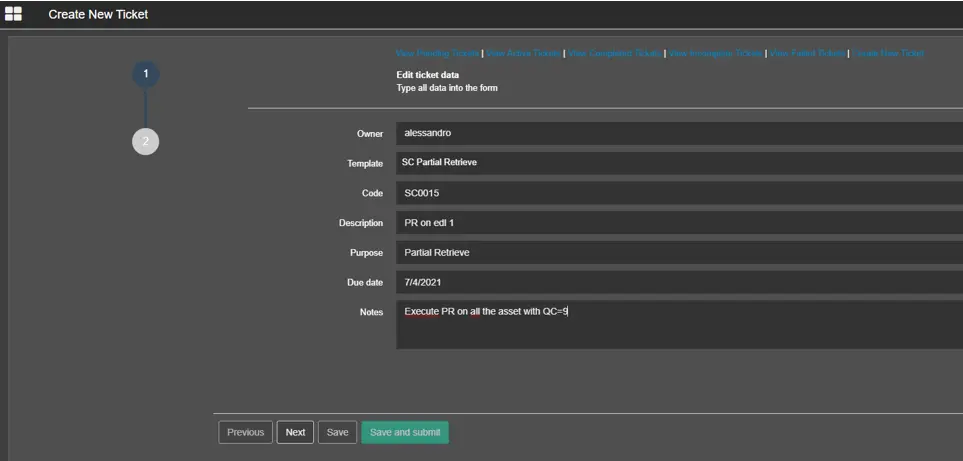
Create_New_Ticket
- Owner: The name of the user or user code who is creating the request ticket;
- Template: Select any predefined template from the list that suits your needs. You can configure new templates in the proper section in Etere Configuration,> Configuration Editor > Shopping Cart;
- Code: Assign a code to the ticket: this field is editable only if the parameter "Generate code automatically" is disabled in the selected template. An automatic code will be assigned after the ticket is saved if enabled.
- Description: Enter a short description to identify the ticket;
- Purpose: Enter a brief description to note the intention of this ticket;
- Due date: Set a deadline to complete the operations in the ticket;
- Notes: Enter additional notes or instructions to describe the ticket's purpose further. When the ticket is created, you can view the description of this field when you click on the Open details icon on each ticket in various statuses.
Click the <Next> button to continue the creation of a new request ticket.
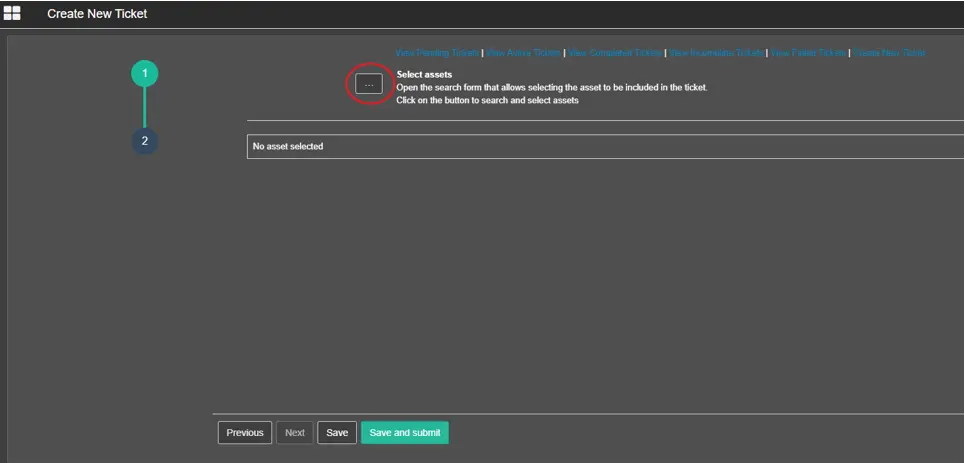
creation_of_new_request_ticket
Select assets: Click on the <browse> button to launch the search function, locate the assets, and insert the assets to request a ticket.
An error message will be prompted if you click the <Save> or <Save and Submit> button without selecting an asset.
Error message
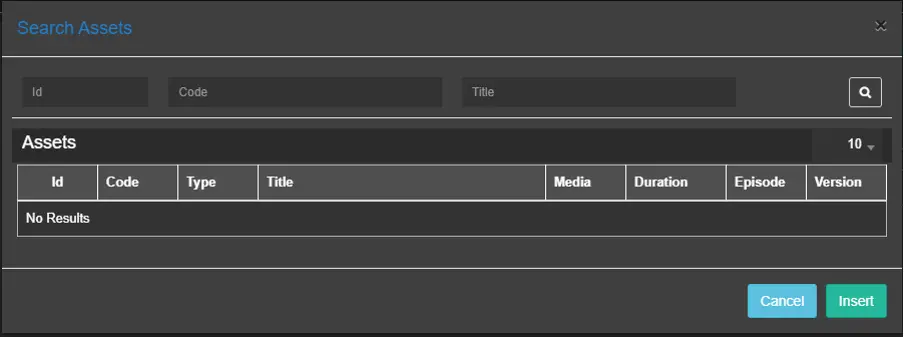
Now enter the search criteria to search for assets in the database. Once the assets are located, select the asset or multiple assets and click the <Insert> button to attach assets to the ticket.
attach_assets_to_ticket
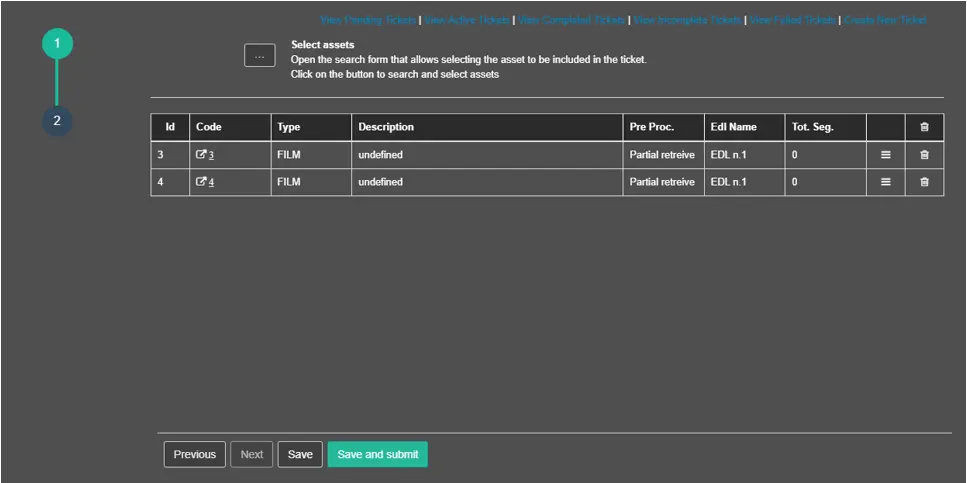
The inserted assets will be displayed at the bottom of the Select Assets page.
Select_Assets
- You can click the Remove button to delete the selected asset from the list. If you click the Remove button placed in the header of the table, all the assets in the list will be removed;
- The Select segment button allows to define the pre-processes to be launched before the process configured in the template, as explained below;
- You can click the <Previous> button to amend or verify the parameters entered on the previous page before you click the <Save> or <Save and Submit> button to confirm the creation of the request ticket;
DEFINE PRO-PROCESS
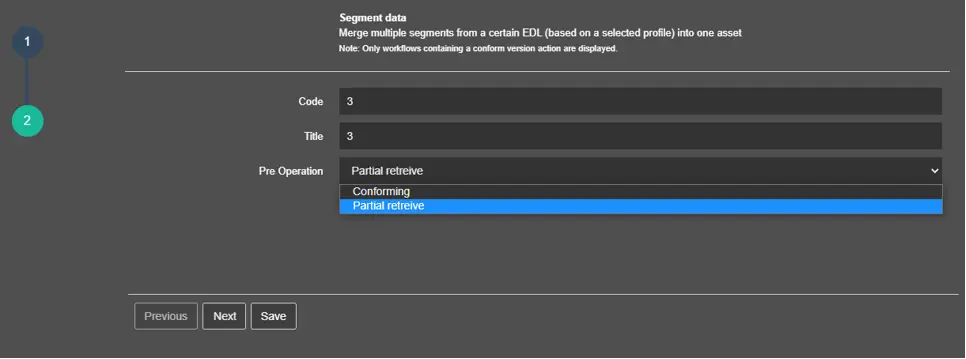
In this section, you can define pre-processes to be performed on the selected asset before the process indicated in the template.
Pre_processes
- The Code and Title fields are automatically filled with the asset's information;
- In the Pre Operation parameter, select Partial retrieve or Conforming operation;
- Click the <Next> button to continue.
Pre_Operation_parameter
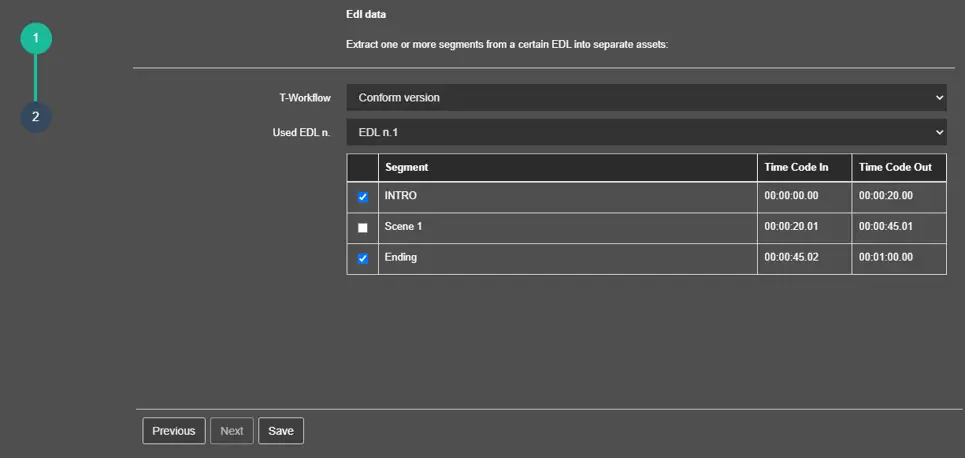
On the EDL Data page:
- Select the T-Workflow to be launched;
- Select the EDL number which contains the segments to be processed;
- All the segments contained in the selected EDL would be displayed, with their respective Timecode In and Timecode Out;
Click on the check box to select or deselect the segment;
- Click <Save> to confirm the selection;
Back in the Select Assets page, the information you had just entered would be displayed under the Pre Proc.,Edl Name and Tot. Seg columns.
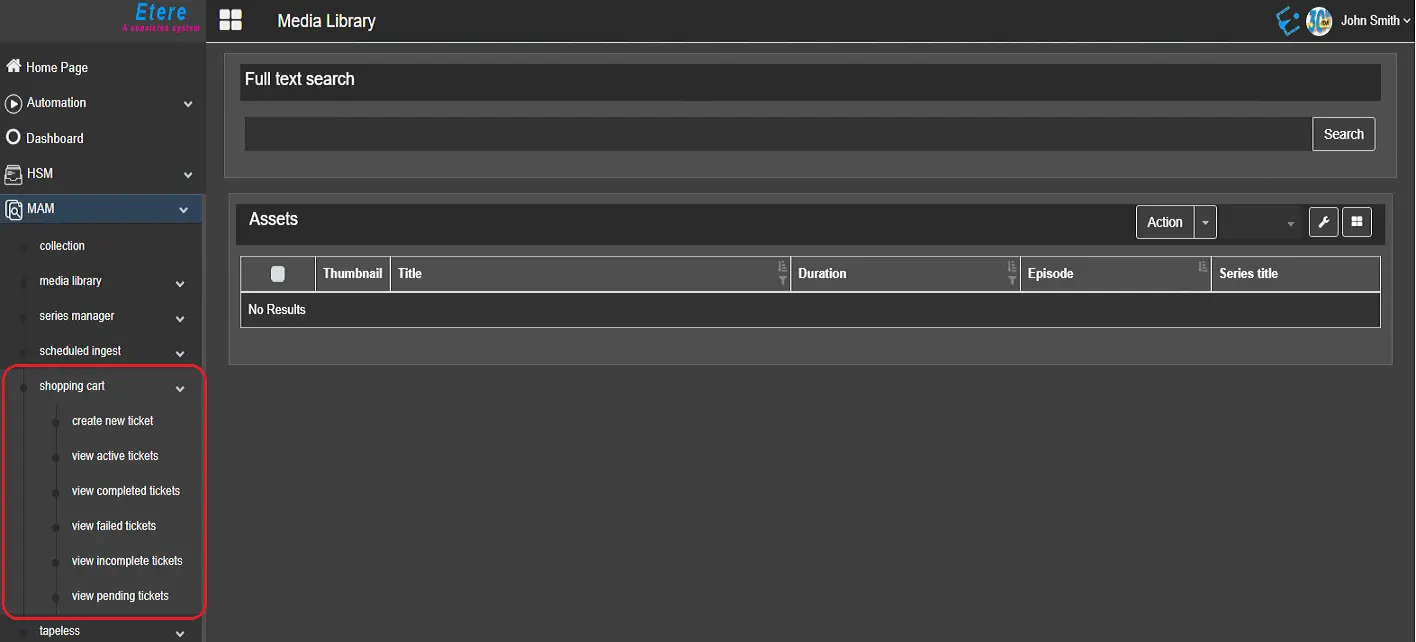 Shopping_Cart_module
 Create_New_Ticket
 attach_assets_to_ticket
 creation_of_new_request_ticket
 Select_Assets
 Pre_Operation_parameter
 Error_message
 Pre_processes