54.5.2.2 Rotation Table
The Rotation Tables section allows scheduling events within a certain period over specific time windows configured for up to three consecutive days on a 'rotating basis' (e.g. 24/03/2011->day1, 25/03/2011->day2, 26/03/2011->day3, 24/03/2011->day1 and so on).
To start rotating an event, search for it using the [Event Code] button and then compile the following parameters:
Rotation_Tables
Parameter - Event Code
Description: Search for the asset to be scheduled.
Parameter - From - To
Description: Insert the dates range in which the event will be scheduled. By default, the validity period of the asset is proposed.
Parameter - Priority
Description: Specify the priority with which the event will be scheduled. An event's priority is the criteria Etere uses to determine its position within a commercial cluster during the scheduling phase. This priority starts from 1 (highest) to 1000 (lowest).
Parameter - Rotation tables
Description: Select the rotation table to schedule the commercial asset.
NB: Rotation tables are created in Configuration > Settings > Air Sales Lite > Rotation Tables.
Parameter - Start day
Description: Select the rotation day on which the scheduling will start. Please note that rotation days are custom defined. Therefore, it may occur that "1" doesn't necessarily correspond to Monday.
Parameter - Days
Description: Select the days for which the event to be scheduled is valid, in which it will be scheduled:
All - On every day of the week, in the period of the dates indicated.
Even - Only on even days (e.g. 2-4-6-8...30) in the chosen period, independently of the day of the week.
Odd - Only on odd days (e.g., 3-5-7-9...31) in the chosen period.
Specific days - Select the weekdays (e.g. Monday and Friday) on which you want the commercial asset to be scheduled.
Once all parameters have been correctly set, press the[RUN] button to proceed with the rotation-scheduling process.
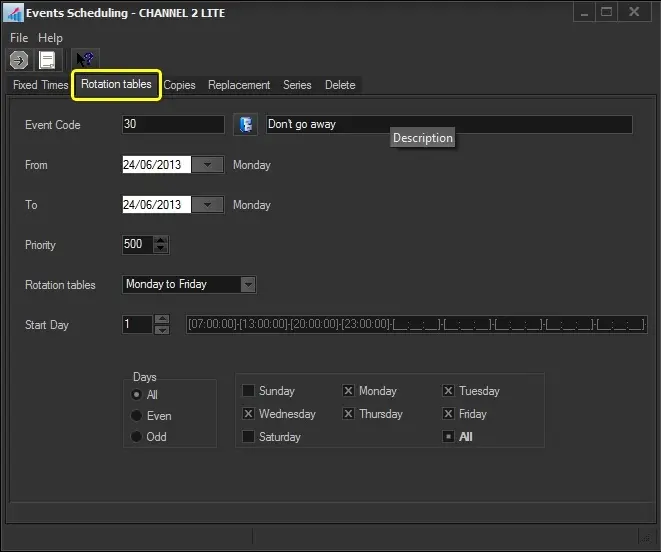 Rotation_Tables