71.4.3.3 Scheduled Live ingest
As in the other two previous scheduling ingest types, basic information needs to be inserted. In this ingest type is omitted the start, date and duration of the operation since you will ingest a Live, which already includes this data on its asset form.
sched_live_recording
Code: An automatic and incremental attributed number.
Description: Insert a brief description for the ingest operation.
Type: Indicates (automatically) the kind of scheduled recoding that you have created (i.e.: S-Single, P-Periodical, L-Live).
Status: Display the current status of the ingest operation.
Rec with TCIN: Enable the ingestion with a fixed timecode input, this timecode could be specified for example, by a 'Time Delay' secondary action defined in the asset to be ingested.
Linked tape: If a VTR is defined in the Config tab, you will be able to right-click on this text-box and select all the tapes from which video files will be ingested.
Start/Stop: Indicate how to start and stop the ingest process, which can be:
• Timed: The ingest process will start/stop automatically at the fixed scheduled time.
• GPI: (In this case you need an input board properly configured in the resources section) The ingest process will start automatically when the Gpi is shown. Besides indicating the n. of Gpi to be used, you also need to define the type of the signal among the four available types.
You can also combine different types of start\stop so as to optimize the manual acquiring procedure by making it completely automatic or partially automatic with available modes (e.g.: start at a fixed time and stop by receiving GPI signal).
Periodic Repetition: Here you can select the day of the week and the dates interval on which the ingest process will take place. Additionally, you can specify to either ingest all LIVE events in the set period and weekdays, or you can specify only those LIVE events that have an Auto Ingest Secondary Event linked:
• All LIVEs: If enabled, all LIVE events present in the Schedule will be ingested (between the specified date range and on the specified days), and every new ingest operation will be associated with a new asset form with an asset code starting 'LR' (customizable under Config > Live Code Prefix), and it will show (on its description) key information taken from 'Live' ingest operation.
• Only Auto Ingest LIVEs: If this option is selected, only those assets which have an "Auto Ingest" secondary event will be ingested.
Auto Ingest
The Auto Ingest LIVEs option allows you to ingest and broadcast a LIVE event whilst automatically ingesting and assigning it to a second asset that can feature later on in that same schedule:
Auto Ingest LIVEs
Auto Ingest Live will start automatically when the live starts and end when the live ends. If the live is divided into different segments, the new asset will have the correct timecode of each segment. So when you will re-purpose the recorder Live, the Commercial breaks can be easily changed because they are already marked in the new asset; you need to explode in EE and change.
As the LIVE event has in effect now two different asset forms, different commercial clusters can feature in each, ensuring commercial flexibility.
SAT Receivers: If there is a resource of SAT type configured in Etere Resources in Etere Configuration > Resources, you will need to indicate the type of receiver and its setting string.
It is therefore possible to periodically repeat an ingest operation from a support or an external source, without further interventions.
Destination: Indicate the channel assigned to the ingest operation. Etere allows to manage up to 10 channels contemporaneously, channels are set in the Config tab. When saving configuration, control mechanism is in place to ensure the same channel is not assigned to multiple ingest instances.
Source: Indicate the router to be used (if configured) and from which channel the video to be ingested will be received. If the input video is connected directly to the encoder or to the VTR, leave the field empty.
When ingesting video files into ETX resources, it's possible to view the live video file you are ingesting in the ETX main preview window. The video file in the backup resource is also visible if presented.
Note: When you schedule Live ingest, the maximum duration is calculated by doubling the expected duration with a minimum of 60 minutes (1 hour).
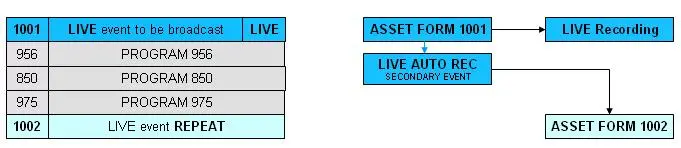 Auto_Ingest_LIVEs
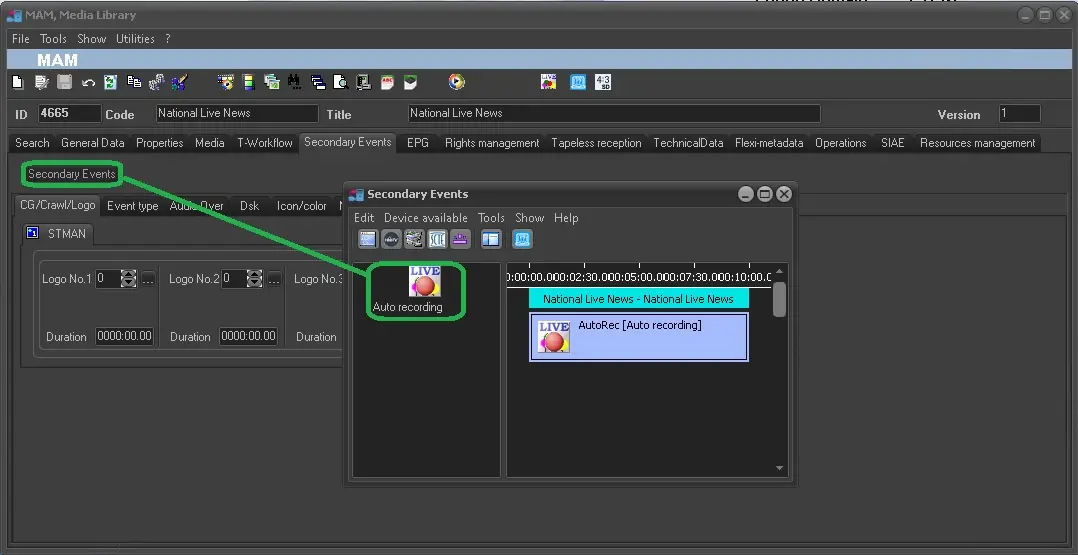 Auto_ingest
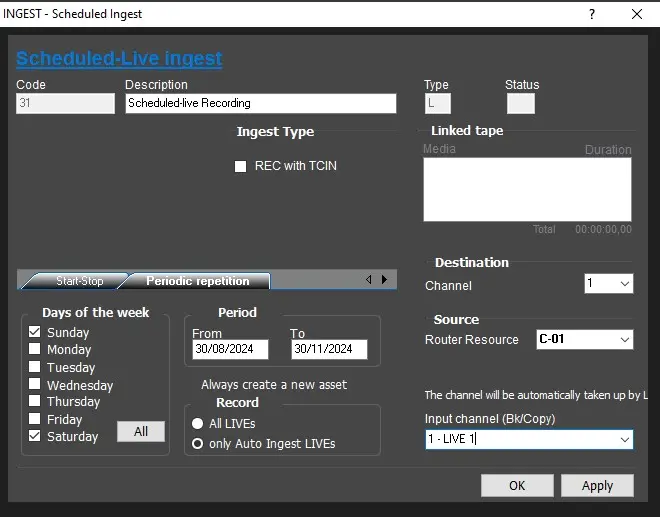 sched_live_recording