4.5.1.1 General Information
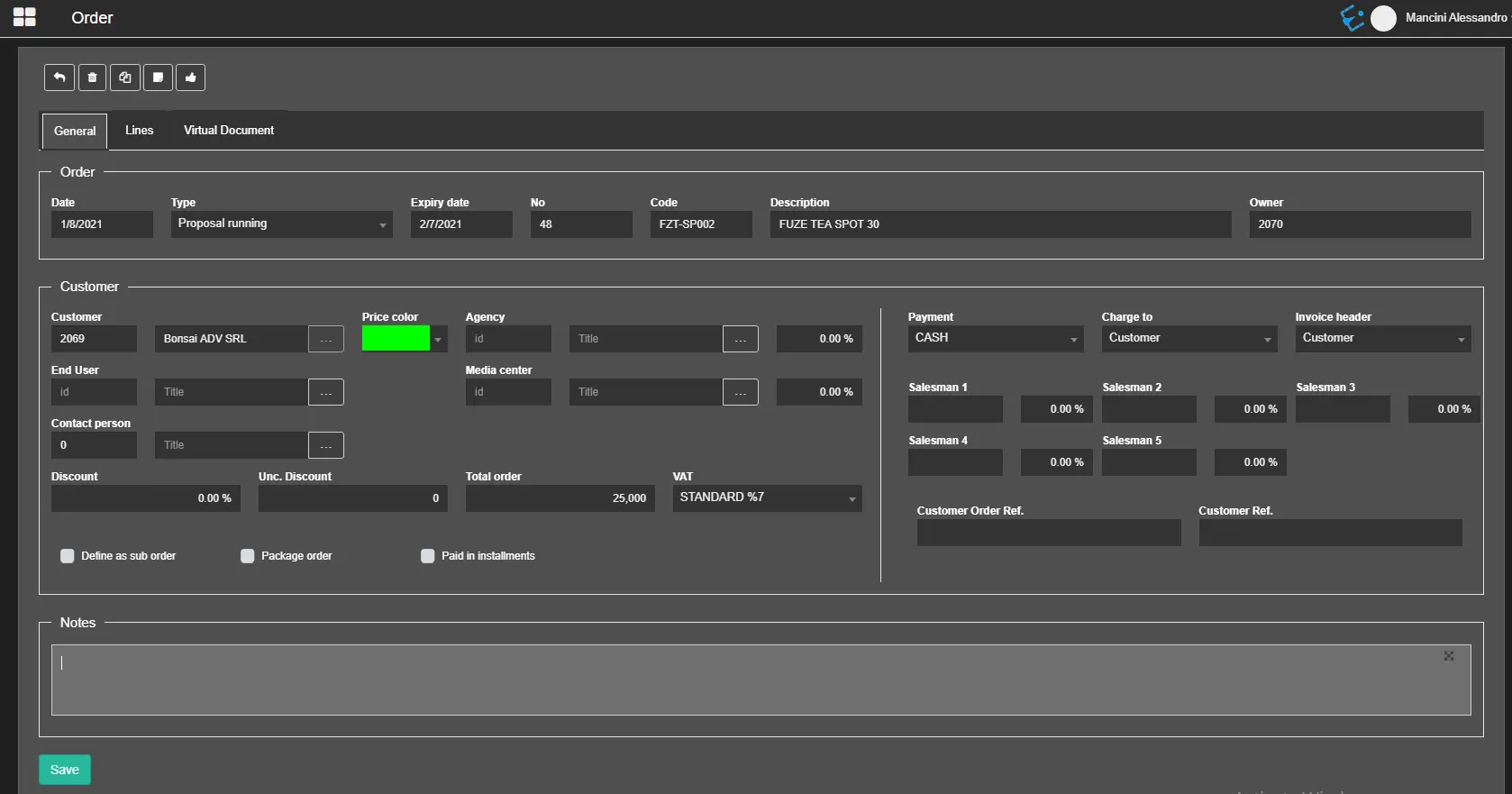
Once the contract has been created, it needs to be modified with the proper information. Find the contract in the Search section and click its code or description to open it.
new_contract_-_general
In the Contract section, some of the data coincide with the information entered during the creation:
• Date: The date when the contract is created.
• Type: Select the type of contract, either Order or Proposal. In case of a proposal, select the needed approval status.
• Expiry date: The expiry date of the contract.
• No.: The contract number assigned automatically.
• Code: The code assigned to the contract.
• Description: A short description to identify the contract.
• Owner: It displays the name of the contract owner, the user who created it.
The contract is created for a specific customer. The general information of the contract is displayed in the Customer panel.
• Customer: The entity of the customer to which the contract is directed. When the customer is selected, the information related to the customer will be taken by Personal data (if present) and some specific parameters will be automatically filled.
• Price color: The color assigned to the price list intended to use for the contract (see chapter 4.4.0.0 Price list for more information).
• Agency: The agency involved in the contract and its commission in percentage.
• End-user: Indicate the entity to whom the contract is targeted, either the company or person.
• Media centre: If the station uses a media center for statistic calculation, select it here and indicate its commission.
• Contact person: Specify here the name of the contact person and roles assignment to be included in the proposal.
• Discount: The discount percentage the customer is entitled to during invoicing.
• Unconditional discount: If you wish to assign a further discount or a one-off discount not linked to Personal data, insert the amount here.
• Total order: The total amount of the contract.
• VAT: The VAT (Value Added Tax) code to be used for this contract (VAT codes can be created in Etere Configuration > Settings > VAT codes, see chapter 59.2.42.5 VAT Codes for more information).
• Payment: The payment type to be used for the invoice (payment types can be defined in Etere Configuration > Settings > Payments, see chapter 59.2.42.4 Payments for more information).
• Charge to: Select how invoice transactions should be moved between accounts:
- Customer:
The invoice will be entirely charged to the customer, who will be expected to pay the invoice to the station. This option is automatically selected if the customer doesn't have an agency.
- Customer and wait for agency invoice: The invoice will be entirely charged to the customer, but the agency will be expected to pay the invoice to the station.
- Customer share indicating agency %: The invoice will be charged to the customer but only for its due share, that is, for the total amount minus the deducted agency's commission (which will be paid by the customer directly to the agency).
- Agency with credit note: The invoice will be entirely charged to the agency (rather than to the customer), who will be expected to pay the invoice to the station.
• Invoice header: Specify the entity to which the invoice will be directed. By default this parameter is set to "Customer".
• Account executive 1 - 5: Specify up to 5 account executives associated with the selected customer who would be receiving the commission in percentage.
• Customer order ref.: This is the reference code of the order pertaining to the customer.
• Customer ref.:
Enter here the reference code that identifies the customer.
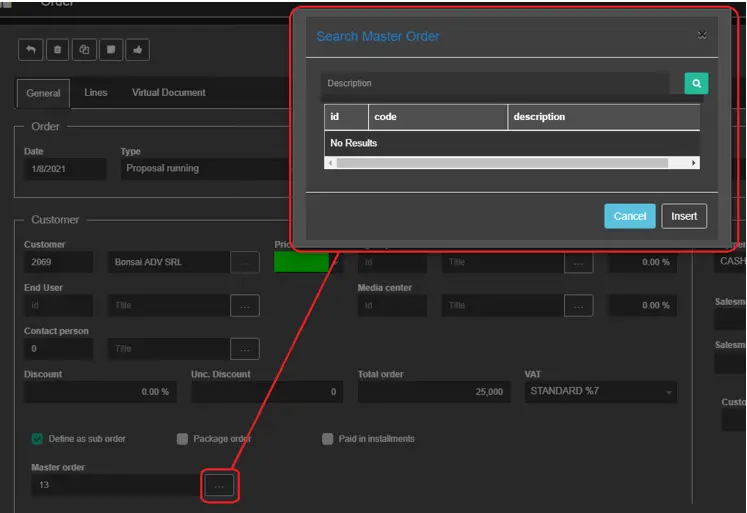
• Define as sub-order: You can enable this option to define the current order as a sub-order. An additional field will show up, allowing to select the master order.
Search_Master_Order
From the search form, select a Master Order and view its content.
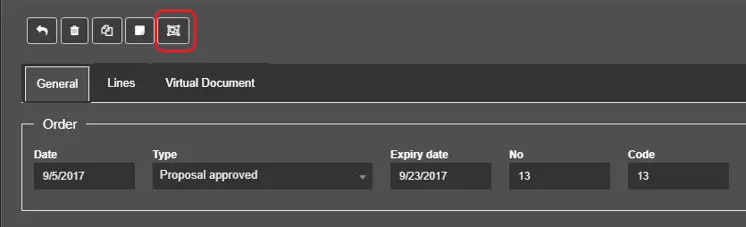
View_sub-contracts
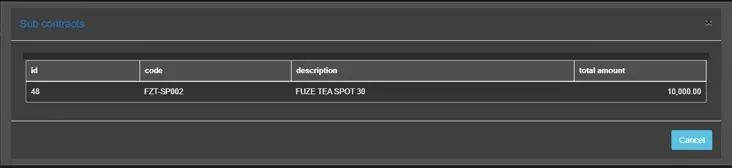
Next, click the View Sub-contracts button to display all sub-contracts linked to the selected Master Order.
sub_contracts
• Paid in instalments: If the option is enabled, the Order will follow an instalments payment plan defined in the Instalments tab (see chapter 4.5.1.2 Instalments for more detailed information).
 new_contract_-_general
 Search_Master_Order
 View_sub-contracts
 sub_contracts