72.7.6.5 Import/Export Subtitles
Import Subtitles
1.Import from Text File
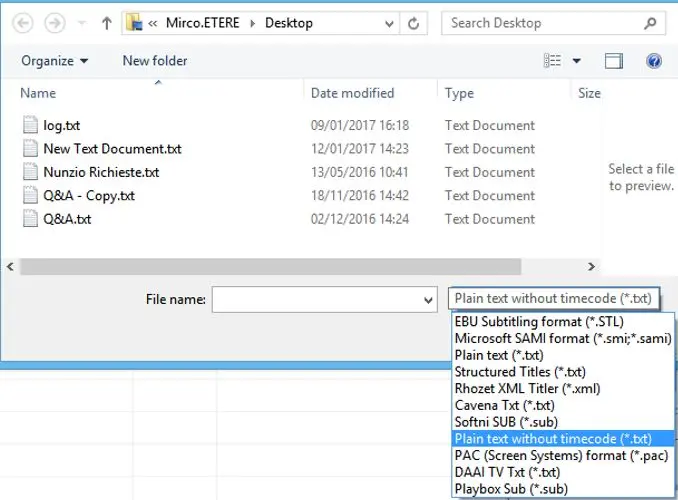
From the main interface you can import text file containing the subtitles, from the middle panel click on the <Import> icon in the toolbar menu to launch the import process.
Next, select the text file containing the subtitles and click <Open> to confirm selection.
After import, the import subtitle file would be appeared in the middle panel, you can double click on the imported file to send the subtitles to the CC Server.
Import 1
mam_live_subtitling_import_file
2.Import from Rundown
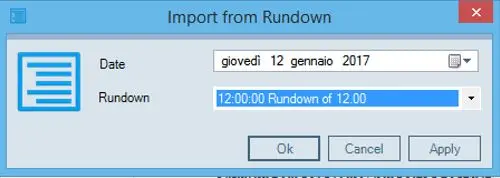
Click on the toolbar icon <Import from Rundown> to launch the import process.
Import from Rundown 1
From the import dialogue box select the date and name of the Rundown to import all the stories of rundown selected into the workstation.
Import from Rundown 2
Import from Scenarist Closed Captions (.scc) format
Scenarist Closed Captions (SCC) files provide a textual representation of the Line 21 closed caption format, and may be used to generate closed captions in a variety of applications.
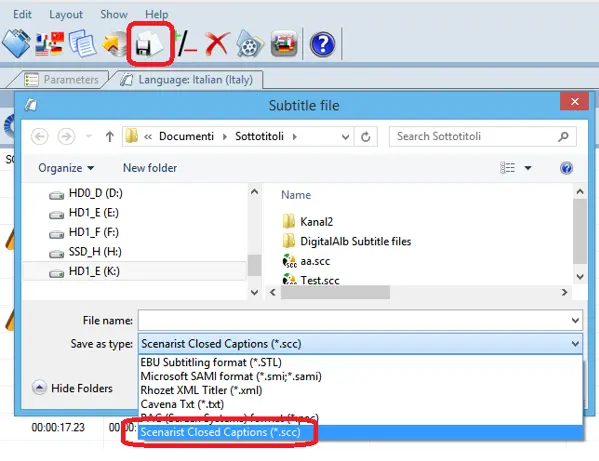
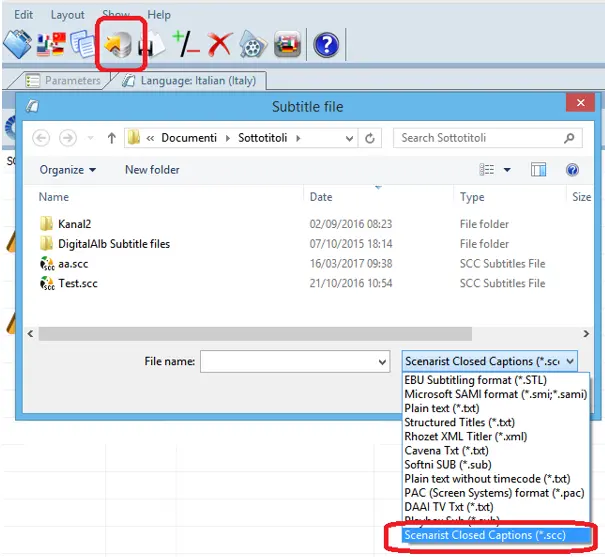
To import subtitles in SCC file format click on the <Import from file> icon in “Subtitles” toolbar menu to launch the import dialogue box.
Import from file
From the file type drop down list select “Scenarist Closed Captions (*.scc)” to display all SCC file in the designated path and select the desired SCC file to import.
Export Subtitles to Scenarist Closed Captions (.scc) format
In the same “Subtitles” toolbar menu, you could also export existing subtitles into SCC format for distribution.
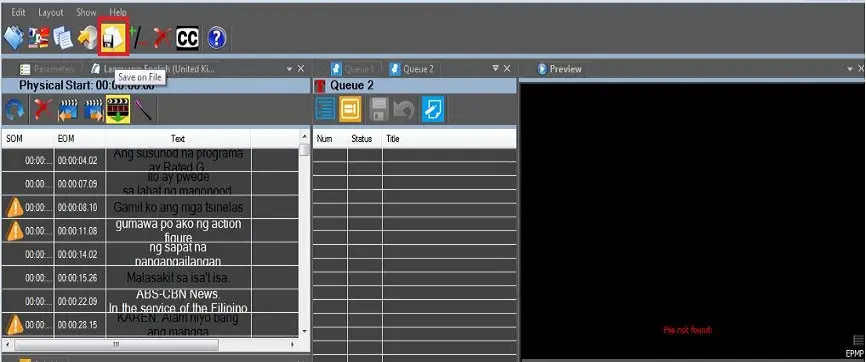
Click on the <Save on file> icon in toolbar menu to launch the export dialogue box:
Save on file 1
From the “Save as types” drop down list select type “Scenarist Closed Captions (*.scc)” and enter a file name in the “File name” text box to create the SCC file in designated folder.
Export Subtitles to other cloud-device
Using the “Save on File” function in Live Subtitling, you can also save closed captions file as asset form and transfer the asset to other cloud-device
Save on file 2
1.Trigger the “Save on File” function to save the closed captions file in specific cloud-device with the file name same as the asset code (as defined in the Ingest section) in Configuration Settings.
2.Execute ActiveSync to link file to the asset form.
3.Execute default workflow to transfer the asset form to other cloud-device.
Import Subtitles Resource Tracks (.srt) File
A “.srt” extension file is a Subtitles Resource Tracks file, it is one of the commonly-used closed captions file format. It contain the video subtitles along with the start and end time codes and the subtitles sequential appearance.
In Live Subtitling, click the <Import> icon in the Toolbar menu to launch the subtitles import process.
Import
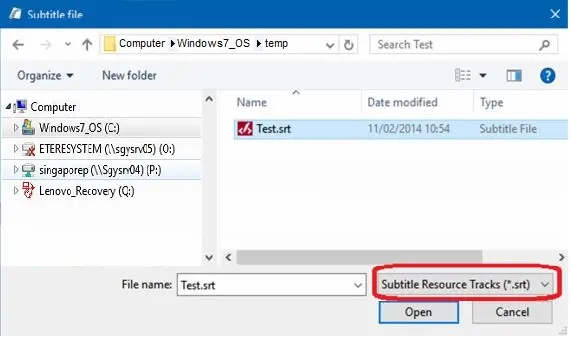
From the Windows File Explorer, select the file type “Subtitle Resource Tracks (*.srt)” from the drop-down list to extract available files with extension “.srt” from the location path.
Subtitle Resource Tracks
Next, select the “.srt” file and click <Open> to start the import process.
Import all subtitle scripts in single step
Add_text_cursor
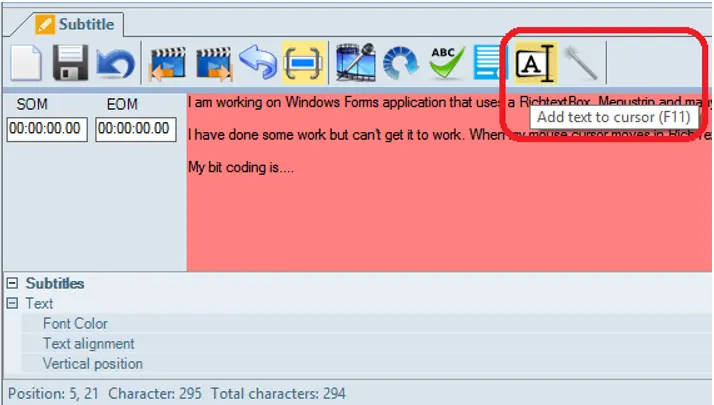
By using the “Add text to cursor (F11)”icon at the toolbar, text subtitles can be imported automatically by positioning the cursor and pressing the F11 function key. The steps are described below:
1.Copy all text subtitle scripts from script files and paste on the subtitles input area.
2.Position the cursor at the start of subtitle text and press the F11 function key to acquire SOM. The subtitles would displayed in preview window.
3.Position the cursor at the desired end of subtitle text and press F11 function key to acquire EOM. The subtitle preview stopped.
4.The generated subtitles with SOM and EOM would automatically sent to closed captions server for processing.
5.Repeat step 2 & 3 to generate another subtitles from the scripts using the F11 function key.
Server Configuration
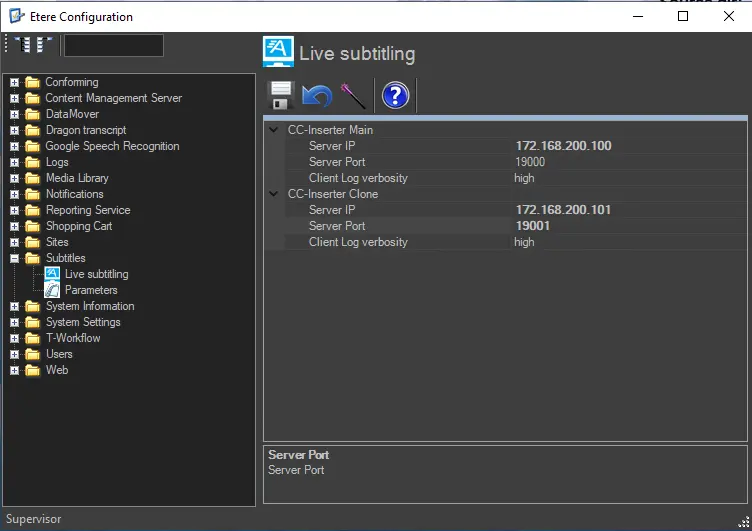
The Configuration of Closed Captions Server is bundled into the Configuration Editor > Subtitles section, as shown in the screenshot below.
configuration_live_subtitles_parameters
In the Server configuration, you can define Main and Clone Closed Captions servers to be used where the Live Subtitling is running.
For more information, refer to “Live Subtitling” chapter in Help manual.
Failed to initialize input channel
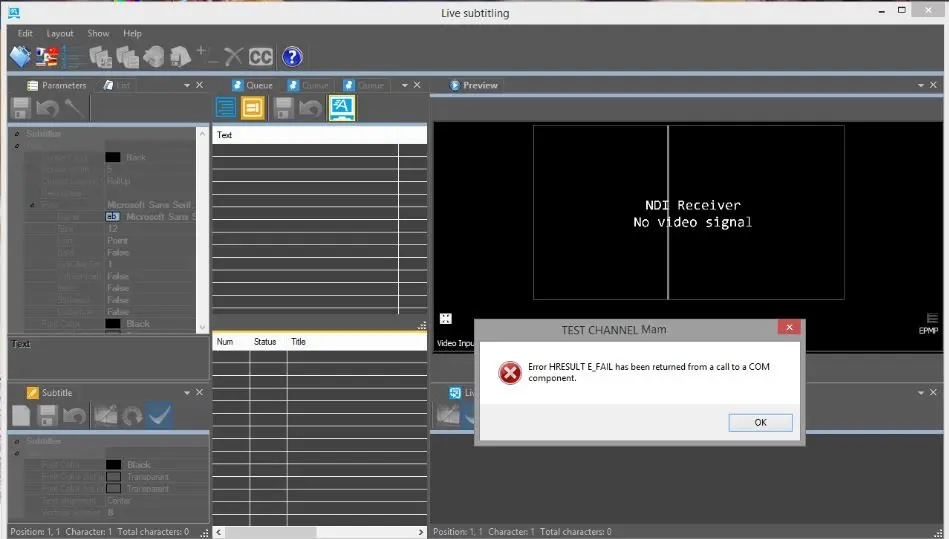
If the workstation has installed and configured with an input card (e.g. DeckLink Duo 2 card) in Player Configuration channel but the card could not be initialized during the import process, error message “NDI Receiver. No video signal” would be displayed in the Preview.
mam_live_subtitling_input_error
 Import_from_Rundown_2
 Save_on_file_1
 mam_live_subtitling_import_file_
 Import_1
 Save_on_file_2
 Import_from_file
 Import_2
 Import_from_Rundown_1
 Subtitle_Resource_Tracks
 configuration_live_subtitles_parameters
 Add_text_cursor
 mam_live_subtitling_input_error