65.1.2.8 Preview channel
The Preview Channel can be created in order to have a dedicated channel for Previews only, either SDI Previews or NDI Previews.
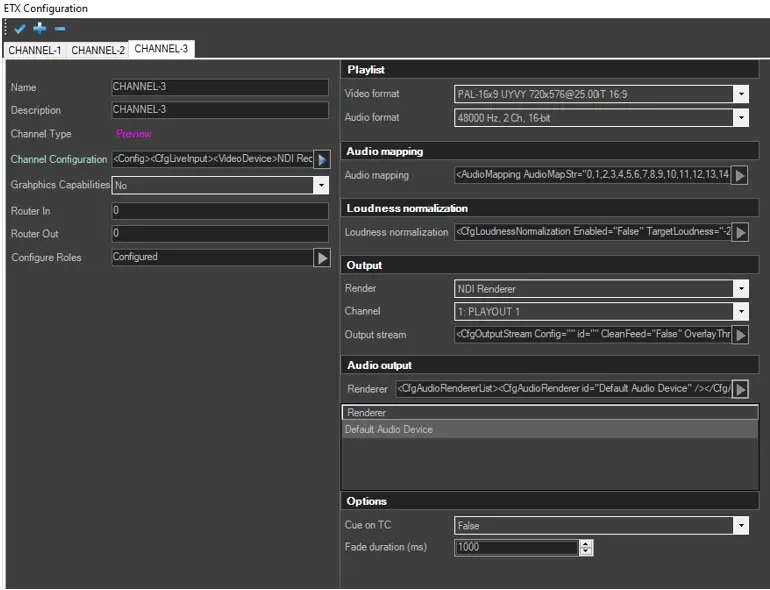
In order to start the Preview Channel Configuration, fulfil the parameters below as reported.
ETX_preview_channel_configuration
-----------------------------------------------------------------------------------------------------------------------------------
Video format: Select an output video format from the list.
Audio format: Select an output audio format from the list.
-----------------------------------------------------------------------------------------------------------------------------------
Audio mapping: The Audio Mapping allows to define up to 16 audio channels.
ETX_playout_audio_mapping
Note: In Audio Mapping, the default audio channels would be inserted if the mapped audio channels are not present in the file.
-----------------------------------------------------------------------------------------------------------------------------------
Loudness normalization
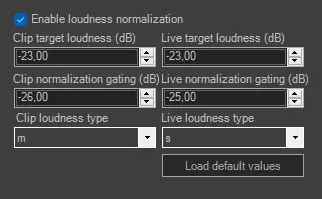
Enable loudness normalization: Enable/Disable the Loudness Normalization feature.
If Loudness Normalization is enabled, set a loudness unit to normalize the loudness to a target level. For example, when the reference normalize level is set at -14.00 LUFS, if a program is analyzed to be -10.00 LUFS, the level would be lower by 4 dB to match the target loudness of -14.00 LUFS.
ETX_playout_loudness_setting
Define the parameters for best compromise:
Clip target loudness(dB): Set the loudness decibel scale for video clip.
Live target loudness(dB): Set the loudness decibel scale for live clip.
Clip normalization gating(dB): Set a getting value to eliminate the influence of silence loudness in video clip.
Live normalization gating(dB): Set a getting value to eliminate the influence of silence loudness during live.
Clip loudness type: Select the type of loudness for video clip.
Live loudness type: Select the type of loudness for live.
In the bottom, the [Load default values] button would allow you to load all default values for the above parameters.
Note: To use this feature, the license ET5535 is required.
-----------------------------------------------------------------------------------------------------------------------------------
Output
Render: Specify a render for the output device.
Channel: Select an output channel among the ones defined in Etere Configuration > Settings > Video routers section.
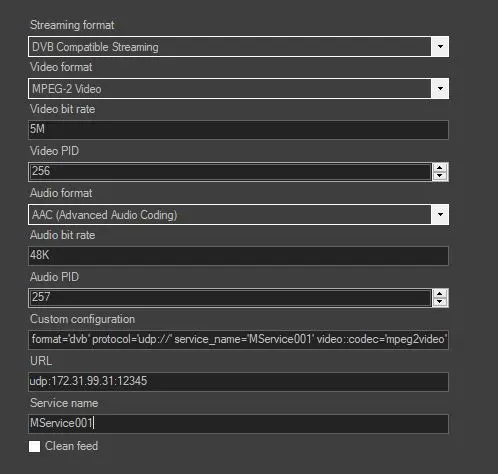
Output stream: Click on the arrow and select the type of output stream as indicated in the screenshot below, then compile the fields as needed.
ETX_playout_output_stream_setting
-----------------------------------------------------------------------------------------------------------------------------------
Audio output
Renderer: Select an optional output device for audio.
-----------------------------------------------------------------------------------------------------------------------------------
Options
Cue on TC: Set it as True to cue clips according to the timecode of the first frame of the clip. It is adviced to leave this parameter as false, the default value.
Fade Duration (ms): Specify the duration (in millisecond) for the fade effects.
-----------------------------------------------------------------------------------------------------------------------------------
 ETX_playout_output_stream_setting
 ETX_playout_loudness_setting
 ETX_preview_channel_configuration
 ETX_playout_audio_mapping