59.4.10 Power Tools
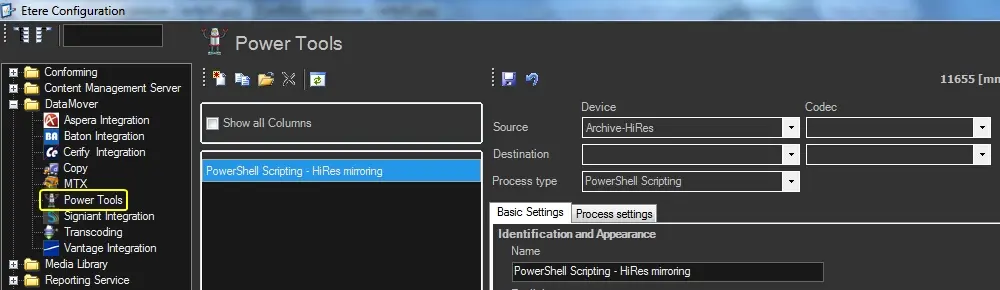
The "Power Tools" section allows creating T-workflow actions able to automatically execute custom scripts on Windows PowerShell (versions 2.0 and 3.0), providing a script editor to speed up the implementation process empowered with key features such as custom and fixed variables (e.g. Asset fields, Flexi-metadata, Runtime information, etc.), execution time out and an integrated T-SQL execution.
Windows PowerShell is Microsoft's task automation and configuration management framework, consisting of a command-line shell and associated scripting language built on the .NET Framework. PowerShell scripts are useful for a myriad of operations, from simple repetitive tasks to complex scripts, including interaction with applications with an embedded PowerShell runtime.
NB: If you upgraded to Etere released version 28 or higher, Power Tools requires "Systsem.Management.Automation" runtime version 3.0 to be installed to function properly; the runtime is only available from Windows Power Shell version 3.0 or higher.
Note:
The "Power Tools" section is available only if the station has a valid license for Web Services Driver.
Other topics in this chapter:
Errors handling
Output based on database queries
Creating a new action
To create this action, you need to compile all necessary data following the procedure detailed below:
Power_Tools
1. Press the [New] button or open an existing action, then set the following parameters:
Source device & codec: Indicate the metadevice in which files to be used are stored, specifying the exact codec (extension) to be processed.
Destination device & codec: Indicate the metadevice in which files to be used are stored, specifying the exact codec (extension) to be processed.
Process type: Indicates that the current action is a "PowerShell Scripting".
2. Under the Basic settings tab, compile the parameters regarding the identification and behaviour of the action.
3. Under the Process settings tab, set the parameters that define the execution of the action.
4. Press the [Save] button to apply changes and store the action in the database.
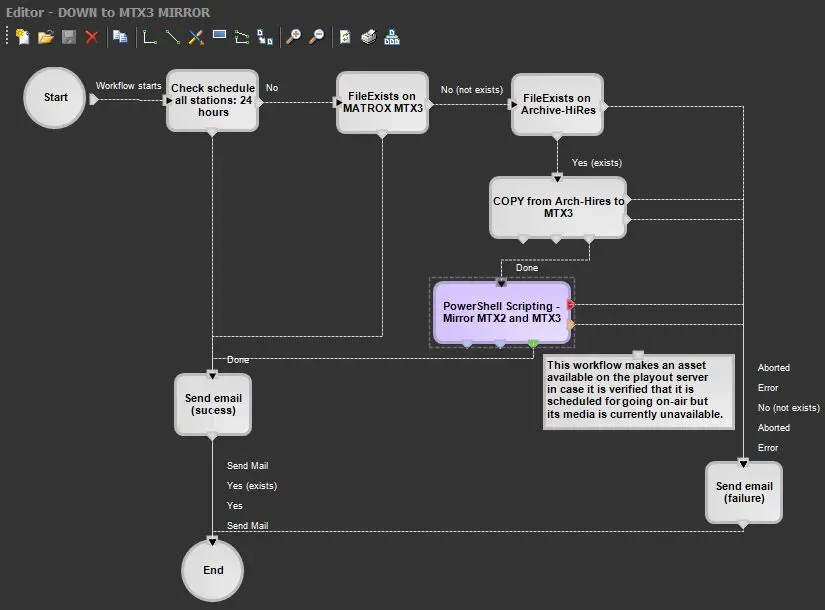
5. Use the T-Workflow Designer to include the action in a T-workflow (e.g. mirror files between two servers after a copy)
Export Powershell Variables into T-Workflow Params
Export_Powershell_Variables_into_T-Workflow_Params
Configuring T-Workflow Comments Retention
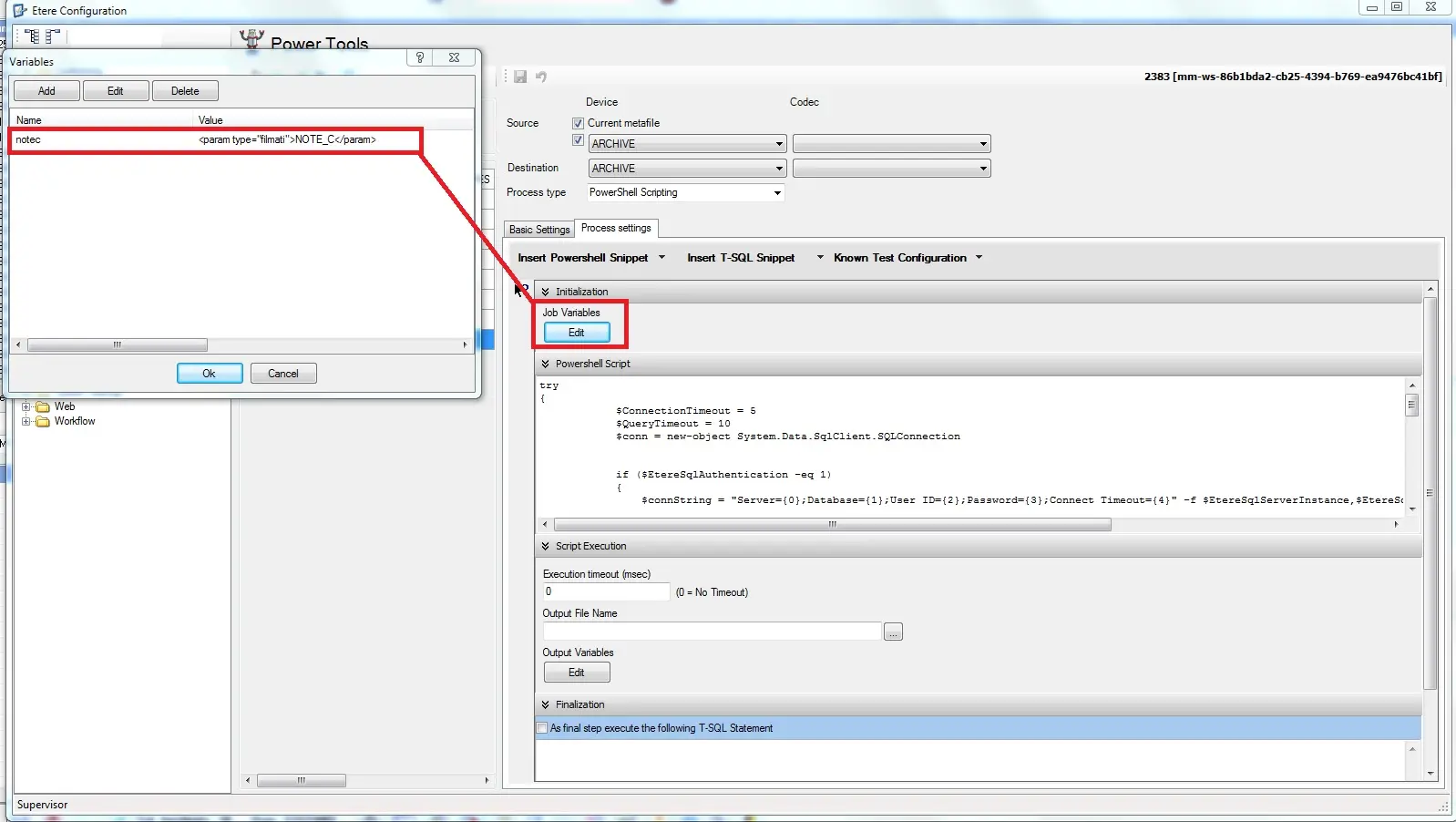
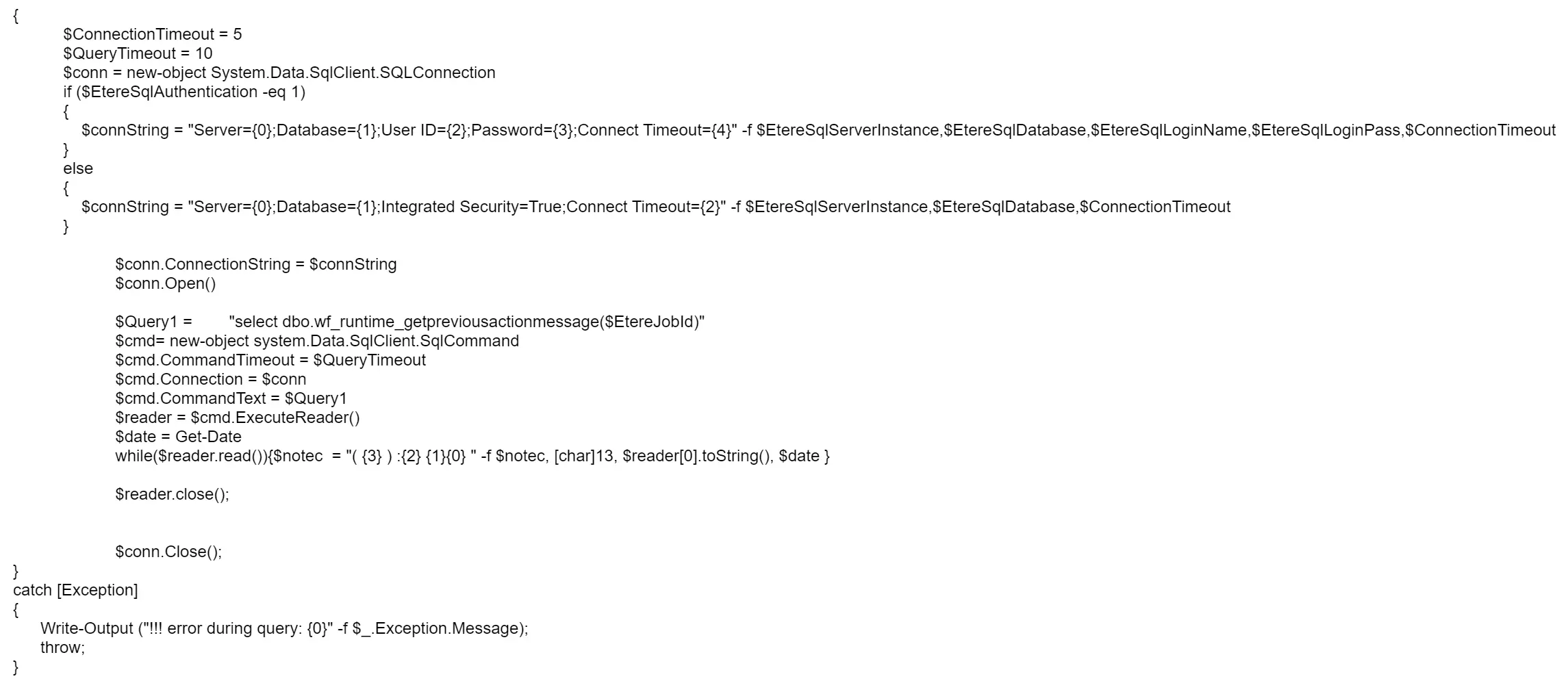
To configure this action you have to paste the script below in the ownership text area, set a Job Variable: Name = "notec" , Value = Asset Data -> NOTE_C
and an Output Variable : Name = "notec" , Value = Asset Data -> NOTE_C.
This config will use the NOTE_C field (but also another field can be used, such as NOTE_A, and NOTE_B), the script will add to NOTE_C (Media library > Properties > NOTEC, note that users can change the label of that tab, the script will work anyway) the last note on the top showing the date and time as follows:
The user will find this info in Media Library > Relationship tab.
Media_Library_-_Relationship_tab
You can find the Powershell script below:
Powershell_script
 Power_Tools
 Export_Powershell_Variables_into_T-Workflow_Params
 Media_Library_-_Relationship_tab
 Powershell_script